Optimizing your intent-based opt-out setup
You need permission to edit account settings to use this functionality.
You will learn
Learn how to catch more opt-outs without adding “reply STOP” to every message: turn on automatic replies to unclear messages, and set up an internal alert to review replies Klaviyo doesn’t recognize.
About intent-based opt-outs
When a subscriber replies to one of your texts, Klaviyo’s unsubscribe detection checks the reply for signs that they want to opt out. If it recognizes an opt-out, such as STOP, a standard keyword, a common misspelling, or a clear request, Klaviyo unsubscribes the profile automatically.
Some replies don’t clearly signal an opt-out. When Klaviyo can’t tell what the subscriber means, the reply is labeled with the Message Type unrecognized, and the profile stays subscribed. Automatic detection can’t classify every possible phrasing, so reviewing these replies helps you honor opt-outs that Klaviyo doesn’t act on automatically.
This article covers two steps:
- Turn on automatic replies that send opt-out instructions when a message might be an opt-out.
- Set up an internal alert so your team can review unrecognized replies.
These steps help you keep up with vague opt-outs if you don’t include opt-out language in every message.
Reply with opt-out instructions to unclear messages
When a reply looks like it might be an opt-out but isn’t clear enough for Klaviyo to act on automatically, you can have Klaviyo respond with instructions to text STOP.
- Log in to your Klaviyo account.
- Navigate to Settings > Text message > Keyword responses.
- Next to the STOP keyword response (“Profile is unsubscribed”), click Edit.
- Under Unsubscribe detection, check the box for Reply with instructions on how to unsubscribe.
- Click Save.
This reply only goes out for messages Klaviyo flags as possible opt-outs. It doesn’t apply to replies that aren’t automatically flagged, so use it together with the alert below.
Set up an alert to review unrecognized replies
Create a flow that notifies someone on your team whenever a subscriber sends a reply Klaviyo labels as unrecognized. That person or your team can then review each message and decide whether to unsubscribe the profile.
Create the flow
- Navigate to Flows and click Create flow.
- Select Build your own, and give the flow a name, such as “Unrecognized text alert.”
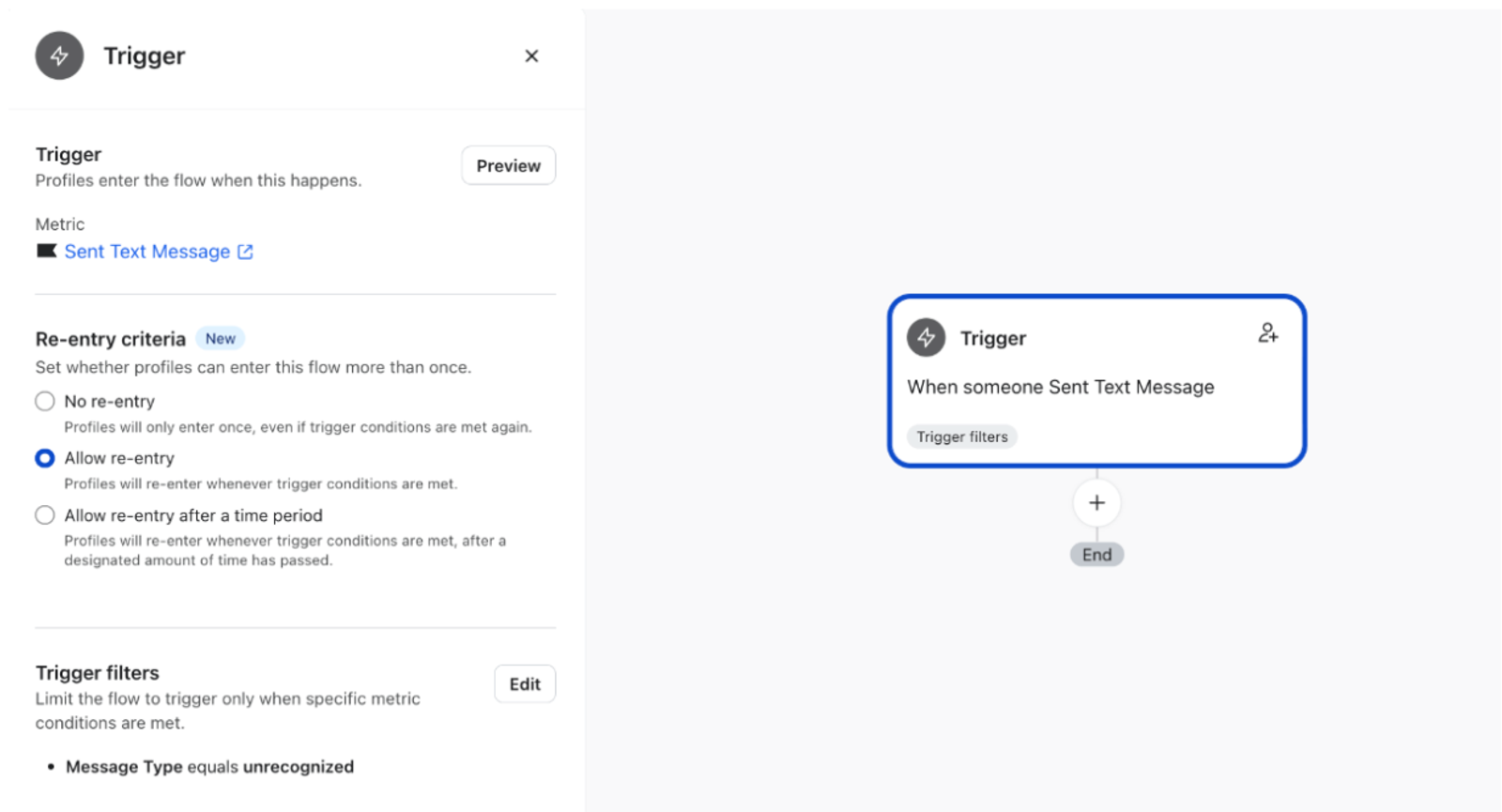
- For the trigger, select Metrics, then choose the Sent Text Message metric.
- Add a trigger filter: Message Type equals unrecognized.
- Save the trigger.
- In the flow settings, set the flow to allow profiles to enter more than once. This makes sure you’re alerted every time someone sends an unrecognized reply, not just the first time.
Add the internal alert
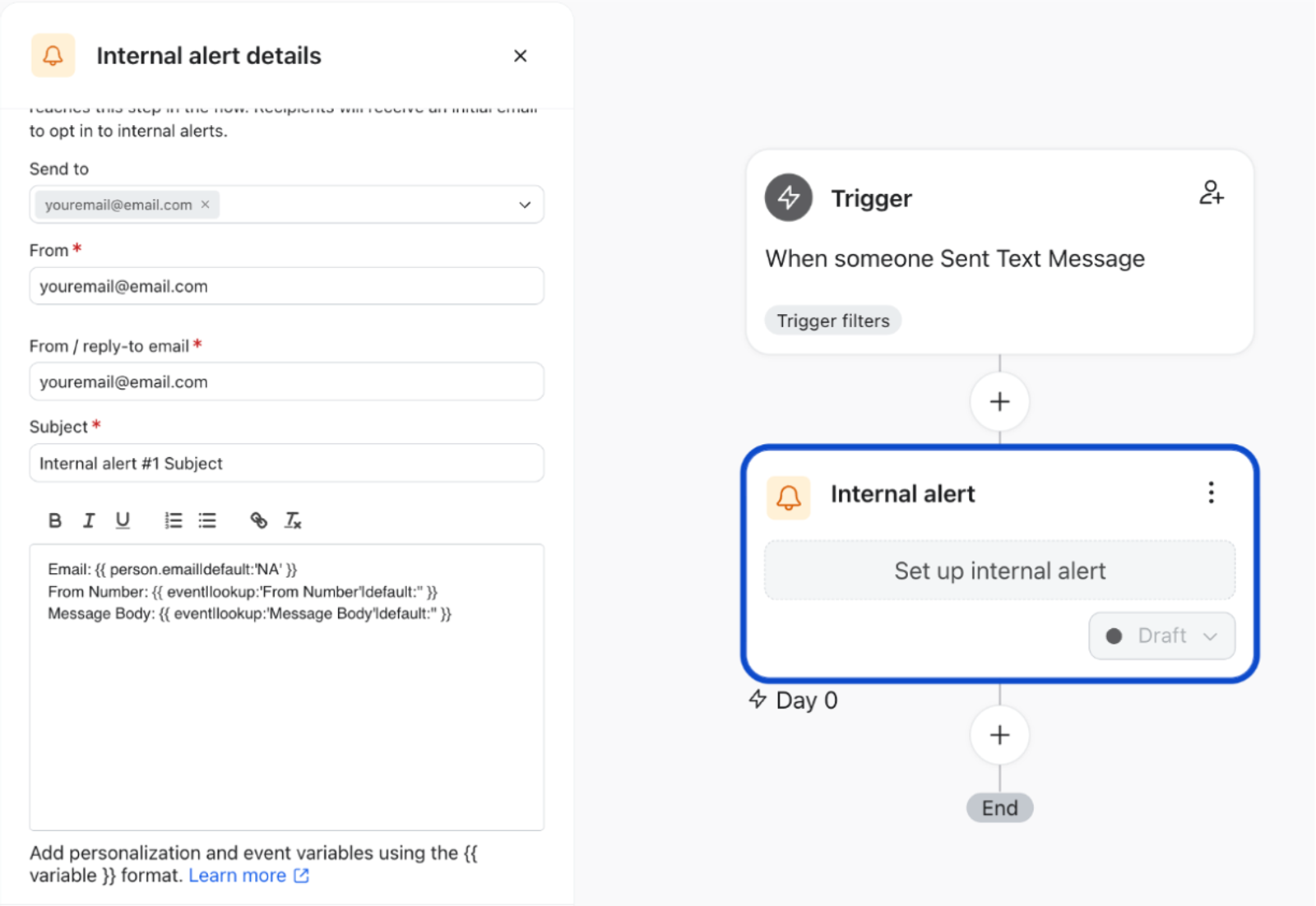
- Drag an Internal alert action below the trigger.
- Choose who should receive the alert.
- Write the alert message. For example: “You received a new unrecognized text that could be an opt-out. Please review to see if the person needs to be unsubscribed from text message marketing.”
- Add variables so your team can see who sent the reply and what it says. Paste the following into the message body:
Email: {{ person.email|default:'NA' }}From Number: {{ event|lookup:'From Number'|default:'' }}Message Body: {{ event|lookup:'Message Body'|default:'' }}- The “default” values display instead of a blank if the information isn’t available, such as when a profile only has a phone number. You can also click Preview to find and insert other event variables.
- Click Save.
For more on internal alerts, see How to set up an internal alert.
Turn on the flow and test it
- Set the flow live.
- Send a text message such as “I don’t want this” to your account’s sending number.
- Check that the alert arrives at the recipients you selected, with the email, number, and message body filled in.
Review and act on alerts
When you receive an alert, read the message and decide whether the subscriber is asking to stop texts. If they are, unsubscribe the profile from text message marketing.
Additional resources
- Understanding the opt-out options for an SMS message
Learn about the 2 opt-out options for an SMS: unsubscribe instructions or unsubscribe link. This article describes both options, including how they work and when each can be used.
- How to configure your opt-out keyword settings
Learn how to control when an opt-out keyword results in an unsubscribe.
- Understanding internal alert use cases
Learn how to notify members of your internal team or external partners when a customer enters or reaches a certain point in a flow. Use cases include setting an internal alert for: