How to win back WhatsApp marketing consent during transactions
You will learn
How to build a flow that asks customers who agreed to transactional WhatsApp messages at checkout to also agree to WhatsApp marketing messages.
Before you start: WhatsApp must be set up in your Klaviyo account, and your store must be connected through the Shopify integration.
How the flow works
Some customers agree to receive WhatsApp messages about their order at checkout, but skip the option to receive marketing messages. These customers have transactional consent only. You can send them order updates, but you cannot send them WhatsApp marketing.
This flow sends a double opt-in (DOI) message to those customers after a later purchase. The message asks them to agree to marketing messages. A customer who agrees is subscribed to WhatsApp marketing.
We recommend sending the request after a customer's second or third purchase, not their first. A customer who has already bought from you more than once is more likely to welcome the request. Asking on the first transactional message can feel premature.
Choose a double opt-in template
The request must be sent as a WhatsApp template, and the template must use the transactional message intent. A click-to-chat link does not apply to this flow.
Klaviyo adds a transactional double opt-in template to your account when you set up WhatsApp. You can use it as it is.
If you want to use your own template, create it and get it approved by Meta before you add it to the flow. A template that is not approved cannot be sent.
Whichever template you use, the message must name your business, state that it is a request for marketing consent, and include a way to opt out.
Note: Meta can reclassify a template as marketing after it reviews it. A template that Meta reclassifies as marketing cannot be used in this flow. If this happens to the default double opt-in template, submit a new transactional template to Meta and wait for approval before you use it.
To check which templates are available:
- Select Content, then select Templates.
- Select the WhatsApp saved tab.
- Select Message intent, then select Transactional.
- Find your double opt-in template and check its status is Approved.
If you need help creating or submitting a template, see How to create a WhatsApp template.
Build the flow
You can build the flow manually, or ask Composer to build it for you.
Build the flow with Composer
- Select Flows, then select Create flow.
- Enter a name for the flow.
- Select Create with Composer.
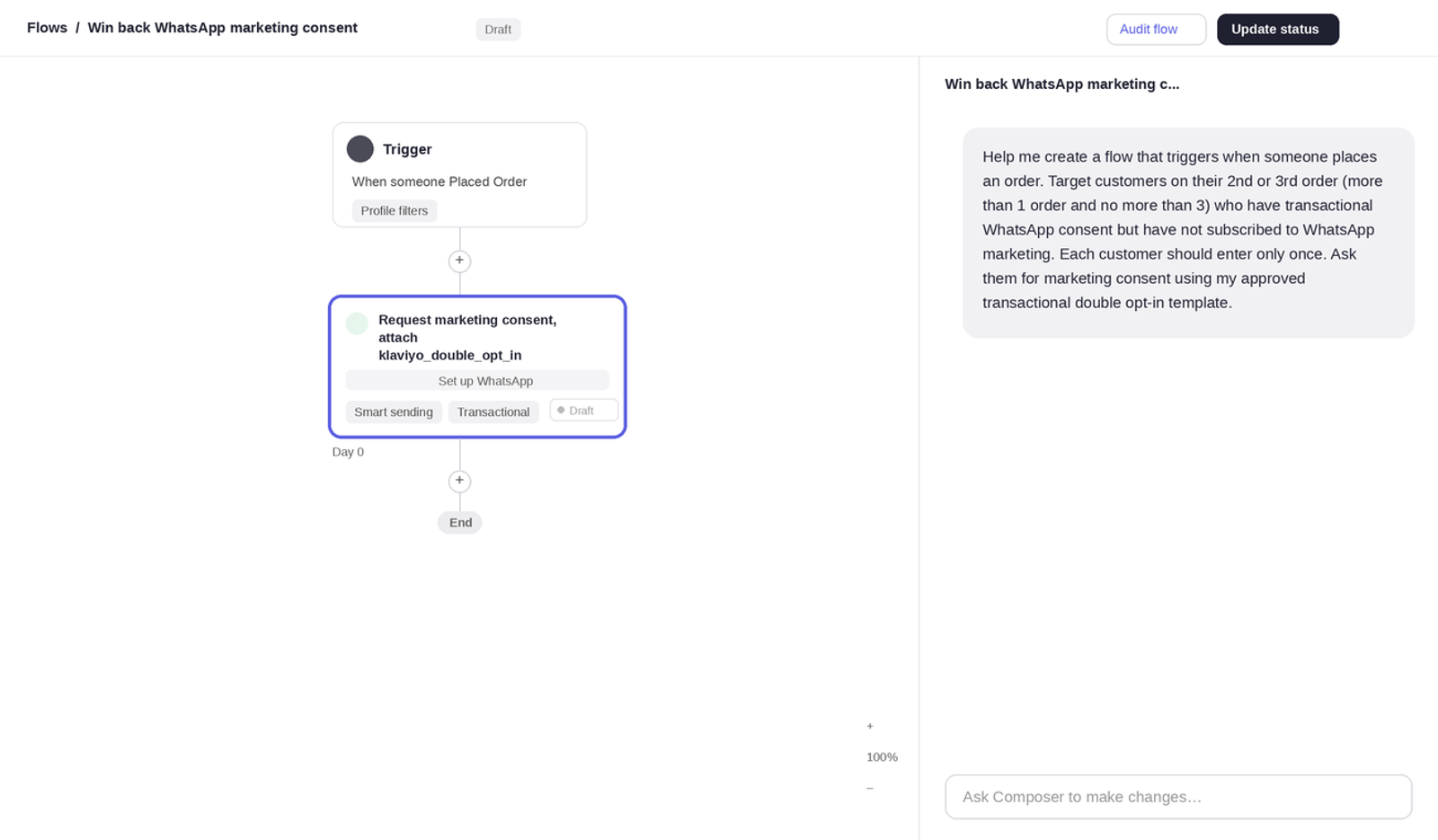
- Enter a prompt that describes the flow. Include the trigger, the order count, the double opt-in template and the audience. For example: "Help me create a flow that triggers when someone places an order. Target customers on their 2nd or 3rd order (more than 1 order and no more than 3) who have transactional WhatsApp consent but have not subscribed to WhatsApp marketing. Each customer should enter only once. Ask them for marketing consent using my approved transactional double opt-in template."
- Review the flow that Composer builds against the settings in the next section.
- Select the double opt-in template in the WhatsApp message if Composer has not attached it.
Build the flow manually
- Select Flows, then select Create flow.
- Enter a name for the flow.
- Select Create manually.
- Select the trigger, and set the trigger and profile filters as described in the next section.
- Add a WhatsApp message to the flow.
- In the message, select Use template, then select your transactional double opt-in template.
- Review the message settings, then select Save.
- Set the flow status to Live.
Set the trigger and profile filters
These settings must be in place for the flow to reach the right customers.
- Select the Trigger.
- Under Metric, select Placed Order.
- Under Re-entry criteria, select No re-entry. Profiles then enter the flow once, even if the trigger conditions are met again.
- Under Profile filters, select Edit.
- Add the condition Placed Order is greater than 1 over all time.
- Add the condition Placed Order is at most 3 over all time.
- Add the condition Person cannot receive WhatsApp marketing, because the person never subscribed.
The first two conditions limit the flow to customers on their second or third purchase, which we recommend. You can change these order counts to suit your business. The last condition limits the flow to customers who have not agreed to WhatsApp marketing.
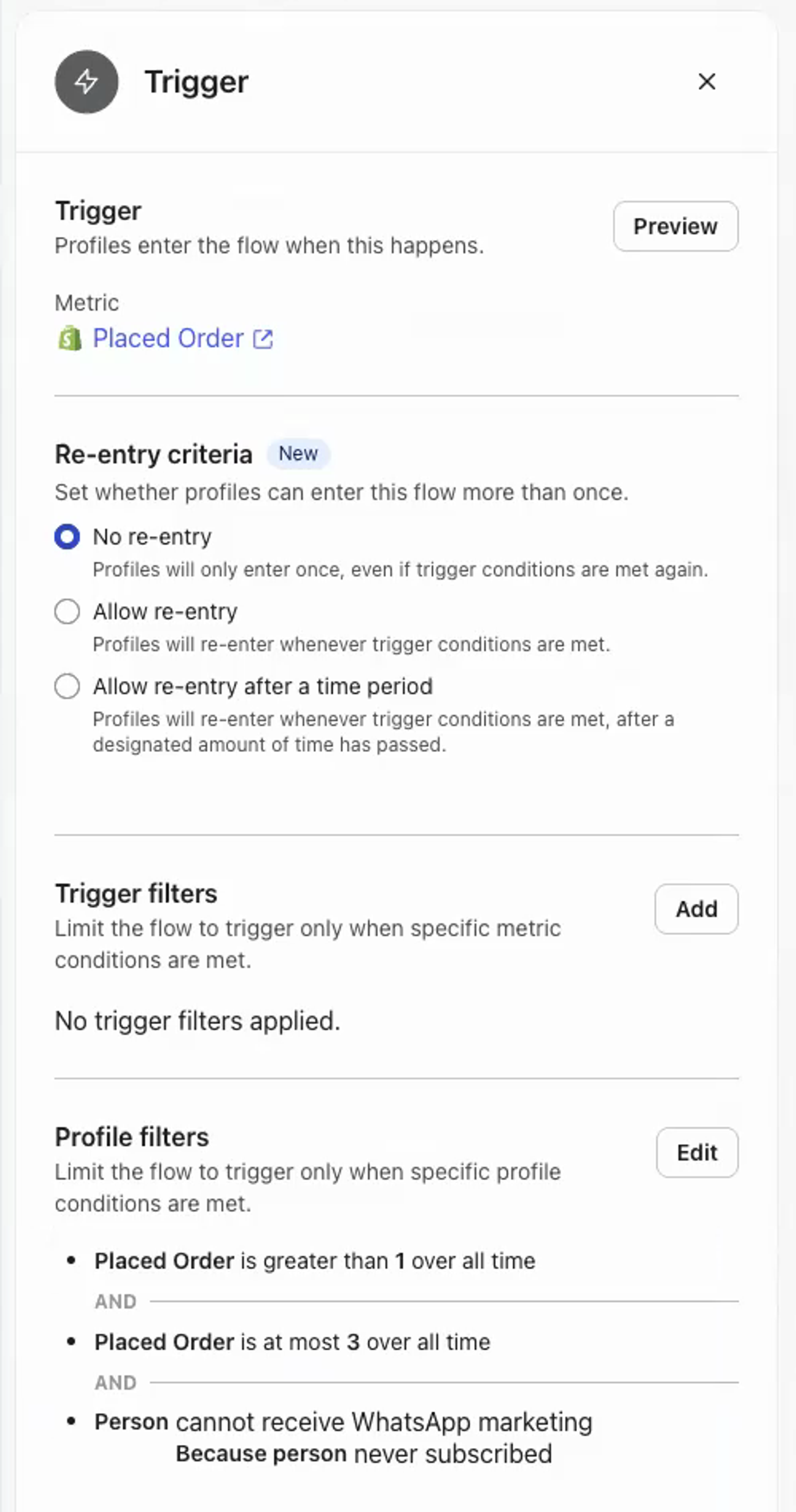
Note: Leave Trigger filters empty unless you have a specific reason to limit the trigger further.
Rules and limits
A customer who does not reply to the double opt-in message within 24 hours is not opted in. Only customers who reply to agree are subscribed to WhatsApp marketing. Continue to send them order updates as before.
Troubleshooting
The template is not available to select in the flow. Check that the template is approved by Meta and that its message intent is transactional. Templates that are pending, rejected or paused cannot be added.
Customers are not entering the flow. Check that the trigger is Placed Order, that the flow is live, and that the customer's order count and consent match the profile filters. Customers who have already entered the flow do not enter again, because re-entry is turned off.
Customers received the message but were not subscribed. A customer must reply to agree. A message with no reply does not subscribe them.