How to sync SMS consent with PAR Punchh
You will learn
Learn what data syncs from PAR Punchh to Klaviyo and where to view it. This includes data related to account activity, rewards, and check-ins.
If you have not already, read our guide on getting started with PAR Punchh for step-by-step instructions on integrating, before continuing with this article.
Before you begin
- Make sure you have already integrated PAR Punchh with Klaviyo. Learn how in our guide on Getting started with PAR Punchh.
- Make sure you have set up SMS in Klaviyo and have an SMS list that is set to double opt-in. Learn more about the double opt-in process.
- Make sure you have admin or similar access privileges on your PAR Punchh account, including access to the Whitelabel and Guests sections of the Punchh dashboard. If you do not see these sections, reach out to your Punchh representative.
- Make sure your Punchh signup experience collects SMS consent separately from email consent, and displays compliant SMS disclosure language at the point of collection. Learn more about SMS consent collection and setting up your SMS disclosure language.
Klaviyo only syncs SMS consent collected in Punchh going forward, from the moment you complete the setup below. Klaviyo does not backfill SMS consent for guests who opted in before the sync was enabled.
Setting up the SMS consent sync in Punchh
There are 2 things to set up in Punchh:
- An OAuth app, which gives you the Client ID and Secret that Klaviyo uses to write confirmed consent back to Punchh.
- A guest profile field, which is where Punchh stores each guest's SMS marketing opt-in.
Create an OAuth app and capture your credentials
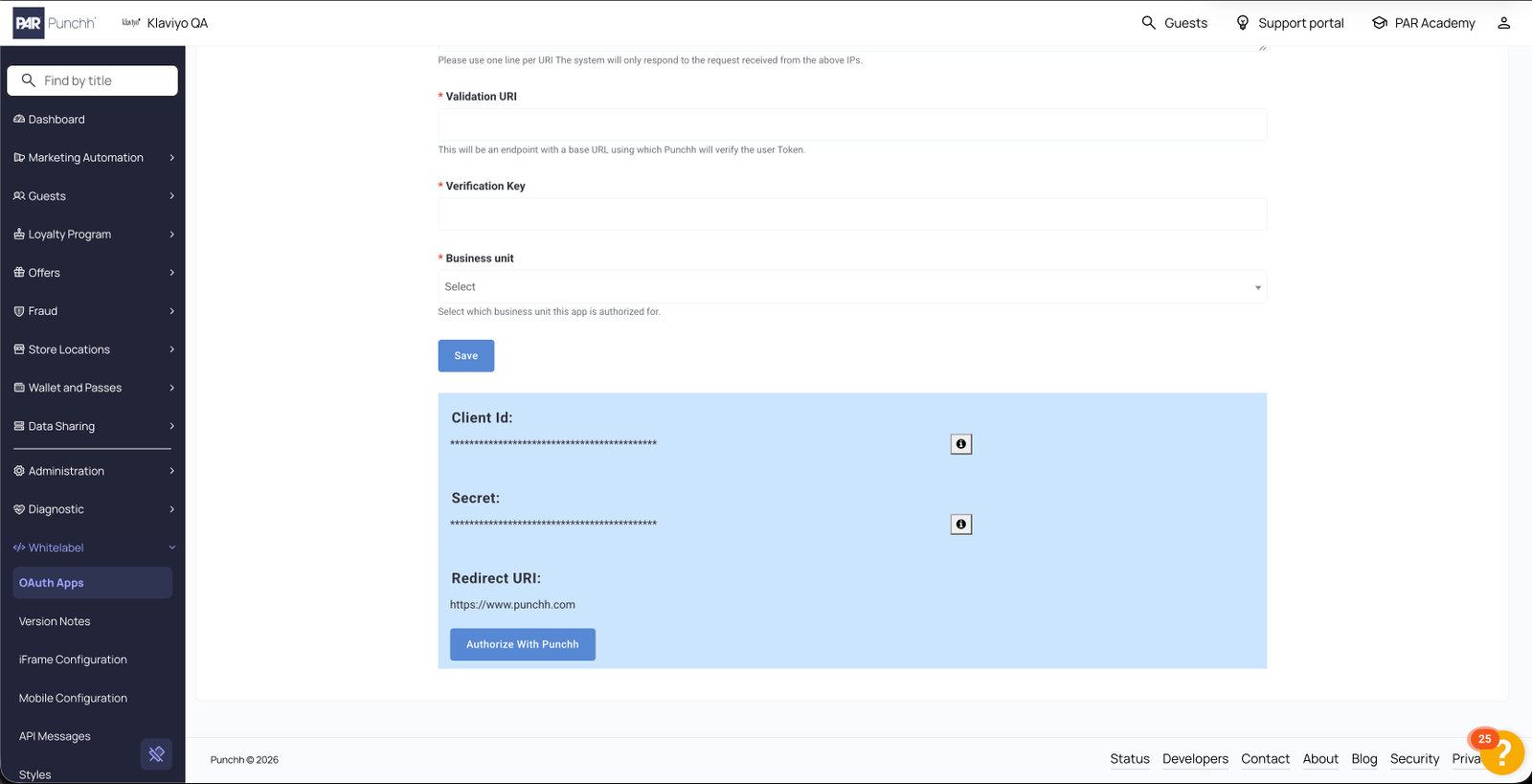
- Log in to your PAR Punchh admin.
- Navigate to Whitelabel > OAuth Apps > New Application. For more information, see this article from Punchh's Help Center.
- Create the application. The callback URL and SSO settings are not used by this integration, so you can leave them at their defaults.
- Copy the Client Id and Secret and save them to a secure location. You will enter both in Klaviyo.
- Request your POS business key from your Punchh representative and save it to a secure location. You will also enter this in Klaviyo.
If you do not see the Whitelabel section in your Punchh dashboard, it has not been enabled for your user. Reach out to your Punchh representative or Customer Success Manager to request access, or to have the OAuth app created on your behalf.
Set up your profile field
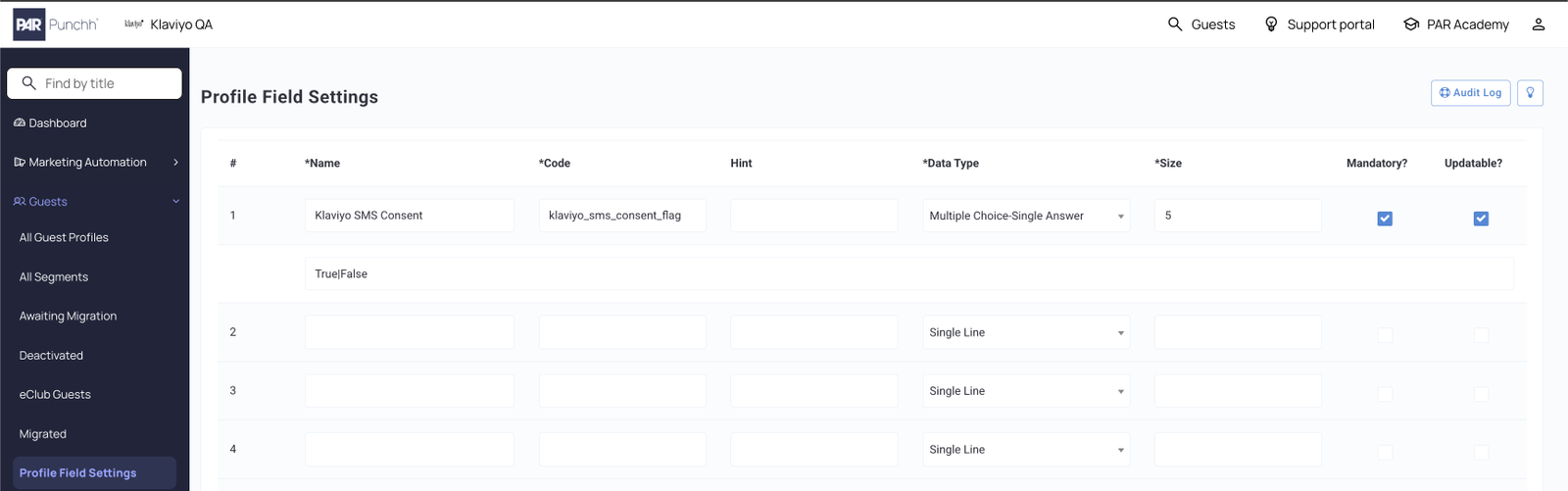
Punchh stores each guest's SMS marketing opt-in in a custom guest profile field. Klaviyo looks for this field by name in every guest webhook, so it must be configured exactly as described below or the sync will not work.
- In your PAR Punchh admin, navigate to Guests > Profile Field Settings.
- Create a new profile field using the following values:
- Code:
klaviyo_sms_consent_flag - Type: Multiple Choice-Single Answer
- Size: 5
- Mandatory: Yes
- Updatable: Yes
- Values: True|False
3. Save the profile field.
4. Confirm that the SMS marketing consent checkbox on your signup form (iFrame or mobile app) writes to this profile field.
The Code value must be exactly klaviyo_sms_consent_flag, in lowercase. This value is not configurable in Klaviyo. If the code does not match, Punchh will still send guest webhooks to Klaviyo, but Klaviyo will not find a consent value in them and no SMS consent will sync.
If you do not see Profile Field Settings under Guests in your Punchh dashboard, reach out to your Punchh representative to have the custom profile field configuration enabled for your business.
Because this checkbox is the point at which your guests consent to SMS marketing, it must be accompanied by compliant SMS disclosure language, and it must be separate from any email consent checkbox. Klaviyo's double opt-in message is a confirmation, not a disclosure. Learn more about SMS consent collection.
Setting up the SMS consent sync in Klaviyo
Once you have your Client ID, Secret, and business key, enable the sync in Klaviyo.
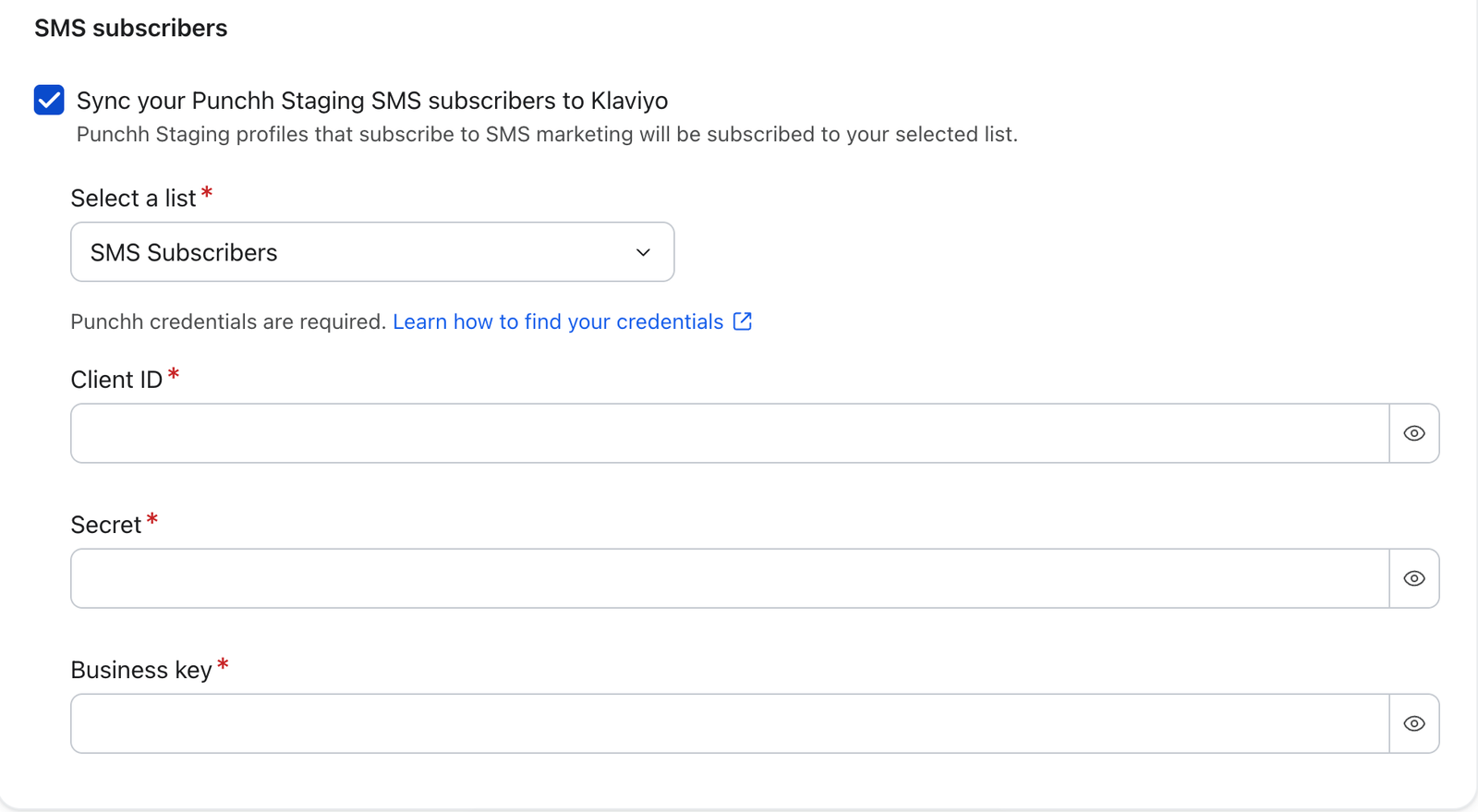
- In Klaviyo, select the Integrations tab.
- Select Punchh.
- Check the setting to sync future Punchh SMS subscribers to Klaviyo.
- Select your main SMS list (or another list, if desired) from the dropdown.
- Enter the following credentials:
- Client ID: the Client Id from the OAuth App in Punchh.
- Secret: the Secret from the OAuth App in Punchh.
- Business key: your POS business key, which you can request from your Punchh representative.
6. Click Save.
The list you select must be set to double opt-in in Klaviyo. Double opt-in is what makes this sync compliant, and it cannot be bypassed. Learn how to check and change this setting in our guide to the double opt-in process.
If you are setting up the Punchh integration for the first time, you will complete these same steps as part of the initial setup flow. See getting started with PAR Punchh.
How the Punchh SMS consent sync works
Once both sides are configured, SMS consent flows between Punchh and Klaviyo automatically:
- A guest opts in to SMS in Punchh. When someone checks the SMS marketing consent box during signup (or later, when updating their profile), Punchh sets the
klaviyo_sms_consent_flagprofile field to true and sends a guest webhook to Klaviyo. - Klaviyo starts the double opt-in process. When Klaviyo receives a webhook where the profile field is true and a phone number is present, it subscribes that phone number to the SMS list you selected in your Punchh integration settings. Because that list is set to double opt-in, Klaviyo automatically sends the guest a confirmation text.
- The guest confirms. The guest replies to the double opt-in text to confirm their subscription. Until they reply, they are not a member of the list and will not receive any marketing messages from you.
- The guest is added to your list. Once confirmed, the guest is added to the SMS list specified in your Punchh integration settings, and their Klaviyo profile records SMS marketing consent with a consent source of Punchh.
- Klaviyo confirms back to Punchh. Klaviyo then sends that confirmation back to Punchh, which sets the guest's native sms_subscription field to true. This keeps both systems in sync on who is a confirmed SMS subscriber.
Outcome
You've now set up the SMS consent sync between PAR Punchh and Klaviyo. Guests who opt in to SMS marketing in Punchh will receive a Klaviyo double opt-in text, and once they confirm, they will be added to your Klaviyo SMS list and marked as subscribed in Punchh.
Additional resources
- Getting started with PAR Punchh
Learn how to integrate with PAR Punchh, an all-in-one loyalty and engagement platform for restaurants and convenience stores.
- PAR Punchh data reference
Learn what data syncs from PAR Punchh to Klaviyo and where to view it. This includes data related to account activity, rewards, and check-ins.
- Understanding the double opt-in process
Learn the difference between single and double opt-in, why double opt-in is important for both SMS and email, and how to update the opt-in settings for a list or keyword in Klaviyo.
- Understanding SMS consent collection
Learn about SMS consent, including what counts as SMS consent, how you can collect it, and how resubscribes work. SMS consent refers to whether someone is opted in (i.e., if they have agreed to receive marketing text messages from your brand).
- How to set up your SMS disclosure language
Learn how to create SMS disclosure language on the account-level, making it easy to add to your sign-up forms and subscribe pages.