How to create flows with Composer
Composer is Klaviyo's AI marketing agent. It can draft a whole flow and the email, push, SMS, and MMS messages inside it from a simple prompt, so you spend less time staring at a blank canvas and more time refining a strong first draft. Composer drafts and QAs the content, but you stay in control: you review, edit, and approve everything before it goes live.
You will learn
- How to brief Composer with a clear goal
- How to review and edit the flow and the email, push, SMS, or MMS message drafts it creates
- How to apply your brand voice to generated content
- How to review and approve before sending, and where to disclose AI use
- Tips for getting the best results, including what to expect from image-heavy templates
Before you begin
You'll get the best results if your Klaviyo account already has brand context to draw on, such as a configured brand voice, brand colors and fonts, and a history of past sends. Composer grounds its drafts in your real account context, not a generic template. Brand-new accounts with little to no context will see weaker results until that context builds up.
Composer first shows a preview of the proposed flow. Once you create the flow draft, you can edit it and its messages in the same editors you already use. The saved output is fully editable, not locked, so you can treat it like any other flow you build in Klaviyo. Review the draft and make any needed changes before setting it live.
Step 1: Brief Composer with your goal
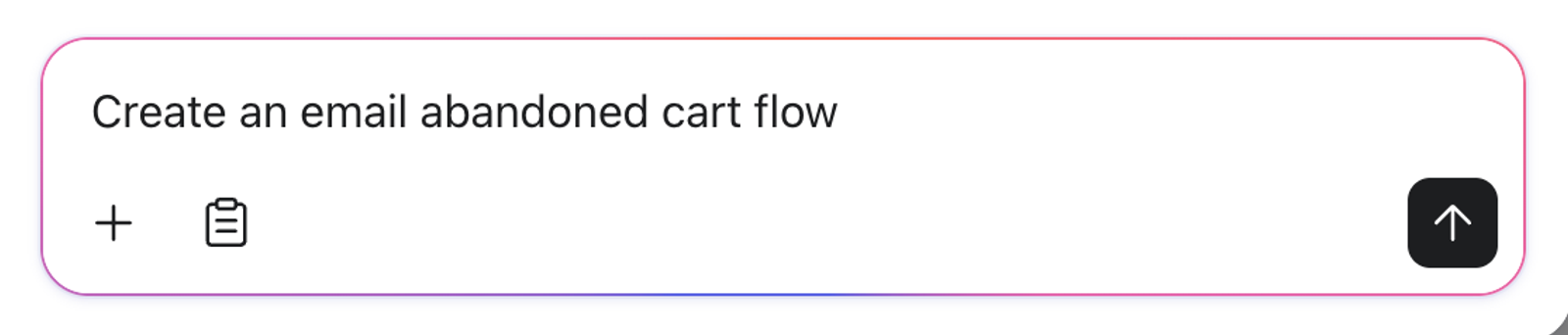
Click the sparkle icon labeled Open Composer in Klaviyo and describe the flow you want. The more specific your prompt, the better the draft. Strong prompts usually include 3 things:
- The flow intent (for example, "post purchase" or "browse abandonment")
- The channels you want to use (for example, "2 email messages" or "3 email messages and 1 SMS message")
- Any other relevant details (for example, the metric you want to use, the content you want to emphasize within the messages, or "send the first message after a 1-hour delay")
Composer works best with natural language, whole sentences rather than keywords. If you're not sure what to write, copy a product or event description from your website, or write as if you're describing the flow to a friend. You can also give Composer a head start by attaching an existing Klaviyo template. When you start from existing content, describe what you want Composer to change rather than re-describing the whole thing.
You can use a connected app to inform your brief. For example, ask Composer to review products bought together in Shopify and suggest items to feature in a post-purchase flow. Connect the app first and review its findings before requesting the flow. See How to connect and use apps in Composer.
You can create flows and flow messages for email, push, SMS, and MMS, and you can use Composer to draft the flow structure first before creating the message contents. For more on writing prompts that get strong drafts, see Prompt best practices for Composer.
Generating a flow uses Composer credits. Usage varies with the work Composer performs, including the messages and revisions you request. See How your Composer plan works for details about usage and your plan.
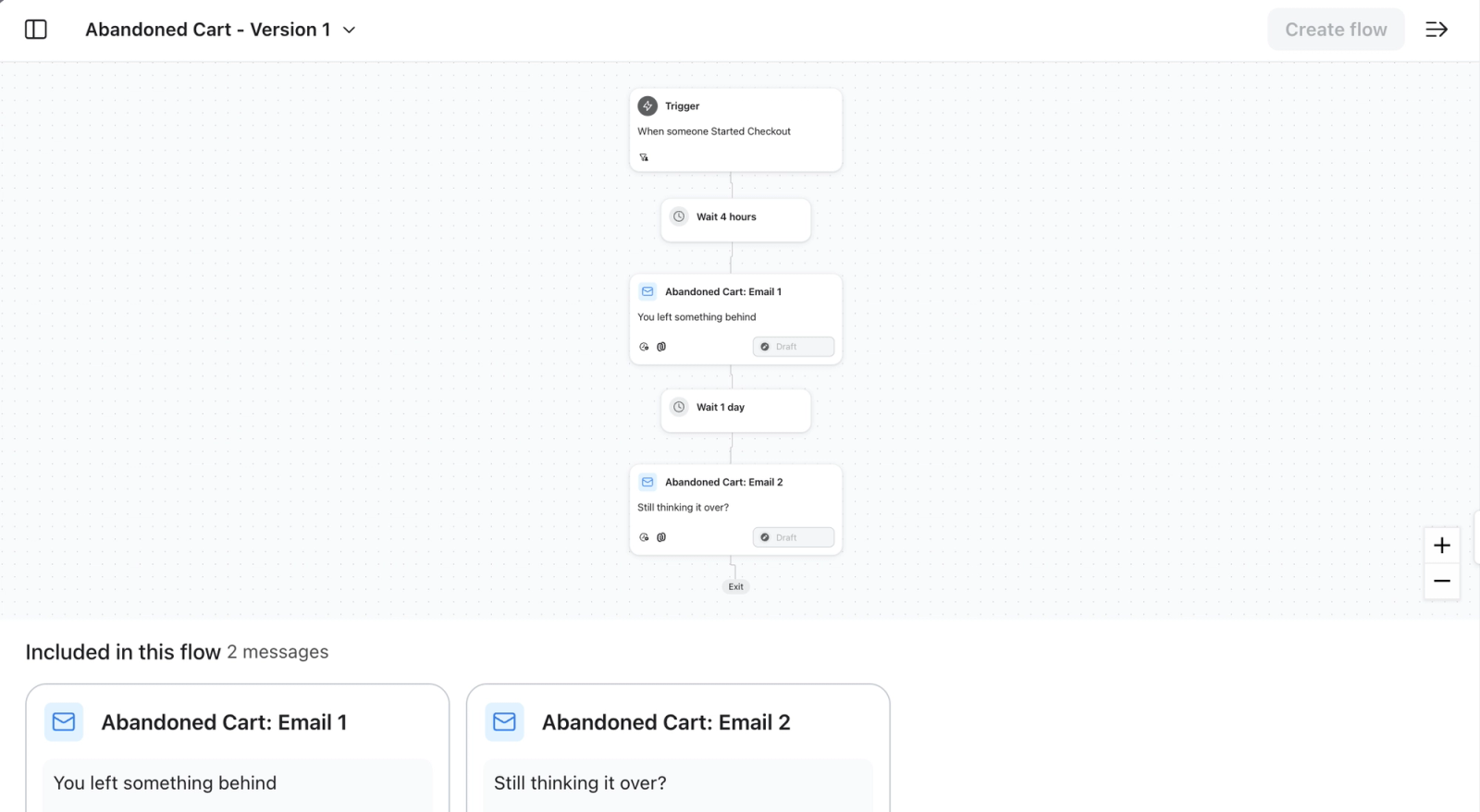
Step 2: Review the preview and create an editable flow draft
When Composer finishes, review its proposed flow in the preview. The preview is read-only; it is not yet an editable flow in the flow builder. You can ask Composer to revise the proposal before creating the flow draft.
- Review the flow structure: Check that the trigger, delays, message sequence, and filter conditions reflect your goal.
- Review each message: Select a message to preview its content. If you requested only the flow structure, complete the message content before setting the flow live. For an email without a template, click Choose template to select one.
- Check every line for accuracy: Confirm that event properties used, prices, discounts, product names, dates, and links are correct. Composer is designed to avoid referencing products or offers that don't exist, but generated content can occasionally be wrong, so verify it.
- Click Create flow draft to save the proposed flow and open it in the flow builder. Its messages remain in draft; creating the flow does not set it live.
- Edit the copy and layout: Open each message in the flow builder. Add or swap images, rewrite text, adjust the CTA, and change any settings, just like any other flow message in Klaviyo.
- Refine it: You can request quick changes such as shorter copy, a different layout, or a new CTA, and generate variations to compare. (Depending on the draft, some changes are made directly in the editor rather than back in chat.)
For SMS and MMS, Composer writes channel-appropriate, compliance-aware copy. Still review message length, links, and any restricted content yourself before sending.
This content is created by AI. Please review it and make sure everything looks right before you use or send it. You are ultimately responsible for the content of your messages.
If the draft isn't close to what you want, revise your prompt and generate a new draft rather than editing a weak starting point line by line.
Step 3: Complete your final review and set the flow live
Composer drafts and QAs your flow, but you always make the final call. Before setting the flow live:
- Confirm the flow and each message’s content is accurate, on-brand, and complete.
- Check that filters, triggers, links, audience, and send settings are correct.
- Make sure you've added any required AI-use disclosure.
When a flow includes AI-generated content, you may need to disclose that to your recipients. Composer does not add disclosures for you. For the disclosure language to use and where to place it, see Using Composer responsibly (AI disclosure).
Review generated content before setting it live. Make any needed edits and approve the final content. You are responsible for the final message and for meeting any legal or disclosure requirements that apply to it.
When your draft messages are ready, set them live in the flow builder:
- Click Review and turn on in the upper right. If the flow already has messages that are not in draft, the button is labeled Update status.
- Resolve any alerts about incomplete messages or settings, then select Live.
- Select Update status now and click Save to apply the change. Review which messages will be updated before saving.
Tips
- Set expectations for image-heavy templates: Content generation is weaker on image-heavy, Canva-style, or fully image-based templates. If your brand's emails are built primarily from flattened images, you'll likely need to do more editing, and a generated draft may not be send-ready. Start from a prompt or a drag-and-drop layout for the strongest results.
- Add context when the output is weak: If a draft feels generic, add more detail to your prompt: the offer, the audience, the tone, and try again.
- Generate variations: Ask Composer for a few versions of a subject line or layout, then A/B test a couple of options rather than assuming the first draft is the best one.
- Refine in one conversation: You can create and adjust multiple messages in a single Composer conversation, which keeps context consistent across them.
FAQ
Does Composer automatically set my flow live?
Composer does not set a flow live on its own. Creating a flow draft leaves its messages in draft. Review the flow and its messages, make any needed changes, and explicitly confirm the status change when you are ready to set them live.
What channels can Composer create flow messages for?
Composer can draft flows with email, push, SMS, and MMS messages. You can request multiple messages and channels in one conversation, or draft the flow structure first and complete the message content afterward.
Will the draft be on-brand?
Composer works to reflect the brand voice, colors, fonts, and context in your Klaviyo account, so output sounds like your brand rather than a generic style. Keeping your brand voice guidelines current helps.
Why does my generated email look off?
Generated content is weaker on image-heavy or fully image-based templates. If your emails rely on flattened images, expect to do more editing. Adding more context to your prompt also improves results.
How much does it cost to generate a flow?
Generating a flow uses Composer credits. Usage varies with the work Composer performs, including the messages and revisions you request. See How your Composer plan works for details about usage and your plan.
Is the generated content always accurate?
Not always. Like any tool built on large language models, Composer can occasionally produce inaccurate content. Always review prices, discounts, product details, and links before sending. You're responsible for the accuracy of your final content.