How to use dynamic content in WhatsApp templates
Add profile, custom, and event variables to personalize WhatsApp templates. Dynamic content lets you tailor each message with customer data, such as a first name, loyalty tier, product name, or checkout link.
Because WhatsApp templates require approval from Meta before sending, you must follow specific formatting rules when adding variables.
Before you begin
Keep the following in mind before adding dynamic content:
- Always include a default value for every variable.
- Preview your template with real data before submitting it for approval.
- If you include links, add a fallback URL.
- Make sure the profile property or event field exists in your account.
If a variable does not have a default value, Meta may reject the template or the message may fail to send.
Add profile and custom profile variables
Profile variables pull information stored on a customer’s profile, such as first name or email address. You can also use custom profile properties you have created, such as loyalty tier or preferred store location.
Use the Personalization feature in the editor to insert these variables instead of typing them manually.
To add a profile or custom property variable:
- Navigate to Content > Templates.
- Click Create template.
- Select WhatsApp as the channel.
- Choose your message intent: Marketing or Transactional.
- In the body, click Personalization.
- Search for and select the profile property or custom property you want to insert.
- Add a default value using the
|default:'value'filter.
Example:
Hi {{ person.first_name|default:'there' }},Example with a custom property:
Your current loyalty tier is {{ person.loyalty_tier|default:'Valued customer' }}.Meta requires a default value for all variables. The default ensures the message can send even if the profile property is empty.
Add event variables
Event variables pull data from a specific event, such as Viewed Product or Started Checkout. Use event variables to reference a product name, cart value, or checkout URL.
To insert event variables:
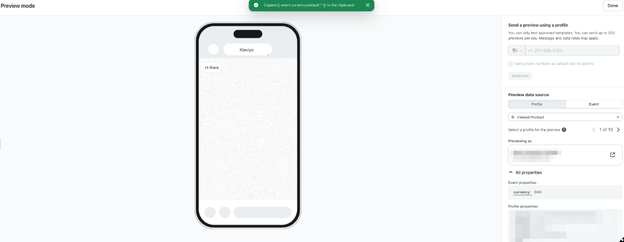
- In the template editor, click Preview & test.
- Search for and select a profile associated with the relevant event.
- Select the specific event instance you want to preview.
- Click All properties to view available event variables.
- Copy the variable tag for the property you want to use.
- Paste the variable into your template.
- Add a default value using the
|default:'value'filter.
Example:
You recently viewed {{ event.Name|default:'an item on our site' }}.If you are including a link, always provide a fallback URL:
Complete your purchase here: {{ event.URL|default:'https://yourwebsite.com' }}Including a fallback URL ensures the message can still send if event data is unavailable.
Referencing custom profile properties with lookup
If a profile property contains spaces or special characters (such as /), reference it using the lookup filter.
For example:
{{ person|lookup:'Birthday' }}Add a fallback value
If the profile property may be missing, add a fallback value using the default filter.
{{ person|lookup:'Birthday'|default:'your birthday' }}This ensures the message still renders if the profile does not contain that property.
Best practices for Meta approval
Follow these guidelines to reduce the risk of template rejection:
- Include a default value for every variable.
- Ensure fallback links use a valid, branded URL.
- Preview the template with real profile and event data.
- Confirm that your variables match existing profile properties or event fields exactly.
If you do not follow Meta’s formatting requirements, your template may be rejected or messages may be skipped.
Next steps
Now that you’ve added dynamic content to your WhatsApp template:
- Submit your template for Meta approval.
- Create a campaign or flow that uses your approved WhatsApp template.
- Test your message with internal profiles before sending to customers.