How to create a multilingual push notification flow with Smart Translations
Learn how to set up a flow to send in multiple languages, depending on the language preferences of your audience. Klaviyo can translate push notification content to 60+ languages.
Localizing flows is great if you have or plan to expand to an international customer base. Sending push notifications in each subscriber’s preferred language allows you to reach a wider audience which can increase overall engagement.
Before you begin
Enable Smart Translations from your account settings.
If you haven’t already, learn the basics of getting started with flows. This article mainly covers translation features for flows.
Translate a flow
Finish editing your push notification in its original language before translating. If you change the original content later, review and update the affected translations before sending.
- Create a flow or edit an existing flow.
- Click on a push notification you want to translate.
- In the Content section of the sidebar, click Edit.
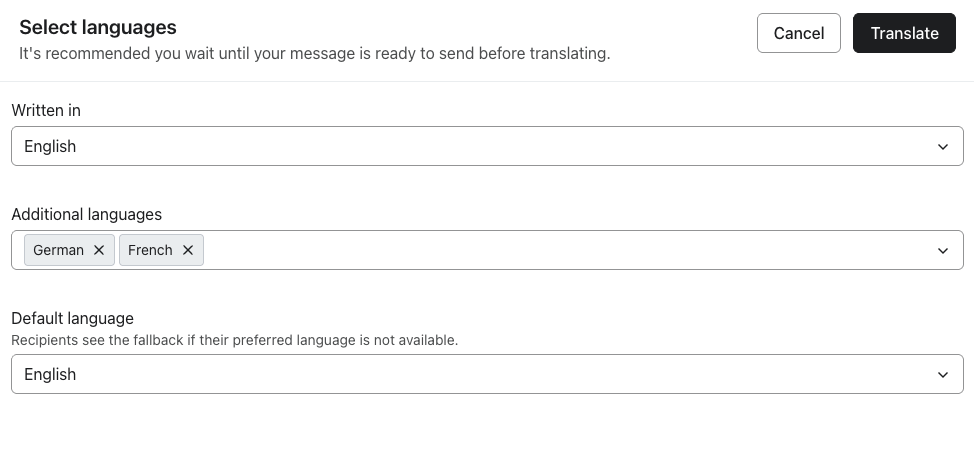
- In the editor, click Translate in the top right.
- Choose the Written in language that the content was originally created in.
- Select what languages you want to translate your content into by checking the box next to each language. This section will include any languages you chose in your translation settings.
- If desired, click the dropdown under Additional languages to view and select languages that aren’t recommended.
- If desired, choose a Fallback language for when a customer’s preferred language is unavailable. This can be different from the original language.
- Click Translate.
- In the translation editor, review the translated text for each language. You can edit text directly and use the edit button next to an image to choose an image appropriate for that language.
- Click a translated text field to edit its text. Your change is saved when you leave the field.
- If you selected multiple languages to translate into, click the arrows at the top or use the dropdown to switch between languages.
- To add another language, open the language selector. To change your selected languages or fallback language, select Manage languages.
- When you’re done reviewing your translations, click Done to return to your flow.
Editing original content after translating
If you edit the original content of the push notification after you’ve already translated, a warning will appear at the top of the editor notifying you that your edits will affect translation.
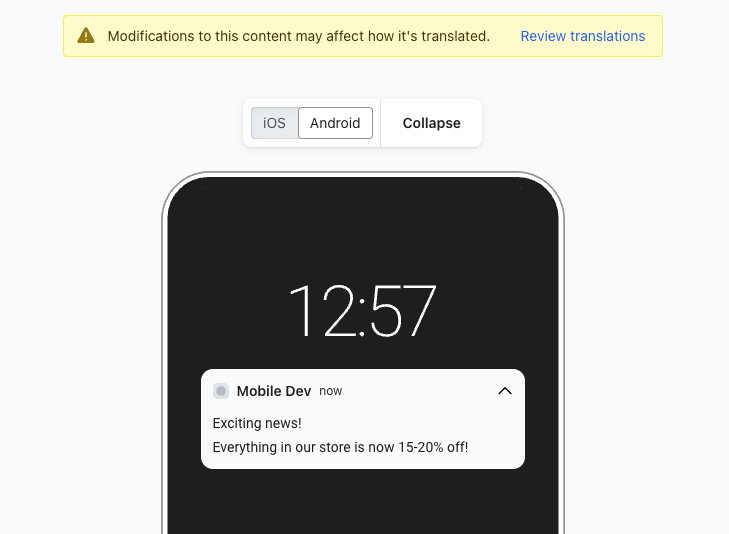
To correct any potential translation errors:
- Click Review translations next to the warning message.
- Click Update translations to update the out-of-sync translations for the selected language. If more than 1 language needs an update, use Update all to update them together. Review the results, especially any text you previously edited by hand.
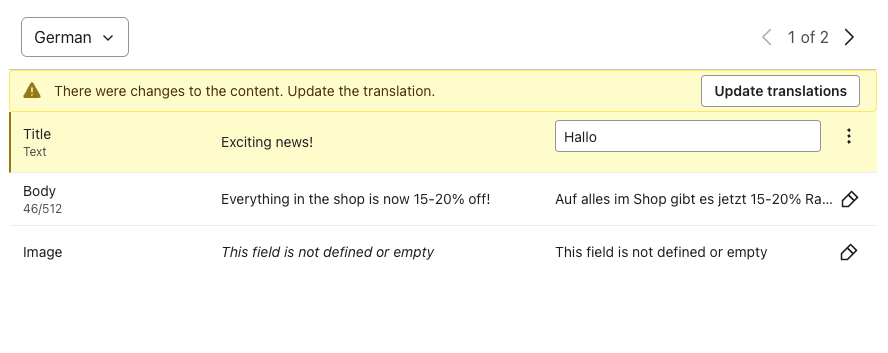
- To handle an individual out-of-sync field, open its View translation options menu. The available actions depend on the field:
- Re-translate - translates any changed text
- Match source – replaces a translated field with its current source value when this option is available. To change an image for a language, use the image’s edit button.
- Edit – manually change a field where this option appears. You can edit push notification text directly in its field.
- Ignore – keep the current translation for an out-of-sync text or URL field and mark it as reviewed.
See which messages are translated
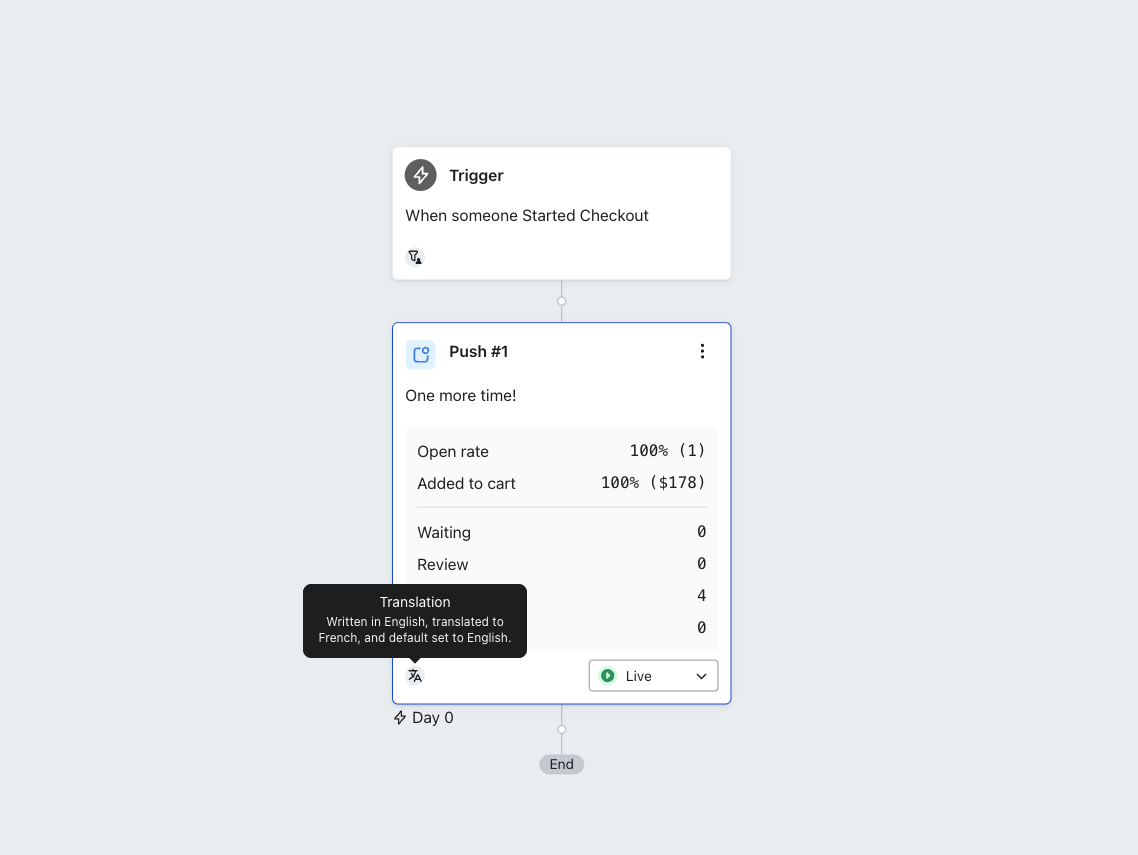
In the flow canvas, you’ll see an icon on the message card for messages that have translations. Hover over the icon to see the translation settings.
Translations for cloned messages and A/B tests
If you clone a flow push notification with translations, the new push notification will keep all translations from the original which you can freely edit. Learn how to clone a flow.
When you create an A/B test, new variations will keep translations from the original push notification.
Additional resources
Learn more about editing flows:
- How to edit a flow
Learn how to edit the details and configuration of a flow in Klaviyo.
- How to change a flow trigger
Learn how to create a copy of a flow in order to create a new version with a different trigger. A copy of the original flow must be created because once you have set the trigger for a flow, you cannot change it. Trigger filters, profile filters, additional email filters, and dynamic content in emails are all reliant on the specific trigger you set for a flow. Most likely, if you change the trigger for an existing flow, this will cause conflicts with your filters and content that are challenging to identify and correct.
- How to use Flows AI to build a flow
Learn how to use Klaviyo's Flows AI to build a flow from scratch. The option to create with AI accepts natural language inputs (i.e., normal phrases and sentences) and helps you choose a trigger and flow structure before you start editing the fine details.