Troubleshooting branded sending domain issues
You will learn
Learn how to diagnose verification issues when setting up your branded sending domain (also known as a dedicated sending domain) in Klaviyo. The steps below apply to all branded sending domain types: marketing, transactional, and service.
A branded sending domain enables you to send emails that appear from your brand, rather than from Klaviyo’s shared domain. For setup instructions, visit our guide on how to set up a branded sending domain.
Most inbox providers enforce sender requirements for bulk senders. Setting up a branded sending domain is part of meeting those requirements. As a reference point, Google considers anyone sending 5,000 or more emails to personal Gmail accounts per day a "bulk sender." All traffic counts toward this threshold, including transactional emails.
Before you begin
Before starting the troubleshooting steps below, confirm that you have attempted to verify your sending domain in Klaviyo and are seeing errors. You or someone on your team will need access to your DNS provider to correct the records.
After you update your DNS records, allow time for the changes to propagate and for cached records to expire. Depending on your DNS provider, this can take up to 48 hours. Klaviyo does not automatically activate your domain after verification, so make sure you are ready to warm your sending infrastructure first, if needed. Follow the verification and activation steps at the end of this article after correcting your records.
Troubleshooting using third-party tools
Klaviyo requires up to 3 CNAME or 4 NS records for email authentication, and 1 TXT record for domain ownership verification. When setting up a branded domain in Klaviyo, you’ll see similar records presented based on your subdomain choice:
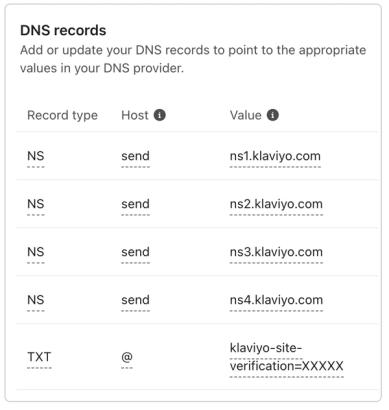
When setting up your branded sending domain, the Dynamic routing method requires adding NS records to your DNS provider, while the Static routing option requires CNAME records. Klaviyo recommends using Dynamic for best sending performance; use Static if your DNS provider does not support NS records.
If your brand chooses to use a second-level subdomain like example.send.helloworld.com, the root domain would be send.helloworld.com and the sending domain would be example.send.helloworld.com.
In an example where the intended sending domain is send.helloworld.com, with “send” as the subdomain and “helloworld.com” as the root domain, the expected DNS records for the Dynamic routing option would look like the example below. Use the NS values generated in your account, which can vary by account region:
Host | Value | Record Type |
send.helloworld.com | ns1.klaviyo.com | NS |
send.helloworld.com | ns2.klaviyo.com | NS |
send.helloworld.com | ns3.klaviyo.com | NS |
send.helloworld.com | ns4.klaviyo.com | NS |
helloworld.com | klaviyo-site-verification=public_API_key | TXT |
For the Static routing option, the DKIM selector names depend on the send type for the domain you’re setting up: marketing domains use km1 and km2 selectors, transactional domains use kt1 and kt2, and service domains use ks1 and ks2. A second branded sending domain of the same send type uses the next selector pair (for example, km3 and km4 for a second marketing domain). Existing static domains can use legacy selector pairs such as kl/kl2 or kl1/kl2. Keep the generated DNS records for those domains unchanged. The example records below show a marketing domain:
These are just examples and the actual CNAME record values for your account will be different. Make sure to use the values generated in your account.
Host | Value | Record Type |
send.helloworld.com | 1.klaviyodns.com | CNAME |
km1._domainkey.helloworld.com | km1._domainkey.1.klaviyodns.com | CNAME |
km2._domainkey.helloworld.com | km2._domainkey.1.klaviyodns.com | CNAME |
helloworld.com | klaviyo-site-verification=public_API_key | TXT |
A helpful set of tools to check if your records are propagating correctly are MxToolbox's DNS lookups:
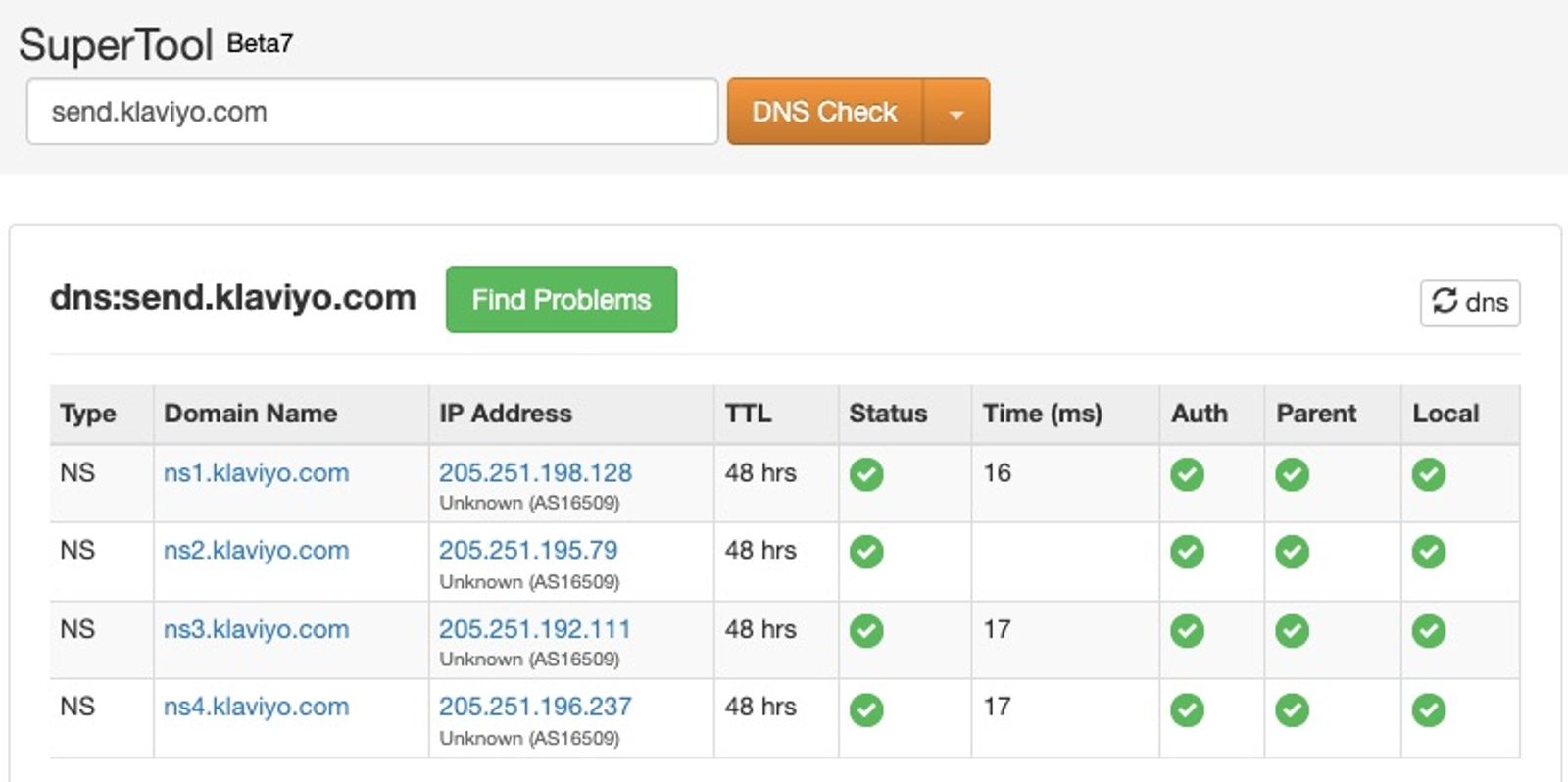
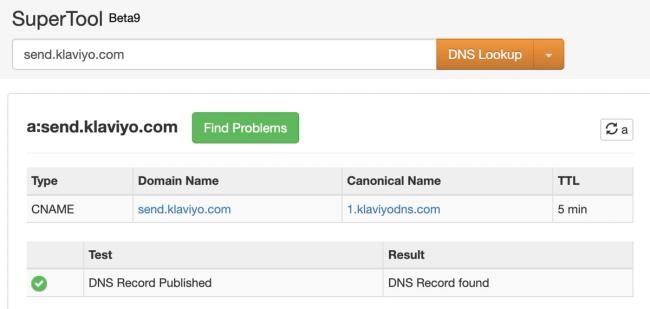
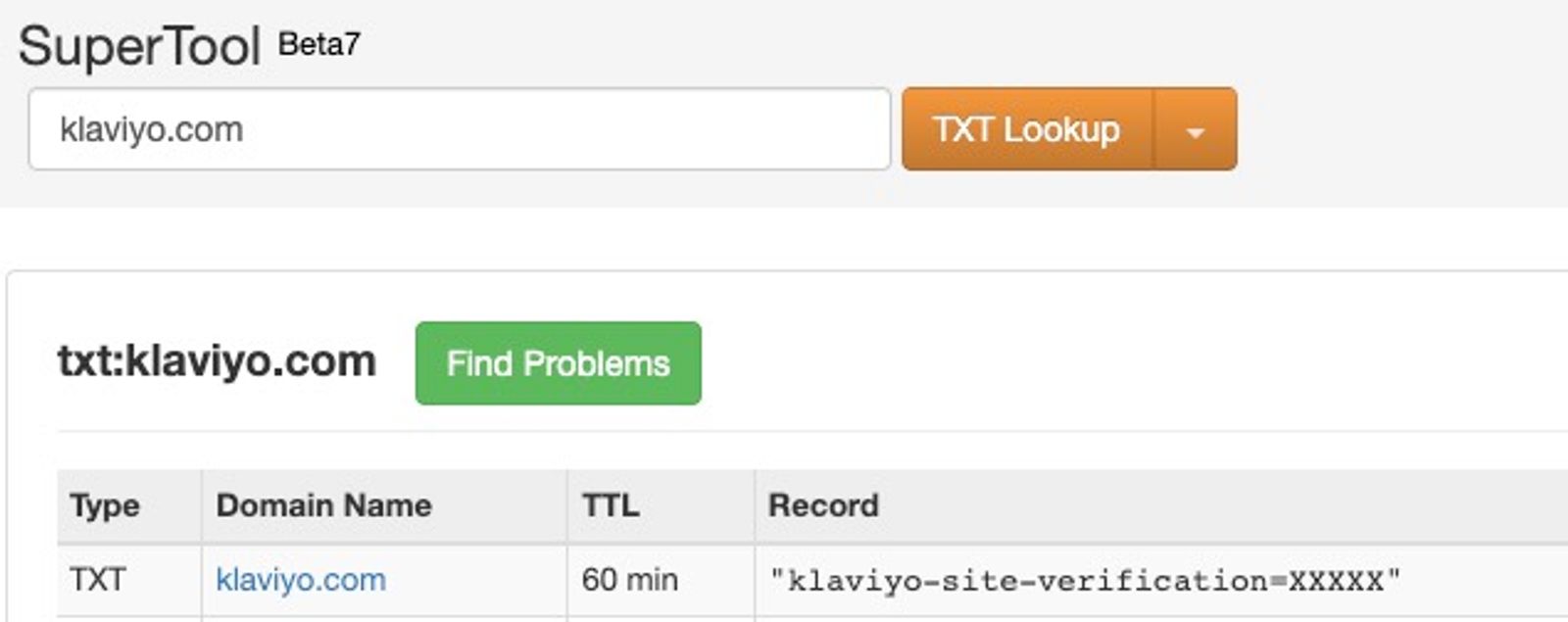
Use DNS Check to inspect the nameservers for your sending subdomain, CNAME Lookup for each CNAME host, and TXT Lookup for the domain ownership record at your root domain. Search for the hosts shown in your Klaviyo account, including each DKIM CNAME host. If you chose to add a DMARC record during setup, also check that TXT record at _dmarc.yourdomain.com.
NS and CNAME lookup examples
For NS records, use the DNS Check option in MxToolbox:
NS records
CNAME records
send.klaviyo.com:
TXT lookup example
klaviyo.com:
Based on whether you are seeing values returned by the queries, there are some common errors that may be the source of the issue.
If queries are returning values
Compare the returned records with the values shown in your Klaviyo account. For CNAME and NS targets, capitalization differences and a final period (.) do not indicate a mismatch. Copy TXT verification values exactly, including capitalization.
Root domain being appended to values automatically
Some DNS providers expect a period (.) at the end of the added value. Without this period, the DNS provider assumes that the entire value field is a subdomain of the domain being configured, and will automatically add the root domain. For example, if you entered u161779.wl030.sendgrid.net (with no period at the end), this would make the value u161779.wl030.sendgrid.net.rootdomain.com instead of just u161779.wl030.sendgrid.net.
If queries are not returning values
Root domain duplicated in the hostname
We also recommend checking if your DNS provider expects only the subdomains in the host name fields, and automatically appends the root domain. For example, if you add the CNAME record send.domain.com it would automatically become send.domain.com.domain.com.
Instead, you might need to only add the “send” subdomain in this instance for the record’s host name to be send.domain.com. Compare your other DNS records to see if you need to append it or if your provider automatically does this.
Records being proxied
If your DNS provider proxies CNAME records, disable proxying for the Klaviyo records. Proxying can hide the CNAME target that Klaviyo needs to verify. This commonly happens with Cloudflare but is possible with other DNS providers too. Keep proxying disabled after setup so that emails can authenticate as expected.
Other DNS provider issues
DNS provider does not support @ symbol
In cases where a DNS provider does not support the symbol “@”, the root domain would need to be set as the hostname for the site verification record. The “@” symbol is the shorthand for the root domain (business.com), so you can use either option depending on what your DNS provider supports.
DNS provider does not support underscores
For Static routing, the underscores in the DKIM CNAME record names are required. Some DNS providers do not support these characters, but removing the underscores will prevent the records from matching the values Klaviyo expects.
If your DNS provider does not support underscores in your CNAME, we suggest first reaching out to your DNS provider’s support team and seeing if they can create the record for you. Often DNS providers will be able to manually adjust your CNAME to include the underscore if you reach out to them.
If your DNS provider cannot create the required CNAME records but supports NS records, consider setting up your domain with Dynamic routing. If it cannot support either option, consider using another provider.
A TXT value already exists on the root domain
If a TXT record already exists at your root domain, add the Klaviyo verification value as a separate TXT record at the same hostname. Keep the existing TXT values unchanged. Use the complete verification value shown in your Klaviyo account.
DMARC
For emails to be DMARC compliant, the root domain on your account needs to align with the from-address domain of your emails.
For example, if you send an email using sales@example.com as the from-address, where example.com is protected by DMARC, your account will need to use a branded sending domain like send.example.com for all emails sent from Klaviyo to meet DMARC authentication requirements.
Verify your changes
- Go to Settings > Domains. Open the action menu for the domain you corrected and select View records.
- Select Verify to check the corrected records. If the status is already Verifying, wait for the check to finish. Continue once the domain shows Verified. DNS updates can take up to 48 hours. If your domain shows Incomplete, select Verify from the action menu instead. If a domain that was already sending now shows Failed, there is no Verify button: fix the records in your DNS provider, wait a few minutes, and refresh the page.
- Return to Domains and select Activate for the verified domain when you are ready to begin sending. Review any domain-warming options and follow the confirmation prompts, then select Activate to confirm.
Additional resources
- How to set up a branded sending domain
Learn how to set up a branded sending domain (also known as a dedicated sending domain) so that when emails reach inbox providers, they will appear to come from your brand instead of Klaviyo.
- Understanding what a branded sending subdomain is
When setting up a branded sending domain (also known as a dedicated sending domain), you will need to choose an associated subdomain or prefix. In this article, you will learn more about how to choose a subdomain that is right for your business.
- Understanding branded vs. shared sending domains
Learn more about branded sending domains (also known as dedicated sending domains), how they differ from shared sending domains, and when they may be beneficial for your business to use. In the world of email marketing, your sending infrastructure, including your sending domain, is very important. Sending domains are a key component of your email infrastructure, that to help build a positive reputation and promote domain alignment.