Understanding multi-step forms
You will learn
Multi-step forms make it easy to learn about your subscribers and collect consent for multiple marketing channels without intimidating visitors with a large or clunky form. Use this feature to present just a few questions at a time, and capture as much information as your subscribers are willing to provide.
In this guide, you’ll learn about how multi-step forms work and some best practices for using them. If you’d like to learn how to create a multi-step form, head to our guide how to create a multi-step form.
Use cases for multi-step forms
Grow your SMS list without slowing email growth
In general, sign-up forms that collect email consent have higher conversion rates than forms that collect phone numbers. When collecting phone number and email consent in a single form, you can inadvertently slow down the growth of your email list if you ask for a phone number at the same time.
To avoid this, use a multi-step form. Build a form that collects email addresses in the first step, then phone numbers in the second step. If a visitor submits only step 1, you can still collect their email consent and encourage them to subscribe to SMS marketing in the future. Multi-step forms that collect email and SMS consent across multiple, different steps are best practice for list growth and maintaining compliance.
If your email list uses double opt-in, new subscribers must confirm their subscription before they are added to the list and subscribed to email marketing.
In order to build a multi-step form you can either:
- Choose a multi-step form template from the form library.
- Add additional steps to a sign-up form from within the form editor.
Before creating a form from a template that collects SMS consent, create an SMS subscribers list if you do not already have one. You must select an existing list for SMS subscribers when you create the form.
If you choose a multi-step form template from the form library, you can choose 2 different lists for your new email subscribers and SMS subscribers to submit to when they fill out the form. Klaviyo recommends using separate lists to help you honor your shoppers’ preferred channels, and keep track of email and SMS list growth.
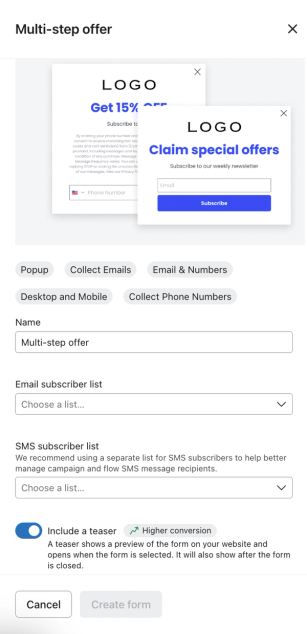
Alternatively, start with an email-only form in the editor to add an SMS step and choose another list for SMS subscribers:
- Click the Step button with the plus icon, select Mobile opt-in, and click Next.
- Select Text messaging and click Next.
- Choose the list for SMS subscribers and the opt-in method, then click Add step.
Collect profile data
Detailed profile data, like a subscriber’s name, birthday, or interests, can help you target your marketing and provide a highly personalized experience to your subscribers. By adding a Personal information step to a multi-step form, you can ask new subscribers to share this information without overwhelming them with a form that has too many questions on the first step.
- Add some basic fields to your form’s first step (e.g., first name, last name, and email address).
- Click Step, select Personal information, and click Add step.
- Add other input fields, like birthday or interests.
The button on the Personal information step must have its Action set to Submit form to save the submitted properties to a subscriber’s profile. If the button’s Action is set to Close form, the properties collected on that step will not be saved. To continue to another step after submitting, set After Submit to Show next step.
Once subscribers have submitted their information, you can create segments to better target them, or use flows to send personalized messages (e.g., a birthday flow).
Add pre-engagement steps
If you’d prefer to get buy-in from your visitors before asking them for any information, create a sign-up form with a pre-engagement step:
- Create a first step with the message “Want 15% off your next order?” and a “Yes” button, but no input fields.
- Add a second step that collects email or SMS consent, asking for the email address or phone number where the customer can receive the offer.
- Select the “Yes” button on the first step. Set Action to Submit form and After Submit to Show next step.
Optionally, add a “No, thanks” button to the first step and set its Action to Close form.
How multi-step forms collect information
Klaviyo saves information from each step when the visitor submits it. Once the visitor is identified, information from a submitted step is added to their profile even if they do not finish the rest of the form.
If you collect profile properties before contact information, Klaviyo retains the submitted responses so they can be associated with the subscriber when they submit their email or phone number. Visitors Klaviyo already recognizes can submit additional properties without re-entering their email address or phone number.
Targeting multi-step forms
A multi-step form offers the same targeting options as a single-page sign-up form. This means you can set a multi-step form to appear to users in certain locations, or who meet certain criteria.
Targeting based on lists and segments relies on Klaviyo’s cookies. To learn more, head to our guide on cookies in Klaviyo. A subscriber visiting from a new device or after clearing cookies may not be recognized, so list exclusions may not hide the form for them.
If your multi-step form collects both email and SMS consent, consider excluding members of your main email and SMS lists to avoid asking those subscribers to sign up again:
- In the form editor, click the Targeting & behavior icon, then select the Targeting tab.
- Under Audience, select Show to specific profiles in a list or segment.
- Select Exclude certain lists and segments, then choose your main email and SMS lists. Leave Include certain lists and segments unchecked if you want to show the form to all other visitors.
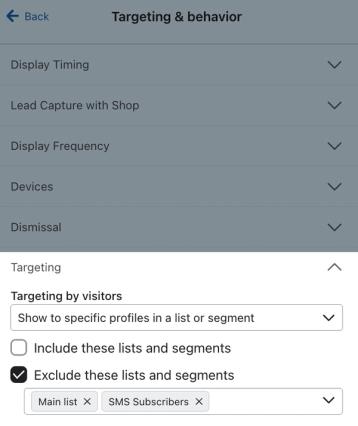
You can also create separate sign-up forms to target profiles that have subscribed to just 1 channel (email or SMS). For example, create a form to collect SMS consent and show it to email subscribers who have not subscribed to SMS:
- In that form’s editor, click Targeting & behavior and select Targeting.
- Under Audience, select Show to email only subscribers.
Limitations of multi-step forms
Multi-step forms offer a linear path through a series of steps. You cannot automatically skip a single step based on who the visitor is. To show different questions to different audiences, clone your multi-step form, target the 2 copies to different audiences, and customize their steps.
To let visitors skip the remaining questions, place a skip button on a later step, after a step that collects information. You cannot use this option on forms with an age gate or Spin to Win, or on a Smart Opt-in code step. Avoid placing it before or on a step with required fields, because those fields can be skipped.
Select the button and set its Action to Skip to success step. This takes visitors straight to the success message without submitting the current step or showing the remaining steps.
The maximum number of pages in a form is 4, plus an optional success message.
To follow up with a new subscriber by email or SMS, collect their email address or phone number and consent for that channel. Submitting other profile properties does not subscribe them to marketing.
Publish your changes
- When you finish editing the form’s steps and targeting, click Publish or schedule.
- Review any alerts and resolve issues that prevent publishing. Select Publish now, then click Publish now to make the form or your changes live.
Additional resources
- How to create a multi-step form
Learn how to create a multi-step sign-up form to collect information from your subscribers across multiple smaller steps, so site visitors aren't overwhelmed by the content and are more likely to subscribe.
- How to A/B test a sign-up form
Learn how to use A/B testing to evaluate the performance of various elements of your sign-up forms. By effectively analyzing the results, you can ensure that your forms resonate with site visitors and contribute to list growth.
- Klaviyo product certificate
- Create strategic sign-up forms