How to convert Instagram followers into subscribers with Social Auto-replies
Learn how to convert Instagram interactions into email, SMS, and WhatsApp subscribers with Social Auto-replies.
Popular campaigns with this strategy include Instagram giveaways, early access offers, and evergreen campaigns.
- You'll need Admin access to your Instagram Business Account to set up this feature.
- For now, you can only connect 1 Instagram account to your Klaviyo account. If you’re on the paid version of Social Marketing, you can connect your same Instagram account to multiple regional Klaviyo accounts that you manage.
Watch the setup video, and scroll down for step-by-step instructions.
Step 1: Connect Instagram
Connect your Instagram with Klaviyo in order to set up Social Auto-replies that grow your subscriber list. For a detailed step-by-step on connecting Instagram, see the guide “Connect Instagram to Klaviyo”.
To connect the same Instagram Business account to multiple Klaviyo accounts, each Klaviyo account must have a paid Klaviyo Social Marketing plan.
Step 2: Set up your trigger
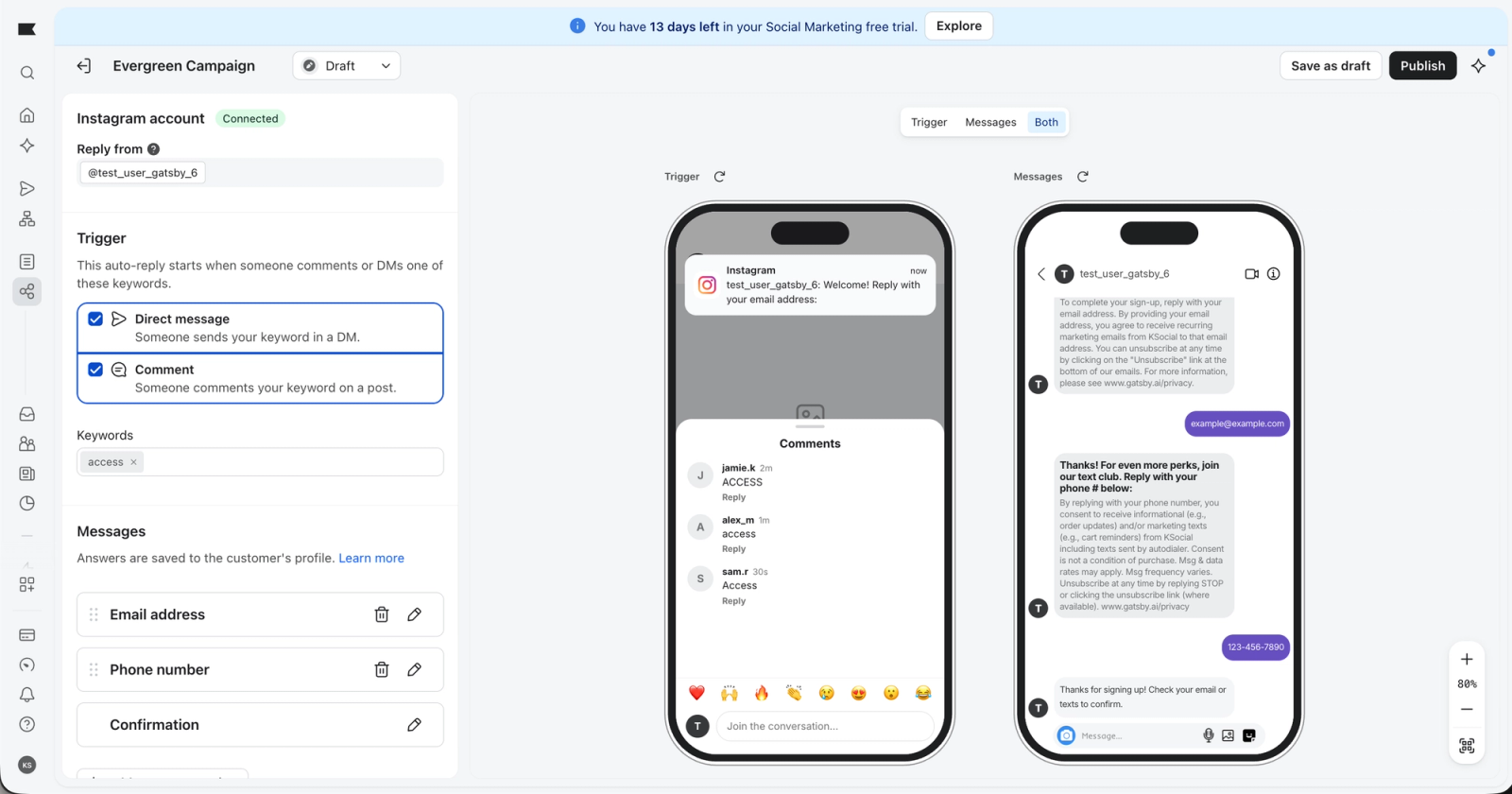
- Navigate to Social in the left navigation, select Auto-replies, then click Create auto-reply.
- Give your auto-reply a name at the top of the builder (for example, "Evergreen VIP campaign").
- Under Instagram account, confirm the account shows Connected. Reply from shows the Instagram handle your auto-replies are sent from.
- Under Trigger, choose where Klaviyo listens for your keywords:
- Direct message: someone DMs you your keyword.
- Comment: someone comments your keyword on one of your posts. Klaviyo always replies by DM, not with a public comment.
- Under Keywords, enter 1 or more trigger keywords.
As you edit, the preview on the right updates. Use Trigger, Messages, or Both at the top of the preview to see how the trigger and the DM conversation look in Instagram.
Keyword requirements and trigger behavior
- Keywords are not case sensitive. "Access," "access," and "ACCESS" all work.
- Klaviyo uses fuzzy matching, so small typos, emojis, or extra characters still trigger an auto-reply.
- Use keywords that don't duplicate or closely resemble keywords in your other auto-replies. SMS subscription keywords don't reserve keywords for Instagram.
- If multiple Klaviyo accounts share 1 Instagram Business account, each account needs its own keywords. For example, if Account A uses "Thanks," Account B can't use "Thanks."
- Collab or influencer posts: your brand's account must create the post and invite the collaborator. If the collaborator creates the post, Klaviyo can't reply to comments on it or to DMs the collaborator receives.
- Best practice: if you listen in comments, also turn on DMs. Comment auto-replies can time out, and DMs let customers restart by re-sending the keyword.
Step 3: Build your messages
The Messages section lists each message in the DM conversation, in the order customers receive them. Answers are saved to the customer's Klaviyo profile.
- Click the pencil icon to edit a message.
- Click the trash icon to remove it.
- Drag the handle on the left of a message to reorder.
Most auto-replies use these messages:
- Email address: asks for an email and subscribes it to the list you choose.
- Phone number: asks for a phone number and subscribes it to SMS, WhatsApp, or both.
- Custom question: asks a question and saves the answer as a profile property. See Add Custom Questions to your auto-reply.
- Confirmation: the last message in the conversation. Always included.
Edit a message
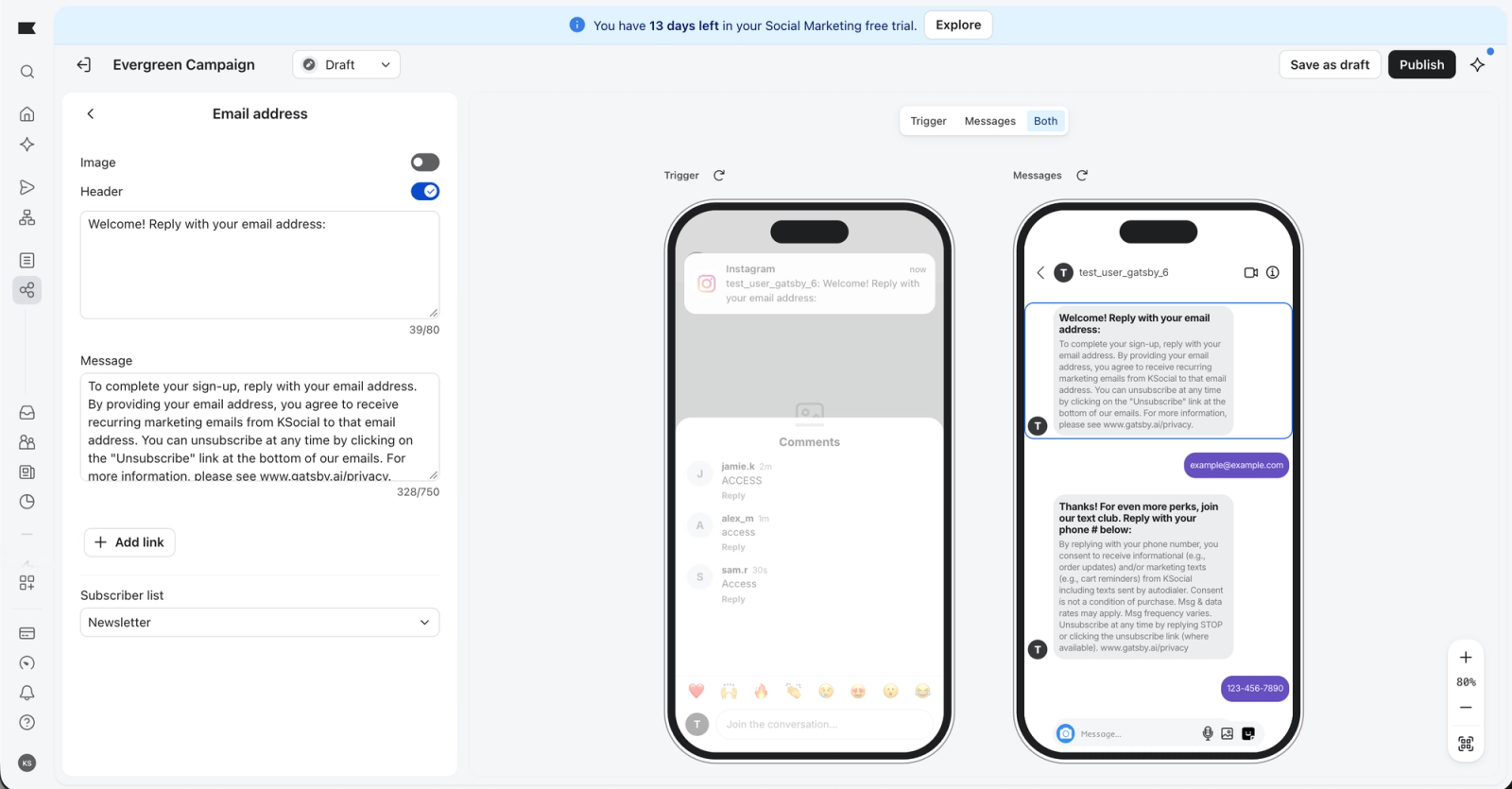
Click the pencil icon to open a message. Click the back arrow at the top of the panel to return to the full list.
- Image: turn on to show an image above the message. Click Replace to change it or the trash icon to remove it.
- Header: bold text at the top of the message, up to 80 characters.
- Message: the body text, up to 750 characters.
- Links: up to 3 per message. Each needs a button label and URL. See Add a link button below.
Email address
- Edit the header and message text.
- Select the Subscriber list you want to add these subscribers to.
Phone number
- Select a Phone channel:
- Text message collects SMS consent only.
- WhatsApp collects WhatsApp consent only.
- Text message and WhatsApp collects consent for both channels.
- Edit the header and message text. Replace any placeholders like [Company Name] and [Privacy Policy].
- Select the Subscriber list.
- Choose the default Country code Klaviyo will apply when a phone number is submitted without one.
Confirmation
This is the last message customers get. Use it to tell them what happens next, like checking their email or texts.
How Klaviyo validates answers
- Email: Klaviyo checks the format (for example, name@domain.com).
- Phone: customers can use dashes, periods, or no spaces. If a number has no country code, Klaviyo uses the default one you selected. If Klaviyo can't read the answer, it asks the customer to try again.
After a valid submission, Klaviyo starts the opt-in process for that channel (see Step 4).
Add a link button
Add a tappable button to a message that sends customers to a page on your site, like a product page or landing page.
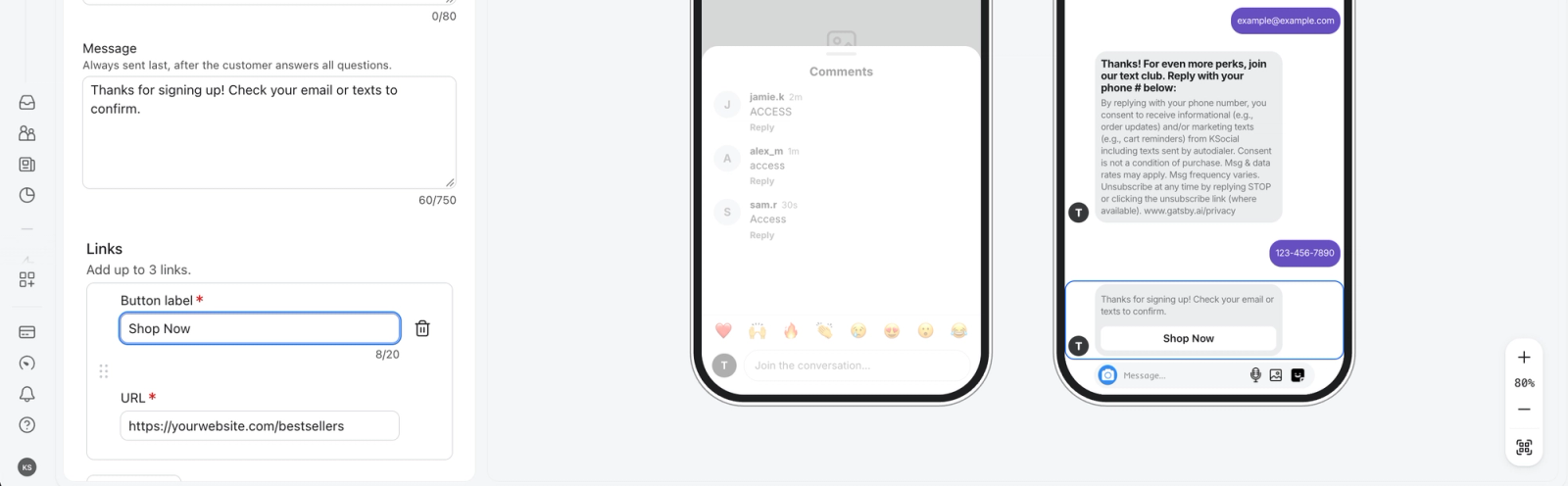
- Click the pencil icon on the message.
- Under the message text, click Add link.
- Enter a Button label (for example, "Shop the collection"). Labels can be up to 20 characters.
- Enter the URL, starting with https://.
- Check the preview. The button appears under the message, as customers will see it in the DM.
Save and publish
- Click Save as draft to save without turning it on.
- Click Publish to turn it on. Klaviyo will start replying to DMs and comments that include your keyword.
After you publish, promote your keyword where customers will see it: your Instagram bio, posts, stories, and captions. Tell them to DM or comment the keyword, depending on the triggers you picked. Auto-replies only collect subscribers once people start using the keyword.
You can change an auto-reply's status from the status menu next to its name at the top of the builder.
Step 4: Understand the opt-in flow
The selected list’s opt-in settings determine whether customers need to confirm their marketing subscription. A contact submission or confirmation message in Instagram is separate from a double opt-in confirmation.
- Email: If the list uses double opt-in, customers confirm via the link sent to their inbox.
- SMS: For a list with double opt-in, customers confirm their SMS marketing subscription by replying to a text. The confirmation is skipped in countries where you use a branded sender ID, which cannot receive replies.
- WhatsApp: Customers confirm in WhatsApp if WhatsApp double opt-in is enabled for your account and the selected list uses double opt-in. Otherwise, WhatsApp marketing consent uses single opt-in.
Step 5: View the subscriber profile in Klaviyo
When a customer submits a valid email address or phone number, their profile is created or updated in Klaviyo. If double opt-in is required, check that they have confirmed before treating them as a marketing subscriber.
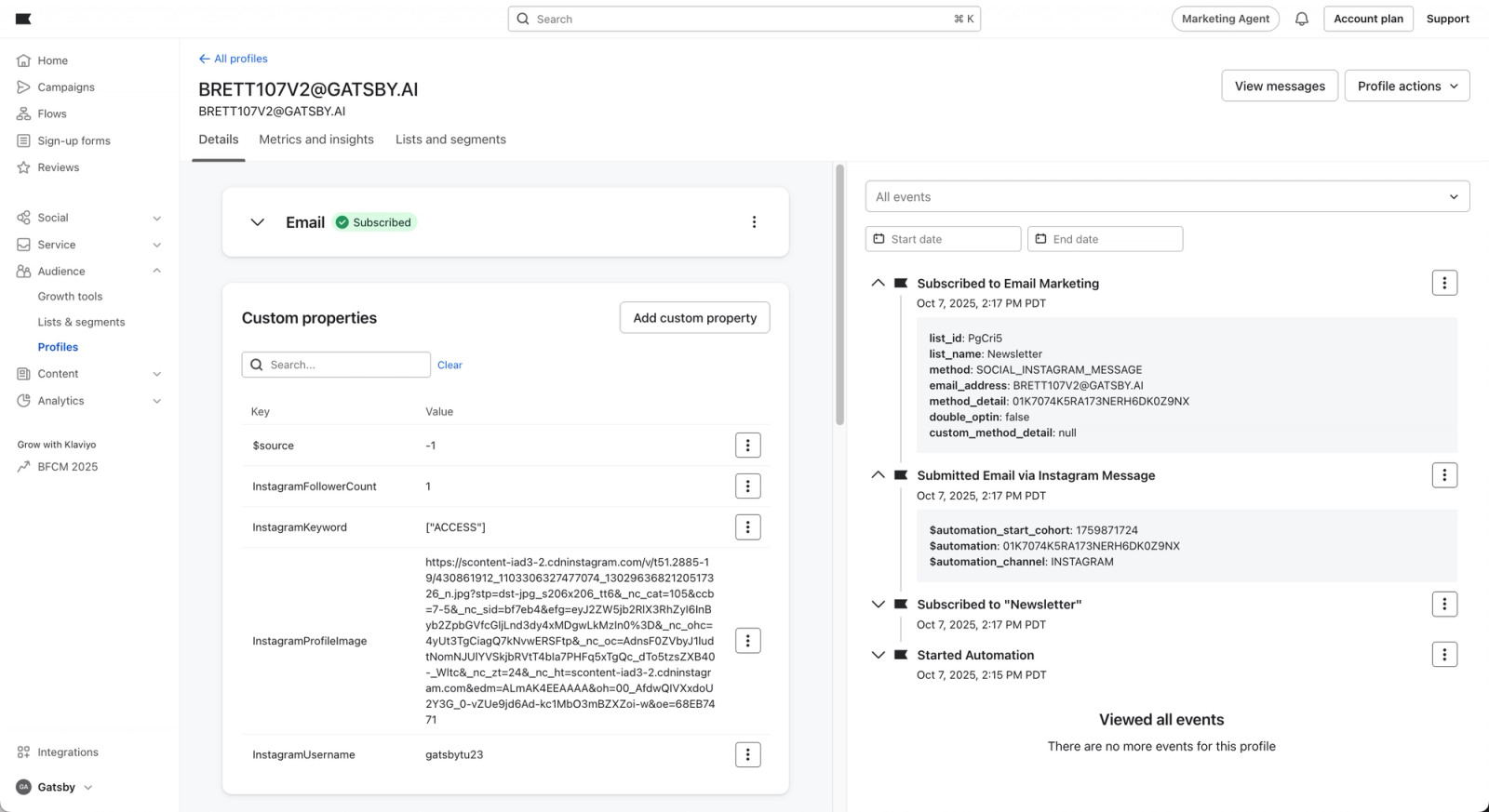
The profile will contain the following:
- Subscription Method: SOCIAL_INSTAGRAM_MESSAGE
- New events, including:
- Started Automation
- Submitted Email via Automation
- Submitted Phone via Automation
- Ended Automation
- New custom profile properties, including:
- Instagram Username
- Follower count
- Whether they follow your account
- The keyword(s) they used to trigger the auto-reply
Property name | Type | Description |
|---|---|---|
InstagramFollowerCount | int | The number of followers this user has on Instagram. |
InstagramUsername | string | The user's Instagram username. |
InstagramProfileImage | string | URL to the user's Instagram profile picture. |
InstagramFollowsYou | bool | Indicates whether or not the user follows your brand on Instagram. |
InstagramKeyword | Array[string] | List of auto-reply keywords that triggered an Instagram auto-reply for this profile. |
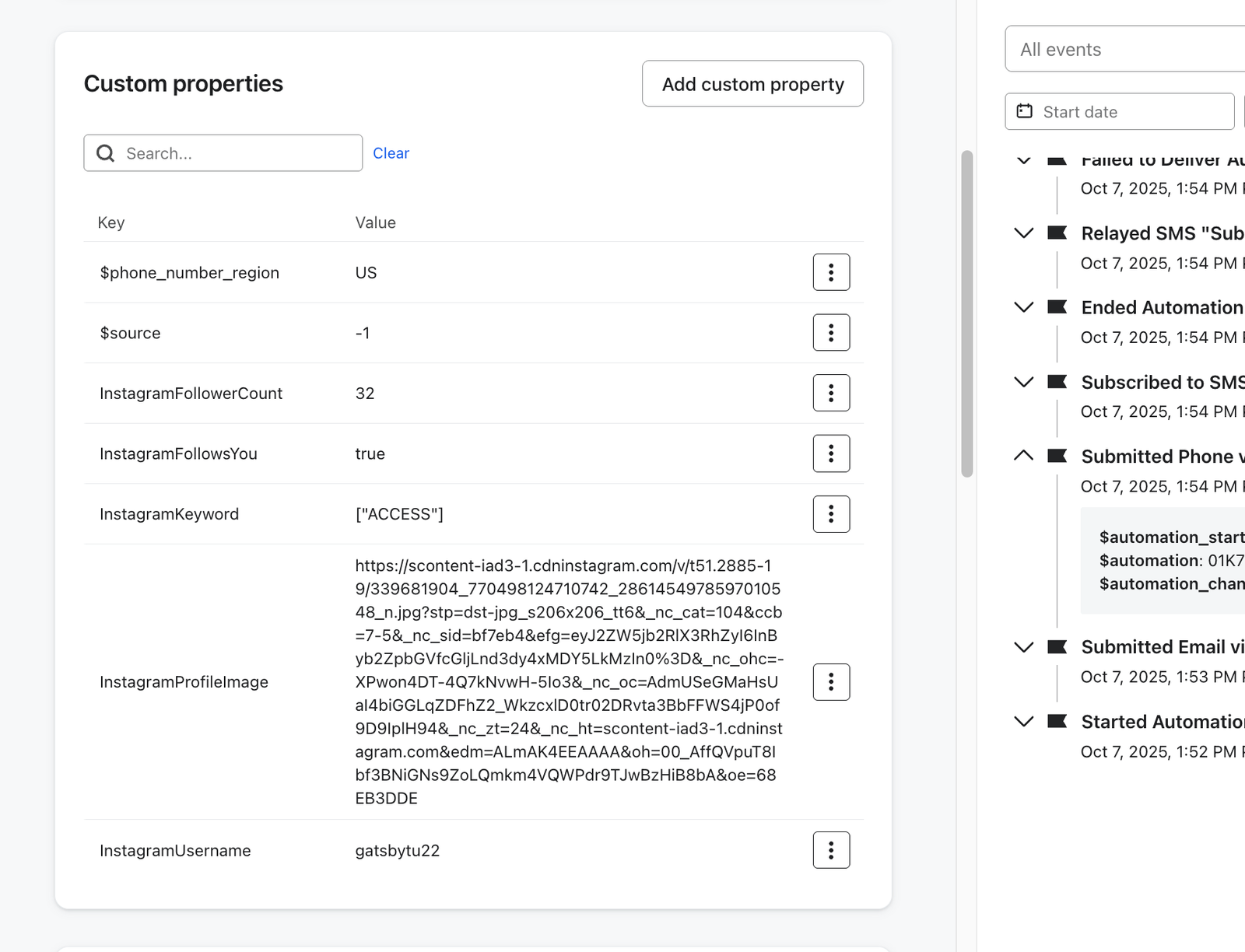
Instagram profile properties, such as username and follower count, refresh every time a customer DMs your brand. The keyword property updates when they trigger an auto-reply. You can use these properties to build targeted segments.
Once a customer has gone through an Auto-reply, you can also use Engagement events (Posted UGC, Social Comment, Social DM) to track their ongoing Instagram activity. Engagement events are included in the paid version of Social Marketing.
Test your auto-reply
- Preview in the builder. Switch the preview between Trigger, Messages, and Both to check each message and button. Click the refresh icon to replay the conversation.
- Test in Instagram. From a different Instagram account, send your keyword by DM (or comment it on a post, if Comment is on). Go through every message and tap any link buttons.
- Check the profile. Find the test profile in Klaviyo and confirm the Instagram properties are there.
Auto-reply behavior depends on your Instagram message control settings.
- Your settings gate the triggers. If your Message settings are set to "Followers only" or "No one" then this will limit your ability to send Auto-replies.
- Consumer settings can block delivery. Both public and private accounts can receive your DMs, but if the consumer's message settings are set to "No one," Klaviyo can't deliver the auto-reply.
Measure results
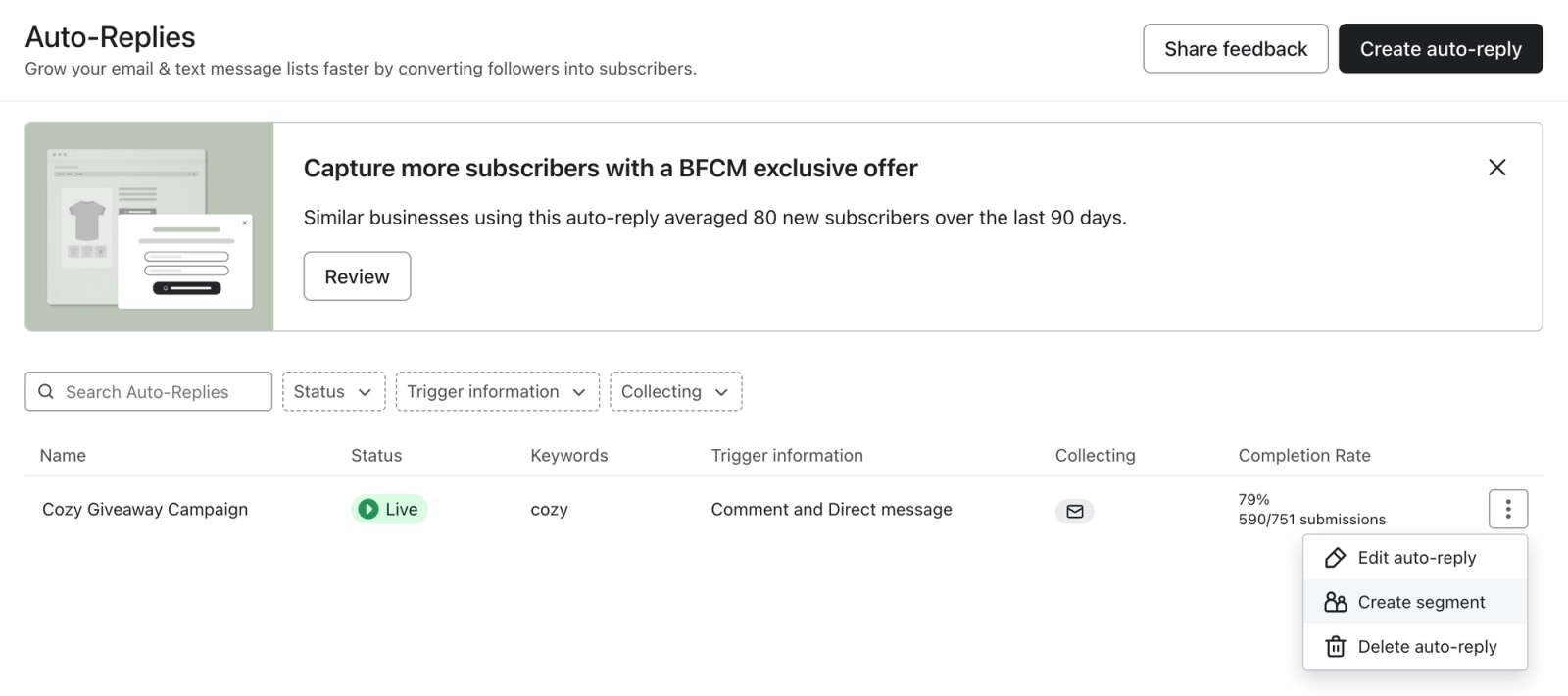
- Completion Rate on the auto-reply list shows the share of started conversations that ended with a submission. If you collect both email and phone, Klaviyo uses the larger count. Updates can take up to 15 minutes.
- Subscriber Growth Report and Lists & Segments show list growth from Instagram.
- Create segment from an auto-reply's menu builds a segment of everyone who submitted through it. Review the prefilled conditions before saving. The option appears after the first submission.
Troubleshooting
Auto-replies aren't firing
If your Instagram is connected in Klaviyo but auto-replies are not triggering on test DMs or comments, it usually means one of the required permissions has been toggled off. Check the following places:
1. Facebook Page > Advanced Messaging
These permissions are on by default but can be disabled at the Facebook Page level.
- Open your Facebook Page.
- Go to Settings > Page Setup > Advanced Messaging.
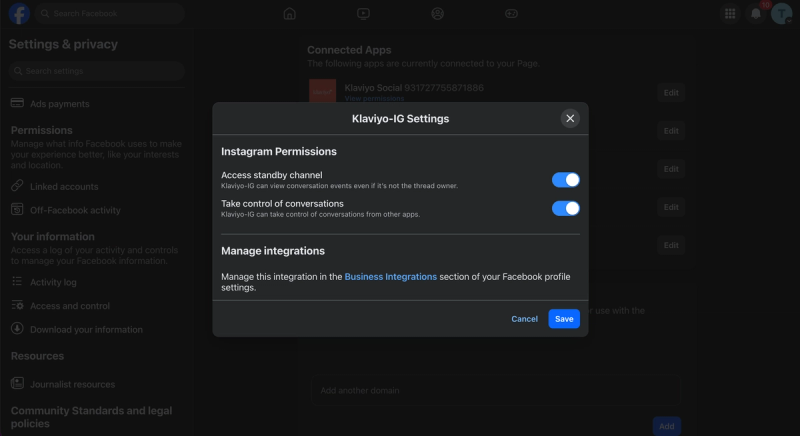
- Under Connected Apps, find Klaviyo-IG and click Edit.
- In the Klaviyo-IG Settings modal, confirm that both Access standby channel and Take control of conversations are turned on.
- Click Save.
2. Instagram Business Account > Apps and Websites
The permissions you accepted when first connecting Klaviyo can also be edited from inside Instagram.
- In the Instagram app or on instagram.com, open Settings.
- Go to Website Permissions > Apps and Websites.
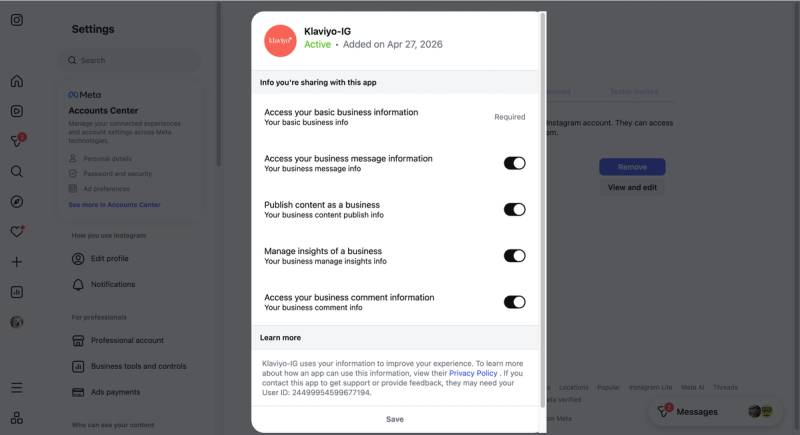
- Find Klaviyo-IG in the list and tap View and edit.
- Confirm all permissions are turned on (basic business info, business message info, content, insights, comment info).
3. Reconnect from Klaviyo
If the permissions look correct in both places and auto-replies still are not firing, disconnect and reconnect Instagram from your Klaviyo settings.
When the auth modal appears, leave all permissions toggled on before clicking Allow.
If the issue persists after these checks, contact Klaviyo Support.
My link button isn't working
- Confirm the URL starts with https:// and opens in a mobile browser.
- If the URL was flagged when you published, use a different URL or contact Support.
Additional resources
- How to collect consent via Instagram
Learn how to collect email and SMS subscribers on Instagram through a link that opens up a subscribe page when a user taps on it. When someone views one of your Instagram stories and clicks on the link, it will bring them to a form where they can subscribe to hear more from your brand.
- Understanding the double opt-in process
Learn the difference between single and double opt-in, why double opt-in is important for both SMS and email, and how to update the opt-in settings for a list or keyword in Klaviyo.
- Your social followers don’t belong to you. Your subscribers do.
- Instagram giveaways, early access offers, and evergreen campaigns