Connect Instagram to Klaviyo
Connecting your Instagram Business account to Klaviyo is the first step to using Klaviyo Social Marketing. Once connected, you can build Social Auto-replies, capture engagement events, and view tagged content in the Social Content Library.
This article covers the two ways to authenticate, the permissions Klaviyo needs, and how to connect one Instagram account to multiple Klaviyo accounts.
What you'll need
- An Instagram Business account.
- Admin access to that Instagram account.
- For Facebook Login (recommended): an Instagram account that is linked to a Facebook Page you have admin access to.
Choose your authentication method
You can connect Instagram with either Facebook Login or Instagram Login. The method you pick determines which Klaviyo Social Marketing features you can use.
Facebook Login (recommended)
Authenticates through the Facebook Page linked to your Instagram Business account. This is the default for new connections. If you’re on the paid plan, Facebook Auth unlocks the full Klaviyo Social Marketing feature set.
Use Facebook Login if you want any of the following:
- Engagement events (DMs, tags, mentions, comments) as Klaviyo signals
- The Social Content Library to view UGC where your brand is tagged
- Segments and flow triggers based on social engagement
- Advanced social analytics
Instagram Login
Authenticates directly through Instagram. Faster setup and works for Instagram accounts that are not linked to a Facebook Page. Limited to subscriber capture via Auto-replies.
Use Instagram Login if:
- You only need Social Auto-replies for subscriber capture
- Your Instagram account is not linked to a Facebook Page
- You want the lightest possible setup
Feature | Facebook Login | Instagram Login |
|---|---|---|
Social Auto-replies | Yes | Yes |
Custom Questions | Yes | Yes |
1:Many connection | Yes | Yes |
Engagement events | Yes | No |
Social Content Library | Yes | No |
Segment on engagement | Yes | No |
If you start with Instagram Login and later want to use engagement-based features, you will simply need to re-authenticate with Facebook Login.
Where to start the connection
You can start a connection from either of two places in Klaviyo:
- Social in the left navigation
- Settings > Social Accounts
Both routes lead to the same authentication flow. The steps below assume you're starting from the left navigation.
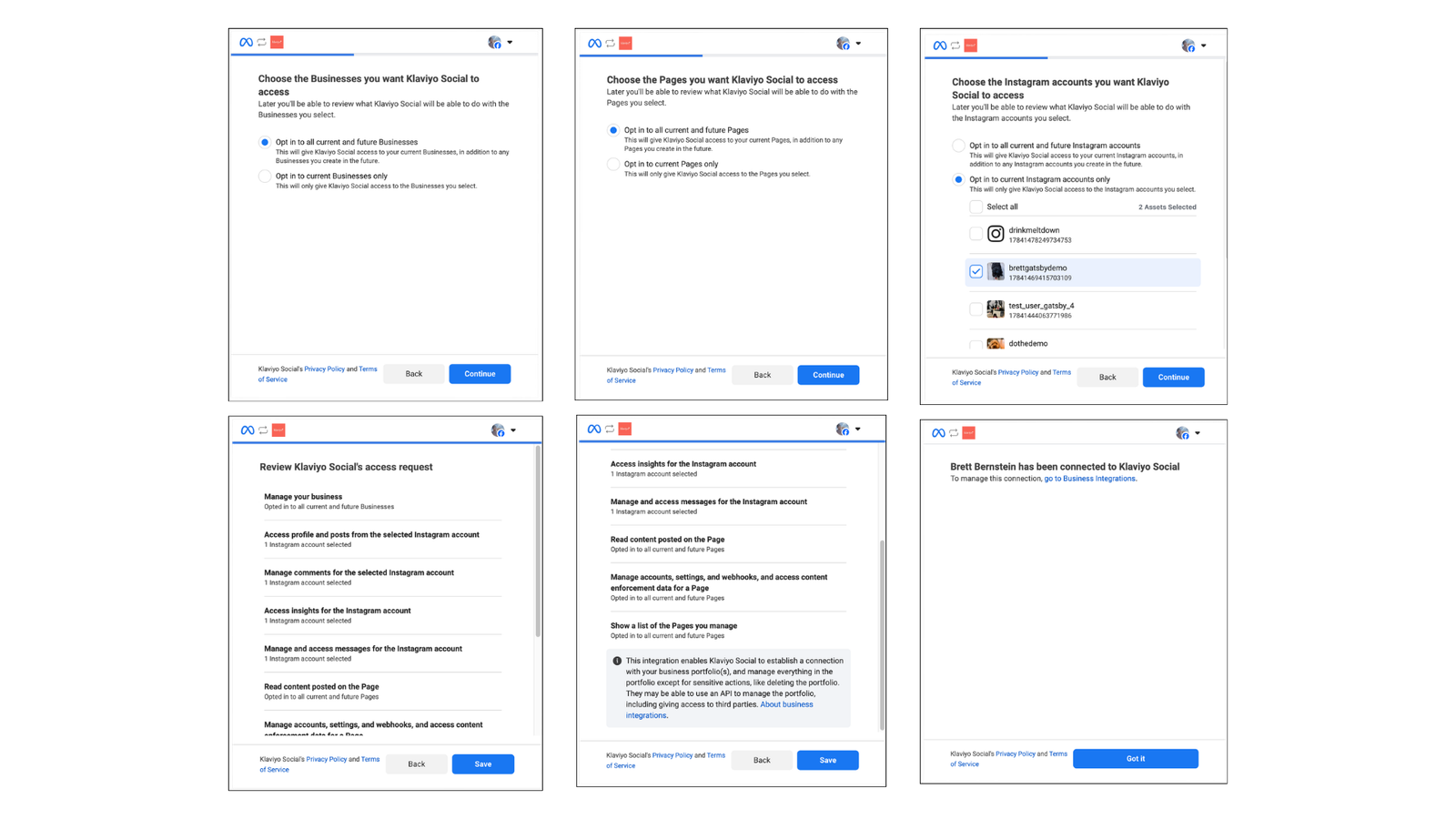
Connect with Facebook Login
- In Klaviyo, open Social > Auto-replies in the left navigation. You'll see a splash page describing the feature.
- Click Connect to Instagram via Facebook. This is the primary button on the splash page.
- Sign in to the Facebook account that has admin access to the Facebook Page linked to your Instagram Business account. In most cases, you will be logging into your personal Facebook account, but you’ll be connecting specifically your Business in the next steps.
- Select the Facebook Page and Instagram account you want to connect.
- On the permissions screen, leave all permissions on before clicking Allow.
- You'll be returned to Klaviyo. Your Instagram account now appears in the connection settings.
Note for agencies and multi-brand teams. When you connect through Facebook, Klaviyo can only store one set of connection settings per Facebook account. So if you use the same Facebook login to connect different Instagram accounts to different Klaviyo accounts, each new connection can replace the last one. To keep them separate, have a different team member set up each client, signed in with their own Facebook account. (This doesn't happen with Instagram Login.)
Connect with Instagram Login
- In Klaviyo, open Social > Auto-replies in the left navigation.
- On the splash page, click Other connection options to reveal additional methods.
- Click Connect to Instagram via Instagram.
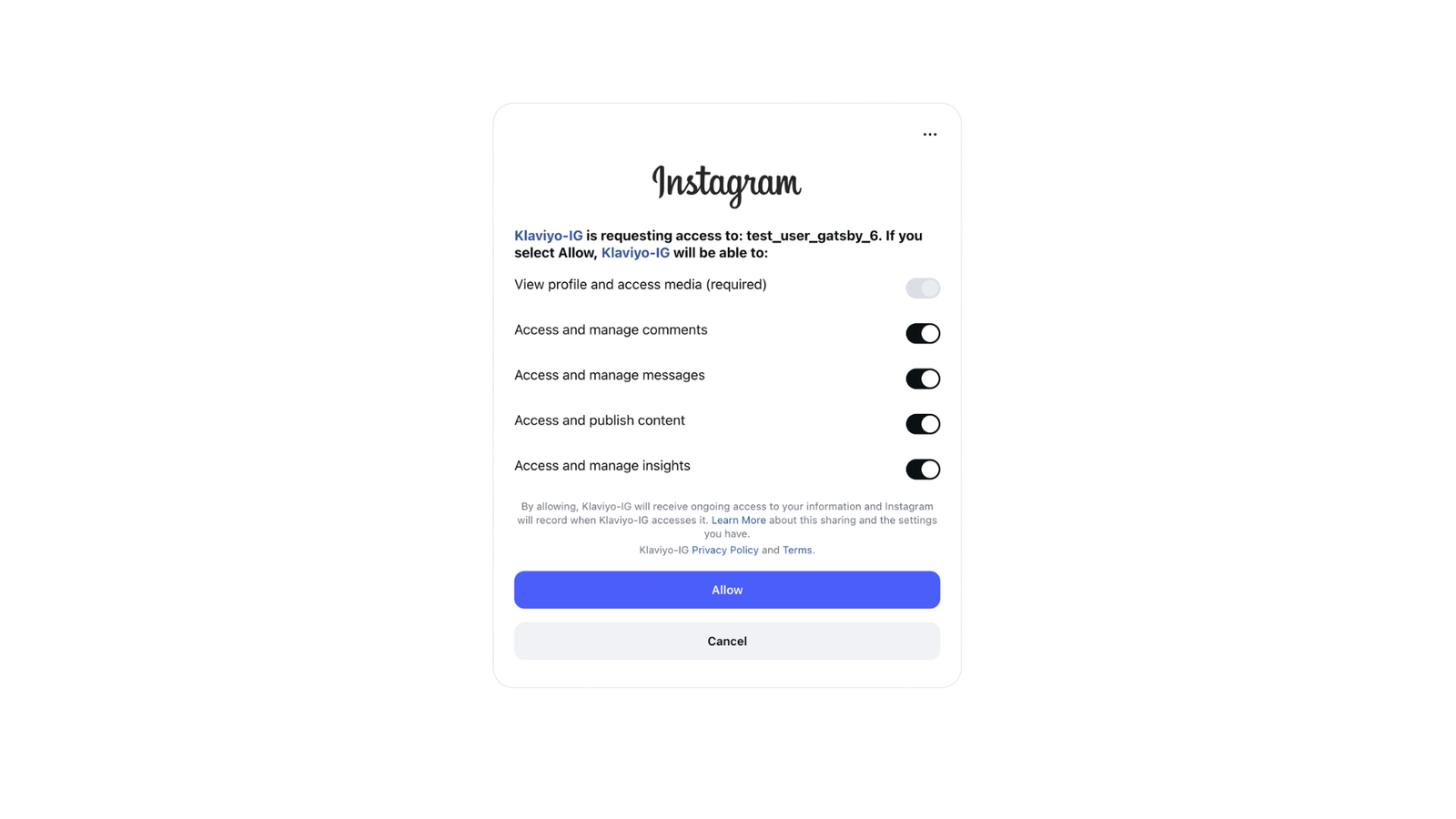
- Sign in to your Instagram Business account.
- On the permissions screen, leave all permissions on before clicking Allow.
- You'll be returned to Klaviyo. Your Instagram account now appears in the connection settings.
Required permissions
Whichever method you use, Klaviyo asks you to grant a set of permissions during authentication. Leave all permissions on before clicking Allow. Klaviyo needs every one of these to receive Instagram messages, comments, and engagement signals.
If you toggle any off, your Instagram account will still appear connected in Klaviyo, but:
- Auto-replies will not fire on incoming DMs or comments
- Engagement events will not be captured (Facebook Login only)
- The Social Content Library will not show your tagged content (Facebook Login only)
If you accidentally turn a permission off, you can re-authenticate from Klaviyo's Social settings, or edit the permissions directly in Meta. See Troubleshooting: Social Auto-replies aren't firing for the recovery path.
Connect one Instagram to multiple Klaviyo accounts
Premium feature. Available on the paid Klaviyo Social Marketing plan.
If your brand operates multiple Klaviyo accounts (for example, regional accounts for the US, UK, and AU), you can connect the same Instagram account to all of them.
Requirements
- Each Klaviyo account must be on the paid Klaviyo Social Marketing plan.
Setup
- From the second Klaviyo account, follow either of the connection flows above.
- Klaviyo detects that this Instagram account is already connected to another Klaviyo workspace and shows a confirmation message explaining that data and behaviors may overlap across connected workspaces.
- Confirm to complete the connection.
- Repeat from any additional Klaviyo accounts you want to connect.
How shared connections behave
Once an Instagram account is connected to multiple Klaviyo accounts:
- All connected workspaces share the same Instagram data, including UGC and engagement events.
- Auto-reply keywords must be unique across all connected workspaces. If you try to set a keyword that another connected workspace already uses, Klaviyo will flag the conflict during setup.
- Incoming messages and engagement signals are visible to all connected workspaces. Only the workspace whose keyword matches an incoming message will send the auto-reply.
- For Helpdesk, only one Klaviyo workspace can be designated as the primary for the shared Instagram account. The first workspace to connect is set as primary by default.
Next steps
- Build your first Social Auto-reply. Set up keyword-triggered DMs that capture subscribers from comments and mentions. See Set up a Social Auto-reply.
- Develop your social strategy. Take the Enhance your marketing strategy with social media course in Klaviyo Academy (37 min).