Understanding the Helpdesk reporting dashboard
Learn how to interpret each section and metric on the Helpdesk reporting dashboard.
You can use the Helpdesk reporting dashboard to monitor support ticket volume, measure agent performance, and identify trends in customer support activity.
About the Helpdesk reporting dashboard
The Helpdesk reporting dashboard displays key metrics related to ticket management, support volume, and agent performance. You can use this data to monitor trends, evaluate team efficiency, and identify areas for process improvement.
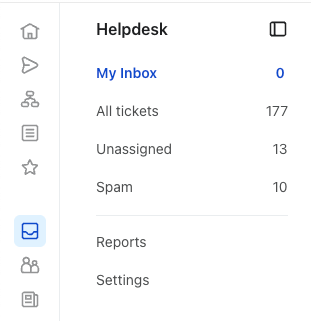
To access the Helpdesk reporting dashboard, navigate to Service > Helpdesk, then click Reports.
If you see a prompt to get Helpdesk reporting instead of your data, your account does not have access to reporting. You’ll need to upgrade to use the dashboard.
Use the time period selector at the top of the dashboard to set a date range. The graph, metric cards, and agent and tag performance tables reflect your selected time frame. Percentage changes automatically compare your selected range with the previous period; you do not select a separate comparison period.
To review specific dates, select Custom and choose a start and end date. Dates are inclusive: a custom range from February 1 through February 7 includes activity on both February 1 and February 7. Preset ranges such as Last 7 days look backward, not forward.
Navigating the Helpdesk reporting dashboard
The Helpdesk reporting dashboard includes the following main sections:
Graph view of support metrics
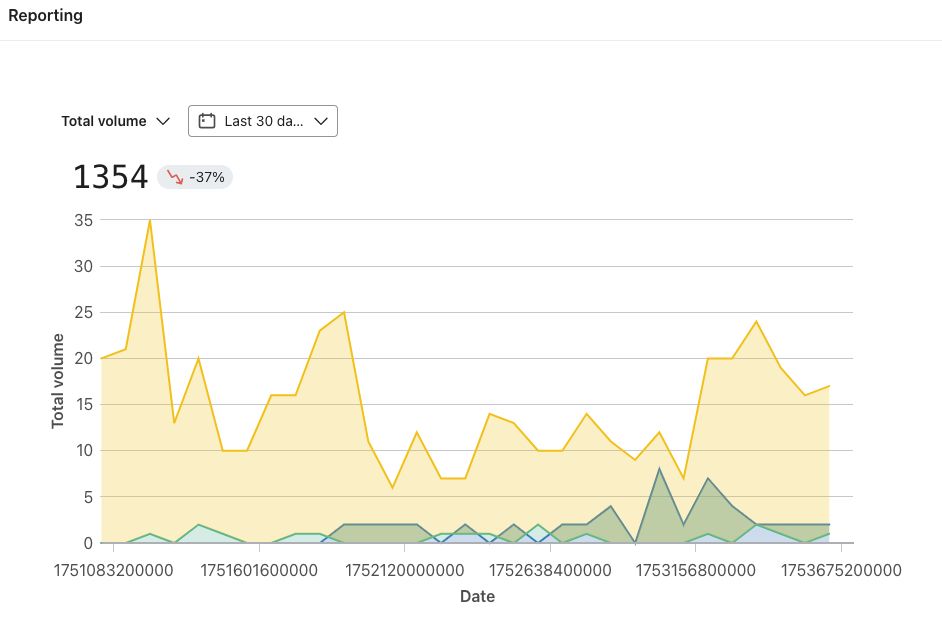
At the top of the dashboard, you can view a graph of your support performance metrics over time and per channel to analyze trends for each metric individually. The graph defaults to Total volume, which shows tickets created over time, excluding spam. Use the dropdown menu above the graph to select Resolved, Avg. response time, or Avg. resolution time.
The graph shows smoothed data by default to make trends easier to see. Click Show raw data to view the unsmoothed daily values. Click Show smoothed data to switch back. This changes the graph’s display, not the totals or averages on the metric cards.
Metric cards
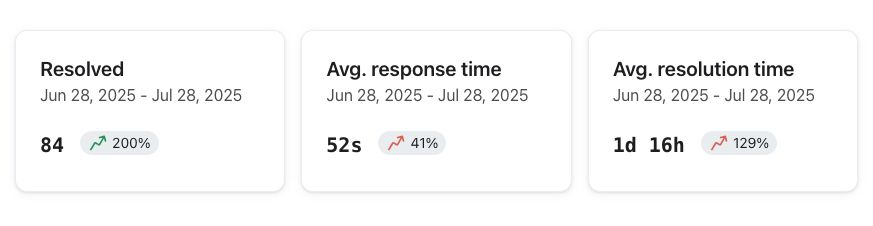
Below the graph, you’ll see the following metrics, which provide key indicators of your support team’s workflow and efficiency in ticket resolution. Each card also shows the percentage change versus the previous period:
- Resolved: Number of tickets resolved during the selected range, excluding spam.
- Avg. response time: The average time it takes for a support agent to respond to customer messages within a ticket.
- Avg. resolution time: The average time it takes to fully resolve a ticket.
- CSAT: Appears when customer satisfaction surveys are enabled. This card shows the percentage of submitted surveys with a rating of 4 or 5, rather than the average rating.
Click the CSAT card to open the detailed report. Its summary and graph show the average rating on a 1–5 scale, so the value differs from the percentage on the dashboard card. Select a date range and channel to review these averages. The Breakdown table lists individual ratings and feedback for the selected channel and uses its own On or before date filter, rather than the graph’s date range. For survey setup, see Klaviyo Helpdesk: CSAT.
Agent performance table
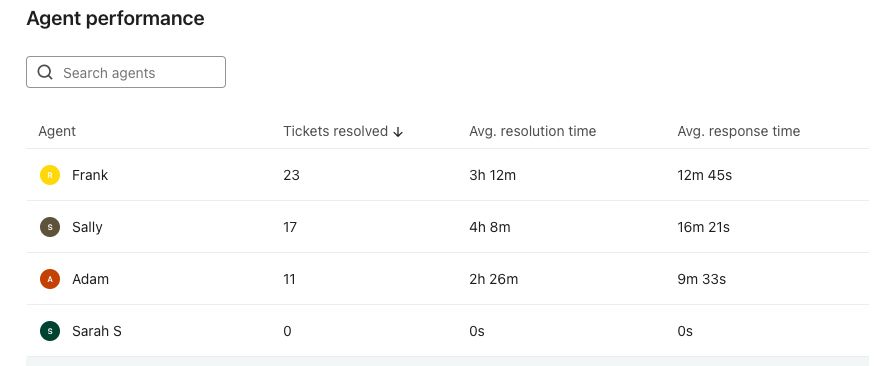
The Agent performance table details individual support agent activity for the chosen timeframe. Columns include:
- Agent: Name or username of the agent.
- Tickets resolved: Total tickets resolved by the agent in the selected period.
- Avg. resolution time: The agent’s average resolution time for resolved tickets.
- Avg. response time: The average time it takes for the agent to respond to customer messages within tickets, not just the time to their first reply.
Use Search agents to find an agent. Click a column heading to sort the table and compare agents by tickets resolved or response and resolution times.
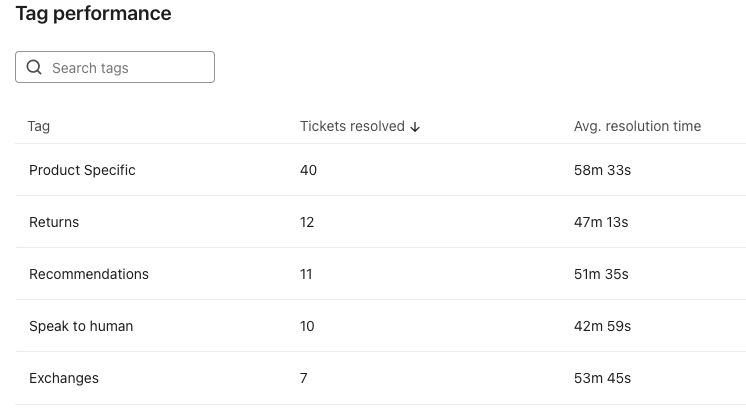
Tag performance
Tickets can be assigned tags that describe topics or reasons for contact (e.g., "Returns", "Pricing"). The Tag performance table helps you understand how these different categories of requests are being managed. Columns include:
- Tag: The classification or topic assigned to each ticket.
- Tickets resolved: Number of tickets with this tag resolved during the period.
- Avg. resolution time: Average time required to resolve tickets with this tag.
Use Search tags to find a category, or click a column heading to sort the table. Click a tag name to open tickets with that tag across all statuses. This ticket view is not limited to the reporting date range or to resolved tickets.
Reviewing and acting on your data
Regularly review the reporting dashboard to track support trends and identify potential issues. If you notice unusual trends or unexpected results:
- Confirm you are viewing the correct reporting period using the date range selector.
- Review the agent and tag performance tables to identify outliers or categories with longer resolution times.
- Assess your ticket management processes if you notice high resolution times or response times.
Additional resources
- Guide to Klaviyo Helpdesk
Learn about Klaviyo Helpdesk, which helps you manage support conversations across all channels, powered by the data you already have in Klaviyo.
- How to assign tickets in your Klaviyo Helpdesk
Learn how to assign tickets within your Klaviyo Helpdesk to efficiently manage customer inquiries and delegate responsibilities among your support team. By understanding views in Helpdesk and assignment actions, you can ensure efficient, organized customer support operations.
- How to create and use macros for Helpdesk tickets
Find out how to create and use macros (previously called “quick responses”) in tickets in Klaviyo Helpdesk. Macros are pre-written, reusable responses your support agents can insert into replies for SMS and web chat tickets.