How to sync data from Klaviyo to Shopify
You will learn
Learn how to sync customer information such as profile information, custom properties, email and SMS subscription statuses, and events from Klaviyo to Shopify. You’ll make these changes from your Shopify integration settings page in Klaviyo. You can choose whether to sync updates for either all existing and new Klaviyo profiles, or only for Shopify-known profiles.
Before you begin
- If you have not already, read our article on getting started with Shopify for step-by-step instructions on integrating, before continuing with this article.
- Deleting a profile in Klaviyo will not cause it to be deleted in Shopify, and vice versa.
Synchronizable data
You can customize which data you want to sync via the integration settings page. Once you configure these settings, the following fields will only sync if they were previously empty for an existing customer in Shopify:
- First name
- Last name
- Phone number
The fields from Klaviyo that will update pre-existing fields in Shopify are:
- Email subscription status
- SMS subscription status
- Locale
New fields that will be created in Shopify are:
- Custom profile properties.
- You have the option to sync any custom profile properties that exist in Klaviyo, including those ingested from other platforms. These properties will be created as metafield definitions in Shopify and their values will be updated on the corresponding customer in Shopify.
- The number of metafield definitions per object is limited to 250 in Shopify, so you may only sync custom properties up to that limit.
- Custom property values must be compatible with the data type used to create the metafield definition in Shopify. Klaviyo can convert some values to that type, but a value that cannot be converted (for example, plain text instead of an array) will not update the metafield.
- Email received (received by a Klaviyo profile, i.e., sent by a Klaviyo customer), opened, and clicked events.
- SMS message received (received by a Klaviyo profile, i.e., sent by a Klaviyo customer) and clicked events.
Please note that Klaviyo email received, opened, and clicked events, along with SMS message received and clicked events, are not individually viewable in Shopify but are included in marketing attribution reports.
We recommend syncing all profiles and all possible fields for greater data alignment between the platforms. Klaviyo data can be used to drive more value within Shopify, including via enhanced attribution reporting and business automation.
Sync fields from Klaviyo to Shopify
- In Klaviyo, head to your Shopify integration settings page.
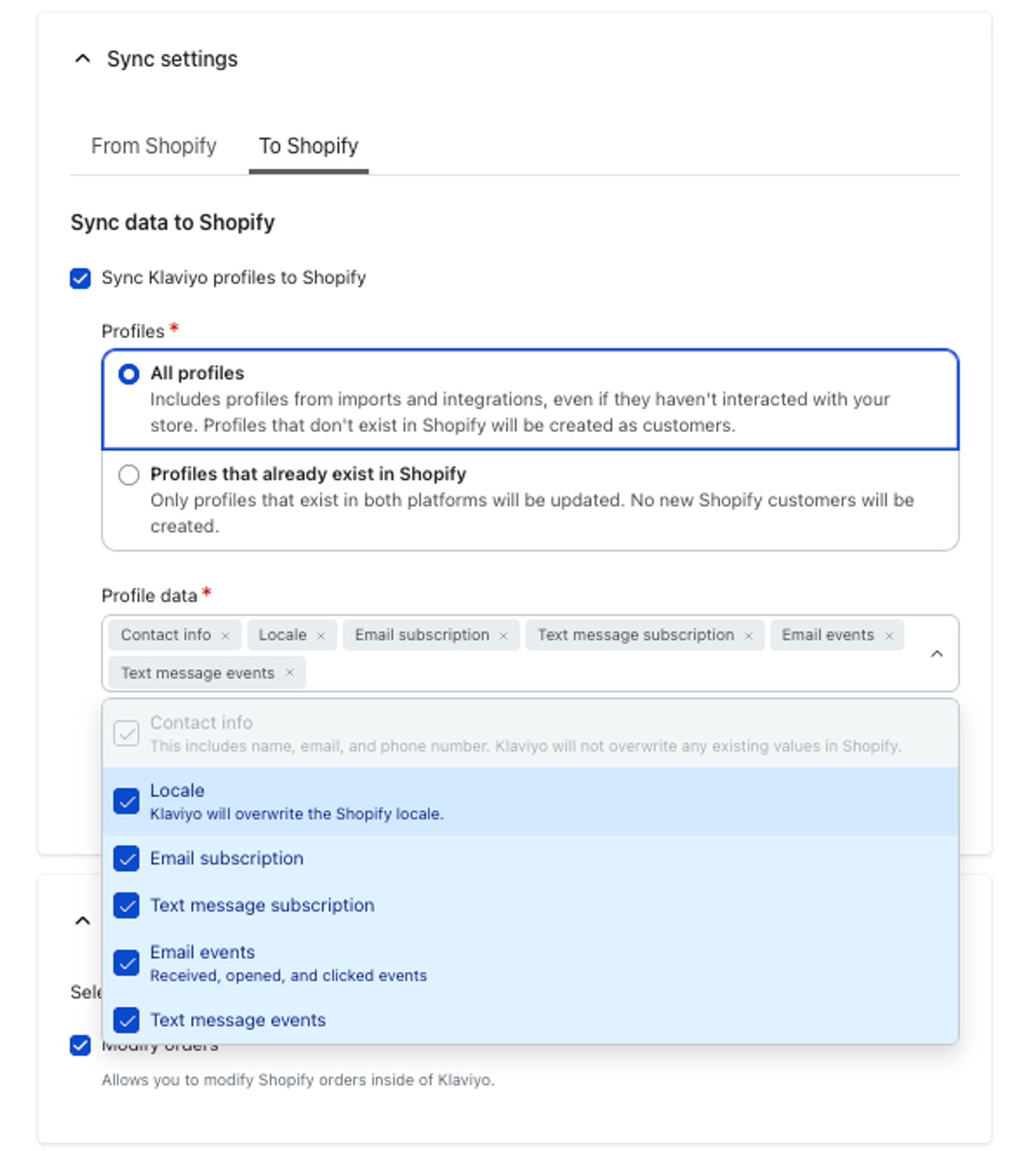
- Scroll to the Sync settings section and click the To Shopify tab.
- Select Sync Klaviyo profiles to Shopify.
- Under Profiles, select All profiles or Profiles that already exist in Shopify.
If you choose all profiles, Klaviyo will create new customers in Shopify for all profiles (existing and new) created in Klaviyo. This includes profiles synced from other Klaviyo integrations, or added through list imports, even if they have not interacted with your Shopify store.
- Choose which updates to sync using Profile data and Custom properties. If you select Profiles that already exist in Shopify, select at least 1 of Contact info, Locale, Email subscription, or Text message subscription. Selecting only events is not enough.
- Contact info
This includes name, email address, and phone number. When you choose to sync All profiles, this option is selected automatically and cannot be turned off. This selection starts a backfill of all in-scope profiles after you integrate or confirm your updated settings. Going forward, new profiles will be created in Shopify with this data as they are created in Klaviyo (if they do not already exist in Shopify). - Email subscription
Selecting this setting will not prompt a backfill of email subscription statuses. Going forward, email consent status updates in Klaviyo (i.e., subscribes and unsubscribes) will trigger updates in Shopify. Note that suppression status in Klaviyo does not sync to Shopify and does not affect consent status in Shopify. - Text message subscription
If you have SMS enabled and choose this option (and you choose to sync all profiles), a backfill of all SMS subscription statuses and associated phone numbers will occur after you integrate (or update your integration) to ensure Klaviyo and Shopify are in sync. Going forward, SMS consent status updates in Klaviyo will trigger updates in Shopify. - Email events
This includes received, opened, and clicked events. Selecting this option will not prompt a backfill of this data. - Text message events
This includes received and clicked events if you have SMS enabled. Selecting this option will not prompt a backfill of this data. - Locale
Locale changes in Klaviyo overwrite the Shopify locale. Selecting this option will not prompt a backfill of this data. - Custom properties
If you do not yet have custom properties available, select Sync all custom properties to sync properties as they are added. If you have properties available, save and confirm your sync settings first, then follow the steps below to select properties.
- Contact info
- Click Update Settings. Complete any authorization prompts in Shopify. Back in Klaviyo, click Update Integration to confirm the changes.
Sync custom properties
If you have custom properties available, choose which ones to sync to Shopify. Selecting custom properties prompts a backfill for those properties. You can edit, add, or remove these properties at any time.
Removing a property from the sync and confirming your changes deletes its metafield definition and stored values in Shopify. Check whether the property is used in Shopify before removing it.
- Under Custom properties, click Select properties or Edit properties if you already sync properties.
- Search for properties and click the plus sign to add them, or click Add all to add the available properties, up to the Shopify limit.
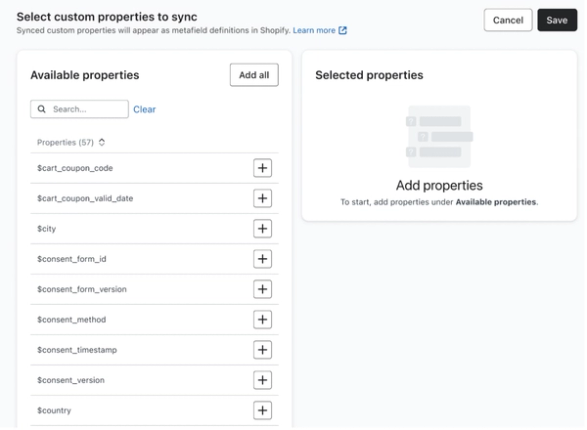
- Click Save.
- In the confirmation window, click Sync properties (or Sync property for 1 property). If you remove all selected properties, click Stop sync to confirm.
Once you've updated your settings, Klaviyo will begin syncing any necessary backfill to Shopify.
Sync frequency
Name, email address, phone number, subscription statuses, locale, and custom properties: When new changes are made to your specified profiles (after any initial backfill), these will be reflected in Shopify within 30 minutes of a change being made in Klaviyo, though most changes should reflect within a minute.
Email received, opened, and clicked events, and SMS message received and clicked events: These changes sync to Shopify within 24 hours.
Outcome
Shopify profiles will now be updated with Klaviyo data according to the settings you selected.
Additional resources
- Getting started with Shopify
- How to sync Shopify email subscribers to a Klaviyo list
- How to collect SMS consent at checkout on Shopify