How to use Shopify Flow and the Klaviyo Connector
Learn how to use the Klaviyo Connector with Shopify Flow to track events (to send data from your workflow to Klaviyo).
Before you begin
If you have not already, read our guide on getting started with Shopify for step-by-step instructions on integrating, before continuing with this article.
What is Shopify Flow?
Shopify Flow is an ecommerce automation platform that Shopify stores can use to automate common tasks, such as:
- Tagging high-value customers
- Flagging and cancelling high-risk orders
- Sending reordering requests when your inventory levels become low
- Identifying and adding tags to products based on their title or SKU
Shopify Flow is a free app available on the Basic, Grow, Advanced, and Plus plans. You can access the app in Shopify's app store and should install it before following the steps in this article.
For Shopify merchants using Flow, there are a number of resources available for understanding what's possible with Flow, and workflows you can download and import into your store:
What can I do with Klaviyo Connector for Shopify Flow?
Shopify Connectors is a feature that allows Shopify stores to create app triggers and actions that third-party partners have built.
The Klaviyo Connector supports the Track an event action:
- This action sends data from your workflow to Klaviyo for it to track.
- Example workflow
When a customer's loyalty tier changes, you can track this change in Klaviyo. - How it works
- This workflow is triggered by LoyaltyLion when a customer moves up a loyalty tier. LoyaltyLion sends the tier information to Shopify Flow.
- Shopify Flow sends data about the customer to Klaviyo, to track the event, and to LoyaltyLion, to add bonus points to the customer's loyalty account.
- Example workflow
How to use the Klaviyo Connector
Create or open a workflow in Shopify Flow. For instructions on adding triggers, conditions, and actions, see Shopify’s guide to creating workflows.
- When in the Select an action menu, you can choose from Standard Actions developed by Shopify or additional actions developed by third-party apps. This is where you'll find the Klaviyo Connector if it's installed.
- Select Track an event.
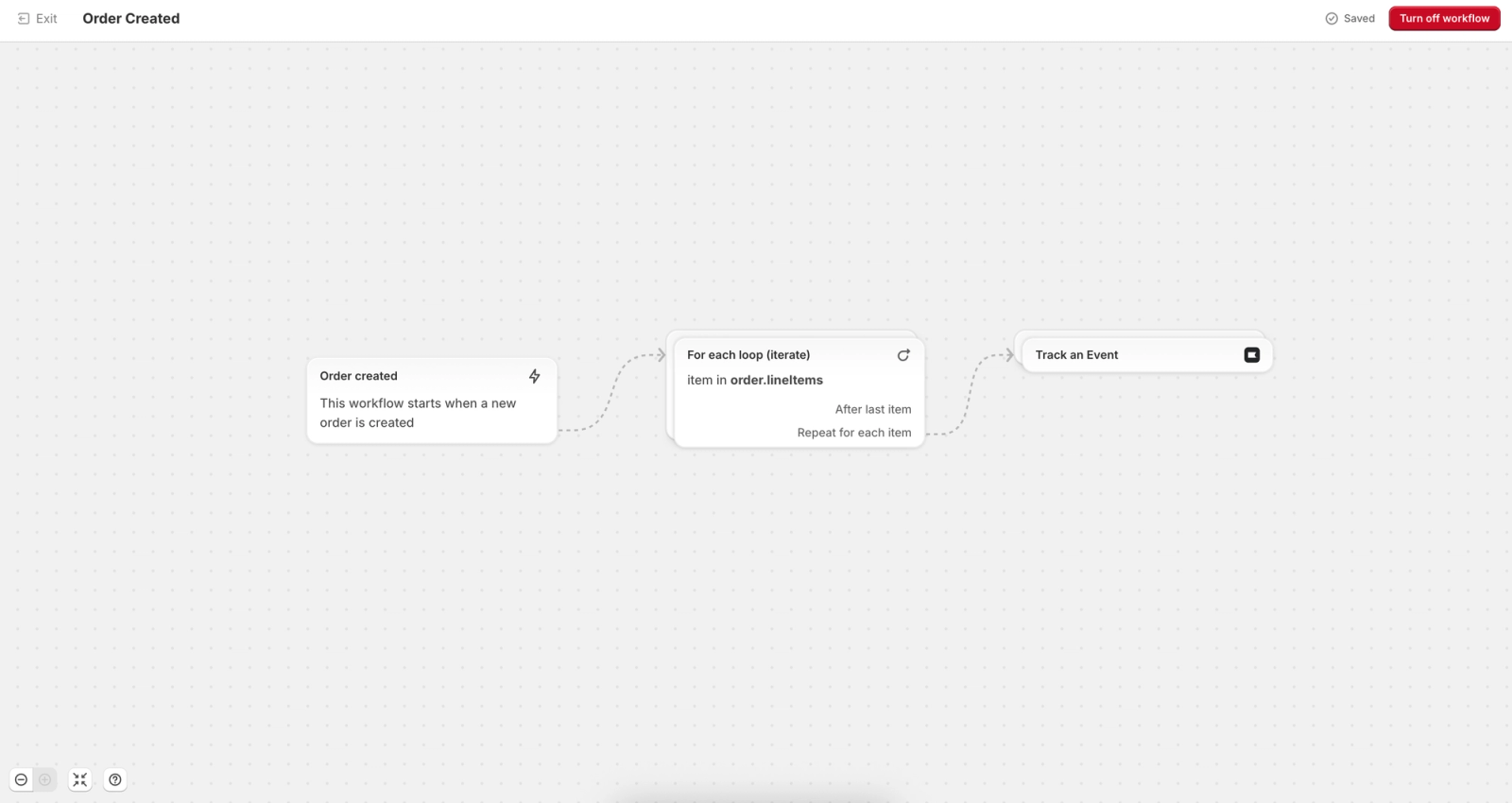
Track an event
Once you choose the Track an event action, you'll need to fill out the following fields:
- Klaviyo Public API Key
Learn how to locate your public API key in Klaviyo. - Event Name
Enter a name between 1 and 127 characters for the event you want to track. This will appear on the customer profile's event timeline. - Customer Email Address
Enter a valid email address for the customer whose activity will be tracked in Klaviyo. Choose a workflow trigger that provides this customer information. - Customer First Name
First name of the person going through the Flow whose activity will be tracked in Klaviyo. - Customer Last Name
Last name of the person going through the Flow whose activity will be tracked in Klaviyo. - Customer Properties
Enter a JSON object containing the custom properties to add to the customer’s Klaviyo profile, for example {"loyalty_tier": "Gold"}.
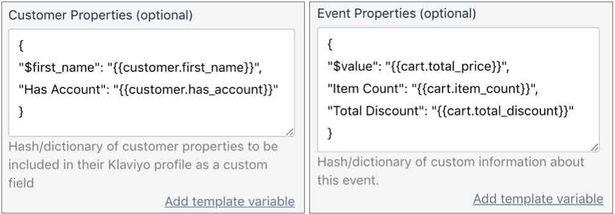
- Event Properties
Enter a JSON object containing information about this event, for example {"tier": "Gold", "bonus_points": 100}.
For a property that contains a list, put a JSON array inside the object. For example, you can send customer tags in the following way: {"tags": [{% for tags_item in customer.tags %}{% if forloop.first != true %},{% endif %}{{ tags_item | json}}{% endfor %}]}
After configuring the action, follow Shopify’s instructions to test and activate your workflow. Run the workflow for a customer with a valid email address, then check that the event appears in Klaviyo.
These events will be tracked in Klaviyo as Shopify events, as indicated by the Shopify icon alongside each event. To view your Shopify Flow event data:
- Click the Analytics dropdown in Klaviyo and select Metrics.
- Select Shopify in the Integration filter. The list will display only Shopify metrics.
- Click the metric that matches your Event Name, then select Activity feed to check the events received from your workflow.

Create a campaign
The Create a campaign action has been retired as of October 16, 2025.
How can I replicate the “Create a campaign” functionality?
We recommend updating your workflows to use the "Track an event" action. This action sends event data from Shopify to Klaviyo, which you can use to trigger a flow or build a segment for a campaign. It does not create or send a campaign.
- In your Shopify Flow, remove the Create a campaign action.
- In its place, add Track an event and configure the fields described above. Test and activate the updated workflow.
- In Klaviyo, use the event to create a metric-triggered flow, or create a segment based on it and send a campaign to that segment.
Troubleshooting
Is your data not showing in Klaviyo as expected?
Make sure Customer Properties and Event Properties each evaluate to a valid JSON object. If a field contains invalid JSON or a top-level list or string, Klaviyo discards the properties in that field; the event can still be tracked without them. For example, this object is invalid because its list ends with a trailing comma:
{"items": ["T-shirt", "Mug",]}Spaces between JSON elements and ordinary spaces inside quoted strings are valid. Unescaped line breaks inside a quoted string are invalid. To send item names as a list, add commas only between items and use the json filter to quote and escape each value:
{"items": [{% for lineItems_item in order.lineItems %}{% if forloop.first != true %},{% endif %}{{ lineItems_item.name | json }}{% endfor %}]}Outcome
You've now learned how to use the Klaviyo Connector with Shopify Flow to track events.
Additional resources
- Getting started with Shopify
Learn how to integrate Klaviyo with Shopify in order to bring your customer profile and order data into Klaviyo and reach customers with targeted messaging. Additionally, enable Klaviyo onsite tracking and sign-up forms, and sync data from Klaviyo to Shopify.
- Connectors on the Shopify Help Center