How to send a push notification campaign
You will learn
Learn how to use Klaviyo to send push notification campaigns via your iOS or Android app.
Just like in SMS and emails, you can use emojis, variables, and personalization tags to personalize push messages.
Before you begin
Before you can send push notifications, note that:
- Set up push notifications for your mobile app in Klaviyo: iOS or Android.
- To receive standard push notifications, app users must enable notifications and have a push token stored on their Klaviyo profile. Your app must send the device’s push token to Klaviyo so you can target them through campaigns and flows.
Push notifications have their own attribution window for opens, which you can configure separately from email. Learn how to change your attribution settings.
Common use cases
Push notifications via campaigns are frequently used for the following reasons:
- Sales and discounts
- Product releases
- Time-sensitive offers (e.g., limited-time items, flash sales)
- App-only offers (e.g., buy in-app, pickup in store)
- Highly segmented campaigns based on browsing behavior
- Local popup shops and events
- In-app minigames
Want to request a feature for Klaviyo push notifications? Fill out this Google form to tell us about it!
Send push notifications in campaigns
- Navigate to the Campaigns tab in Klaviyo.
- Click Create campaign in the upper right.
- Name the campaign, select Single channel, and choose Push as the channel.
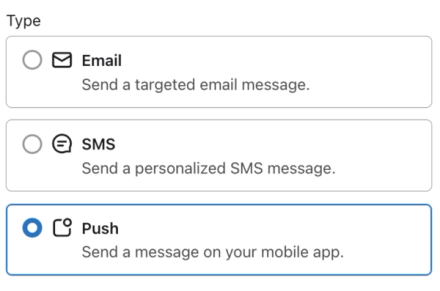
- Review the campaign date and add any tags you want. You’ll choose when to send the message in the final scheduling step.
- Click Continue.
- Choose the list(s) or segment(s) to send to.
- Note: only app users with a push token in Klaviyo can receive the message. Standard push notifications also require notification consent, so not every person in a list or segment will receive them.
- Choose your push delivery settings.
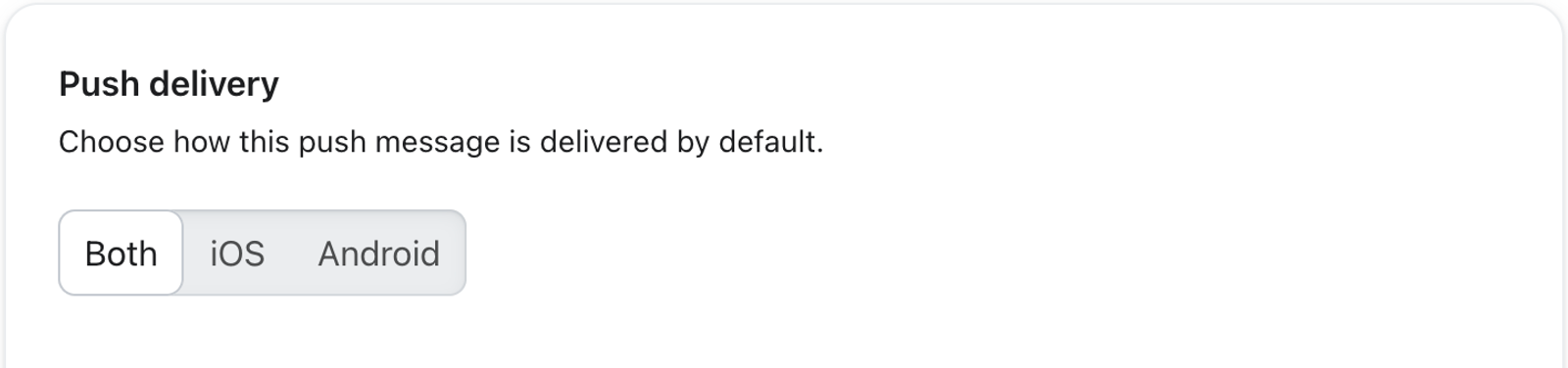
- In the Push delivery card, choose how your push message is delivered. First, select which devices should receive this notification:
- Both — send to iOS and Android devices. This option is the default.
- iOS — send to only iOS devices.
- Android — send to only Android devices.
- Under Send to, choose whether Klaviyo sends to all devices linked to a profile or only the primary device on each profile:
- All devices (default) — send to all devices on each profile that match your platform selection.
- Primary Device — send to 1 device per profile, using the most recently used eligible device.
- In the Push delivery card, choose how your push message is delivered. First, select which devices should receive this notification:
Your audience (list or segment) stays the same. These delivery settings control which devices receive the push at send time. If you choose Primary Device and its platform does not match your platform selection, that profile is skipped. For example, an Android-only send skips a profile whose primary device is iOS, even if they also have an Android device.
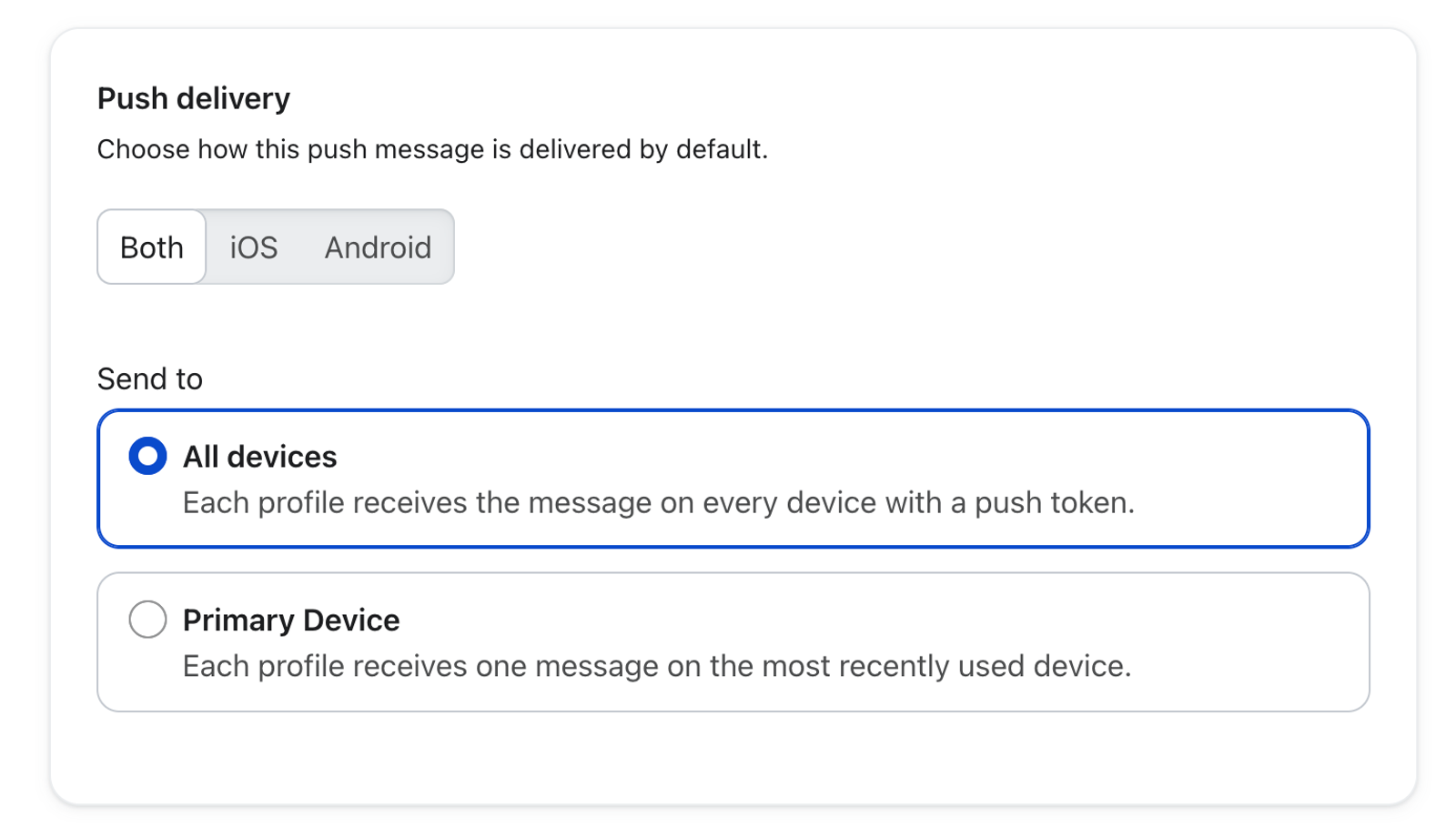
- Click Next to save your audience and delivery settings. In the Content tab, select the type of push notification you want to send:
- Standard
Display a push notification on users’ devices. - Silent
Send a hidden notification to your user’s mobile app.
- Standard
- For both standard and silent push notifications:
- Select the Behaviors tab.
- Under Custom data, you can include key-value pairs along with your notification to trigger app behaviors from both standard and silent push notifications. To add custom data, turn on Custom data and enter the keys and values your app is set up to recognize. You can add up to 10 key-value pairs per push. Learn more about key-value pairs.
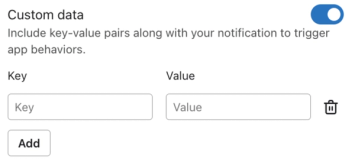
The following push settings only apply to standard push notifications:
- In the Content tab, configure your message’s title and body. The title limit is 255 characters, and the body limit is 512 characters.
- Optional: add an image, GIF (iOS only), or video (iOS only) under Attachment. Your iOS app must support rich push notifications to display attachments.
- Optional: add up to 3 action buttons under Buttons.
- Click into the Behaviors tab to adjust the following message settings:
- Open action
Choose whether tapping the notification opens your app’s home page (Open app), a specific page in your app (Deep link), or a link outside your app (Open external URL). To use a deep link, first set up deep linking in your app. - Show badge count (iOS)
Decide if you want the badge count to increase by 1, be set to a certain number, or be set to the value of a specific property. - Play sound (iOS)
Choose if you would like subscribers to hear a sound when they receive the push notification. - Enable background processing (iOS)
Decide if you want to allow the app to quietly update data in the background when the notification is delivered. If enabled, Klaviyo will set thecontent-availableflag equal to 1 for any iOS notifications.
- Open action
Once you've crafted your message, you can either schedule your push notification or send it immediately.
- Optional: click Preview & test to review your notification before sending.
- Click Next to save your message and open the review step.
- Review the campaign details and resolve any errors, then click Schedule or send.
- Select Send now to send immediately, or Schedule to choose the send date, time, and time zone. Click Send now or Schedule message to confirm your choice.
Additional resources
- How to use deep links in push notifications
Learn how to use deep linking in Klaviyo push notifications so that you can direct customers to a specific in-app screen. Deep links make it easy for your profiles to access the content they want with a simple tap.
- How to add a push notification to a flow
Learn how to use Klaviyo to send push notifications from your iOS or Android app via flows.
- Understanding your push notification settings
Learn about the push notifications settings page, where you can set up push notifications for your mobile app and adjust the Smart Sending window.