How to create a SMS and RCS automation
Only Owners, Admins, and Managers can access this feature, and you must have also set up SMS in Klaviyo.
You will learn
Learn how to build an automation, a type of text message conversation that allows you to ask questions, follow up on responses, and send personalized recommendations. You can build 2 types of automations:
- Branched automation from keywords and/or question choices
- Single-step automation with a message
For instance, you can run quizzes, surveys, one message keyword responses, and buying guides all through SMS and RCS. Not only is this a quick and easy way to engage your audience, it is a great way to gather zero-party data to inform your marketing strategies.
Note that this article focuses on the steps to create an automation. For details on how automations work, their settings, etc., see getting started with automations.
Before you begin
Please note the following:
- Automations only reply to SMS subscribers who message you.
- SMS automations are not available for branded sender IDs, as this number type cannot receive text messages. They are available for RCS-enabled accounts and RCS-enabled phones.
- Your outbound messages count against your Mobile Messages plan.
Set up an automation
- Navigate to Automations.
- Click Create automation.
- Once in the new automation, click on the Trigger.
- Select a trigger type from the right sidebar, either:
- Always on (starts when a subscriber sends a matching trigger keyword, without needing to receive a specific campaign or flow message first).
- Message response (specific to a campaign or flow message).
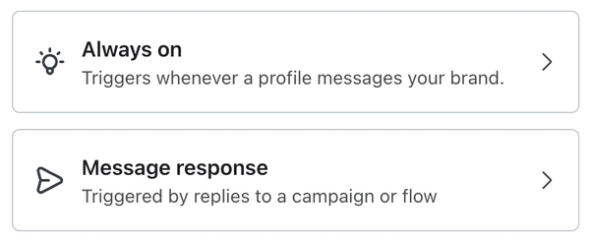
- If you select Message response, choose the campaign or flow that the subscriber will reply to. For a flow, also select the specific flow message.
- Automations require an inbound channel match. If a customer messages a brand through an automation, their message must be sent through the same channel in order for the automation to work.
- For example, there's an automation configured via SMS. A customer must reply to that automation via the SMS thread in order for it to work. They can't reply via WhatsApp, etc.
Set up trigger keywords
- Enter the word or phrase you want as the trigger keyword. The matching rules depend on the trigger type:
- Always on
- Requires an exact match, ignoring capitalization.
- For example, the keyword “Pets” triggers the automation for “Pets” or “PETS,” but not “pet” or “petsitter.”
- Message response
- Recognizes an exact keyword or a keyword contained in the reply. Approximate (“fuzzy”) matching can also recognize similar wording or misspellings, but these matches are not guaranteed.
- For example, if “Pets” is the only matching keyword, “Pets” and “I love pets” can trigger the automation when the subscriber replies to the selected message.
- Trigger keywords:
- Must be 3–20 characters for Always on triggers, or 1–20 characters for Message response triggers. Emoji-only keywords can be as short as 1 emoji.
- Must be unique (i.e., they cannot be used for any other automation)
- Can be a phrase and contain spaces: "I love pets"
- Trigger keywords are not case sensitive. "PETS" will still trigger "pets."
- Cannot contain tabs, line breaks, or consecutive spaces.
- Cannot be linked to a subscribe or compliance keyword (i.e., STOP, JOIN)
- Always on
- Click Save.
- Optional: to add more trigger keywords:
- Click the trigger again.
- Select Add keyword, enter the keyword, and save it.
- Optional: to add more trigger keywords:
- Optional, but recommended: to save the trigger keyword to a profile, reopen the trigger and toggle on Assign responses as a profile property. Enter the name of the profile property.
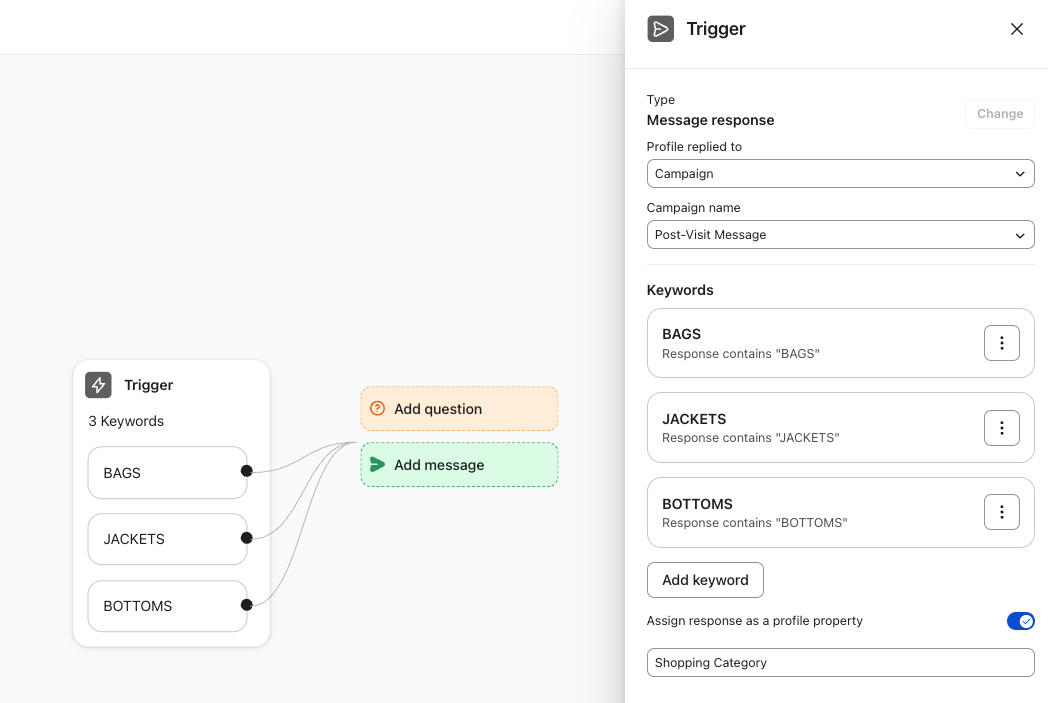
- For example, a property named “Shopping Category” can store “Bags,” “Jackets,” or “Bottoms,” depending on the keyword the subscriber sends.
- Select Save.
Build a branched automation
Use branches to send different questions, messages, or recommendations based on a trigger keyword or an answer. If you only want to send 1 reply to a keyword, skip to Build a single-step automation.
Branching from keywords
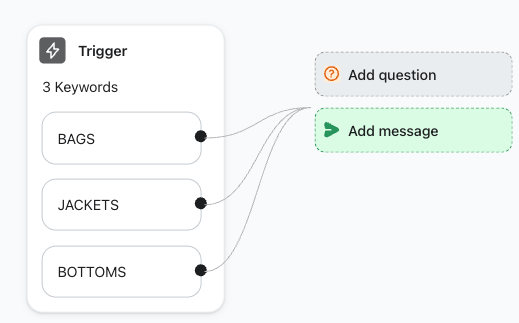
- Click the black dot on the keyword tile to open the action menu.
- Select Add question or Add message to create a custom response for that individual keyword. Configure and save the card using the instructions below.
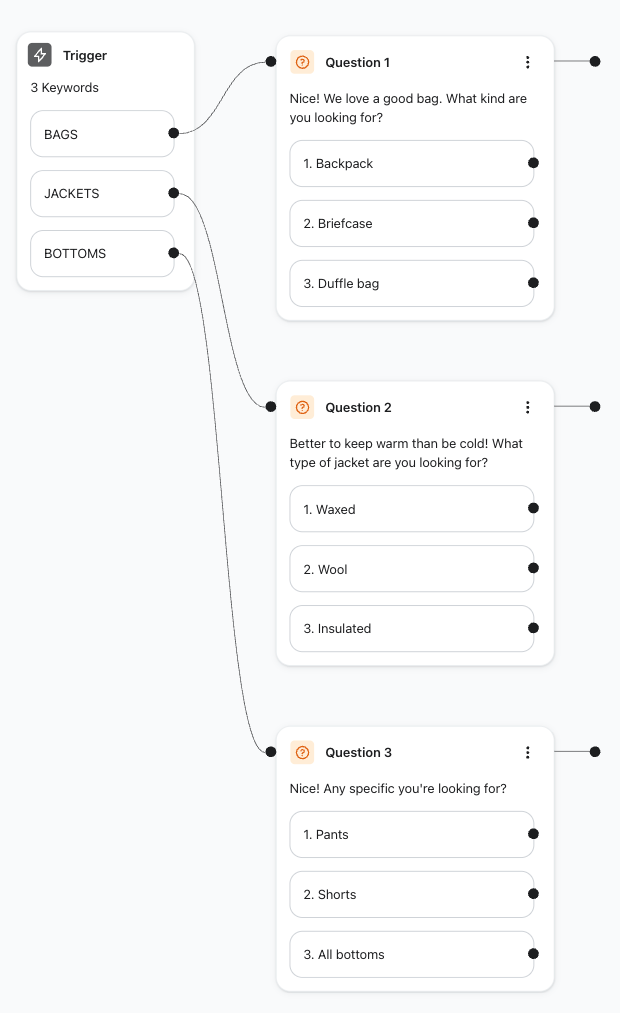
- For example, you can ask a different set of questions or send a different message when someone replies with “Bags,” “Jackets,” or “Bottoms.”
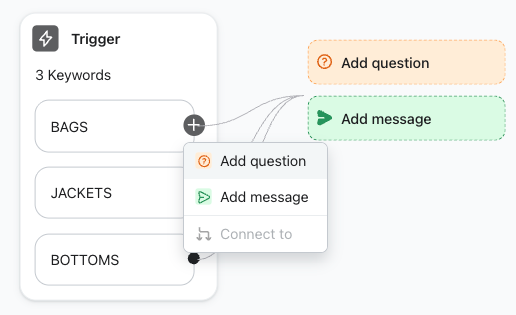
A branched keyword automation with personalized questions for each keyword
Alternatively, to ask the same question for all keywords, click the large Add question button. Configure and save the question.
- For example, subscribers who reply with “Bags,” “Jackets,” or “Bottoms” can all receive the same follow-up question.
Creating branches from questions
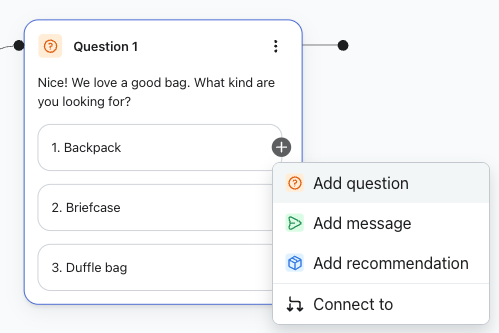
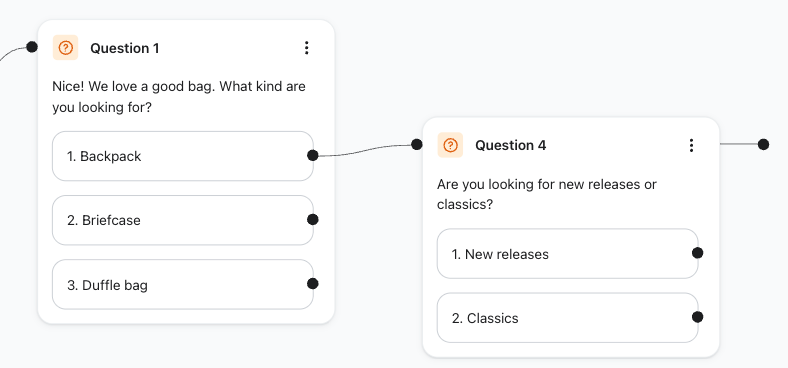
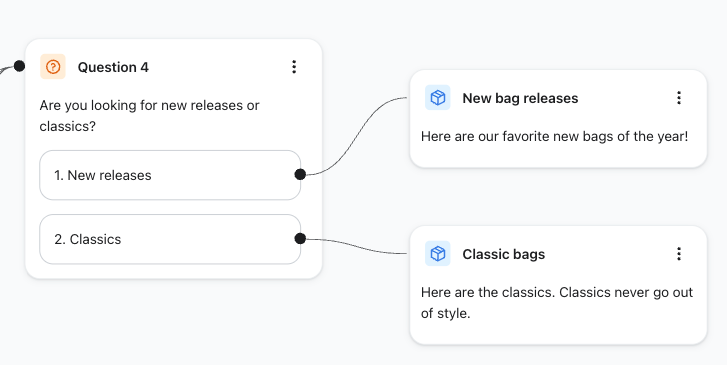
After adding a question, you can branch from each choice to another question, a message, or a recommendation.
Click the black dot on a question choice to open the action menu, then choose one of the options below.
Add question
You can add up to 20 question cards to an automation.
- Click Add question to ask a question with multiple choices.
- Optional: name your question in the Internal name field. Naming your questions makes it easier to refer back to them later.
- Enter your question in the Question box.
- Enter 2–5 choices. Select Add choice to add another choice. Note that:
- Choices are numbered sequentially.
- Subscribers can reply with either the choice text or the number.
- Choices are recognized using “fuzzy” logic:
- A choice can appear anywhere in a message (including as part of another word).
- Abbreviations or misspelled words may be recognized (although it is not guaranteed).
- Each choice must be 1–20 characters.
- For clearer replies, avoid:
- Numbers or single letters as choice text (e.g., “21” or “A”), which can be confused with the numbered choices.
- Hard-to-spell words.
- Long phrases.
- Select Save.
To ask a different follow-up question for each response, click the black dot on that choice and repeat these steps.
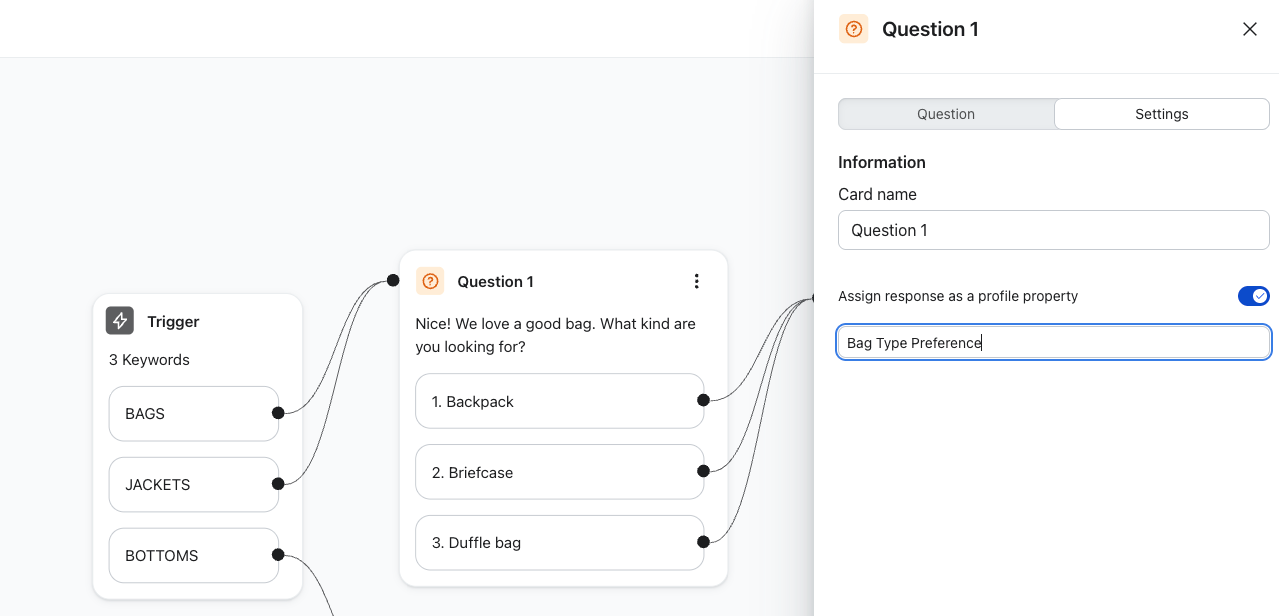
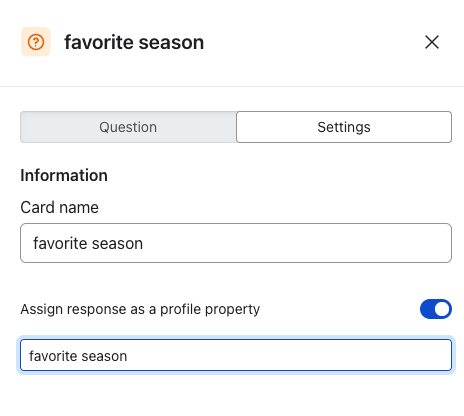
Optional, but recommended: reopen the question and select the Settings tab. Toggle on Assign responses as a profile property, enter the profile property name, and select Save.
- For the example below, the response "Backpack" can be saved as a new custom profile property for "Bag Type Preference."
Add message
- Click Add message to respond with plain text.
- Optional: name your message in the Internal name field. Naming your messages makes it easier to refer back to them later.
- Enter the reply in the Message box.
- Select Save.
A message ends this branch. You cannot add a recommendation or question after it.
Add recommendation
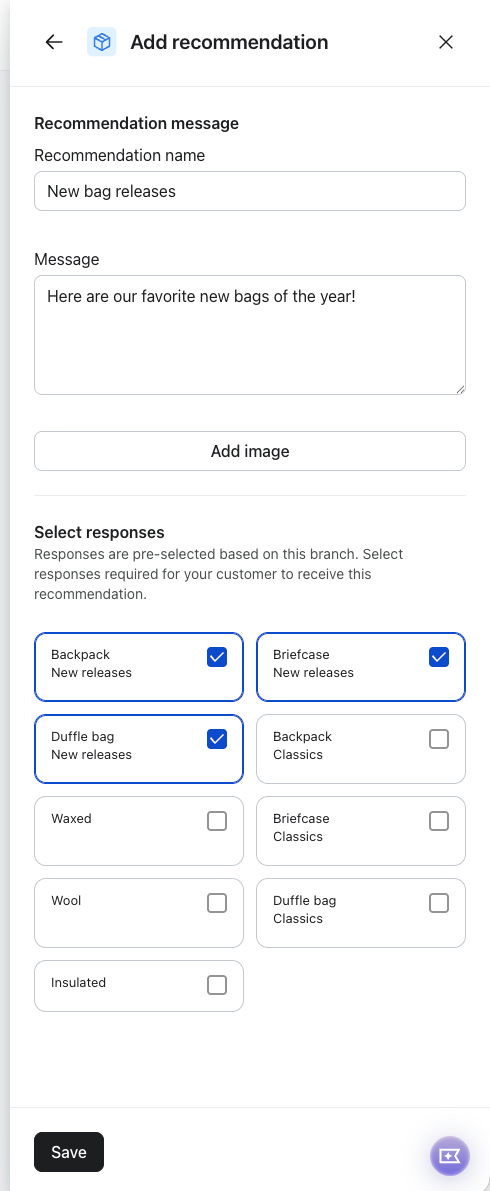
- Click Add recommendation to send a personalized reply. You can include an image.
- Enter a Recommendation name and the reply in the Message box. Add an image if you want to include one.
- Review the response combinations for the recommendation.
- The combinations are selected automatically based on the branched path you have created.
- Select Save.
A recommendation ends this branch. You cannot add a message or question after it.
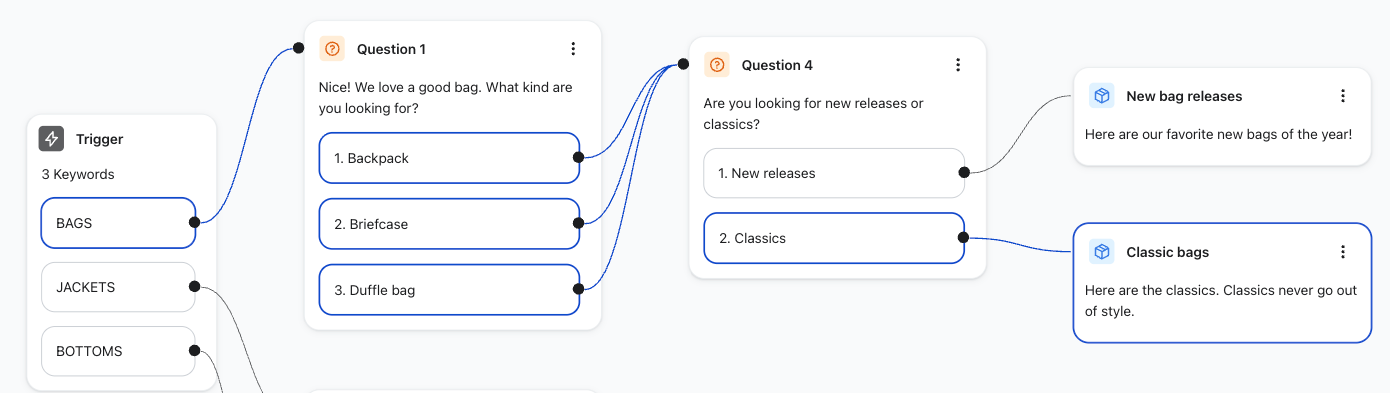
To view where the recommendation is connected and associated branches, click the branch or hover over the Recommendation in the drawer.
Connect to
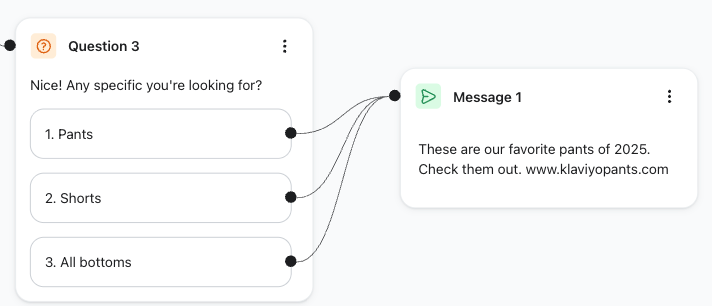
- Click Connect to to connect a question choice to an existing question, message, or recommendation card.
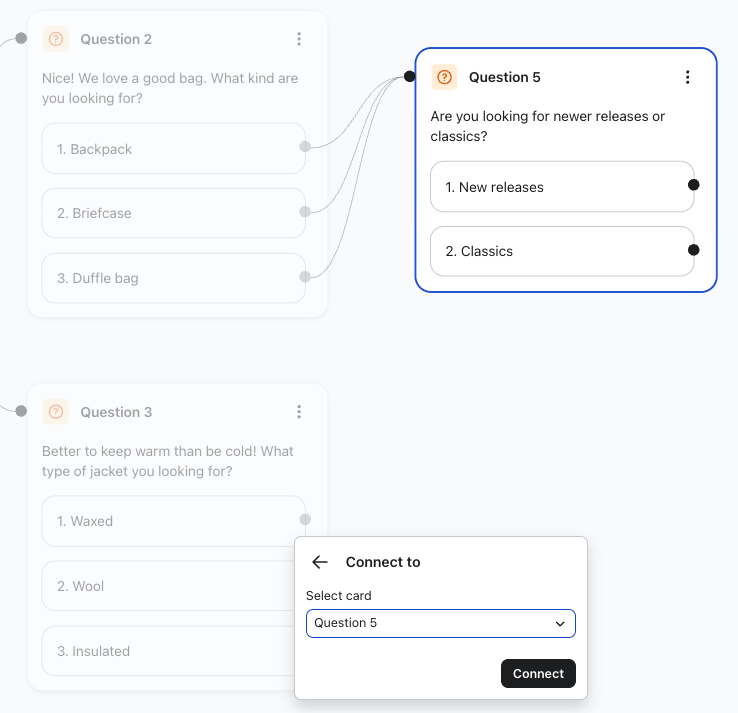
- Select the card in the dropdown menu. Hovering over the card name will help you see which one you will be selecting.
- Click Connect to build a branch from the question choice to that card.
- You can have multiple branches leading, or converging, to one card.
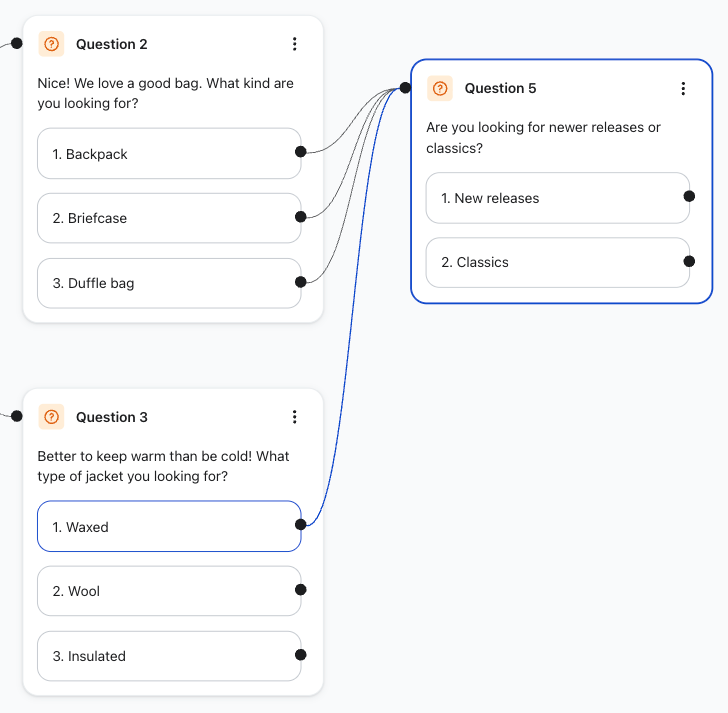
Example: branching from a question
After adding a question, you can add another action from a question's choice.
For example, if a subscriber replies with “Beginner” to a skiing experience question, you can create a new branch for that response.
That branch could ask another question, send a message, or provide a recommendation.
Isolated cards or branches
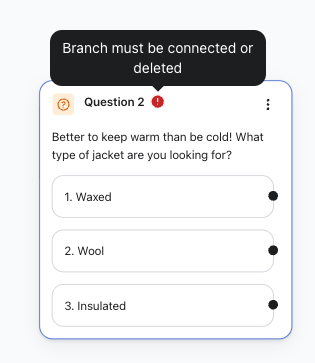
A question, message, or recommendation can become isolated when it is disconnected from its original path.
After changing a branch, review and reset the response combinations for any affected recommendations.
Isolated cards appear underneath the primary branched paths.
Reconnect isolated cards before activating the automation. Open the action menu on the keyword or question choice that should lead to the isolated card, select Connect to, select the existing card, and click Connect. The card moves into its newly connected branch.
Build a single-step automation
Set up trigger keywords
If you have not already configured the trigger, follow Set up an automation and Set up trigger keywords above. The same trigger options and keyword rules apply to both branched and single-step automations. You do not need to add the keywords again.
Add a message for a single-step automation
- Open the action menu for the trigger keyword and click Add message to send a plain-text reply.
- Optional: name your message in the Internal name field. Naming your messages makes it easier to refer back to them later.
- Enter your reply in the Message box.
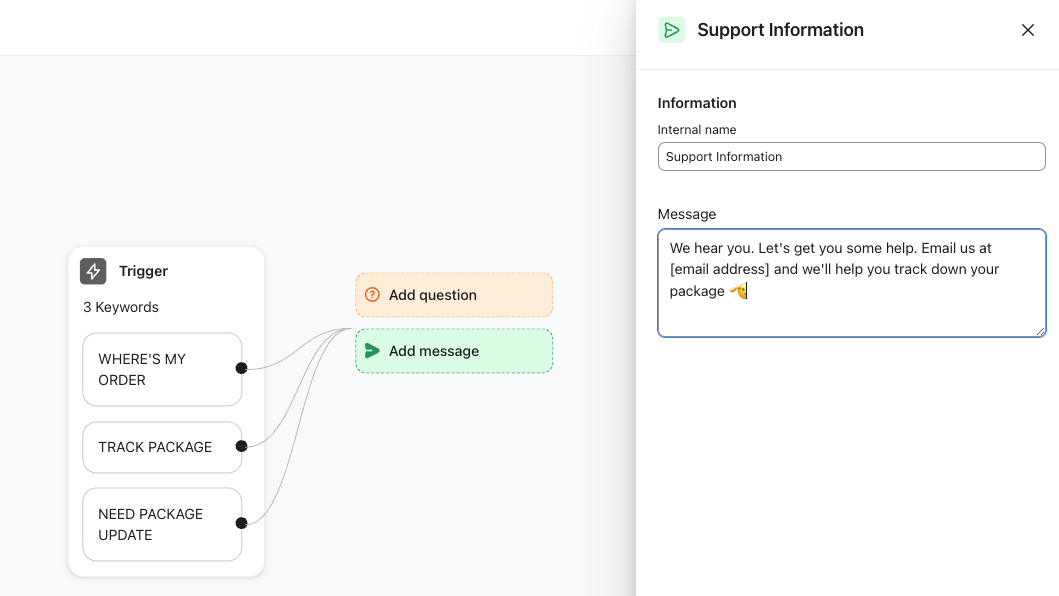
- Select Save.
Please note:
- This completes the single-step reply. You are not required to add a recommendation or question. Continue to Complete your automation to review settings, preview, and turn it on.
- You cannot add a recommendation or question after this message. To ask questions instead, use the branched automation instructions above.
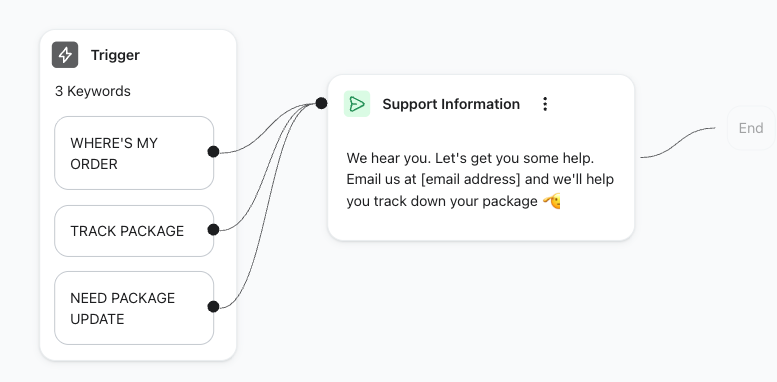
Alternative: ask questions instead of sending a single reply
If you want to collect answers rather than send a single-step reply, use Add question instead of Add message after your trigger. Follow the question configuration steps above to enter choices, save answers as profile properties, and connect each choice to its next card.
- For example, a property named “Favorite Season” can store “Summer” or “Winter,” depending on the subscriber’s choice.
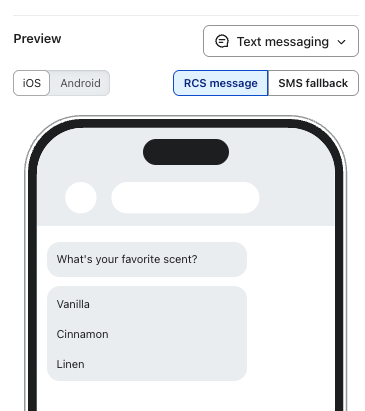
Preview questions formatted for RCS
Open a question card to view its preview.
- If your account is RCS-enabled, use the RCS toggle in the question previewer to preview its interactive choices.
- RCS formatting depends on the phone. Switch between iOS and Android in the previewer to see each format:
- iOS displays choices as buttons.
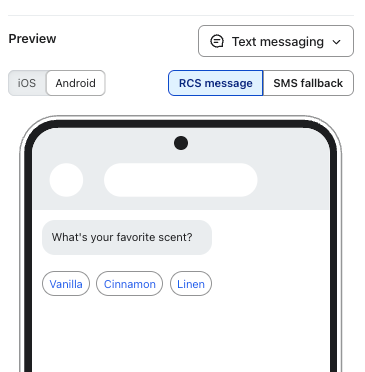
- Android displays choices as a list of chips.
- Subscribers can tap these interactive choices to reply to a question.
- RCS formatting only appears for RCS-enabled phones.
- To learn more about RCS, see getting started with RCS.
iOS
Android
Complete your automation
Finish each branch with a recommendation or message
If your automation includes questions, finish each branch with a recommendation or message. Open the action menu on each final question choice and select Add recommendation or Add message. Configure and save the card using the instructions above. You can also use Connect to to reuse an existing card. If you already completed each branch, or built a single-step reply, do not add another ending.
Optional: adjust your settings
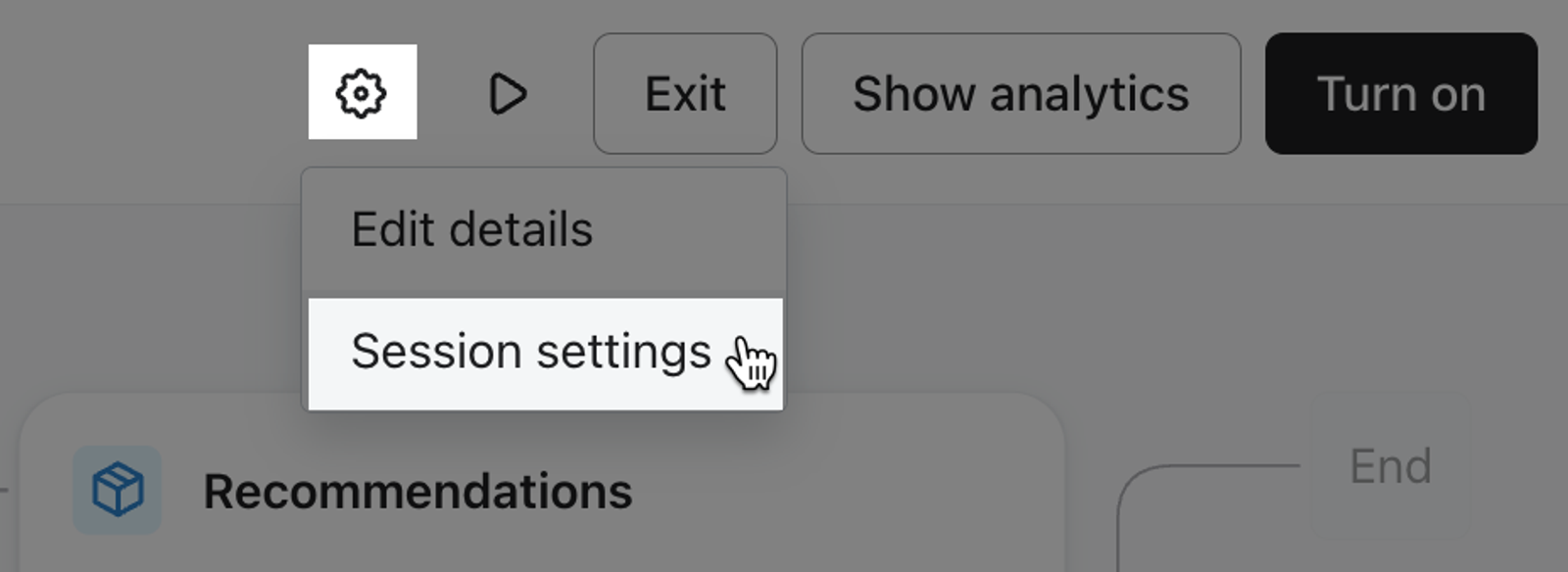
Optional: adjust any session settings for your automation. To do so:
- Click the gear icon in the upper right.
- Select Session settings.
- Update the settings you want to change:
- Reprompt response
- Fallback response
- Maximum number of reprompts
- Maximum timeout (in hours)
- Channels (WhatsApp)
- Select Save.
Preview and turn on an automation
Once you're happy with your automation:
- Preview the automation by clicking the play button in the upper right.
- The preview is slightly different from the live experience. It doesn't catch typos or show link shortening. Learn more about previewing an automation.
- For RCS automations, the preview shows the interactive buttons or chips.
- Double-check your trigger keywords, questions and choices, messages, and recommendations.
- Once the automation is on, you must turn it off to edit it, which causes it to immediately drop everyone currently in the automation.
- Click Turn on in the upper right.
Once you turn on an Always on automation, SMS subscribers can start it by sending a matching trigger keyword. A Message response automation starts from a matching reply to the campaign or flow message you selected, not from any keyword message sent to your number.
Additional resources
- Getting started with SMS automations
Find out about Automations in Klaviyo, which you can use to create automated 1-on-1 conversations with your SMS subscribers. Automations make it easy to ask questions, recognize responses, and provide personalized recommendations to your customers.
- How to preview automations
Learn how to see how automation messages will appear to customers as well as how to test the entire automation without turning it on.
- How to view analytics for an automation
See how to check the performance of an automation, including how many people entered or completed it.