Getting started with the recency, frequency, and monetary (RFM) analysis report
You will learn
Learn how to use the recency, frequency, and monetary values (RFM) report to gather deeper insights into your customers’ purchasing behaviors. The RFM report provides data on how recently a customer made a purchase, how frequently they purchase overall, and how much they have spent in total within the model’s time frame. Klaviyo then brings this data together to determine what customer group (e.g., Loyal customers) a profile most aligns with. These insights are helpful as they can optimize your marketing strategies, including how you personalize messages, how you encourage repeat purchases, how frequently you message and when, etc. Additionally, for those customers or segments who may be at risk, you can use these insights to drive winback campaigns and reduce churn.
Advanced KDP and Personalization are not included in Klaviyo’s standard marketing application, and a subscription is required to access the associated functionality. Head to our billing guide to learn about how to purchase these plans.
Before you begin
To use the report, your account must meet these requirements:
- Have at least 500 customers who have placed an order.
This does not refer to total profiles, but to the number of people who have placed an order with your business. If the RFM section on a profile is empty, check its message: the customer may not yet have an RFM group, or a daily or settings update may still be in progress.
- You have an ecommerce integration (e.g., Shopify, BigCommerce, Magento, etc.) or use the Klaviyo API to send placed orders.
- You have at least 180 days of order history and have orders within the last 30 days.
- You have at least some customers who have placed 3 or more orders.
These requirements apply to the selected conversion metric and time frame cutoff. If the report has insufficient data, try a later end date or another conversion metric.
Only Owners, Admins, Managers, and Analysts can access this report. Additionally, if you have created a new custom metric, it may take up to 48 hours for this change to be reflected in your report.
Profile property updates from May 2024
In May 2024, Klaviyo introduced the RFM properties and refresh schedule described below. The transition applied differently to existing and new customers using Advanced KDP.
Existing customers using Klaviyo Advanced KDP
Profile properties changes
Klaviyo introduced the 3 properties below beginning on May 2, 2024. Then on May 21, 2024, Klaviyo automatically updated your segments to use these new properties and remove the old property values.
Old property | New property | What does it measure? | Additional considerations |
|---|---|---|---|
$current_month_rfm_group | Current RFM group | The RFM group the profile currently belongs to. | |
$previous_month_rfm_group | Previous RFM group | The most recent different RFM group the profile belonged to prior to their current RFM group. | Until a profile’s RFM group changes, their Previous RFM group will show as Unknown. |
N/A | RFM group last changed | Timestamp of when the profile transitioned from Previous RFM group to Current RFM group. This will only appear when a profile changes its RFM group. |
When profile properties refresh
Additionally, RFM properties are refreshed every night instead of the 1st of the month. This means that Klaviyo will check for updates every 24 hours, and if these RFM properties have changed on a profile, you will see these changes reflected. However, if you update your RFM settings, the profile property changes will be reflected within 2 hours.
Keep in mind that the RFM dashboard updates immediately while the changes on a profile record update with a delay. Thus, you may see differences in numbers per RFM group in the dashboard that are not yet reflected in your profiles.
New customers using Advanced KDP
Customers who onboarded to Advanced KDP on or after May 2, 2024 received these profile properties automatically and did not need to transition from the old properties.
When RFM properties are first assigned, Previous RFM group is Unknown. Changing the conversion metric, time frame cutoff, or scoring thresholds resets Previous RFM group to Unknown and clears RFM group last changed. A later group change sets these values again.
Navigating to the report
Navigate to Personalization > Customer insights > RFM analysis.
Use RFM scoring model to select the model you want to review. The report and any settings you edit apply to that model.
Here you will see a default report set to a start date of 30 days prior to the current day and the end date as the current day.
Every night or 24 hours, the system automatically updates the Current RFM group, Previous RFM group, and RFM group last changed properties.
Keep in mind that the RFM dashboard updates immediately while the changes on a profile record update every 24 hours. Thus, you may see differences in numbers per RFM group in the dashboard that are not yet reflected in your profiles.
Compare distribution of customers card
The Compare distribution of customers card breaks down:
- Your RFM groups
- The number of customers in each group at the start date.
- The number of customers in each group at the end date.
This card is useful for seeing how customers are allocated between different groups and if your current marketing efforts are making an impact.
Learn more about how Klaviyo calculates your percentiles, scores, and customer groups.
Comparing customer groups
The Compare distribution of customers card displays your customer groups in a bar chart. Each group has a bar for the start date and a bar for the end date, identified by the chart legend. Here, you can compare how your customer groups are changing across a certain period.
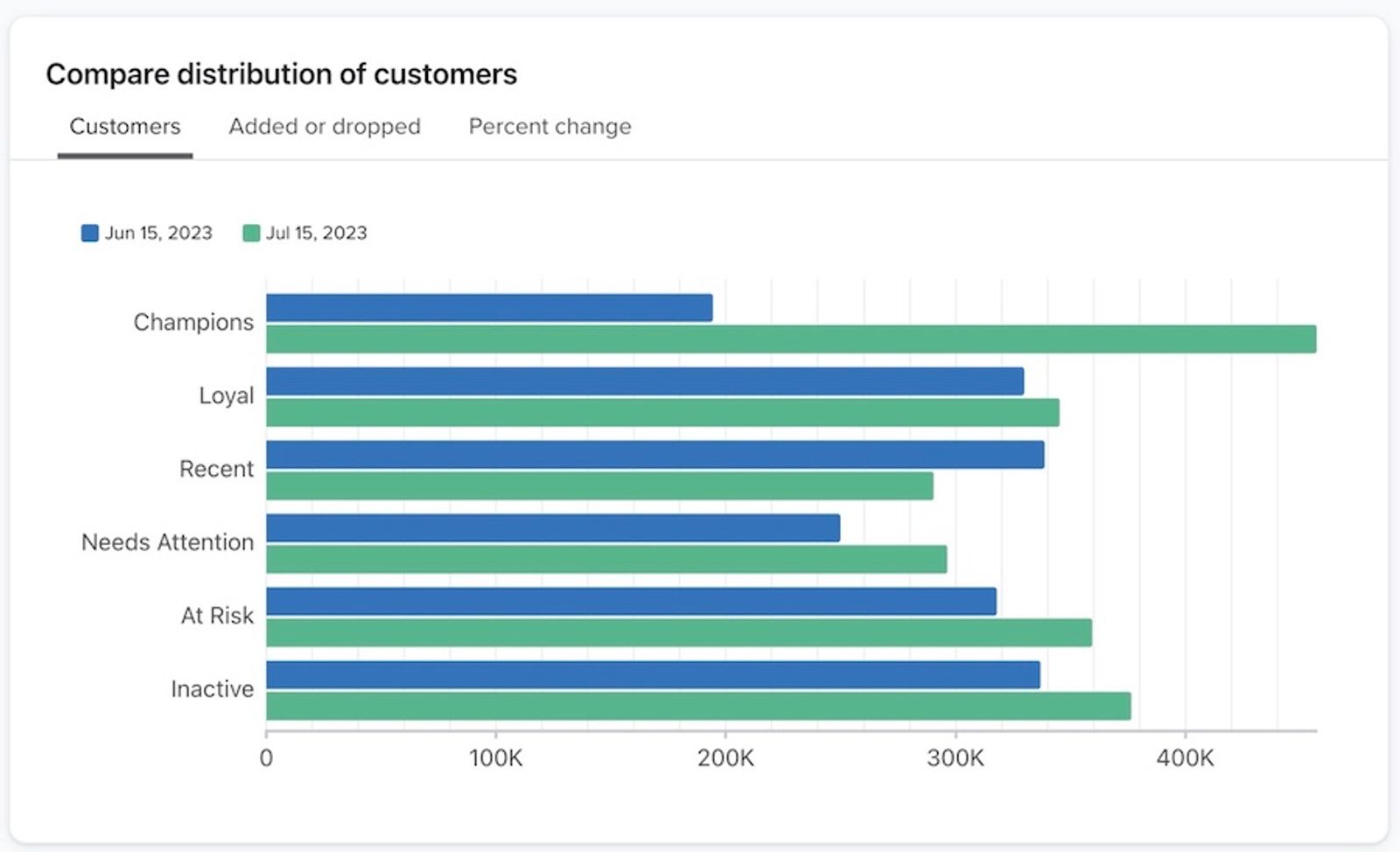
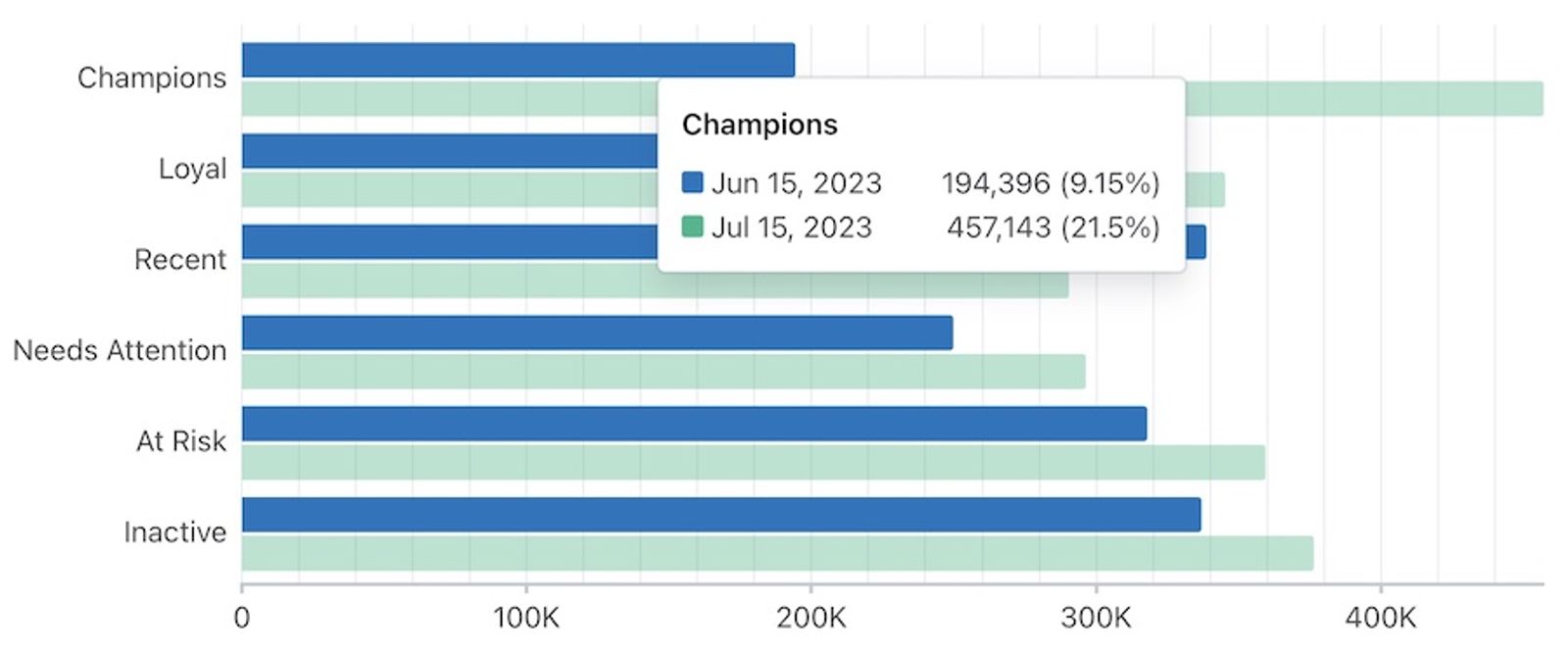
By hovering over any of the bars in the chart, you can review:
- The start and end dates
- The number of profiles that fit that customer group.
- The percentage this group represents out of all groups.
Group change over time card
The Group change over time card includes Map, Added or dropped, and Percent change tabs. Use these views to compare group membership between your start and end dates.
Added or dropped tab
The Added or dropped tab in the Group change over time card compares each customer’s group at the start and end dates. It shows how many profiles moved into or out of each group between those snapshots. This chart is useful for reviewing additions and subtractions to each customer group and where to concentrate your marketing efforts.
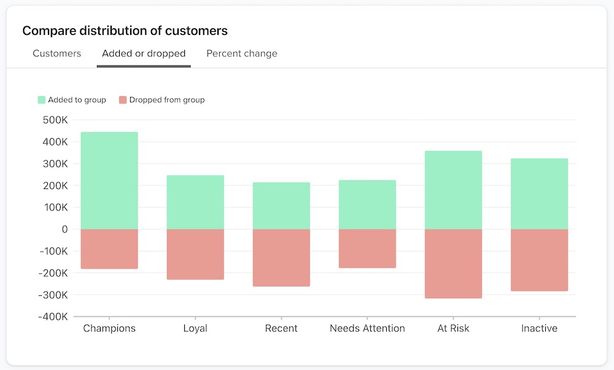
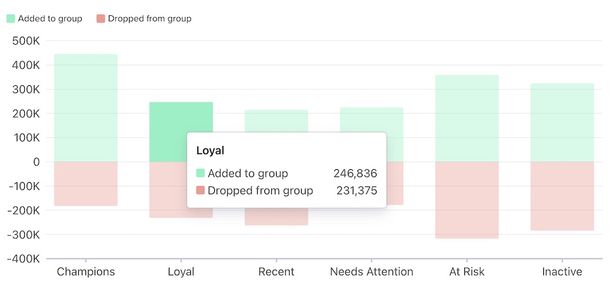
By hovering over any of the bars in the chart, you can review the total number of dropped and added profiles to each customer group.
Percent change tab
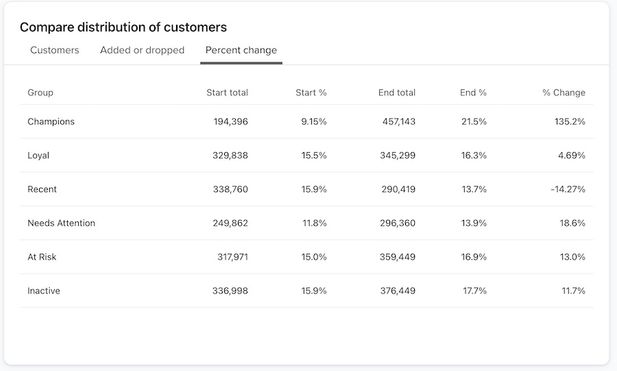
The Percent change tab in the Group change over time card shows each group’s profile count and share of customers at the start and end dates. % Change shows the relative change in the group’s count: (end total − start total) ÷ start total, when the start total is greater than 0. The Never purchased row shows only start-date values.
This table is static and does not allow sorting or filtering.
Map tab
The Map tab in the Group change over time card shows how customers’ groups differ between your start and end dates.
- The left side of your card is all customer groups at your report’s start date.
- The right side of your card is all customer groups at your end date.
- The lines in between these dates visualize customers' movements, and whether they stay in the same group, or move to a different one due to their purchasing behavior.
This card is useful in deciphering if there are patterns across these customer paths, especially where customers may be dropping off in their purchases over time. For example, if many of your Loyal customers have been primarily moving down to lower groupings and not up to Champions, this may signal a need to re-engage these profiles before they possibly churn.
Learn more about how Klaviyo calculates your percentiles, scores, and customer groups.
The Never purchased group is only viewable for the start date on the left side. This is because all customers shown in the chart will have made at least one purchase by the end date. Customers who never made a purchase before the end date will not be reflected in this chart at all.
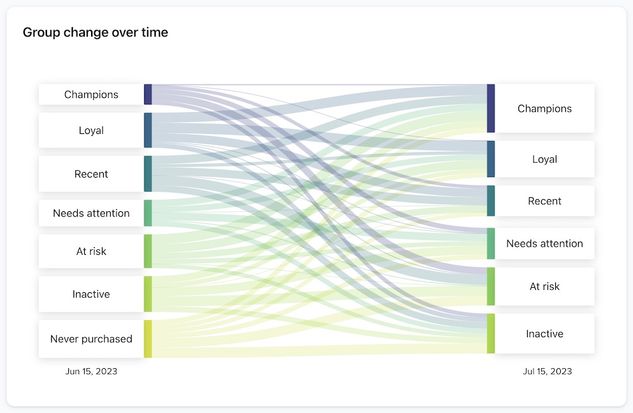
As shown below, by hovering over any of the group names, you can view the customer paths and the number of total profile movements into or out of each group.
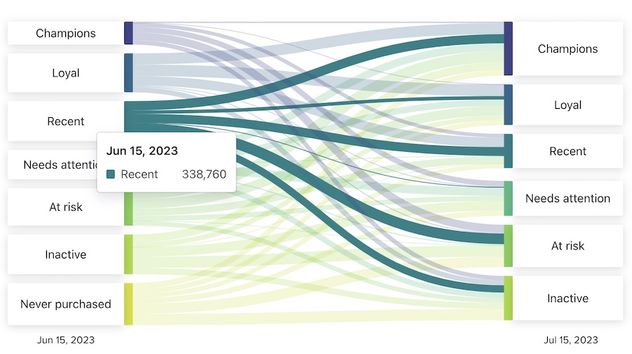
Additionally, by hovering over any of the specific paths or lines in the middle of the chart, you can review the number of profiles moving from one group to another.
Median performance card
The Median performance card provides a view of median performance per customer group. By clicking between the Start date and End date tabs on this card, you can see the median performance by each date and key metrics (i.e., Days since purchase, Number of placed orders, and Placed order revenue).
Learn more about how Klaviyo calculates your percentiles, scores, and customer groups.
Knowing the median performance data can help you understand the middle point of all of your data and the central tendencies of your customer behaviors, especially if you have outliers or non-uniform data. For example, if you have disparate high-value, frequent purchases and some lower-value, infrequent customer purchases, it may be helpful to see the middle intersection of when most orders generally occur and their value.
This table is static and does not allow sorting or filtering.
Customizing the report
By default, your RFM report sets the start date as 30 days prior to the current day and the end date as the current day. It assigns RFM scores using thresholds: recency uses day limits, while frequency and monetary value use percentiles of your customer data. You can adjust these settings to fit your RFM-tracking needs.
Learn more about how Klaviyo calculates your percentiles, scores, and customer groups.
Before changing model settings, review any segments and flows that use its RFM properties. Saving a different metric, time frame cutoff, or scoring threshold can change group membership and reset previous-group history. If you see View instead of Edit, you can inspect settings but do not have permission to change them.
Choosing a start and end date
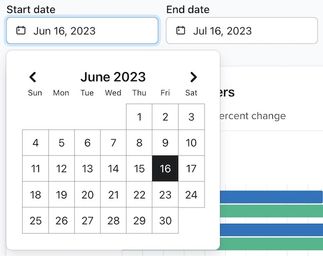
At the top of your report, choose Snapshot date 1 (the start date) and Snapshot date 2 (the end date). The start date must be before the end date, and the end date cannot be in the future. Both dates must fall within the model’s time frame cutoff. Changing these dates updates the comparison in the report; it does not change the model’s settings.
Choosing a time frame cutoff
The Time frame cutoff controls how far back the model looks for purchase activity. All time includes all available history. Last 12 months, Last 24 months, and Last 36 months exclude older activity, measured back from today. The 2 snapshot dates compare groups within that history.
1. Select the model under RFM scoring model, then click Edit.
2. Under Details, select an option from Time frame cutoff.
3. Click Preview, review the customer distribution, then click Save. In Save RFM settings, click Save again to apply the change.
Choosing a different conversion metric
Klaviyo initially uses the metric mapped to Placed Order in your account, including a custom metric if one is mapped. Your account may have multiple purchase metrics, for example if you use more than 1 integration. You can select another value-based conversion metric or a value-based custom metric that meets the RFM data requirements.
- At the top of your report, select the model under RFM scoring model, then click Edit to open Edit RFM model.
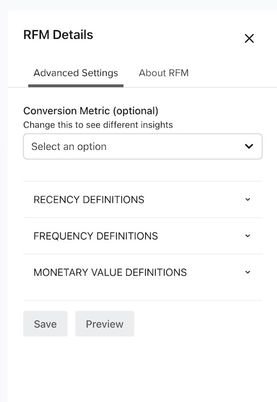
2. Under Details, open the Conversion metric dropdown.
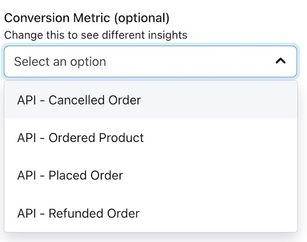
3. Choose a different conversion metric from the list below.
Saving a different metric recalculates the selected model’s data and groups. You can also use custom metrics within the RFM report. Read more about strategically using these.
4. Click Preview and review the Distribution of customers panel to check the results of your new conversion metric. Preview is required before you can save these changes.

5. Click Save. In the Save RFM settings confirmation, click Save again to apply your changes.
Adjusting your RFM values
You may want to adjust your RFM values to better distinguish specific types of customers. For example, raising the monetary threshold for a score of 3 identifies customers with higher total spending. Changing a threshold changes scores and group membership; it does not remove lower-scoring customers from the report.
You have 2 options for adjusting your RFM values:
- Change your RFM scores using percentiles
Changing your RFM scores using percentiles lets you set thresholds relative to other customers. For example, set the minimum frequency percentile for a score of 3 to 75 to identify customers at or above the 75th-percentile purchase-count threshold. Customers below that threshold still appear in the report with lower frequency scores.
Recency definitions use the maximum number of days since purchase and do not support percentiles. Use day values for this dimension.
- Change your RFM scores using values
Changing your RFM scores using values lets you set concrete thresholds for your customer groups. Since you know your customers best, customizing your scores can help you better align with their specific behaviors. For example, with Placed Order as the conversion metric, set the frequency threshold for a score of 3 to 4 purchases. A customer with 4 or more orders in the model’s time frame then receives a frequency score of 3, regardless of how many items each order contains. Use Percentiles instead if you want thresholds relative to other customers.
Changing your RFM percentiles
- At the top of your report, select the model under RFM scoring model, then click Edit.
- Open Frequency definitions or Monetary value definitions.
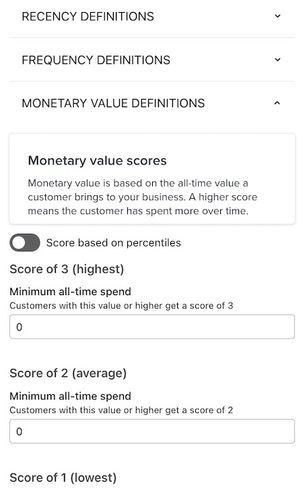
3. Select Percentiles.
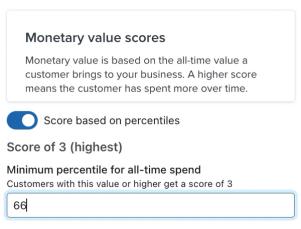
4. Enter the minimum percentiles for Score of 3 (Highest) and Score of 2 (Average). The score-3 threshold must be higher than the score-2 threshold.
Note that values must be from 1 to 100 and should not include any special characters, including the “%” character.
For example, entering 66 as the minimum monetary percentile for a score of 3 gives that score to customers who meet the 66th-percentile spending threshold. This helps distinguish higher-spending customers while keeping the other customers in the report.
5. Click Preview and review the Distribution of customers panel to check the results of your new percentile thresholds. Preview is required before you can save these changes.

6. Click Save. In the Save RFM settings confirmation, click Save again to apply your changes.
Changing your RFM scores
- At the top of your report, select the model under RFM scoring model, then click Edit.
- Open Recency definitions, Frequency definitions, or Monetary value definitions. For frequency or monetary value, select Values.
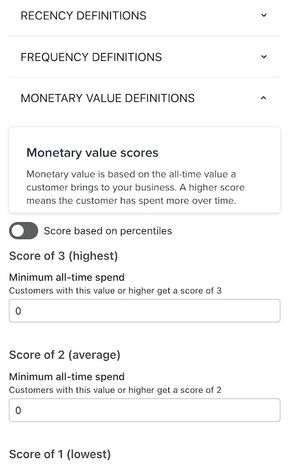
3. Enter the thresholds for Score of 3 (Highest) and Score of 2 (Average). For recency, enter maximum days since purchase; the score-3 limit must be lower. For frequency and monetary value, enter minimum values; the score-3 threshold must be higher.
If you are updating Monetary value definitions, enter amounts in your account’s currency (e.g., 250 represents $250 USD for a USD account).
For example, with All time selected, setting the minimum monetary value for a score of 3 to $250 gives a monetary score of 3 to customers who have spent at least $250. Their overall RFM group also depends on recency and frequency.
Use whole numbers for recency and frequency. Monetary values can have up to 2 decimal places. Do not enter currency symbols, and use your account’s currency because the field does not convert between currencies.
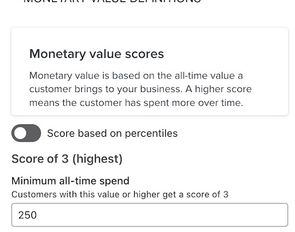
4. Click Preview and review the Distribution of customers panel to check the results of your new values. Preview is required before you can save these changes.
5. Click Save. In the Save RFM settings confirmation, click Save again to apply your changes.
Troubleshooting errors
Edits to RFM settings
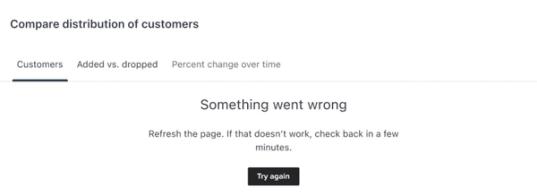
If you receive an error message like the one shown below, you may have attempted to save your RFM settings with an incompatible value or special characters. Check the following:
- Enter numeric values.
- Use whole numbers for recency, frequency, and percentiles; monetary values can have up to 2 decimal places.
- Use a lower day limit for a recency score of 3 than for a score of 2. Use a higher threshold for a frequency or monetary score of 3 than for a score of 2.
- Do not include special characters.

Empty card or report
There may be times where Klaviyo cannot immediately retrieve your data. If this happens, you will see an error notification as shown below. As noted, refresh the entire report page to reload this card(s).
A loading spinner means the report is still retrieving data. Wait for it to finish before refreshing the page.
Viewing the RFM statistics for an individual profile
In addition to the insights provided in the main RFM report, you can also review the RFM data and groupings for individual profiles.
To do this, you will use the RFM Analysis card on each profile.
If your account has multiple RFM models, the card shows a separate section for each model. Check the model name when comparing these values with the main report.
- Navigate to Audience > Profiles, select a profile, and open Metrics and insights. Alternatively, go to Audience > Lists & segments, open a segment, select a profile, and open Metrics and insights.
- Find the RFM analysis card below the Predictive analytics card.
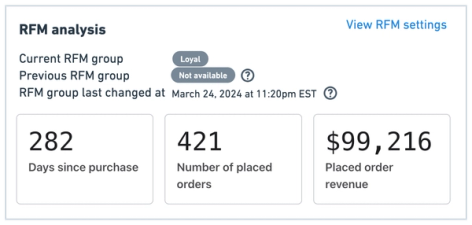
As shown in the example below, this card will contain:
- The profile’s current RFM group, based on properties updated daily.
- The profile’s previous RFM group for comparison.
- The timestamp of the RFM group last changed, or when a profile moved from Previous RFM group to Current RFM group. This will only appear when a profile changes its RFM group.
- The days since the most recent conversion, the number of conversions, and total recorded revenue for the model’s conversion metric and time frame. For example, a model can use Placed Order, Ordered Product, or Fulfilled Order.
Additional resources
- Understanding scoring and customer groups in the recency, frequency, and monetary analysis (RFM) report
Learn how to understand the recency, frequency, and monetary scores and customer groups are derived in the RFM report.
- How to build a segment using RFM properties
Learn how to use RFM values and customer groupings as properties in your segments. Using RFM properties in a segment is useful for creating segment-based recommendations in your marketing content. For example, you may want to provide discounts to some of your current At Risk or Inactive customers, or use cross-selling content with customers in your Recent group.
- How to strategically use RFM properties in campaigns and flows
Learn how to use RFM (recency, frequency, and monetary) properties to target specific types of campaigns and content to your customer groups. Either by using the profile properties themselves or by using a segment with the RFM properties, you can tailor your marketing even further.