How to add push to an abandoned cart flow
You will learn
Learn how to add push notifications to your abandoned cart flow to diversify the types of communication sent to your customers.
Before you begin
Learn how to create an abandoned cart flow if you don’t have one set up in your account yet.
Before you can send push notifications, note that:
- You must set up push notifications for your app in Klaviyo: follow the iOS setup guide or the Android setup guide, as applicable. You also need to install the Klaviyo mobile SDK in your app and release a version that includes it before notifications can be delivered.
- Only app users that consent to notifications will receive push notifications from you. When an app user opts in to receive notifications, they are assigned a token that allows you to target them with push notifications through both campaigns and flows in Klaviyo.
Add a push notification to your abandoned cart flow
Follow these steps to add push to your abandoned cart flow:
- From the main Klaviyo navigation, head to the Flows tab.
- Click the name of your abandoned cart flow to open it in the flow builder.
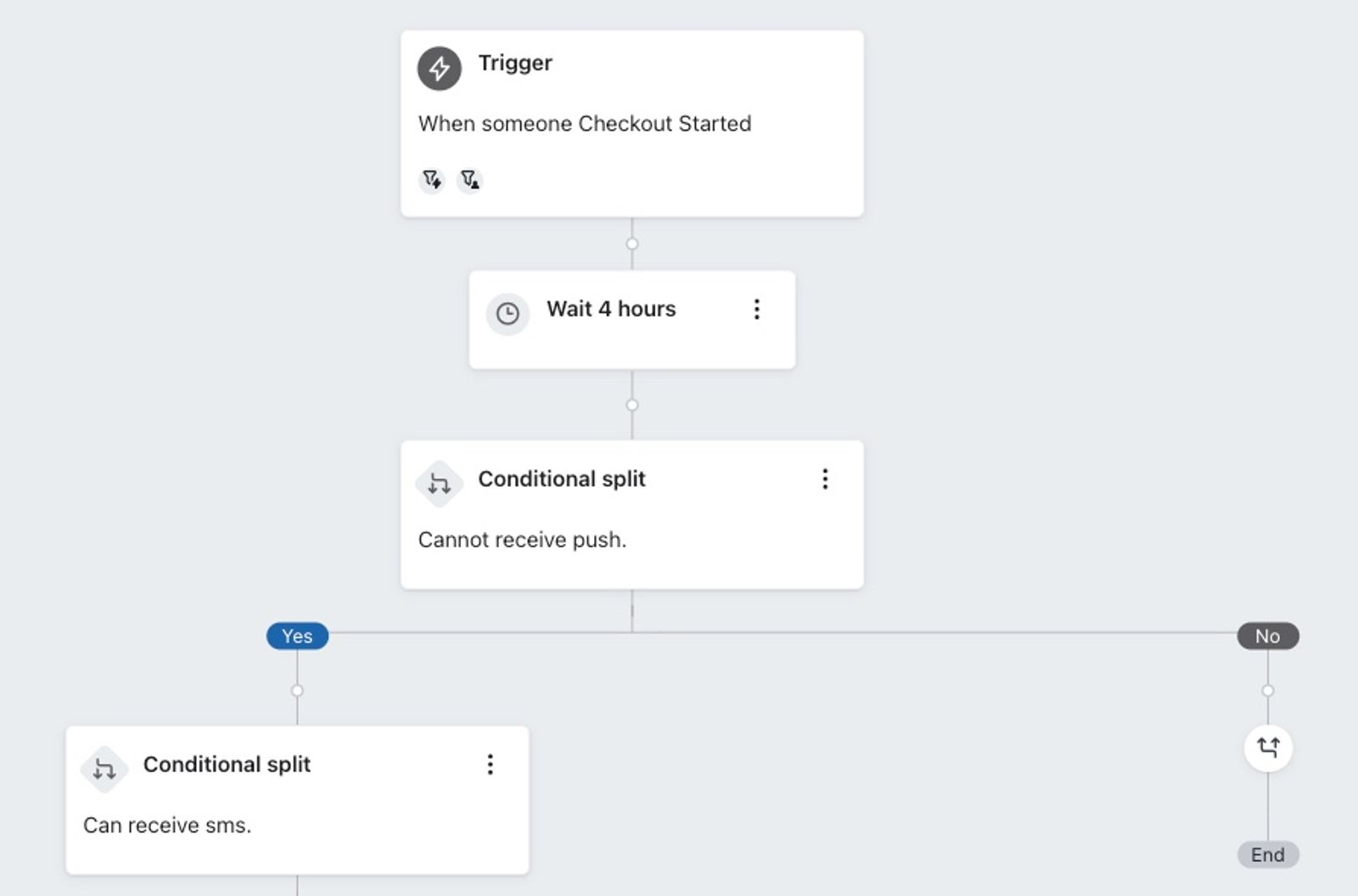
- After the first time delay, add a conditional split with the condition: If someone can or cannot receive marketing > Person cannot receive > mobile push marketing.
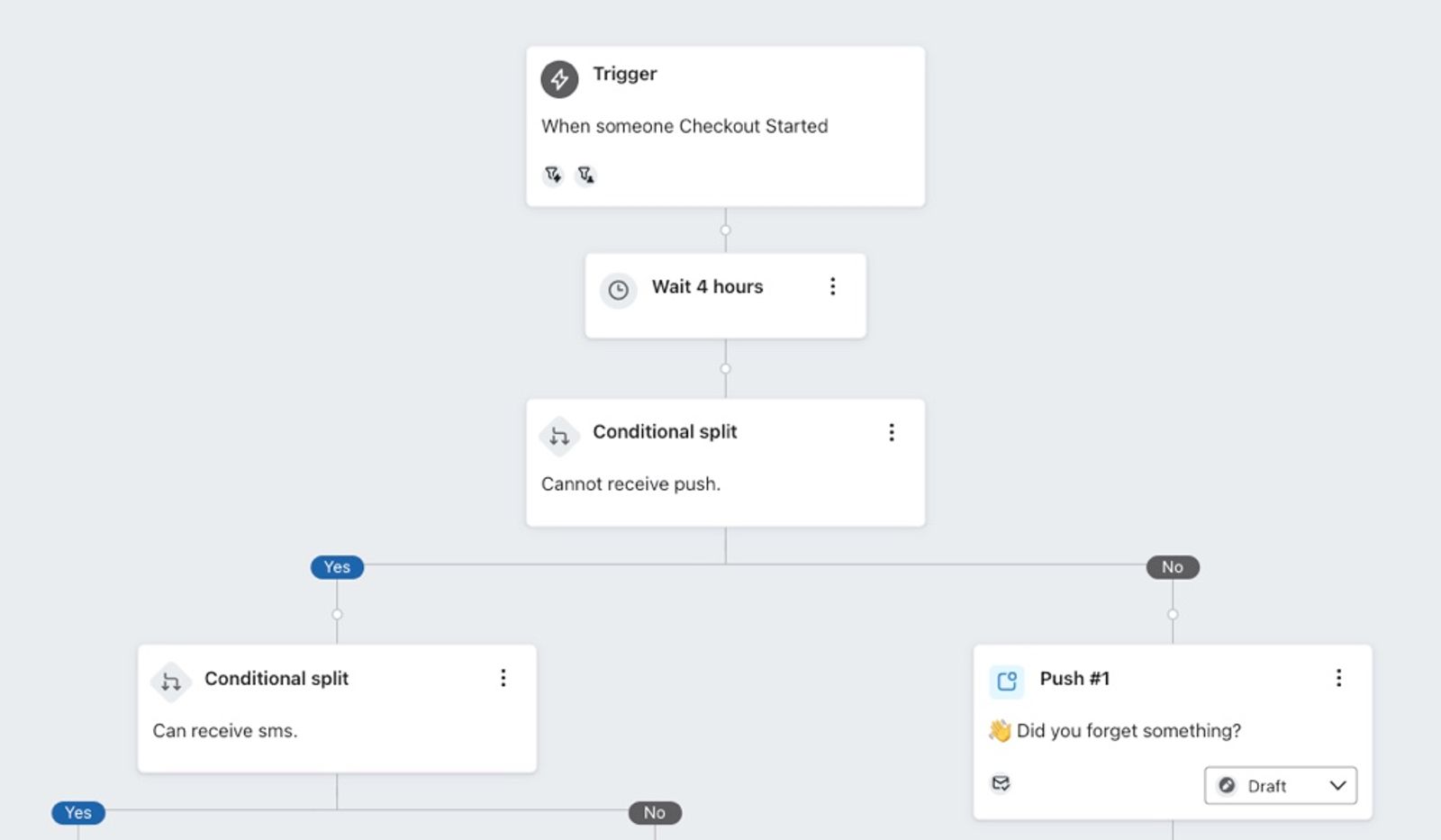
This allows you to keep your existing flow on the left side in the YES path while you add your push notifications to the NO path. With this split, you can send a push notification to those subscribed to push and send a different type of message (e.g., email or SMS) to those who are not subscribed to receive push notifications.
- In the left sidebar, drag the push notification action into the NO path of your push conditional split.
- Optional: In the push message settings, review Skip recently messaged profiles to choose whether to enable Smart Sending. We don’t recommend enabling it for abandoned cart flows: adding items to a cart is a high-intent signal, so the reminder should still go out even if the shopper recently received another notification. If you change the setting, click Save in the sidebar.
- Click Edit next to Content. Under Type, choose Standard.
- Configure the title (optional) and body of the message, such as:
“Did you forget something? Click here to return to your cart”
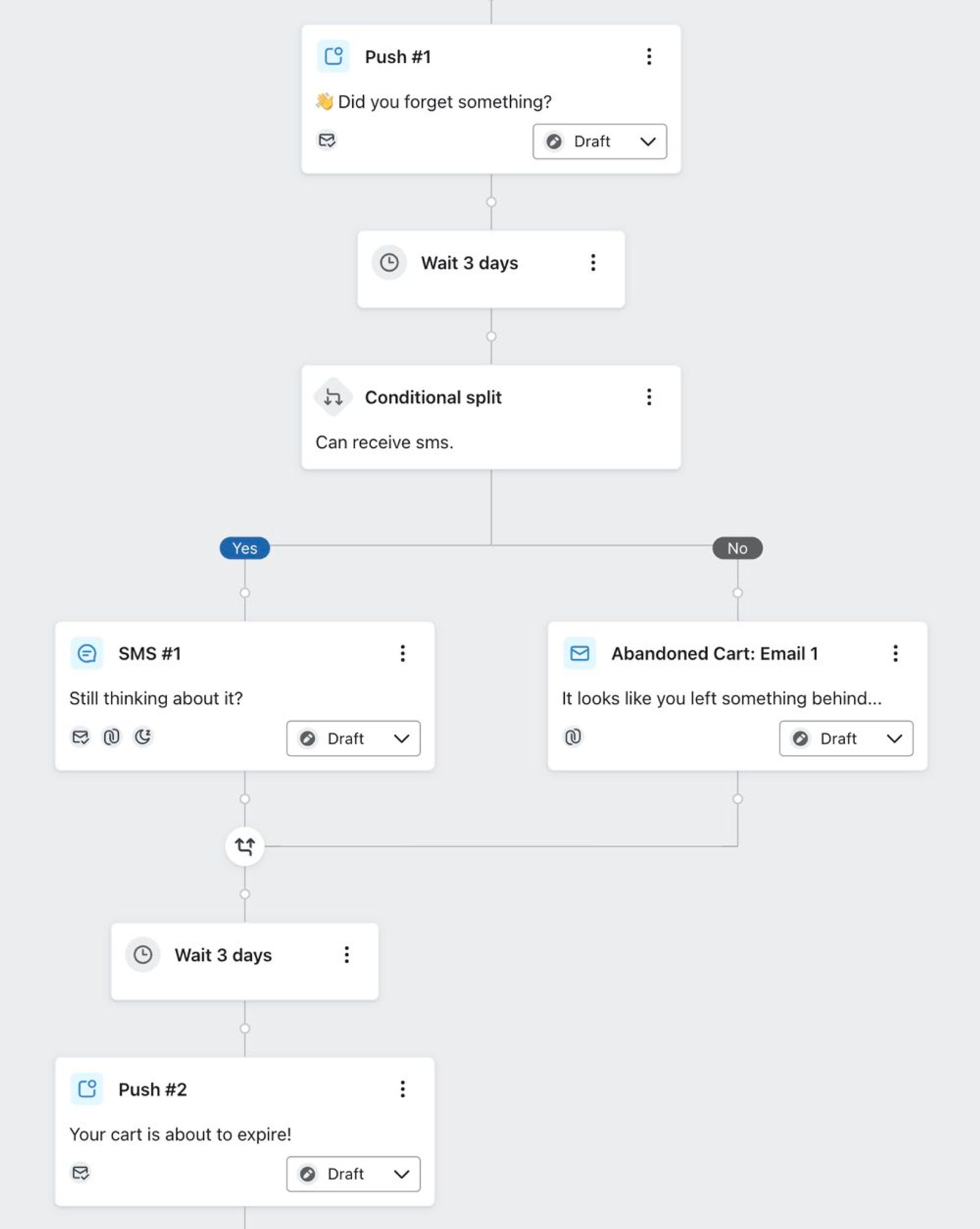
“Your cart is about to expire!” - Optional: If you have a static coupon that is usable by all customers, you can include it in your push notification. For dynamic coupons, consider adding an email or SMS to your push notification path, since someone can easily refer back to an SMS or email as opposed to a push notification. In the example below, a customer is notified of their abandoned cart through push and then sent a coupon through email or SMS a few days later. They are then reminded of the coupon through push a few more days later. Check that your abandoned cart flow has a profile filter such as Placed Order zero times since starting this flow so that customers who place an order do not receive later reminders. Remaining eligible for the flow does not tell you whether someone has used a coupon; it tells you that no qualifying order has been recorded since they entered the flow. You can add multiple push notifications with delays leading up to the expiration of the coupon, but don’t send a notification every day as this can overwhelm them.
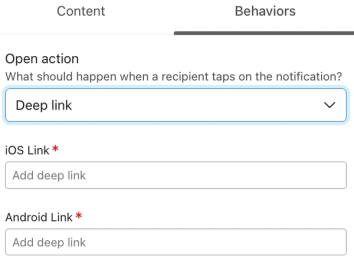
- Select the Behaviors tab and choose what happens when a recipient taps the notification. To return them to their cart in your app, select Deep link and enter your app's cart deep link. Depending on your account's setup, you may see 1 Deep link field shared by iOS and Android, or separate platform fields. If you need different links for each platform, select Use separate Android and iOS links when that option is available. Whether this is possible and the exact links depend on your app's design. Consult your development team if you are unsure.
- Configure the following optional behaviors:
- Show badge count (iOS only): Choose whether to add 1 to the current app badge count or set it to a number or profile property.
- Play sound (iOS only)
Play a sound when the recipient receives the message. - Custom data
Trigger app behaviors via key-value pairs.
- When you're done with the message settings and content, click Save & continue.
- Once you're finished configuring your flow, set your message statuses live.
Best practices
Message content
Make sure your push notifications contain relevant and actionable information related to your customer’s cart. Avoid overusing emojis. Multiple repeating emojis are often associated with spam.
Here are some examples of content to include in your push notification messages:
- Let them know they have an abandoned cart.
- Alert them that their cart is going to expire.
- Remind them to use a coupon.
If you mention a coupon code in a push notification, make sure that you have included it in an email or SMS first so that the customer can go back and reference it. You can also send it to the profile’s in-app inbox or show it in a banner within the app.
Message channel diversity
Don’t send push notifications at the same time as other types of messages. Subscribers may already have notifications set up for when they have received an email or SMS, so receiving a push notification at the same time can be redundant.
While push notifications are convenient and helpful, focus on other types of messages such as SMS and email. In an abandoned cart flow, your primary means of communication with your customers will be through email or SMS messages. Unlike with push, SMS and email can include information such as the list of products the customer abandoned.
Separate email, SMS, and push
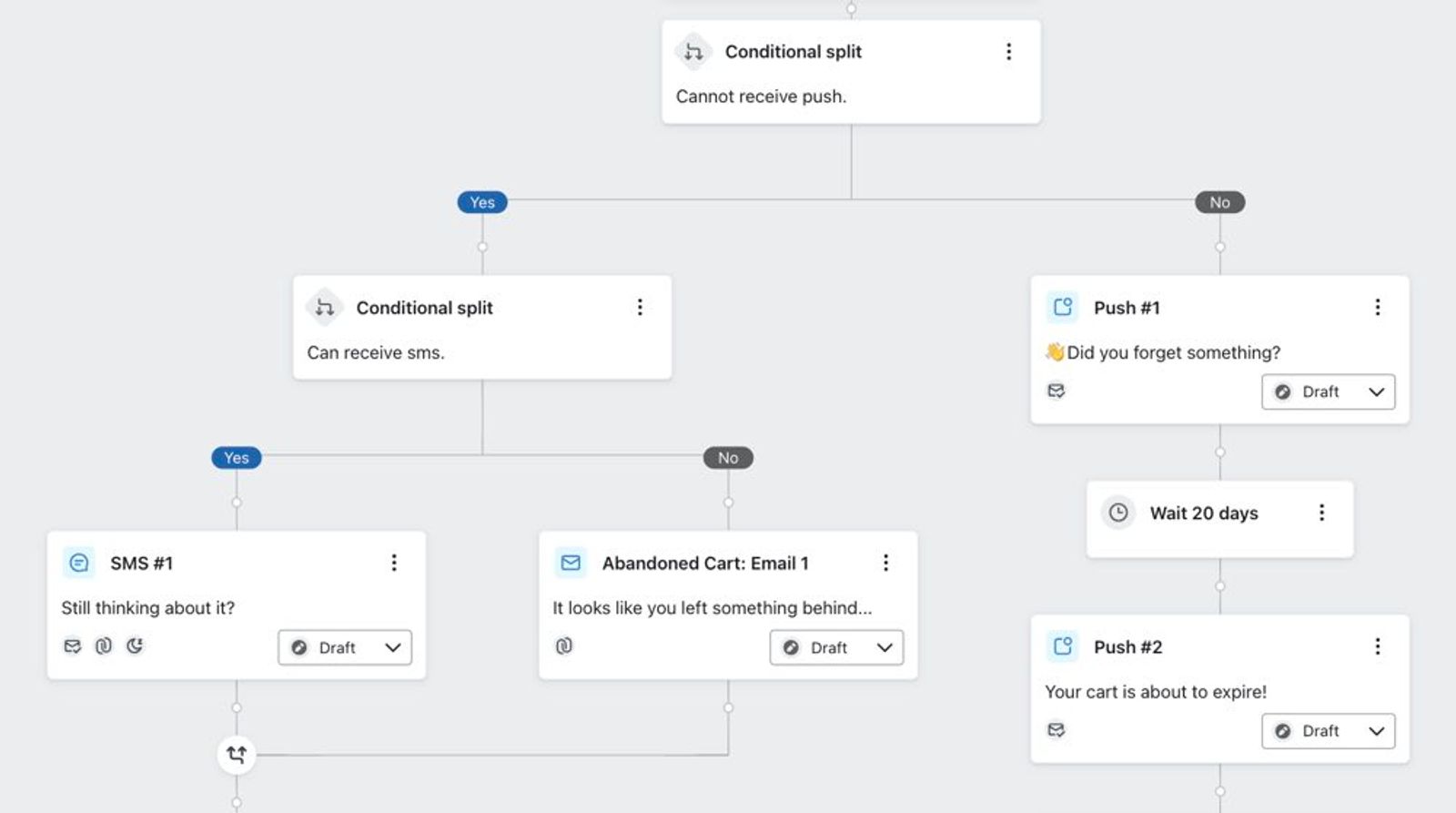
If you are using email, SMS, and push, make sure to have splits that check for push and SMS consent individually while making email the default message type. See the example below:
Split based on website activity
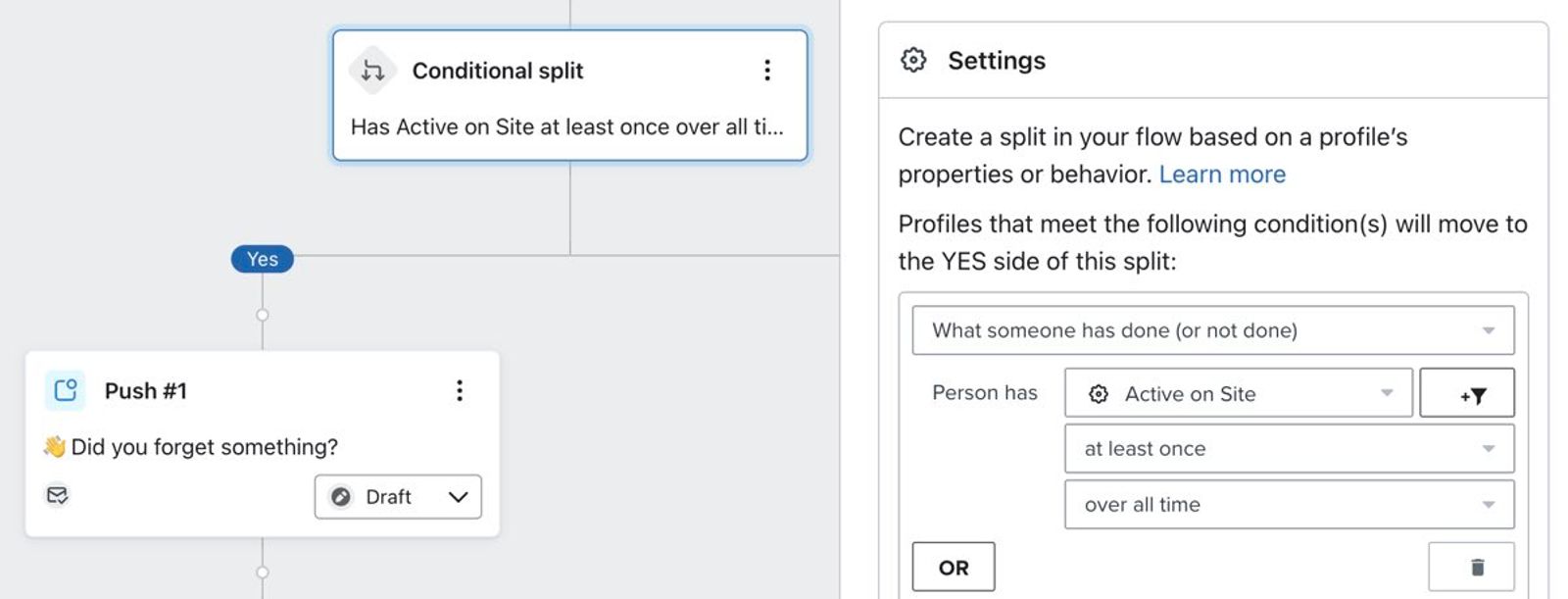
You can also use splits to send different messages depending on if someone has visited your website before or has only used your app. This is useful if you want to encourage app-only users to visit your website for exclusive promotions and content.
In the example below, a conditional split with the condition What someone has done (or not done) > Active on Site > at least once > over all time is used to check if the person in the flow has ever visited your website. If they have not, but they are subscribed to push, then you know that they have only used your app.
Split based on custom metrics
If you are using custom metrics to track customer activity in your app, you can split based on these metrics in order to send exclusive coupons or promotional information. Consider implementing custom metrics that track activity such as:
- Profile completed
- Location added
- App rated
Someone completing the actions listed above is engaged with your app. If you want to reserve abandoned cart coupons only for engaged profiles, using customer metrics in a split is a great way to do this.
Additional resources
Find out more about abandoned carts:
- How to add SMS to your abandoned cart flow
Learn how to add SMS to your abandoned cart flow as well as compliance requirements and best practices.
- How to create and target a segment of recent cart abandoners
Learn how to identify site visitors who have recently abandoned a cart in order to target them across marketing channels. For example, you can create a recent cart abandoners segment and sync it to Facebook Custom Audiences to drive them back to your site, or you can create an exit-intent popup targeting shoppers as they're about to leave your website. While it's not possible to dynamically display the specific items left in someone's cart as you would in an abandoned cart email, you can still remind them of items left behind with the language and CTA you use.
- Troubleshooting a metric-triggered flow
Learn how to troubleshoot a metric-triggered flow when you notice it's behaving differently from expected.