How to downgrade to free, cancel a plan, or close your Klaviyo account
You will learn
Learn how to downgrade your plans to free, cancel 1 or more plans (for example, profiles and email, SMS, or Reviews), or close your Klaviyo account.
What's the difference between downgrading to free, canceling, and closing an account?
These options stop future subscription charges for the affected plans when the change takes effect. Any paid plans you keep remain billable. The main differences are:
- Downgrading to free keeps your account active, with the features and usage limits included in the free plans.
- Canceling a plan while keeping another paid plan stops its future subscription charges when cancellation takes effect. For email or SMS, it also disables live flow messages and cancels scheduled campaigns in that channel. Other plans remain active.
- Canceling all plans leaves your account accessible but disables sending, sign-up forms, and integrations.
- Closing your account removes account access and starts the data deletion process.
Downgrading to free | Canceling a plan | Canceling all plans | Closing your account | |
Stops future subscription charges for affected plans when the change takes effect | ✔ | ✔ | ✔ | ✔ |
Allows future access to your account | ✔ | ✔ | ✔ | ✖ |
Keeps access to existing data | ✔ | ✔ | Subject to retention terms | ✖ |
Allows use of features (e.g., flows, sign-up forms, and manual profile suppression) | Within free plan limits | Other plans remain active | ✖ | ✖ |
Canceling does not guarantee permanent data retention. Export any data you want to keep. Your data is subject to Klaviyo’s terms of service.
Before you begin
Before downgrading to free, canceling, or closing your account, note the following:
- For standard user roles, only account Owners or Admins can:
- Cancel an account or channel.
- Downgrade to free.
- Only Owners can close an account.
- This method does not apply to those who:
- Are on a manually billed plan.
- Have a contract that is greater than 1 month.
- Child accounts in a shared billing family cannot cancel plans directly. Contact Support to close an account in a shared billing family.
- Free plans have feature and usage limits. Before reactivating, review your active profile count and the limits shown in Billing.
To check if you are manually billed, head to your Account Overview in Klaviyo. To cancel your subscription when being manually billed, please contact our Support team.
Account help and troubleshooting resources
If you want help resolving an issue before changing your subscriptions, use these resources:
- Getting started with Klaviyo
- Guide to email deliverability
- Developing a content calendar
- Creating an abandoned cart flow
- How to create a never engaged segment
- Advanced targeting webinar
As you proceed to canceling your Klaviyo subscriptions, we recommend that you also reference our article on Migrating off of Klaviyo. This resource will explain how to properly turn off Klaviyo features that you no longer need as well as transfer key data to your next service provider (if applicable).
Cancel 1 or more plans
Follow these steps to cancel 1 or more paid plans. Canceling your only paid plan, or all remaining paid plans, cancels the account. To remove account access and request deletion, follow the Close your account section instead.
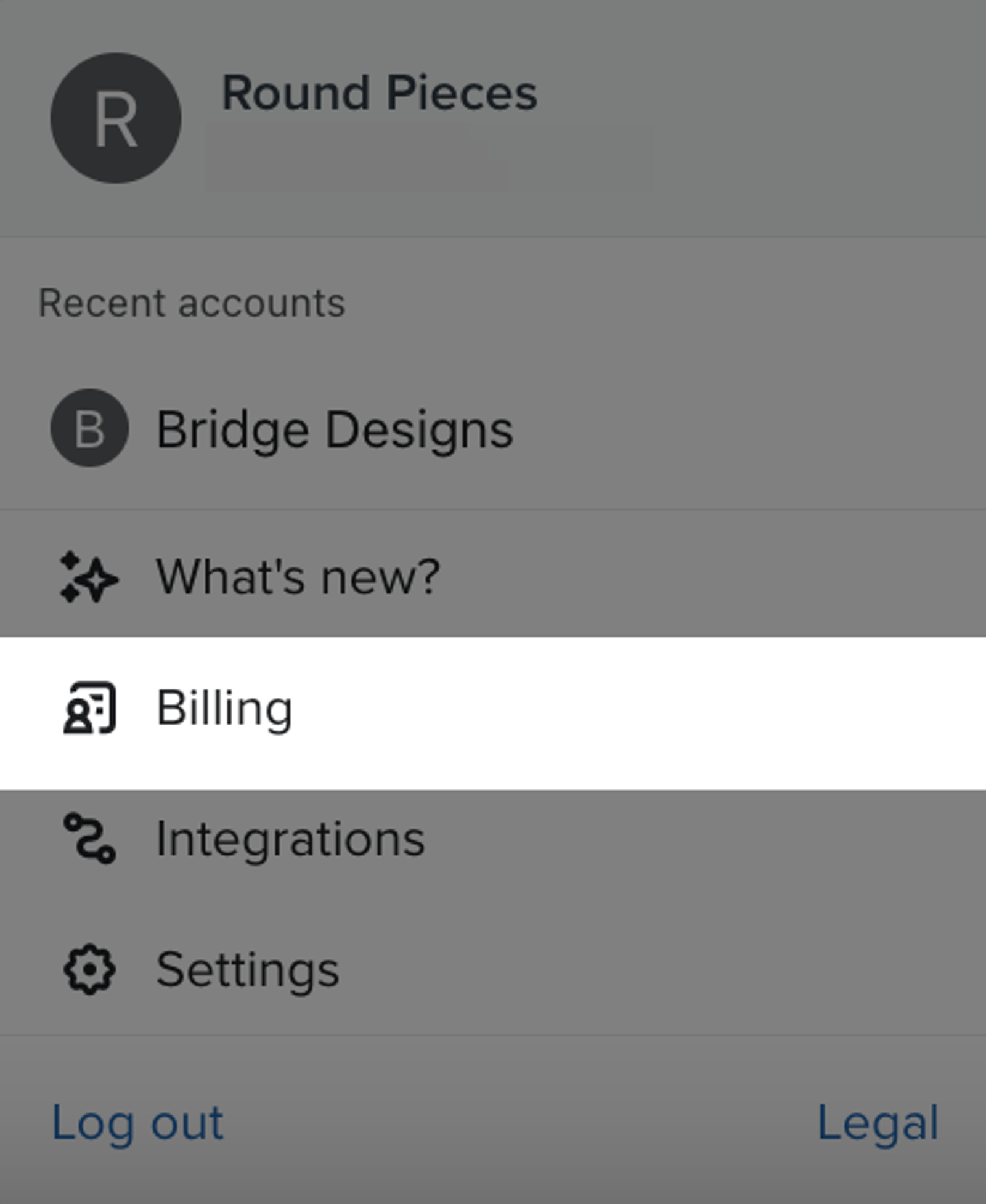
- Open the account menu and select Billing.
- On the Overview tab, click Cancel plan.
- Select the plan(s) you want to cancel. If you want to cancel your account, select Cancel all plans.
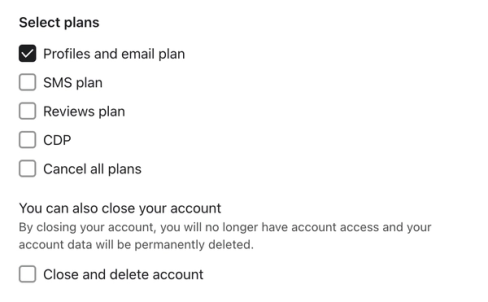
- If you cancel only SMS while keeping another paid plan, live SMS flow messages are disabled and scheduled SMS campaigns are canceled. Live email messages in the same flows remain enabled.
- If you cancel SMS at the end of the billing cycle, these changes take effect on the cancellation date shown.
- If you cancel SMS immediately, these changes take effect immediately.
- Click Continue.
- Select a reason, choose an option in the Reason dropdown, then click Continue.
- Select when you want your plan to end:
- At the end of my billing cycle (recommended).
- Campaigns and flows will continue to send until the date listed as the last day of this billing cycle.
- If you cancel an email or SMS plan, live flow messages in that channel are disabled and its scheduled campaigns are canceled when cancellation takes effect.
- Integrations remain active if at least 1 paid plan remains.
- If you cancel all plans, sending and sign-up forms stop and integrations are disabled when cancellation takes effect. Future subscription charges for the canceled plans stop at that time.
- Immediately
- Klaviyo will not issue a refund for the remainder of the billing cycle.
- Your plan will be canceled immediately.
- Future subscription charges for the selected plans stop immediately. Other paid plans continue to be billed.
- For email or SMS cancellations, live flow messages in the canceled channel are disabled.
- Canceling only SMS while keeping another paid plan leaves live email messages enabled, including emails in mixed email and SMS flows.
- Scheduled campaigns in the canceled channel are canceled. If you cancel all plans, all sending stops, sign-up forms are disabled, and integrations are disabled.
- At the end of my billing cycle (recommended).
- Enter the account name to confirm.
- Click Cancel plan.
- Review the confirmation. For an immediate cancellation, use the export options if you need copies of your data. Click Exit to return to Billing.
Downgrade to free
The steps depend on whether another paid plan will remain active:
- If you have 2 or more paid plans, canceling only your email or SMS plan switches that plan to its free version when cancellation takes effect. Your account stays active.
- Example: if you pay for both SMS and Reviews and cancel only SMS, your SMS plan switches to free and your Reviews plan stays paid.
- If you cancel your only paid plan or all paid plans, wait for cancellation to take effect, then reactivate your account as free.
After canceling your subscriptions, you still have the choice to reactivate as a free account. In doing so, you can regain access to many core Klaviyo features but will be restricted to a free plan’s sending limits rather than your original paid subscription.
Reactivation lets you access data retained from your former paid account. Canceling does not guarantee permanent retention, so keep your own exports of data you need.
Reactivating automatically restores previously live flow messages disabled by cancellation to Live. Review your flows before reactivating so you are ready for messages to resume. After reactivation, check your flow statuses and sign-up forms, reschedule your campaigns, and re-enable any ecommerce or third-party integration as needed.
- Navigate back to Billing.
- Go to the Preferences tab.
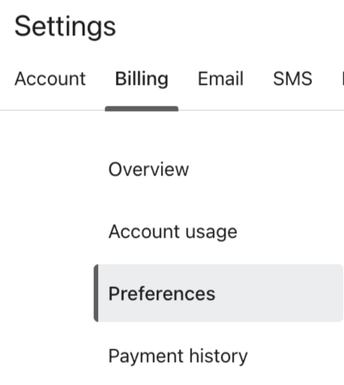
- Scroll down to the Reactivate your account section.
- Click Reactivate to free.

- In the confirmation window, click Activate free plan.
Close your account
Closing your account removes access and starts permanent data deletion. Export and save any data you want to keep before confirming closure.
To permanently delete your account:
- Open the account menu and select Billing.
- Follow the option that matches your account:
- For active paid plans:
- On the Overview tab, click Cancel plan.
- Select Close and delete account.
- Click Continue.
- For free or already canceled accounts: click Close and delete account.
- If cancellation is scheduled: click Manage cancelation, select Close and delete account, then click Continue.
- For active paid plans:
- Select a reason for closing your account, choose an option in the Reason dropdown, then click Continue.
- Export any data you want to keep:
- Campaign analytics.
- Flow analytics.
- Profiles.
- Templates.
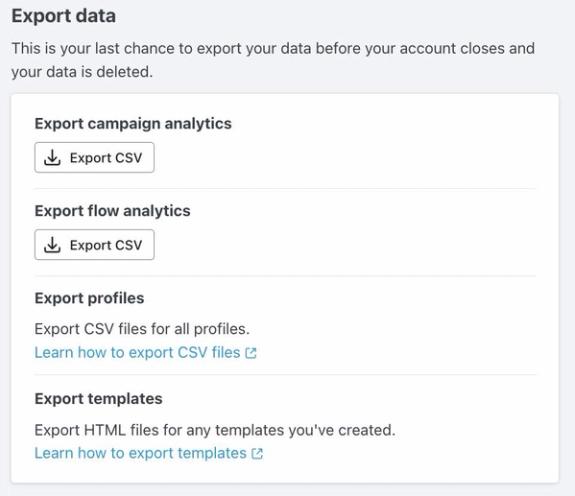
- Wait for your exports to finish and save the files you want to keep, then click Continue.
- Confirm the account name.
- Click Close account.
- Select Exit Klaviyo.
You will be logged out. Account access is revoked when you confirm closure; permanent data deletion is processed afterward.
Additional resources
- How to migrate off of Klaviyo
Learn which steps to take when you're migrating off of Klaviyo, regardless of whether you're changing to another provider for SMS, email, or both.
- How Klaviyo billing works
Learn how Klaviyo bills customers for Profiles and Emails, Mobile Messaging, Reviews, Advanced Klaviyo Data Platform (formerly “CDP”), Marketing Analytics, Customer Hub, Helpdesk, and Customer Agent.