List growth reporting reference
You will learn
Learn how to access and analyze your list growth report. For every list in Klaviyo, you can access a growth report that captures data regarding your list's changes over time. Use this tool to monitor business trends and expand your business.
Learn about segment growth reporting in our article on getting started with the segment growth report.
Before you begin
The data source for the list growth report has changed from July 1, 2025. After this date, data is calculated more accurately, allowing you to see daily list growth data instead of just weekly and monthly.
You may see a change in your report data based on this update. The dotted line on the graphs marks the change in calculation method.
Access your list growth report
To access your list growth report,
- Head to Audience > Lists & segments.
- Navigate into any list.
- Click Growth.

Analyze the sources of your list changes
Klaviyo records how profiles are added to and removed from your list. The report tracks list membership changes, which are not the same as changes in marketing consent.
You can customize a form's $source value. Klaviyo sign-up forms that submit to a list use the form name as their default source. The report can also show the following source values:
Default subscribe source values
- Unknown
Subscriber source is not identifiable. - Back in Stock
Subscriber added via subscribing for back-in-stock notifications. - Subscribe Page
Subscriber added via a subscribe page. - Manually Initiated
Subscriber added via quick add. - List Import
Profile added through a CSV list import. - Integration
Subscriber added via opting in through an integration. - API
Subscriber added to a list via the Klaviyo API (i.e., subscribe profiles endpoint). - Transferred Memberships
When 2 profiles are merged, the surviving profile is added to a list that only the non-surviving profile belonged to. The corresponding removal also appears under Transferred Memberships. - Embedded Form
Subscriber signed up using an embed form. - Fly Out
Subscriber signed up using a flyout form. - Modal
Subscriber signed up using a popup form.
Default unsubscribe source values
- Unknown
Subscriber source is not identifiable. - Manually Initiated (formerly Klaviyo UI)
Subscriber manually cleaned or removed from the list. This can include a variety of reasons including deletions, bot suppressions, or someone selecting Remove suppressed profiles in the list. - Unsubscribe Page
Subscriber unsubscribed via an unsubscribe page. - One-Click Unsubscribe
Subscriber unsubscribed via one-click unsubscribe. - Integration
Subscriber unsubscribed via opting out through an integration. - Hard Bounce
Subscriber’s email address hard bounced. - Spam Complaint
Recipient marked your email as spam. - Invalid Email
Recipient email address was not a valid address. - API
Recipient unsubscribed from a list via the Klaviyo API (i.e., unsubscribe profiles endpoint). - Transferred Memberships
When 2 profiles are merged and only the non-surviving profile belonged to the list, that profile is removed as its membership is transferred to the surviving profile. - Merged Profiles
When 2 profiles that both belonged to the list are merged, the non-surviving profile is removed. This reduces the list size by 1.
If someone unsubscribes from a flow or campaign sent to a segment, they become suppressed in your Klaviyo account rather than unsubscribing from the list as a whole. Learn more about removing suppressed profiles.
Customize a form's sign-up source
To customize a sign-up form's $source value, use the hidden fields on its submit button. Learn more about collecting profile properties with hidden fields.
List growth graphs
The total members and net membership change graphs provide insights into the health of your lists and net changes over time.
For data from July 1, 2025 onward, this report uses an improved calculation method and supports daily reporting.
The dotted line marks the first full period using the improved calculation: July 1, 2025 for Daily, the week starting July 7, 2025 for Weekly, or July 2025 for Monthly. It appears when that period is shown in the graph. Hover over the data point for that period to see Calculation improved; this label does not show the number of profiles affected by the change.
Total members graph
The total members graph tracks your list size over time. The top number shows the list size at the end of the selected date range, including members who joined before that range. If you change your date range, this number adjusts to show the list size at the end of the new range.
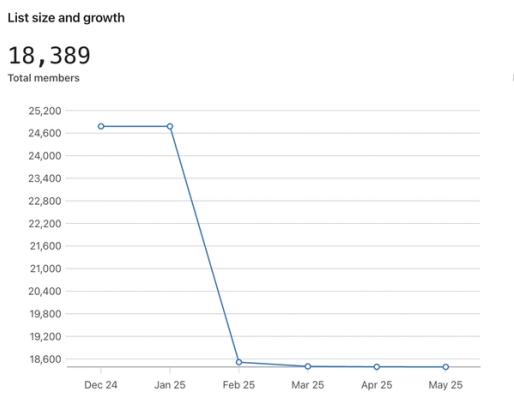
You can adjust the time frame at the top of the report via the Date range picker and visualize your data by month, week, or day using the View by dropdown. Daily is available for date ranges starting on or after July 1, 2025 that span no more than 90 days. For longer ranges, select Weekly or Monthly.
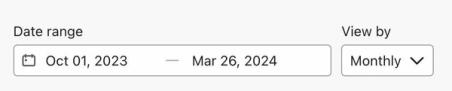
On the weekly view, data is displayed from Monday to Sunday.
Additionally, by hovering over a point on the line graph, a popup will appear that provides the list size count for that point in time.
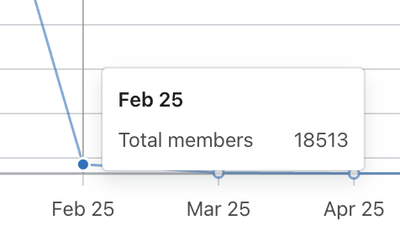
The list growth report can take up to 3 hours to update with new data and membership changes.
Net membership graph
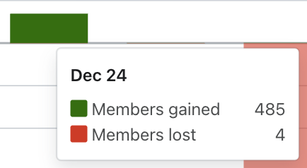
The net membership graph shows both positive (i.e., green) and negative (i.e., red) list size trends over time. The bars help to visualize the members lost and gained during a particular period. The top number shows members gained minus members lost during this period. Note that if you change your date range, this number will adjust to show the number of losses or gains in that period.
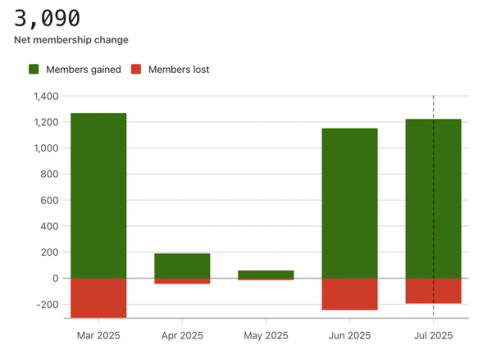
Additionally, by hovering over a bar in the graph a popup will appear that provides the amount of members gained and lost during that particular point in time.
Subscriber sources and unsubscribe methods tables
The Subscriber sources table breaks down list additions by source, while the Unsubscribe method table breaks down removals. Both tables use the daily, weekly, or monthly intervals selected in View by.
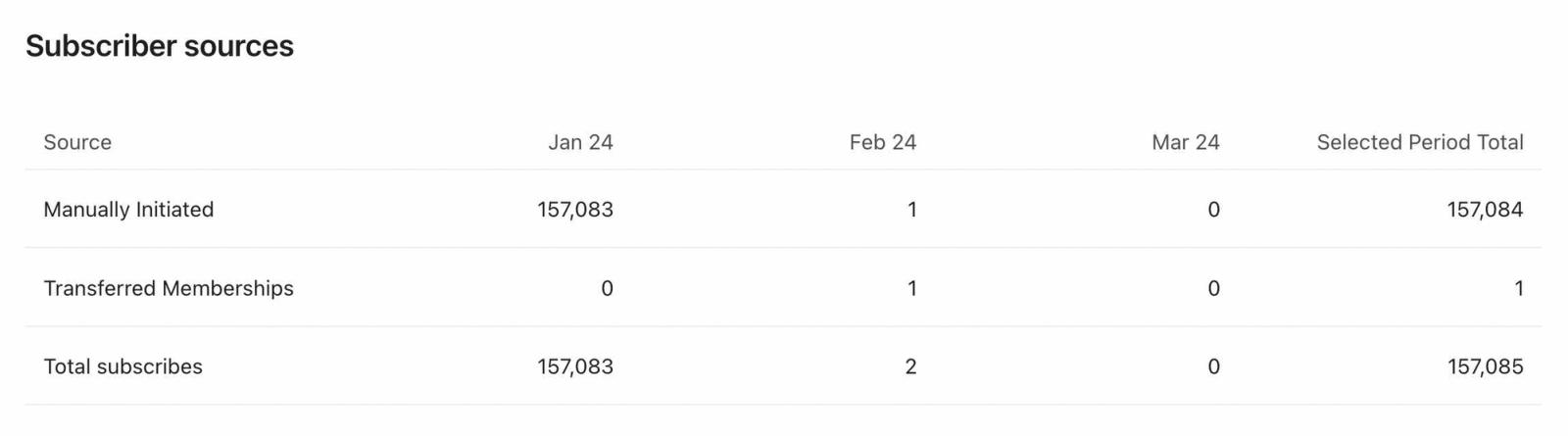
The totals column on the far right of each table spans the entire date range. However, the rest of each table shows only the 6 most recent time intervals from your date range. Export the report to see the full date range by interval.
When you update the Date range or View by on the list growth report, both tables will also update.
Export report data
Choose your Date range and View by settings, then select Export to CSV at the top of the report. The CSV downloads with additions and removals for the full selected date range, grouped by source and interval. It contains aggregate counts, not individual profile details.
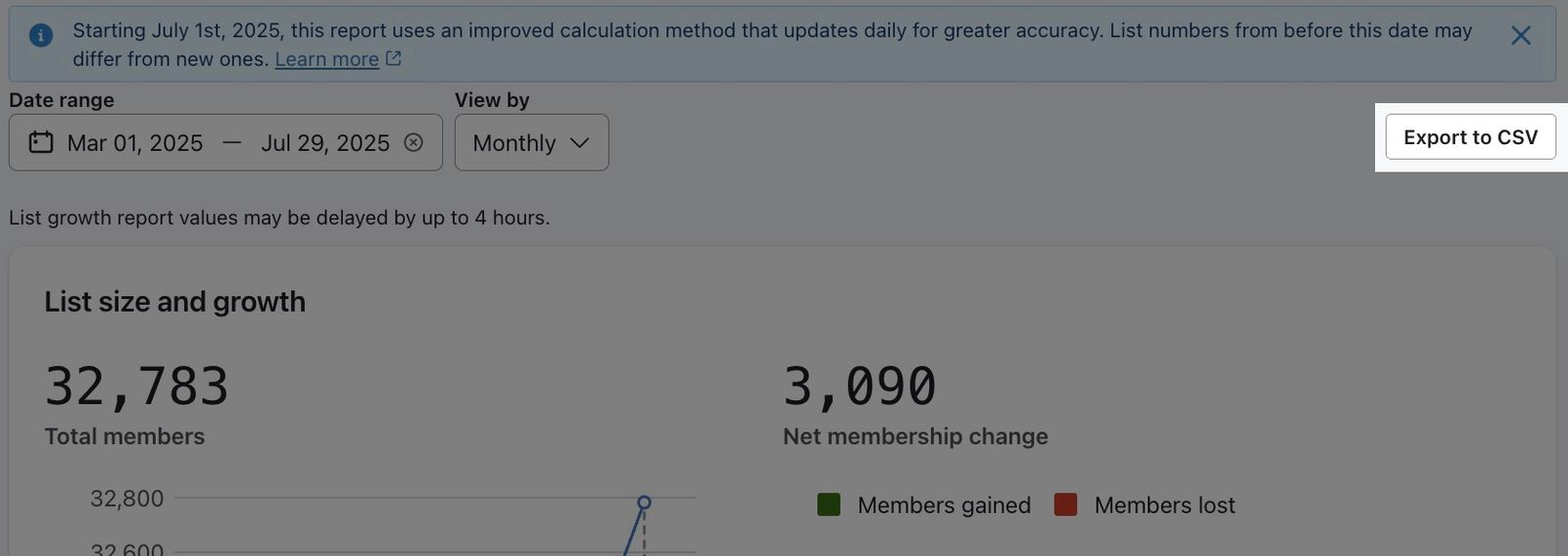
The export will include the following columns:
- Period
The time period broken down by your selected view. - Source
The source of the list additions or removals. - Is Subscribe
Whether the count represents additions to the list (True) or removals from the list (False). - Count
The count of list additions or removals from the report during the time period.
Additional resources
- Understanding sign-up form analytics
Learn how to analyze your sign-up forms' performance so you can iterate and optimize based on knowledge of areas you excel in and areas where you can improve. This guide will help you gain a better understanding of your sign-up form analytics and each of the available reporting pages (i.e., Overview tab and A/B test results tab).
- Understanding available campaign analytics
Learn how to use Klaviyo's campaign reporting to gather insights on how your messages are performing and what happens after someone opens or clicks. Use these campaign analytics to dig deeper into website activity, checkouts started, and revenue that is directly attributabed to each message.
- Understanding flow analytics
Learn how to review the performance of your Klaviyo flow messages, including open, click, and conversion rates.