How to create campaigns with Composer
Composer is Klaviyo's AI marketing agent. It can draft on-brand email, push, SMS, and MMS campaigns from a simple prompt and build the audience to send them to, so you spend less time staring at a blank canvas and more time refining a strong first draft. Composer drafts and QAs the content, but you stay in control: review, edit as needed, and approve everything before sending.
You will learn
- How to brief Composer with a clear goal
- How to review and edit the email, push, SMS, or MMS draft it creates
- How Composer chooses or creates the audience for your campaign
- How to apply your brand voice to generated content
- How to review and approve before sending, and where to disclose AI use
- Tips for getting the best results, including what to expect from image-heavy templates
Before you begin
You'll get the best results if your Klaviyo account already has brand context to draw on, such as a configured brand voice, brand colors and fonts, and a history of past sends. Composer grounds its drafts in your real account context, not a generic template. Brand-new accounts with little to no context will see weaker results until that context builds up.
Composer creates campaigns you can edit in the same drag-and-drop and HTML editors you already use. The output is fully editable, not locked, so you can treat it like any other campaign you build in Klaviyo. Creating a draft does not send or schedule it. Review the content and make any needed changes before sending.
Step 1: Brief Composer with your goal
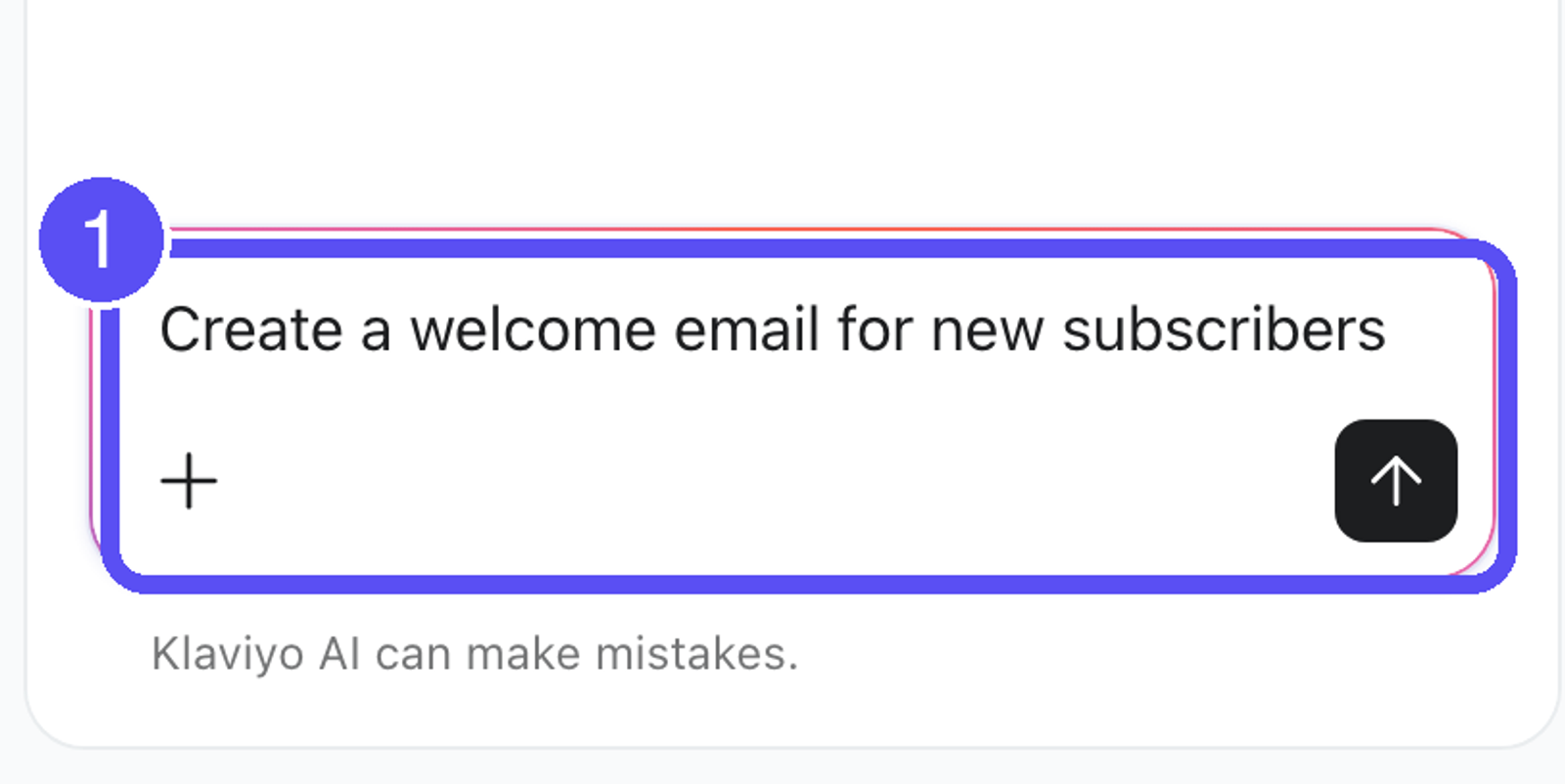
Open Composer from within Klaviyo and describe the campaign you want. The more specific your prompt, the better the draft. Strong prompts usually include three things:
- The offer or goal (for example, "20% off" or "a half-off summer sale")
- Context about your brand (for example, "for my makeup brand" or "a sale on running shoes")
- The tone you want (for example, "use a professional tone" or "use Gen Z energy")
Composer works best with natural language, whole sentences rather than keywords. If you're not sure what to write, copy a product or event description from your website, or write as if you're describing the campaign to a friend. You can also give Composer a head start by attaching an existing Klaviyo template or a screenshot to work from. When you start from existing content, describe what you want Composer to change rather than re-describing the whole thing.
You can create email, push, SMS, and MMS campaigns, and you can refine multiple messages in a single conversation. Name the channel you want in your prompt (for example, "send this as a push notification") and Composer will use it. Review the preview and refine it in chat before creating the campaign draft in your account. For more on writing prompts that get strong drafts, see Prompt best practices for Composer.
Creating a campaign uses Composer capacity. The estimated cost for Create a campaign is $0.10–$10.00 per campaign, but actual usage may vary, including above this range, based on the size and complexity of your request. See How your Composer plan works for details.
Step 2: Review and refine the preview (email, push, SMS, or MMS)
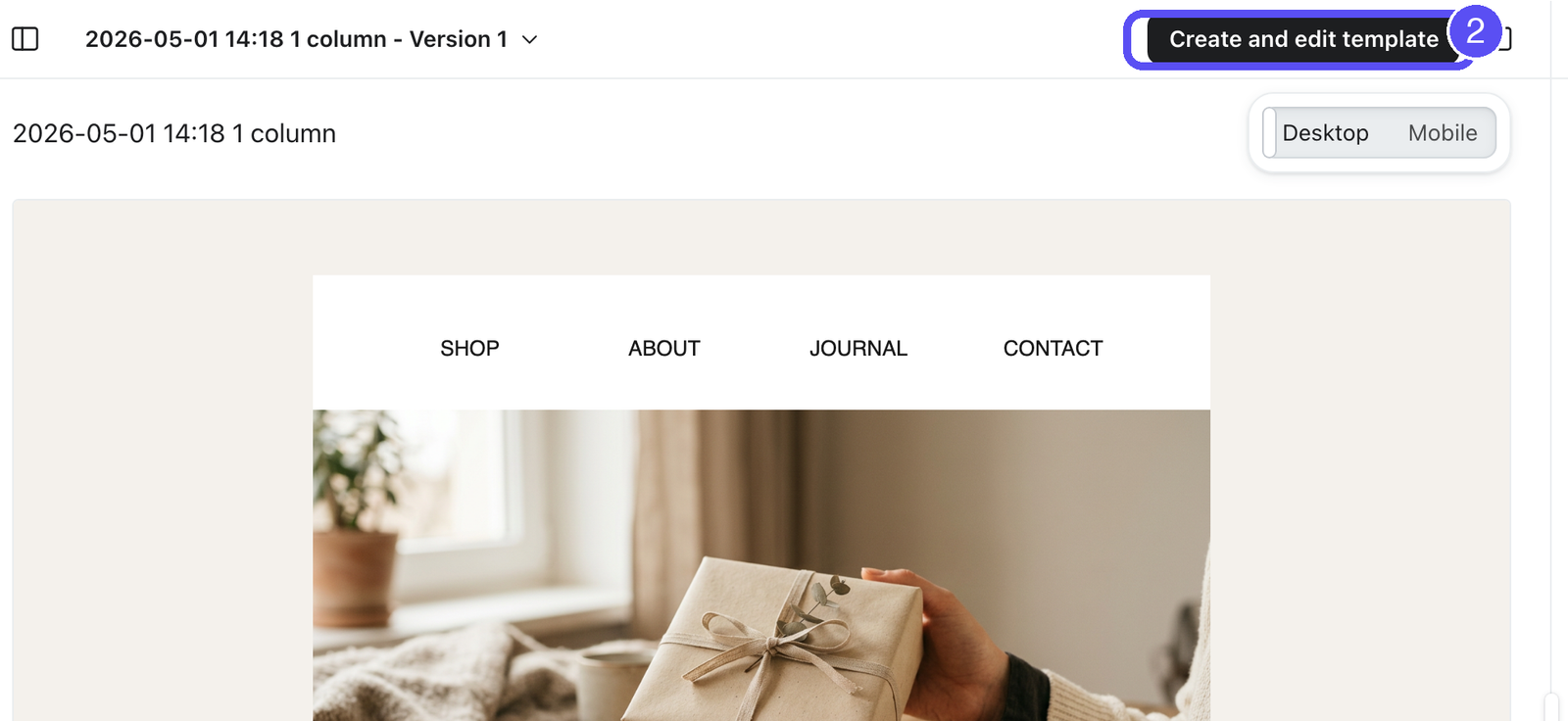
When Composer finishes, it provides a preview that you can refine via chat before creating the campaign draft in your account. The preview is a starting point, not a finished send. Review it the same way you'd review anything you built yourself:
- Read every line for accuracy: Confirm that prices, discounts, product names, dates, and links are correct. Composer is designed to avoid referencing products or offers that don't exist, but generated content can occasionally be wrong, so verify it.
- Review the copy and layout: Check the images, text, and CTA. Request changes in chat while reviewing the preview. After you create the draft, you can make direct edits and adjust settings in Klaviyo's campaign editors.
- Refine it: You can request quick changes such as shorter copy, a different layout, or a new CTA, and generate variations to compare.
For SMS and MMS, Composer writes channel-appropriate, compliance-aware copy. Still review message length, links, and any restricted content yourself before sending.
For push, Composer writes the notification title and body, and it can attach a single image. The preview shows how the notification will look on both iOS and Android, so you can switch between them to check your copy on each. Tapping a generated notification opens your app's home screen. If you need it to open a specific screen instead, add the deep link yourself after you export the draft into Klaviyo.
This content is created by AI. Please review it and make sure everything looks right before you use or send it. You are ultimately responsible for the content of your messages.
If the draft isn't close to what you want, revise your prompt and generate a new draft rather than editing a weak starting point line by line.
Create and choose your audience
When Composer drafts a campaign, it also works out who to send it to. It looks at the segments you already have and follows the segmentation patterns your account uses. If nothing suitable exists, Composer can build a new segment for that campaign.
You can also create a segment on its own, without generating a campaign. For the full walkthrough, see How to create segments with Composer.
Review the audience before you create the draft
In the campaign preview, review both the included and excluded audiences. Hover over a segment's name to see its details. For a generated segment, these include:
- The segment name
- The estimated number of matching profiles, when available
- The conditions in plain language, grouped so you can see how they combine
A new segment is labeled Drafted for you. An existing segment also has details you can review by hovering over its name, including its profile count and conditions. Select the linked name in those details to open the existing segment.
New segments generated for the campaign remain previews until you select Create draft for the campaign. This creates the new segments used by the campaign and adds them to Lists & Segments. You do not need to save them separately. If the audience is not right, ask Composer to change it before creating the draft.
Read the conditions before creating the draft. Composer builds segments from your account's own properties and metrics, and a misread prompt can produce a segment that's narrower or broader than you meant, or one that matches nobody at all. Check the profile count when it is available to help catch this.
Apply your brand voice
Composer works to reflect your brand's voice when it generates content, so subject lines, preview text, and message copy come back sounding like you rather than a generic template. You can keep steering it in the prompt whenever you want a specific feel.
If you maintain brand voice guidelines in Klaviyo, keeping them up to date helps Composer produce stronger, more on-brand drafts. These guidelines typically capture two things:
- Voice descriptors: words that define your brand's communication style or personality, for example playful, formal, or opinionated.
- Writing rules: structure that keeps your messaging consistent, for example rules for emoji usage, punctuation, or sentence length.
As your branding evolves, keep these guidelines current so future Composer output reflects them. We're continually improving how Composer picks up and applies your brand voice over time.
Step 3: Create the draft and review before sending
- Select Create draft in the campaign preview. Klaviyo creates the campaign draft and opens it for editing. This does not send or schedule the campaign.
- Make any remaining edits in the campaign editor. For example, swap images, rewrite text, adjust the CTA, or add a deep link to a push notification.
- Complete the checks below, then use the campaign's scheduling or sending controls when you are ready.
Composer drafts and QAs your campaign, but you always make the final call. Before you schedule or send:
- Confirm the content is accurate, on-brand, and complete.
- Check that links, audience, and send settings are correct.
- Make sure you've added any required AI-use disclosure.
When a campaign includes AI-generated content, you may need to disclose that to your recipients. Composer does not add disclosures for you. For the disclosure language to use and where to place it, see Using Composer responsibly (AI disclosure).
Do not send generated content without reviewing it. Review, edit as needed, and approve generated content before sending. You are responsible for the final message and for meeting any legal or disclosure requirements that apply to it.
Tips
- Set expectations for image-heavy templates: Content generation is weaker on image-heavy, Canva-style, or fully image-based templates. If your brand's emails are built primarily from flattened images, you'll likely need to do more editing, and a generated draft may not be send-ready. Start from a prompt or a drag-and-drop layout for the strongest results.
- Add context when the output is weak: If a draft feels generic, add more detail to your prompt: the offer, the audience, the tone, and try again.
- Generate variations: Ask Composer for a few versions of a subject line or layout, then A/B test a couple of options rather than assuming the first draft is the best one.
- Refine in one conversation: You can create and adjust multiple messages in a single Composer conversation, which keeps context consistent across them.
FAQ
Can Composer send my campaign for me?
No. Creating a draft with Composer does not send or schedule your campaign. Review the content, edit as needed, and use the campaign's sending or scheduling controls when you are ready.
What channels can Composer create?
Email (drag-and-drop and HTML), push, SMS, and MMS campaigns. You can create single- or multi-message campaigns in one conversation.
Will the draft be on-brand?
Composer works to reflect the brand voice, colors, fonts, and context in your Klaviyo account, so output sounds like your brand rather than a generic style. Keeping your brand voice guidelines current helps.
Why does my generated email look off?
Generated content is weaker on image-heavy or fully image-based templates. If your emails rely on flattened images, expect to do more editing. Adding more context to your prompt also improves results.
How much does it cost to generate a campaign?
Creating a campaign uses Composer capacity. The estimated cost is $0.10–$10.00 per campaign, but actual usage may vary, including above this range, based on the size and complexity of your request. See How your Composer plan works for details.
Is the generated content always accurate?
Not always. Like any tool built on large language models, Composer can occasionally produce inaccurate content. Always review prices, discounts, product details, and links before sending. You're responsible for the accuracy of your final content.
Can Composer create the audience too?
Yes. Composer selects from your existing segments when it drafts a campaign, and it can create a new segment if nothing suitable exists. Review the included and excluded audiences before creating the campaign draft. New segments used by the campaign are created when you create that draft. You can also ask Composer to build a segment on its own.
Where do generated segments go?
Generated segments used by a campaign are added to Lists & Segments when you create the campaign draft. Until then, they exist only as previews in Composer. They appear alongside your other segments and behave the same way. For the separate process of creating a segment without a campaign, see How to create segments with Composer.