How to use Klaviyo with other Instagram messaging apps
Learn how to configure Instagram conversation routing so Klaviyo can reply when you use more than 1 messaging app with the same Instagram account.
If a customer sends an auto-reply keyword and receives no reply, another app may control that conversation. A connected Instagram account can still encounter this problem. Review your routing settings and Klaviyo’s conversation-control permission before reconnecting your account.
Understand how apps share conversations
Meta allows 1 app to reply in an Instagram conversation at a time. These settings determine which app can respond:
- Conversation routing lets multiple apps share messages for an Instagram account linked to a Facebook Page.
- The default app receives new messages first. You can select only 1 default app.
- The conversation owner is the app that can reply right now. The default app owns an idle conversation, but another app can become the owner by taking control or receiving a handoff.
- Take control of conversations is a permission you grant to an individual app. It lets that app take a conversation from another app. This permission is off when you first connect Klaviyo.
Before you begin
For the conversation routing setup below, you need a Facebook account, an Instagram account linked to a Facebook Page, and access to manage their settings in Meta Business Suite. The Instagram Account to Facebook Page link is required for conversation routing.
Identify whether you connected Klaviyo using Facebook Login, Instagram Login, or both. Select the matching Klaviyo app in Meta. If you cannot identify which connection or app to use, contact Klaviyo Support before changing the routing assignment.
Open your conversation routing settings
- Sign in to Meta Business Suite for the business connected to your Instagram account.
- Open Settings > Business settings.
- In the left navigation, open Integrations > Conversation routing. You may need to scroll further down in the left sidebar if Integrations is not visible. Then select your Facebook Page connected Instagram account.
Use the setup below that matches your Klaviyo connection.
If you connected using Facebook Login
- Turn on conversation routing and select Klaviyo’s Facebook Login app (“Klaviyo Social”) as the default app.
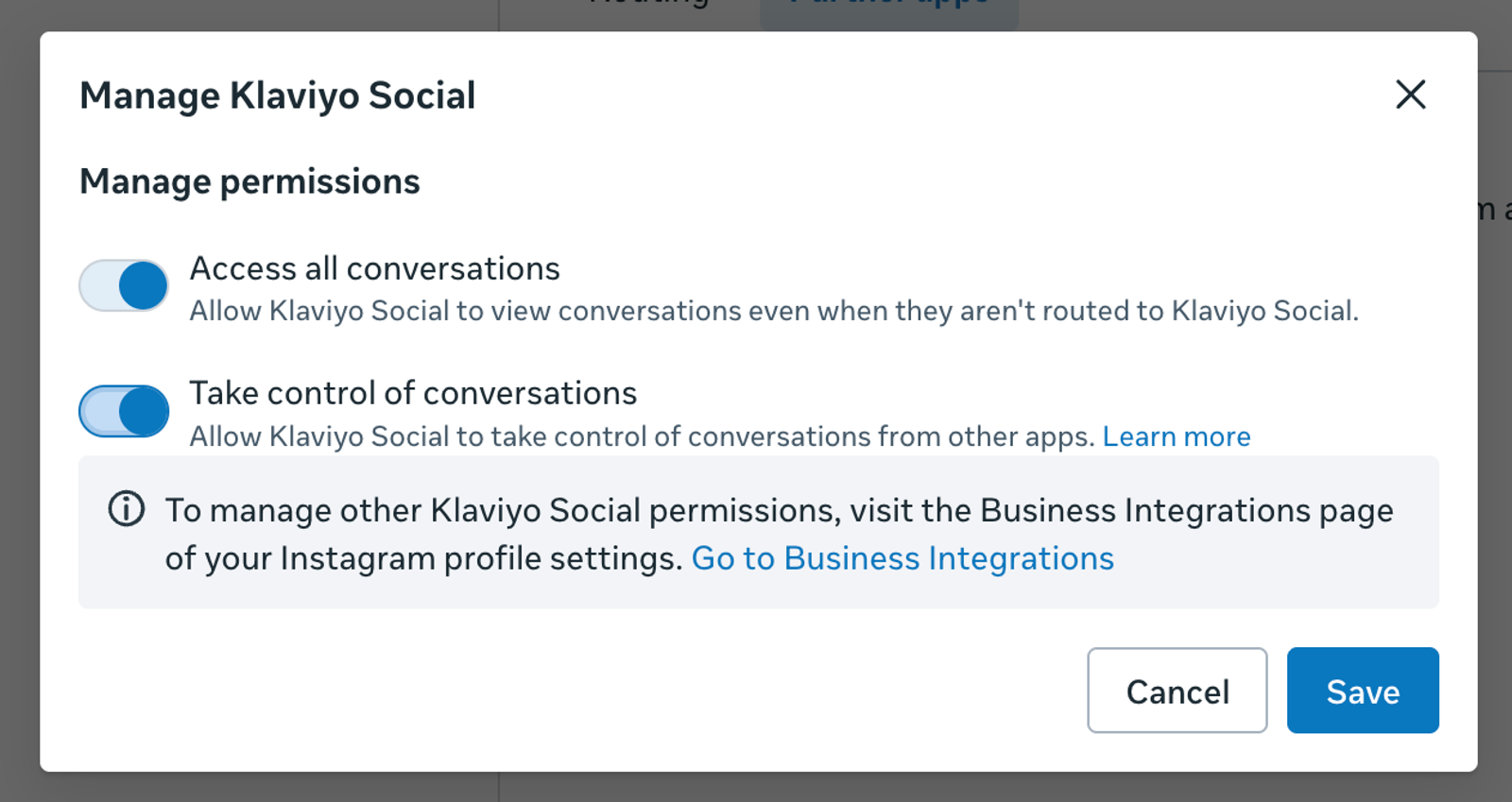
- Open the Partner apps tab and find Klaviyo Social and click “Manage”.
- Click Enabled for its Take permission, and Save.
If you want to test the configuration, from a different Instagram account (not your brand account), send your brand a keyword configured for an active auto-reply. Check that the reply arrives, then complete the conversation to test the remaining messages.
Complete the “Take” permission step even if Klaviyo is already the default app. The default assignment alone does not let Klaviyo reply in every conversation another app holds.
If you connected using Instagram Login only
Turn on conversation routing and select Klaviyo’s Instagram Login app (Klaviyo Messaging) as the default app. Then test an active auto-reply keyword from a different Instagram account.
Klaviyo cannot take a conversation from another app through an Instagram Login-only connection. If another app already holds a conversation, it stays with that app until the app hands it back or its control expires. Changing the default app does not guarantee an immediate reply in that existing conversation.
If another tool needs to remain the default app, connect Instagram to Klaviyo through Facebook Login using the linked Facebook Page, then follow the guidance below for keeping another app as the default. See Connect Instagram to Klaviyo for connection instructions.
If you connected using both login methods
Follow the Facebook Login steps and select Klaviyo’s Facebook Login app. If Klaviyo’s Instagram Login app is the default instead, Klaviyo can fall back to that connection while both login methods remain connected. Do not select that app if only Facebook Login is connected.
If another app must remain the default
Use a Facebook Login connection for Klaviyo. Leave the other app as the default, keep conversation routing on, and turn on the Take permission for Klaviyo’s Facebook Login app under Partner apps.
Taking control moves the conversation from the other app to Klaviyo in cases where Klaviyo should respond (like an auto-reply). The other app’s replies in that conversation may fail while Klaviyo controls it. Test both apps’ messaging paths after changing the setup.
If Klaviyo still cannot reply, contact Support to confirm that conversation takeover is available for your account and to check the failed conversation.
Troubleshoot replies that do not arrive
A keyword never receives a reply
Check that conversation routing is on, the default app matches your intended setup, and Klaviyo’s Facebook Login app has the Take permission. For Instagram Login-only connections, review the limitations above if another app holds the conversation.
Replies worked before but have stopped
Check whether a new messaging app was connected or someone changed the default app or permissions. Another app may now control the affected conversation. If only the first message of an auto-reply arrives, review these settings too; a partial reply does not identify the cause by itself.
The Take permission is on, but replies still fail
In Partner apps, turn Klaviyo’s Take permission off and save. Turn it on again and save, then retry the keyword. If the permission appears enabled but replies still fail, resetting it may help. If it does not, contact Support.
No default app is selected
Turn on conversation routing and select the Klaviyo app that matches your connection. For Facebook Login, also turn on its Take permission. Without routing, Klaviyo cannot take a conversation another app holds.
When contacting Support, include your Instagram username, the affected keyword, the test time and time zone, the connected messaging apps, and any error text.