Prevent specific words from being translated
You must have a paid Klaviyo account and Smart Translations enabled to use this feature.
What Do Not Translate does
Use Do Not Translate in Smart Translations to keep specific terms in their original language. Matching terms retain the text and capitalization used in your content.
That's the key difference from a Glossary entry: a glossary term maps to a specific translation you choose. A Do Not Translate term doesn't map to anything — it's simply excluded from translation.
It's especially useful for:
- Brand and product names that shouldn't change in any language.
- Technical terms, SKUs, or codes that need to stay identical everywhere they're used.
- Any word your brand guidelines say should never be localized.
| Powered by |
| Propulsé par |
How term matching works
Do Not Translate looks for the exact text you entered, wherever it appears in your content. How that lookup treats the edges of the term depends on what kind of term it is.
Plain words and phrases such as brand names, product names, and Smart Sending only match as a whole word or phrase with the Standard engine. A term will not match if it is part of a longer word.
Powered by Klaviyo. |
|
Ask about our Klaviyo-certified partners. |
|
New to Klaviyoverse? Start here. |
|
Domains, URLs, file paths, and codes also need a boundary on either side with the Standard engine. Punctuation such as . or / can form that boundary. For example, example.com matches within example.com.au or example.com/help, but not within myexample.com or example.company.
Visit example.com today. |
|
See our AU site at example.com.au for local pricing. |
|
If you only want to protect one specific address — say, example.com/help and not the shorter example.com on its own — add that full address as its own Do Not Translate term. Each term is matched independently.
Matching with the beta engine
If you use Beta (MT v2), single words such as Klaviyo still match whole words, but phrases containing spaces can match within longer text. Smart Sending also matches the start of Smart SendingPlus. Enter the full phrase you want to protect and review the translated content before sending.
Before you begin
Before adding terms, go to Settings > Translations > Enable translations and check that Turn on Smart Translation is enabled. If you turn it on, choose the profile property that determines a subscriber’s preferred language, then click Save.
Open Do Not Translate settings
Go to Settings > Translations and select Do not translate from the left-hand navigation, alongside Glossary and, when available, Catalog locale mapping. This opens a table of the terms you have already protected.
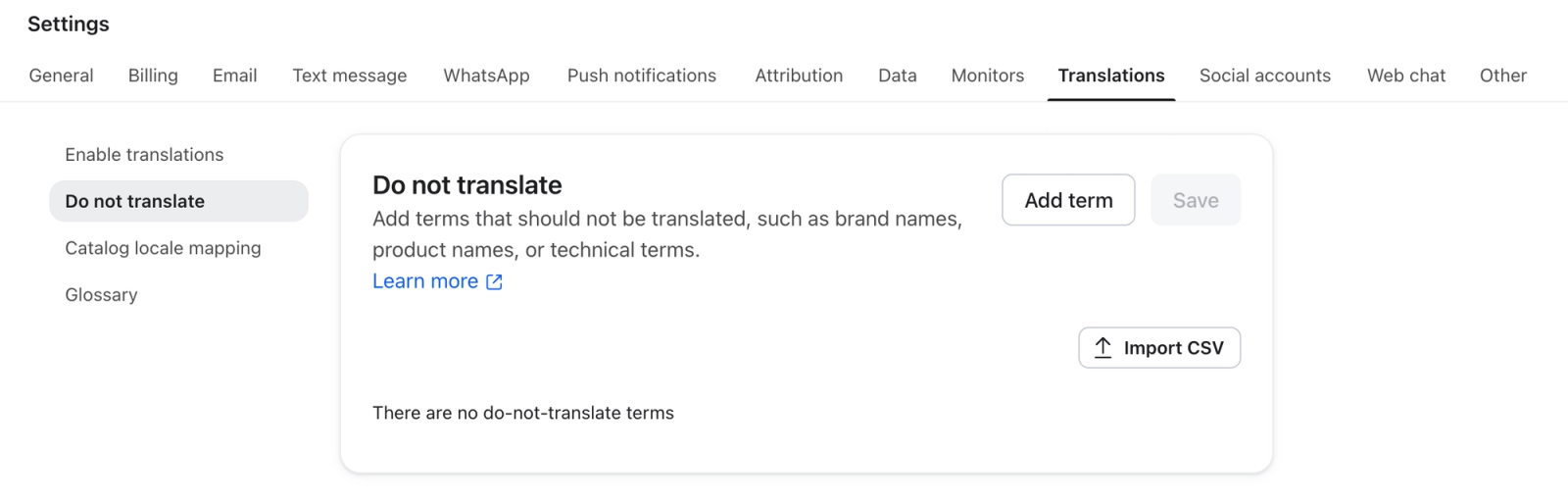
Add a term
- Click Add term. A new empty row is added to the list.
- Type the word or phrase you want to protect into the row. Each term can contain up to 200 characters.
- Click Save.
Saved terms apply the next time you translate content. Adding, editing, or removing a term does not change content you have already translated.
Use Glossary when you want a term translated a specific way. Use Do Not Translate when you want it left alone entirely. If the same term is on both your Do Not Translate list and your Glossary, the Glossary entry takes precedence.
Import terms from a CSV
For a long list of terms, prepare a UTF-8 CSV with a column named term and 1 word or phrase per row. Each term can contain up to 200 characters. Save any pending changes to your terms on the Do not translate page under Settings > Translations before importing.
- Click Import CSV at the top of the page.
- Choose Add to keep your existing terms and add new ones, or Replace all to replace your existing list with the imported terms. Replace all removes existing terms that are not in the file.
- Upload the CSV, then click Next.
- Review the valid and skipped entries and any warnings. To correct the file, click Select a different file and upload the corrected CSV.
- Click Import to apply the terms. The import saves your list automatically; you do not need to click Save afterward.
Edit or remove a term
To edit a term:
- Click into the term’s row and change the text.
- Click Save to apply the change.
To remove a term:
- Open the 3-dot menu at the end of the term’s row and select Remove term.
- Click Save to apply the change.