Getting started with Locations
Limited availability.
Learn how to add and manage physical locations in Klaviyo so you can identify nearby audiences and better target your local campaigns. Once you add a location, you can create proximity-based segments, assign a profile property, and view campaign performance and segments growth all from a single location detail page.
- Owner, Admin, and Manager have write access.
- Campaign coordinator, content manager, and social media manager have read-only access.
Before you begin
- How to create a location in Klaviyo
- How to create or link proximity-based segments to a location
- How to add a profile property tied to a location
- How to view campaign performance and segment data from the location detail page
Best practices
- Complete the full setup flow. Create the location, add segments, and a profile property to get the most value out of the feature.
- Create or link existing segments to your location. Segments power everything downstream. Without a linked segment, a location has no active audience.
- Add a profile property. Tag profiles with a Location when they are part of a linked segment. This lets you better target your local audience and enables more precise reporting over time.
Create a location
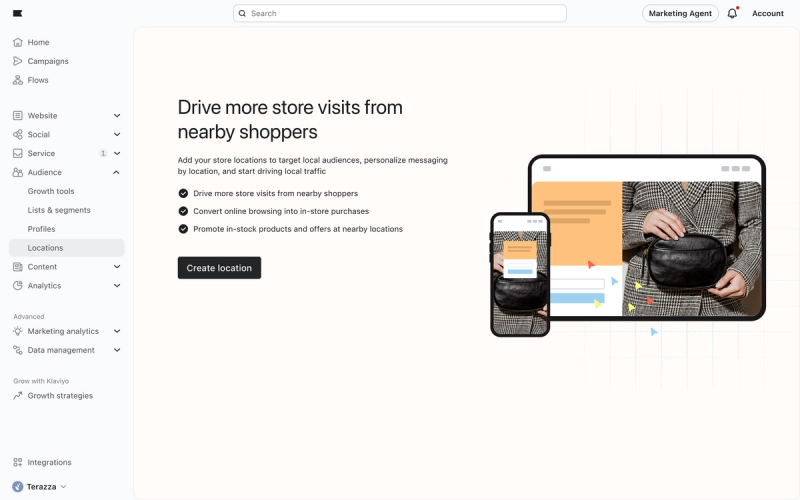
- In Klaviyo, navigate to Audience > Locations in the left navigation.
- Click Create location.
- Follow the steps below to complete the setup.
Add location details
In the location details step, enter the details for your physical location.
Required fields:
- Location name: A descriptive name for the store or venue (e.g., Downtown Boston)
- Location type: Select Distributor, Gym, Hotel, Restaurant, Retail Store, and Spa. If none of these apply, you can enter a custom type
- Address: The full street address, city, state, and ZIP code
Optional fields:
- Location description: A short description of the location (e.g., HQ that hosts community events)
- Phone number
- Website URL
- Location email
- Manager’s name: The person responsible for the location
- Manager’s email address
Create or link proximity-based segments
Create or link existing segments you want to associate with this Location. These segments define the audience Klaviyo will use when you launch campaigns.
Create a new segment
When you create a segment from within the Location setup flow, Klaviyo pre-sets a segment template with the following conditions:
- ZIP code: Profiles near a location based on ZIP code
- Subscription status: Profiles who are opted in to one or more channels:
- SMS
- Push
Limitations and rules:
- You can link up to 20 segments per location.
- Each segment can only be linked to one location at a time (1:1 relationship).
- You can add or remove segments after setup by going to the location's settings.
If you link a segment that is already tied to another location, it will automatically unlink from the previous location and link to the new one.
Add a profile property
In the profile property step, add a profile property to tag profiles in linked segments based on their proximity to the location. This helps you build more precise audiences and track location-specific behavior over time.
Limits and rules:
- Each location supports one profile property (1:1 relationship).
- You can edit or update the profile property at any time from the location's settings.
View campaign performance
After setup, your location detail page shows all campaigns that used the segments linked to this location. Use this view to track how they performed with your local engaged audience.
View segment data
The segments section of your location detail page shows aggregated data across all segments linked to this location. Use it to monitor how your local audience is growing over time, including total profile counts, profile added, profiles dropped, and net change.
Total profile count includes duplicate profiles across channels.
Additional resources
- How to create a location-based segment
Learn how to use location-based segments to send campaigns by region, target forms to customers in a particular area, or better understand a subset of your customers. Note that Klaviyo determines a profile's location when syncing a billing address for that contact or, if they have not yet purchased, by tracking their IP geolocation. Learn more about how location is set on Klaviyo profiles.
- Profile properties reference
Learn about the difference between custom and Klaviyo properties, how to use them to track information about your subscribers, how to remove them, best practices, and more.
- Course Use profile properties