How to connect your subscriptions provider to Customer Hub
Learn how to display subscription details on orders in Customer Hub by connecting Recharge, Skio, or Shopify order data.
Customer Hub for Shopify currently supports standard storefronts and Shopify Headless. For WooCommerce, navigate to https://help.klaviyo.com/hc/en-us/articles/47792369863451
Before you begin
- Make sure Customer Hub is enabled in your Klaviyo account.
- If you’re connecting a supported subscription app (Recharge or Skio):
- Ensure the Recharge app or Skio app is set up and active on your Shopify store.
- Ensure the app is integrated with Klaviyo
- If your subscription provider (Recharge, Skio, or Ordergroove) lets shoppers log in with a one-time code instead of a username and password, consider switching your Customer Hub Shopper login setting to Klaviyo One Time Password (OTP) so the login experience is consistent across your subscription and Customer Hub touchpoints. See Match your shopper login experience below.
- If you’re using Shopify order data, no extra setup is needed.
How subscription information displays in Customer Hub
When customers log in to their account on your Shopify site and open the Customer Hub drawer, they can view recent orders on the Orders tab. By connecting a subscriptions provider, you can show subscription details next to each applicable product in an order, making it easy for customers to identify which products are part of a subscription versus standalone purchases.
The subscriptions setting is off by default. If neither a subscription app nor Shopify order data are connected, no subscription information will appear in Customer Hub.
Subscription details appear differently, depending on which connection you have enabled:
Supported subscription apps (Recharge, Skio):
- Products purchased as part of a subscription display a badge with the subscription name (e.g., "Monthly") next to those items.
- A Manage subscription link is shown, guiding customers directly into the subscription app experience to view or manage their subscription.
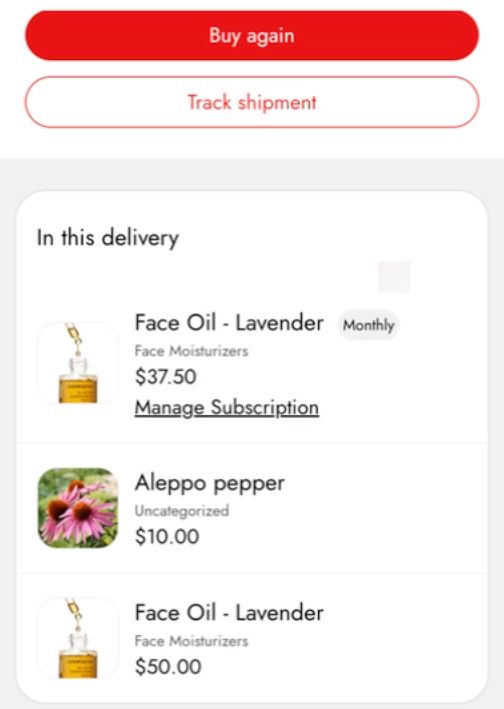
Shopify order data:
- Products purchased as part of a subscription display a badge with the subscription name next to those items.
- There is no button or option to manage subscriptions.
For products purchased as a one-time purchase, no subscription badge or subscription management link is shown. If an order contains both subscription and non-subscription products, only the subscription items display these details.
Connect your subscription provider
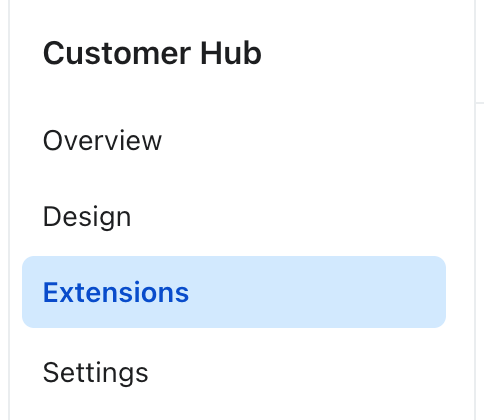
- In Klaviyo, go to Service - Customer Hub in the main navigation.
- Select Extensions.
- Under Subscriptions, toggle the setting on, then choose 1 of the following options:
- Recharge
- Skio
- Shopify order data
- Ordergroove
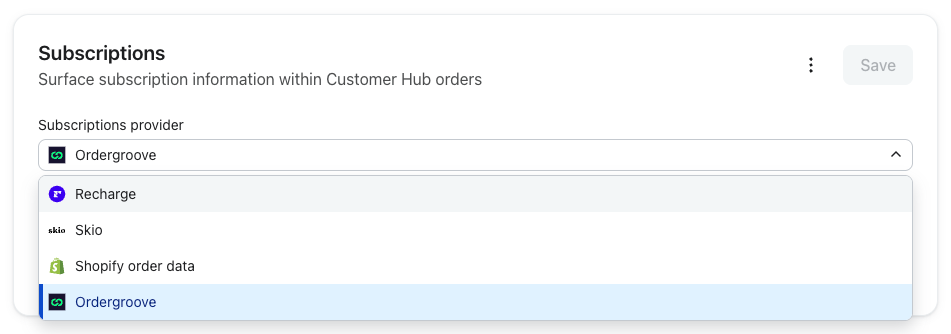
- Click Save.
Customer Hub will now use your selected option to display subscription details next to applicable products in your customers’ orders.
Match your shopper login experience
Many subscription providers, including Recharge and Skio, let shoppers manage their subscription by logging in with a one-time code sent to their email — no username or password required. By default, Customer Hub uses Shopify Customer Account API, which requires shoppers to log in the same way they would for a standard Shopify account.
To keep the login experience consistent with your subscription provider, we recommend switching Customer Hub to Klaviyo One Time Password (OTP):
- In Klaviyo, go to Service > Customer Hub.
- Select Settings.
- Under Shopper login, choose Klaviyo One Time Password (OTP).
- Click Save.
With Klaviyo OTP enabled, shoppers log in to Customer Hub with a one-time code sent to their email, matching the passwordless experience they already use to manage their subscription — instead of creating or remembering a Shopify username and password.
Keep in mind:
- Klaviyo OTP only signs shoppers into Customer Hub. It does not log them into Shopify itself, so if you need shoppers to also access native Shopify account pages (order history outside Customer Hub, saved payment methods, etc.), Shopify Customer Account API may still be the better fit.
- If you switch to Klaviyo OTP, remove any storefront links that route directly to Shopify's native login/account pages, or add
data-k-hub-ignoreonly where you intentionally want to keep the native Shopify flow.
Optional: adding a content block for subscriptions
Like with all integrations that write profile data into Klaviyo, you can use content blocks to surface dynamic information. Note that for some content blocks, such as the template we provide for Recharge, there is no default link set. You must set the link for the content block and link it to your subscription landing page. Until you set this link, while the content block can display data like active subscription count, clicking the content block will not do anything because the link is not set.