Guide to using customer agent on SMS
Introduction
What is Customer Agent on SMS?
- A 24/7 AI assistant that responds to inbound SMS messages to answer questions, recommend products, and resolve common issues
- Supports revenue-driving and service use cases (product recommendations, order-status questions such as “Where is my order?”, and FAQs)
Why use Customer Agent on SMS?
- Drive incremental revenue from SMS replies
- Resolve repetitive support questions automatically
- Reduce ticket volume while improving response speed
- Provide 24/7 assistance
Before you get started
Requirements
- Active SMS plan and a sending number that supports two-way messaging
- Shopify recommended for full functionality (order tracking, recommendations)
- Note: SHAFT brands cannot activate Customer Agent on SMS
Set up Customer Agent before inviting SMS replies. See Getting started with Customer Agent.
Enable Customer Agent on SMS
- Navigate to Customer Agent > Channels > Text messaging.
- Complete any required SMS setup, review your audience and Handoff settings, and click Save if you make changes.
- Click Launch to turn on Customer Agent for SMS.
What messages does it handle?
Once enabled, Customer Agent responds to inbound SMS messages that meet your audience settings. Klaviyo continues to handle these with its SMS compliance and automation features:
- Compliance keywords (STOP, HELP, etc.)
- Subscription and unsubscribe requests (keywords and unsubscribe intent)
- SMS keyword automations
Customer Agent does not start a new conversation while the profile has an active helpdesk ticket for that channel.
What happens if the Agent can’t resolve the issue?
- Follows your SMS handoff settings. Review them under Customer Agent > Channels > Text messaging > Handoff.
- If you've chosen to escalate to a helpdesk, the agent receiving the ticket will receive a transcript of the customer agent conversation
- If you've chosen not to escalate to helpdesk, you will configure a closeout message to be sent when the agent cannot resolve the customer's need
Built-in guardrails to control SMS costs
- Messages identified as spam or noise are ignored. For example, auto-response messages like “I’m driving with focus turned on” do not receive a Customer Agent reply.
- Customer Agent attempts to limit responses to a single SMS segment when possible
- When Customer Agent cannot resolve the customer’s issue, it follows your handoff settings: it escalates to your helpdesk or sends your closeout message.
Best practices for driving revenue with Customer Agent on SMS
1. Proactively invite replies in your campaigns and flows
Customer Agent only works if customers reply.
Encourage replies in:
- Abandoned cart messages (e.g., sizing, returns, styling questions)
- Welcome series (e.g., shade match, personalization inputs)
Include:
- Clear invitation (“Reply with questions”)
- Prompts about the questions that could prevent a purchase, such as “Reply with sizing questions”
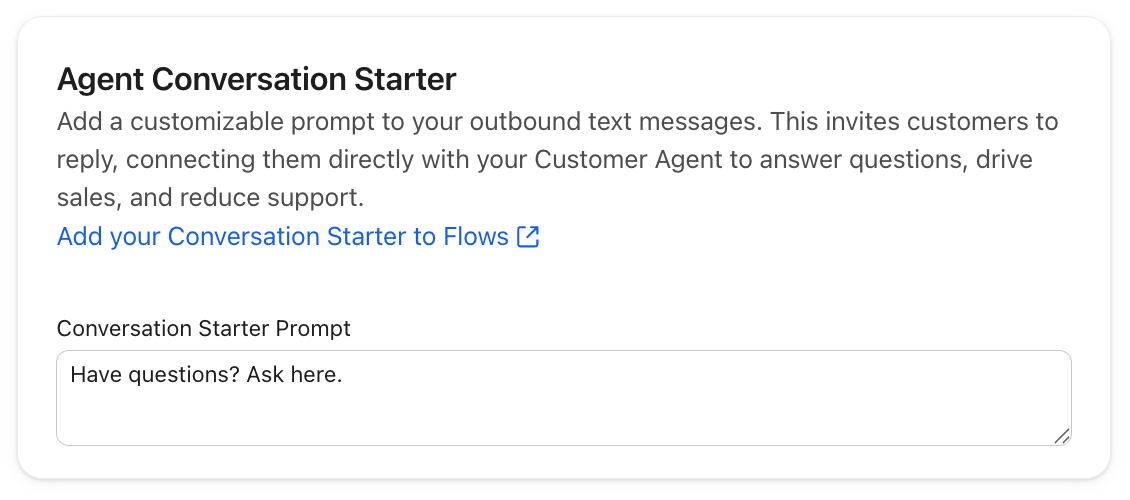
- Navigate to Customer Agent > Settings > Marketing.
- Enter your Conversation Starter Prompt under Agent Conversation Starter, then click Save.
- In an SMS campaign or flow message editor, select Include Agent Conversation Starter to add your saved prompt to the message.
The checkbox appears when Customer Agent is enabled for SMS and a conversation starter is saved.
2. Control which profiles can interact with Customer Agent
- Navigate to Customer Agent > Channels > Text messaging.
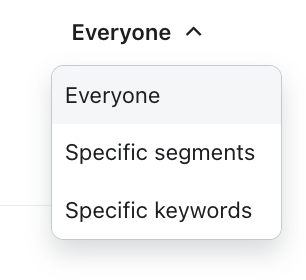
- Under Select who will use your Customer Agent, choose 1 of these 3 options:
- Everyone: Let all profiles interact with Customer Agent, subject to the SMS message-handling rules above.
- Specific lists and segments: Include the lists or segments Customer Agent should reply to, or exclude those it should not reply to.
- Good for: operating Customer Agent as a VIP-only feature (e.g., a personal concierge)
- Specific keywords: Include keywords that start Customer Agent conversations, or exclude keywords. Matching uses the entire first message and is not case-sensitive.
- Good for: guiding Customer Agent queries. For example, include “style me” and invite shoppers to “Reply STYLE ME for a personalized recommendation.”
- Good for: keeping specific opening messages with your support team. Excluded keywords stop Customer Agent from replying; review your helpdesk setup to confirm where those messages are handled.
- Click Save to apply your audience settings.
Audience rules apply when a new conversation starts. Exclusions take priority over inclusions. These keywords control Customer Agent access; SMS compliance keywords and keyword automations still follow their own processing rules.
3. Plan SMS and Customer Agent usage together
Customer Agent consumes:
- AI conversations, counted when a conversation is resolved by Customer Agent. Conversations escalated to a human are not counted as resolved AI conversations.
- SMS segments (standard SMS billing applies)
Best practices:
- Make sure your SMS plan covers expected Customer Agent replies as well as campaigns and flows.
- Consider flexible overages or auto-upgrade for SMS to continue sending when you reach your plan limit. Additional usage incurs charges.
4. Measure performance and identify engaged customers
- Open Customer Agent > Analytics. Under Key Metrics, use Channel to select Text messaging.
- Note: SMS revenue attribution follows the account’s SMS attribution model settings
Identify and retarget profiles who interacted with Customer Agent by creating a segment. Follow Getting started with segments to open the segment builder, then:
- Select What someone has done (or not done).
- Choose Resolved Customer Agent Conversation, Escalated Customer Agent Conversation, or Started Customer Agent Conversation, then set the count and time range you want.
- To include only SMS interactions, filter the event’s channel property to sms.
- Click Create segment.
Additional resources
Launching on other channels and serving shoppers in any language.
- How to launch your Customer Agent
You will learn how to launch your Customer Agent successfully across every channel you want the Customer Agent active on. Correctly launching the agent allows you to automate responses to common customer questions, reducing support volume and boosting conversion by providing instant answers to your shoppers 24/7.
- How to launch Customer Agent on WhatsApp
- Customer Agent in your customer's language