Setting up key hotel reports with Cloudbeds
Overview
This guide explains how to create three dashboards in Klaviyo using the Cloudbeds' Confirmed Room Night and Completed Room Night event metrics.
Dashboard | Metric | What It Shows | Use Case |
|---|---|---|---|
Historical Daily Room Revenue from Stays | Completed Room Night | Total room revenue per night | View the revenue attributable to a given night |
Average Daily Rate (ADR) from Stays | Completed Room Night | Average nightly rate for historical stays | View the average daily rate historically |
ADR from New Bookings | Confirmed Room Night | Average nightly rate for new bookings | View the average daily rate for new bookings to understand the impact of marketing efforts |
Prerequisites
- Your Cloudbeds integration must be connected to Klaviyo.
- You must have at least Editor-level access to the Klaviyo account.
Dashboard 1: Historical Daily Room Revenue from Stays
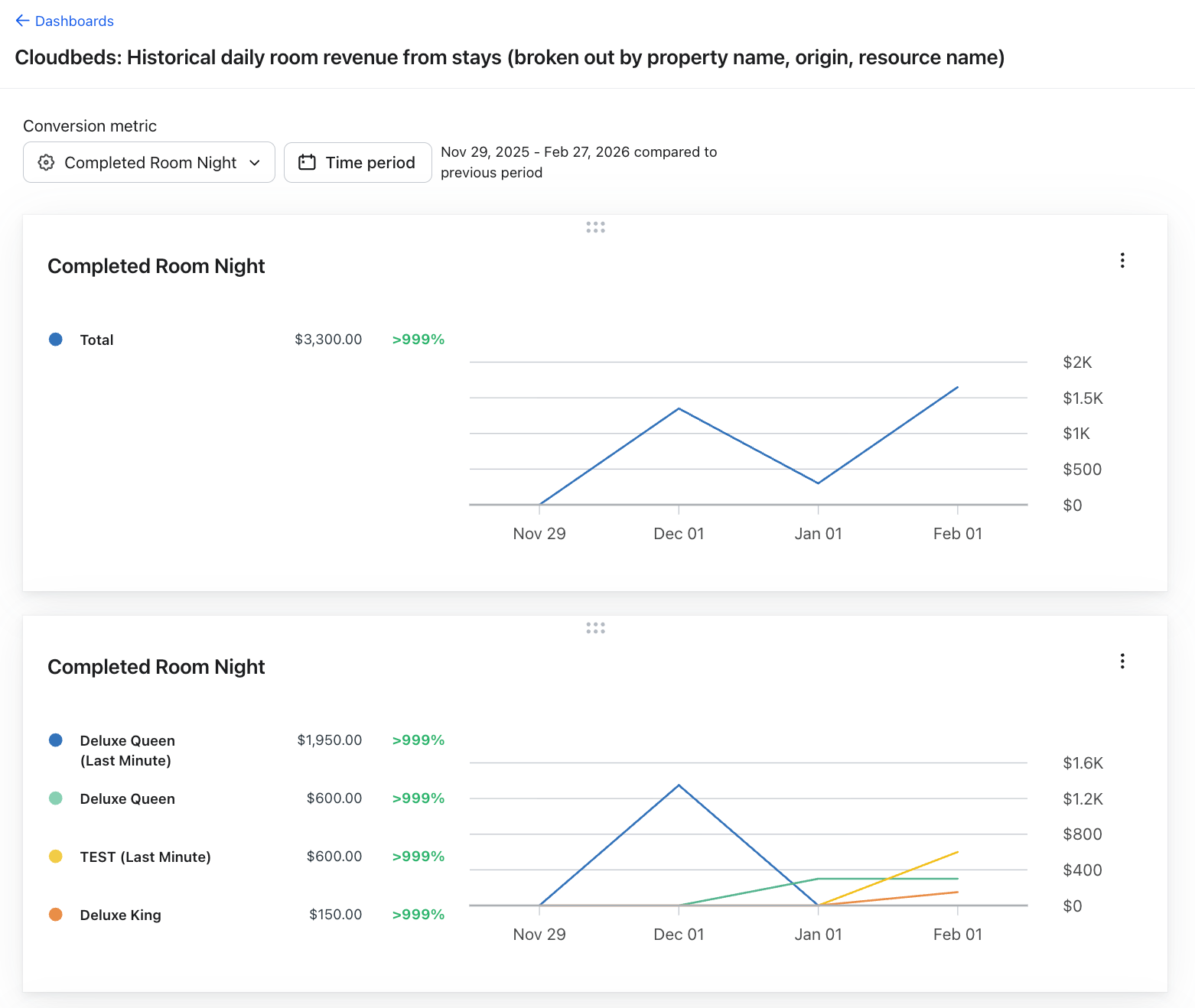
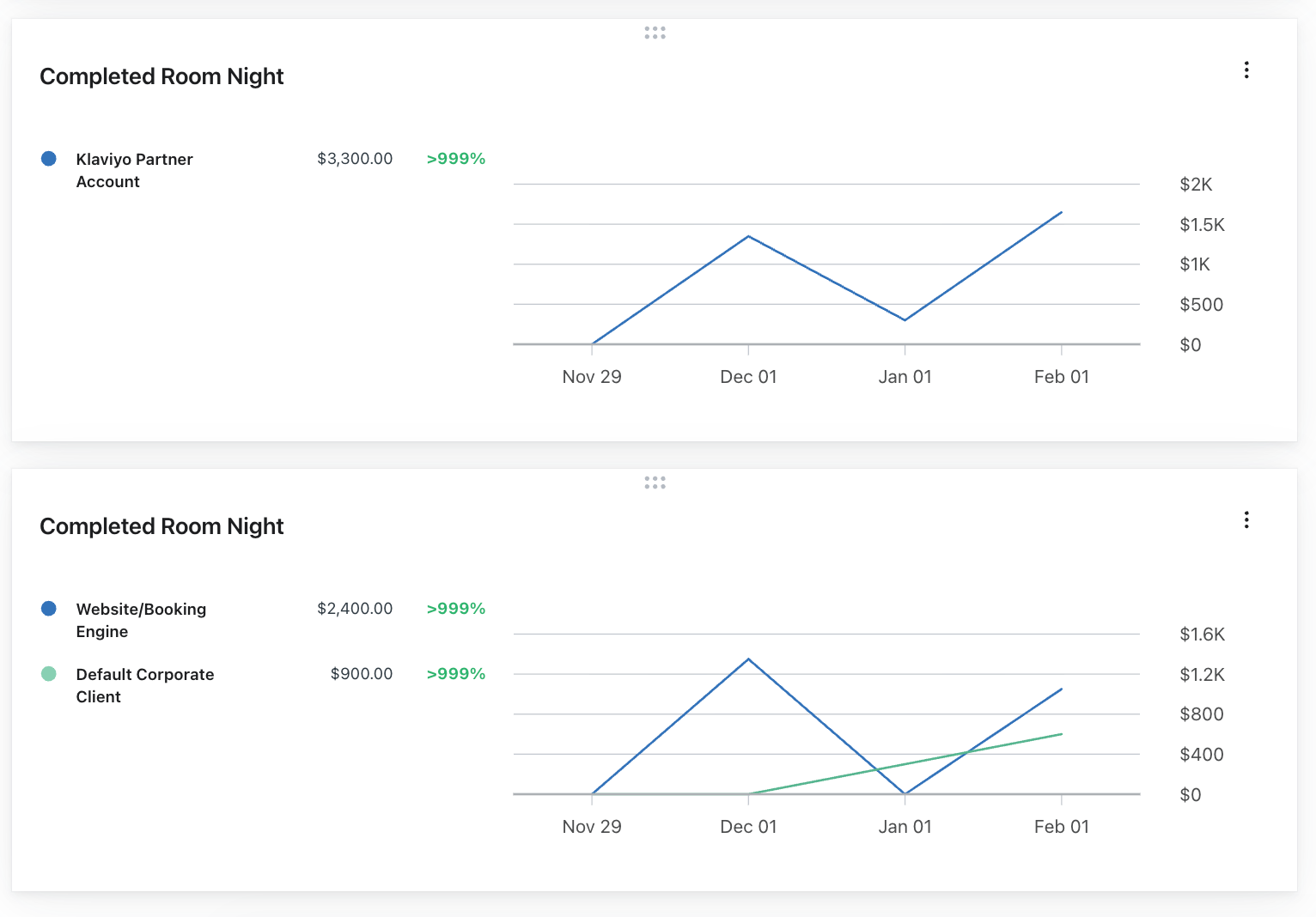
This dashboard measures the historical daily room revenue — useful for evaluating the revenue attributable to each night. At the end of these steps, your dashboard for daily room revenue will look like this:
Steps
1. Log in to Klaviyo
2. In the left-hand navigation, click Analytics, then click Dashboards.
3. Click Create Dashboard. Name it as you like (e.g. Historical Daily Room Revenue from Stays).
4. Click Create.
Add Card 1 — Historical Revenue from Stays
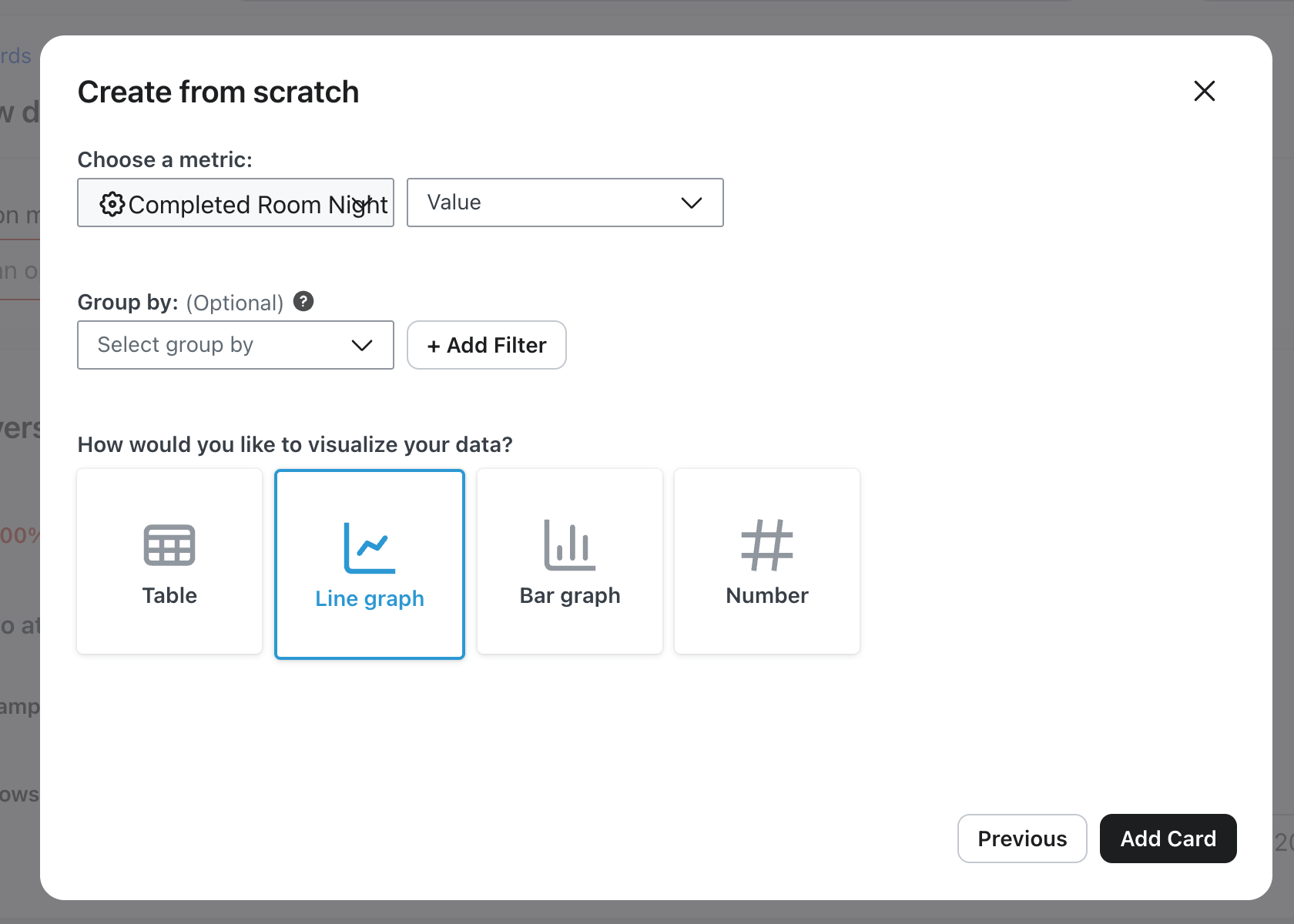
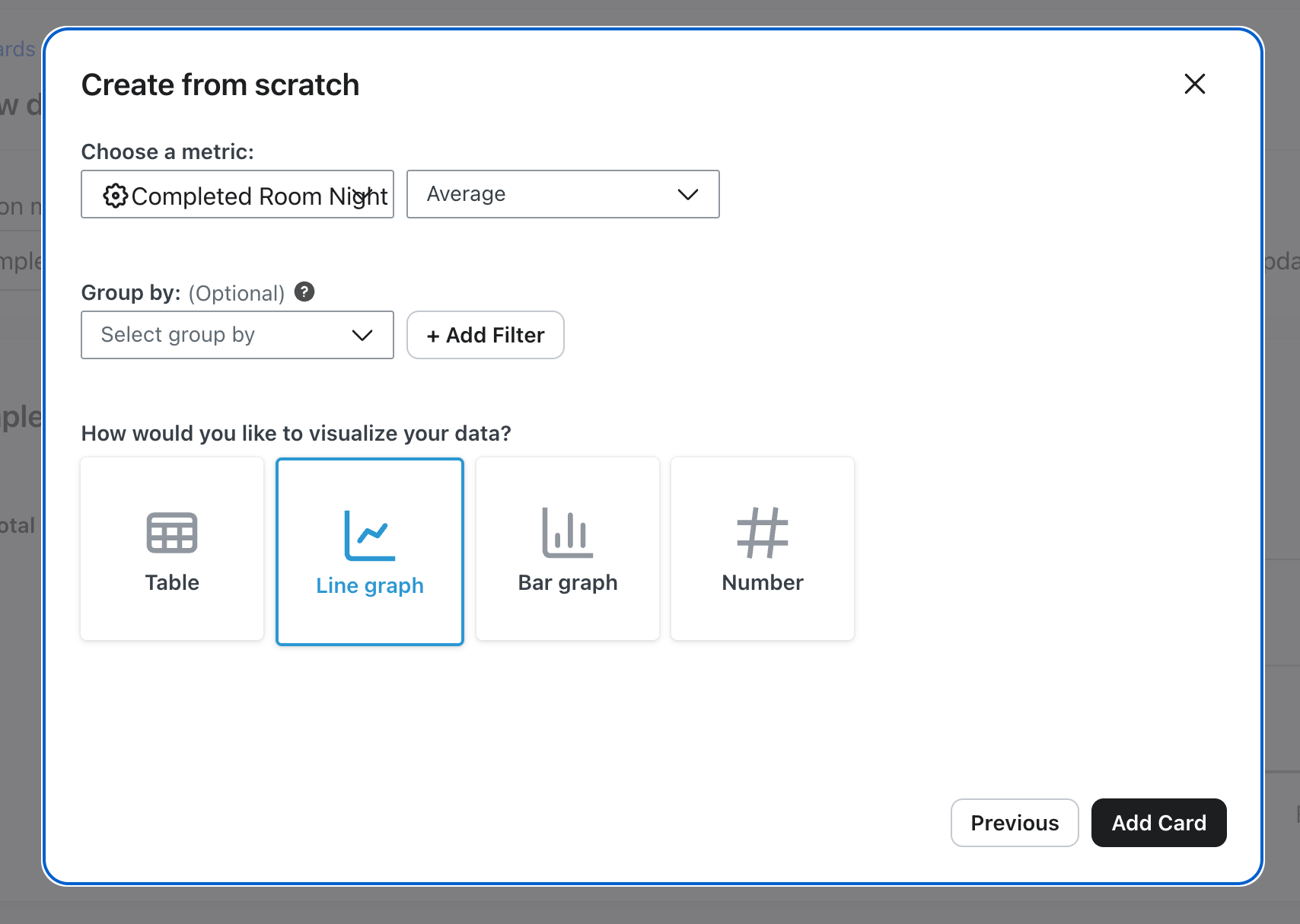
- Click Add Card > Create from Scratch > Line Graph
- Metric: Completed Room Night
- Aggregation: Sum → Revenue ($value)
- Group by: (none)
- Visualization: Line chart
- Card title: Total
2. Click Save Card.
Add Card 2 — Historical Revenue from Stays by Room Type
Same process as above, except select Group by RoomTypeName.
- Metric: Completed Room Night
- Aggregation: Sum → Revenue ($value)
- Group by: RoomTypeName
Add Card 3 — Historical Revenue from Stays by Property Name
Same process as above, except select Group by PropertyName.
- Metric: Completed Room Night
- Aggregation: Sum → Revenue ($value)
- Group by: PropertyName
Add Card 4 — Historical Revenue from Stays by Source
Same process as above, except select Group by Source.
- Metric: Completed Room Night
- Aggregation: Sum → Revenue ($value)
- Group by: Source
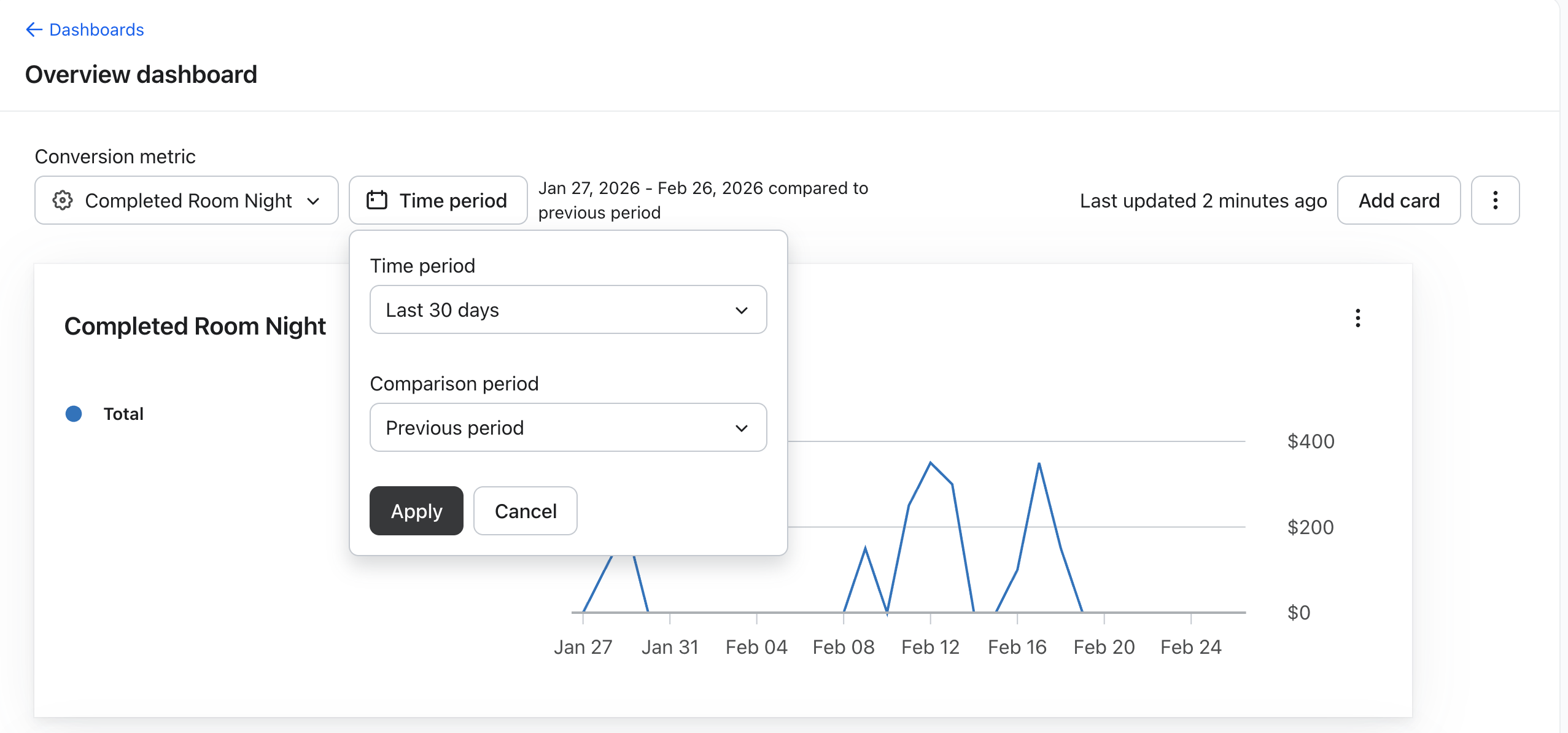
Set the time period as you like and the conversion metric to Completed Room Night. Click Save.
Dashboard 2: ADR from Stays
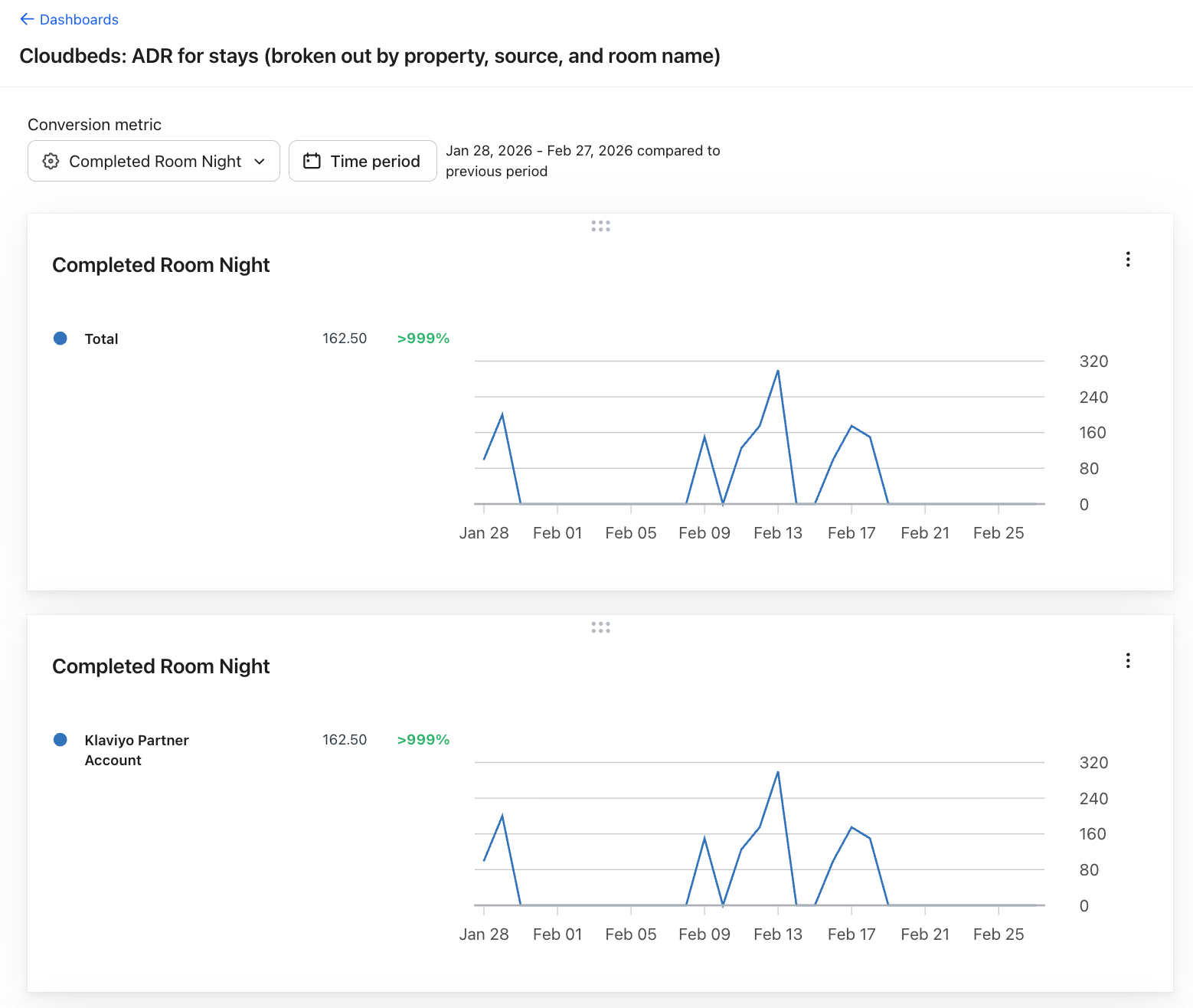
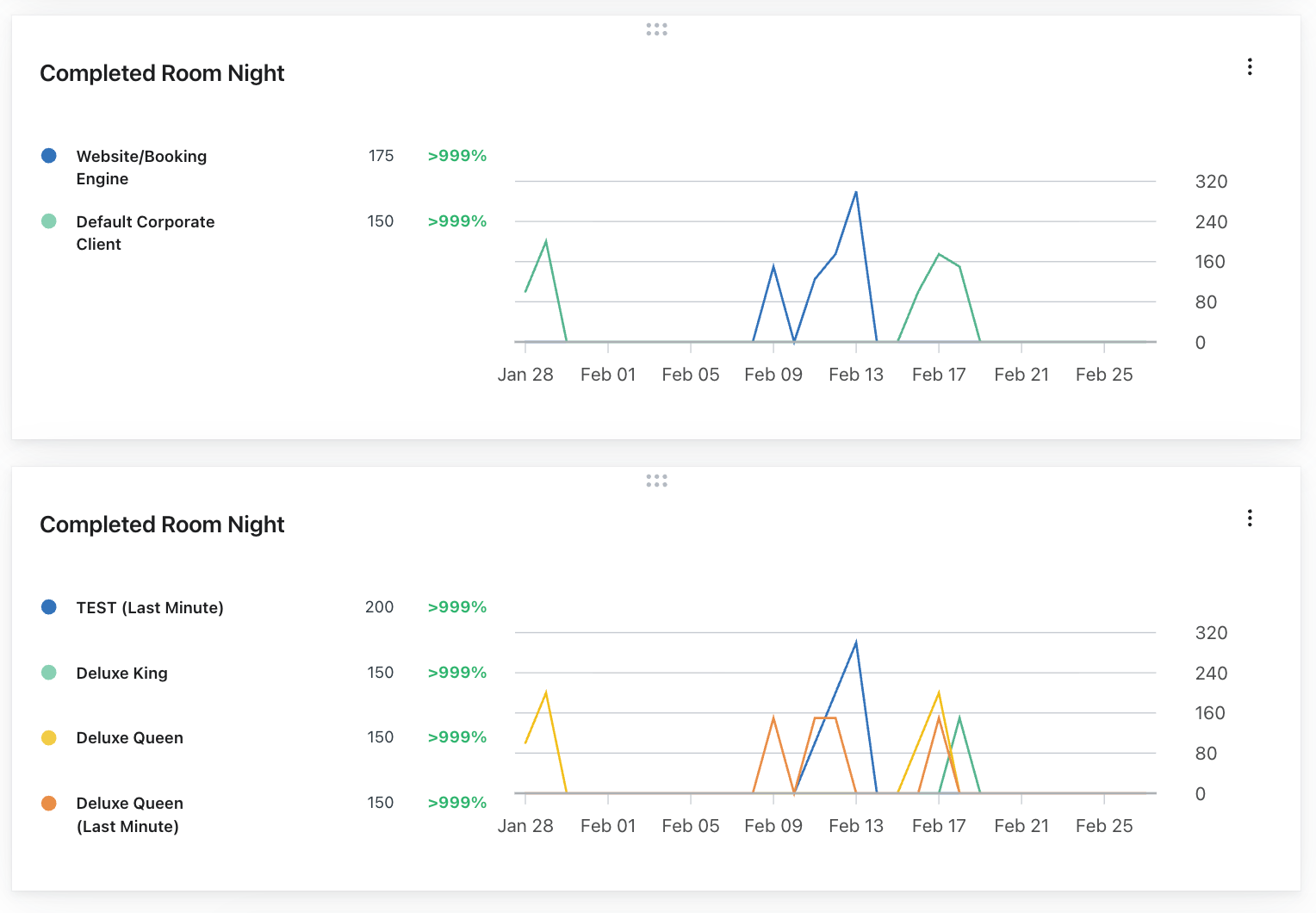
This dashboard measures the ADR from stays — useful for evaluating the average daily rate historically. At the end of these steps, your dashboard for average daily rate will look like this:
Steps
Same as above, create a new dashboard and name it as you like (e.g. ADR from Stays).
Add Card 1 — ADR from Stays
- Metric: Completed Room Night
- Aggregation: Average → Revenue ($value)
- Group by: (none)
Add Card 2 — ADR from Stays by Property Name
- Metric: Completed Room Night
- Aggregation: Average → Revenue ($value)
- Group by: PropertyName
- Card title: By Property
Add Card 3 — ADR from Stays by Source
- Metric: Completed Room Night
- Aggregation: Average → Revenue ($value)
- Group by: Source
- Card title: By Source
Add Card 4 — ADR from Stays by Room Type
- Metric: Completed Room Night
- Aggregation: Average → Revenue ($value)
- Group by: RoomTypeName
- Card title: By Room Type
Set the time period as you like and the conversion metric to Completed Room Night. Click Save.
Dashboard 3: ADR from New Bookings
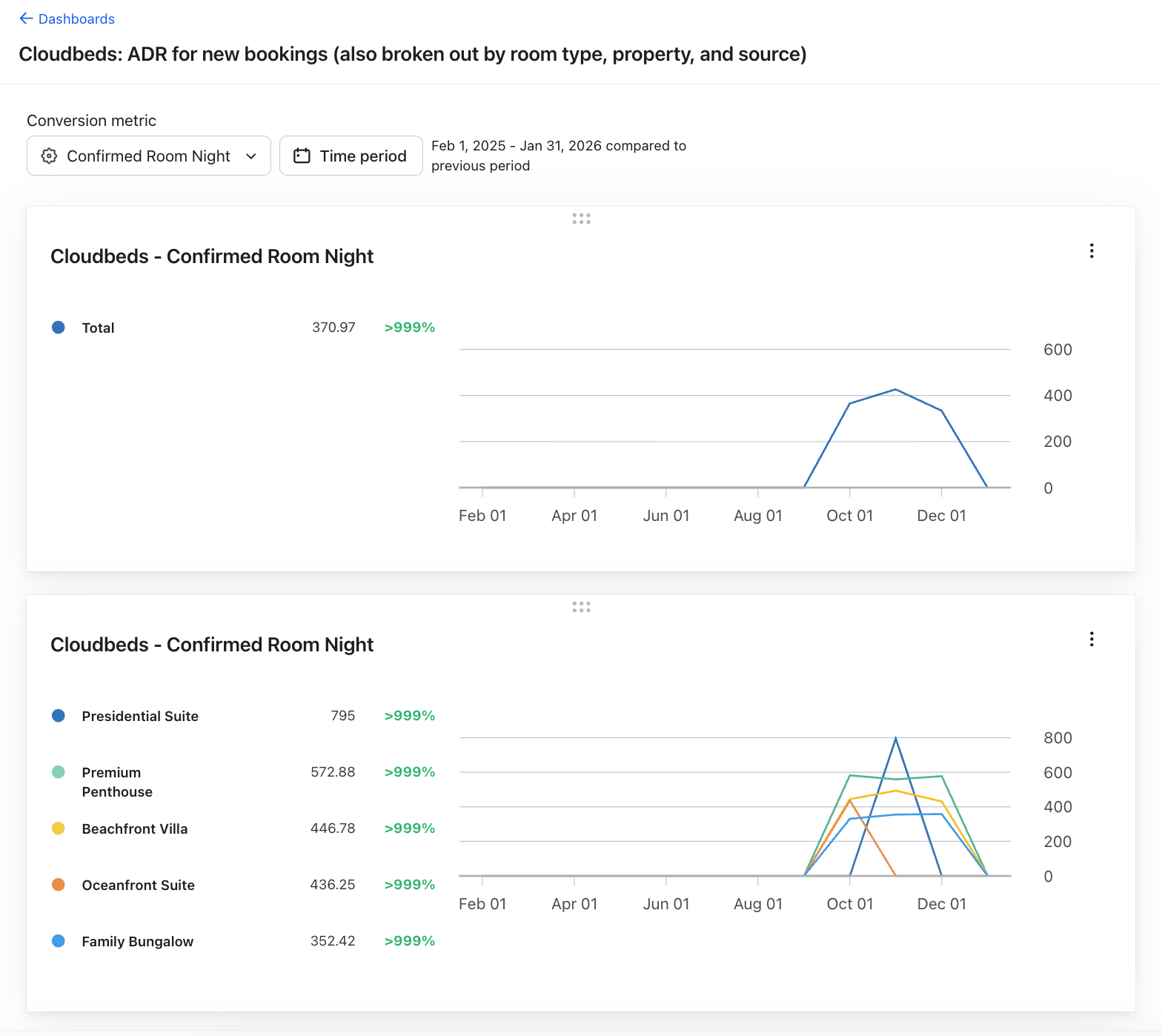
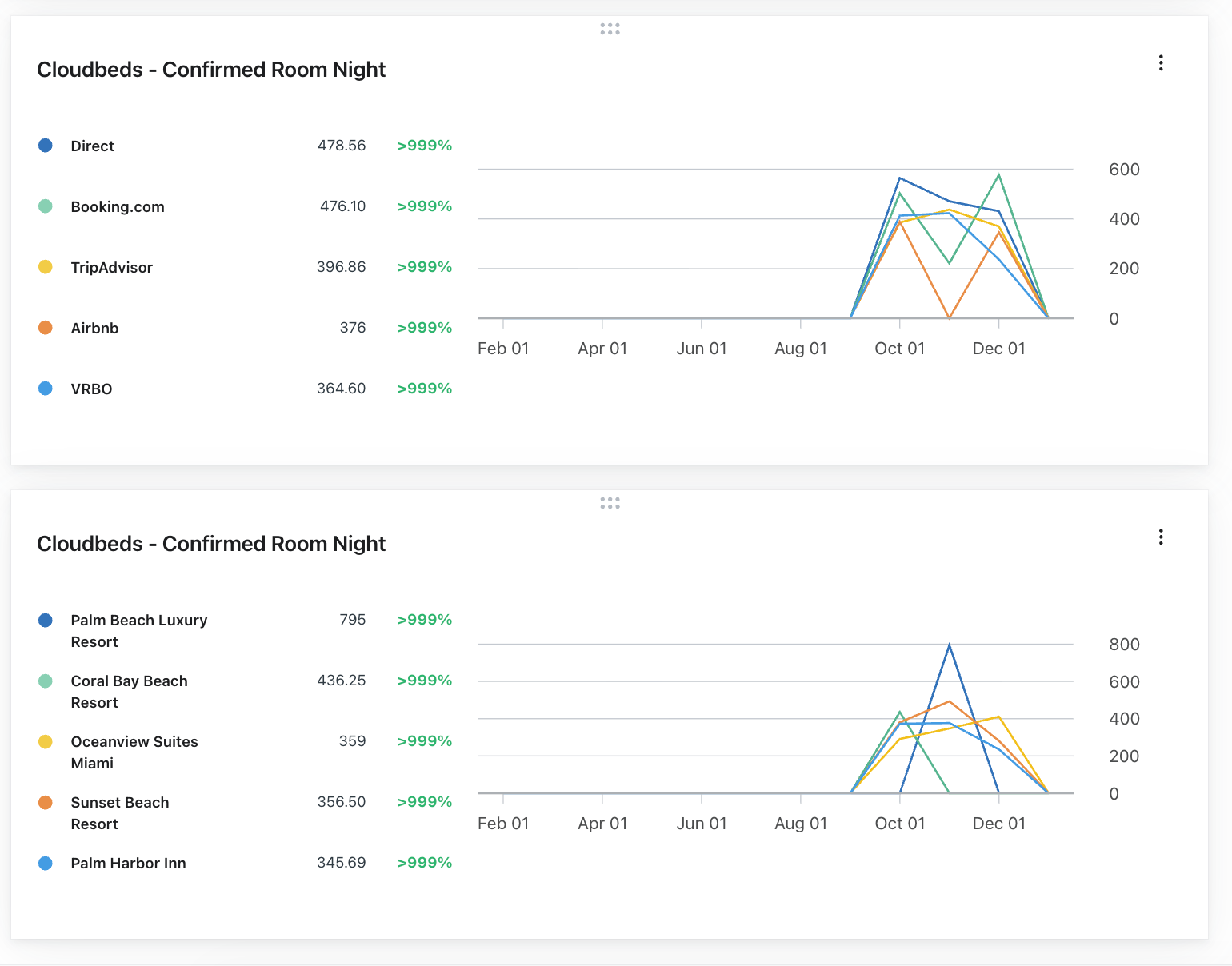
This dashboard measures the ADR at the time of booking — useful for evaluating the revenue impact of your marketing campaigns and flows. At the end of these steps, your dashboard for average daily rate will look like this:
Steps
Same as above, create a new dashboard and name it as you like (e.g. ADR from New Bookings).
Add Card 1 — ADR from from New Bookings
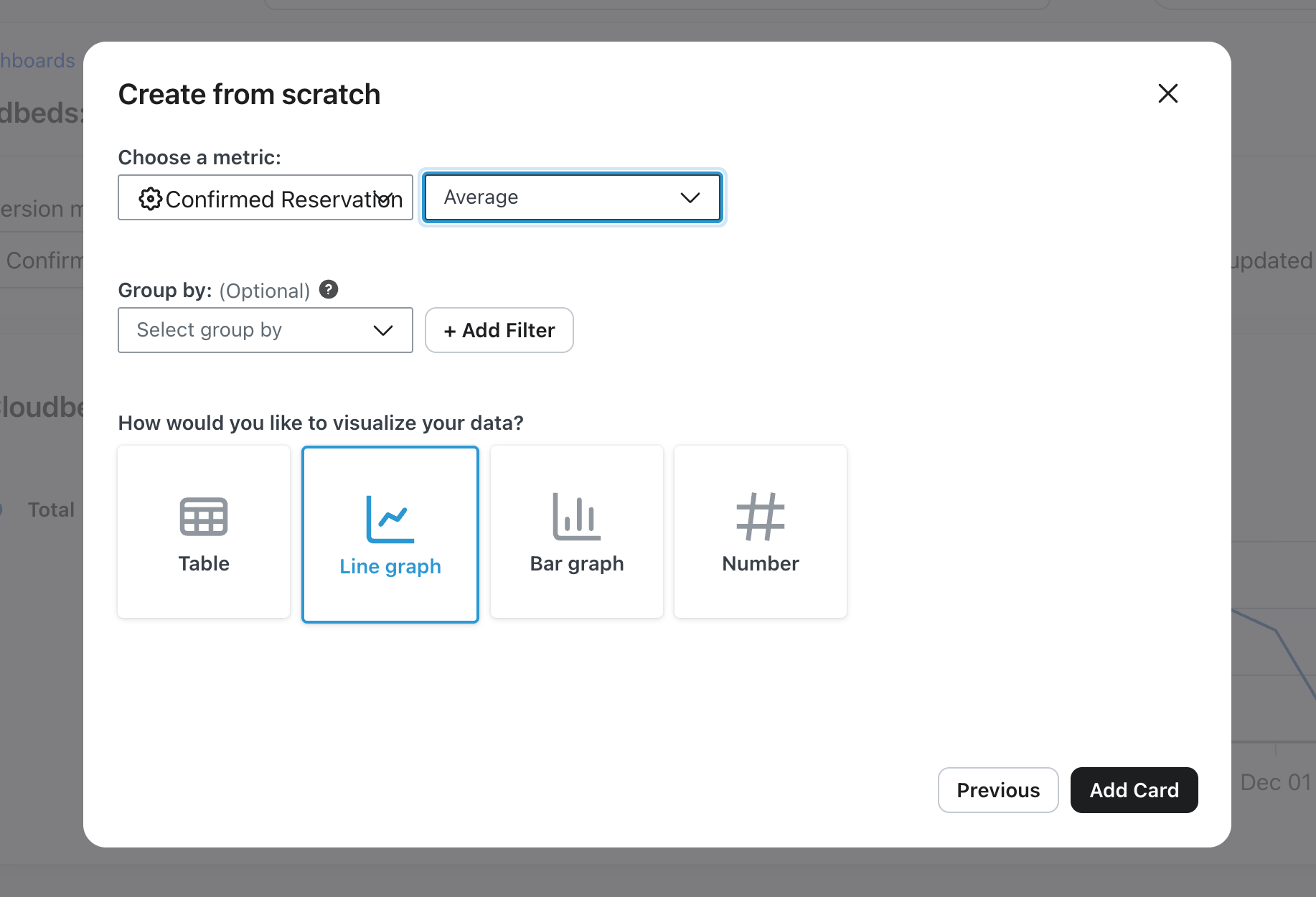
- Metric: Confirmed Room Night
- Aggregation: Average → Revenue ($value)
- Group by: (none)
Add Card 2 — ADR by Room Type
- Metric: Confirmed Room Night
- Aggregation: Average → Revenue ($value)
- Group by: RoomTypeName
- Card title: By Room Type
Add Card 3 — ADR by Source
- Metric: Confirmed Room Night
- Aggregation: Average → Revenue ($value)
- Group by: Source
- Card title: By Source
Add Card 4 — ADR by Property Name
- Metric: Confirmed Room Night
- Aggregation: Average → Revenue ($value)
- Group by: PropertyName
- Card title: By Property
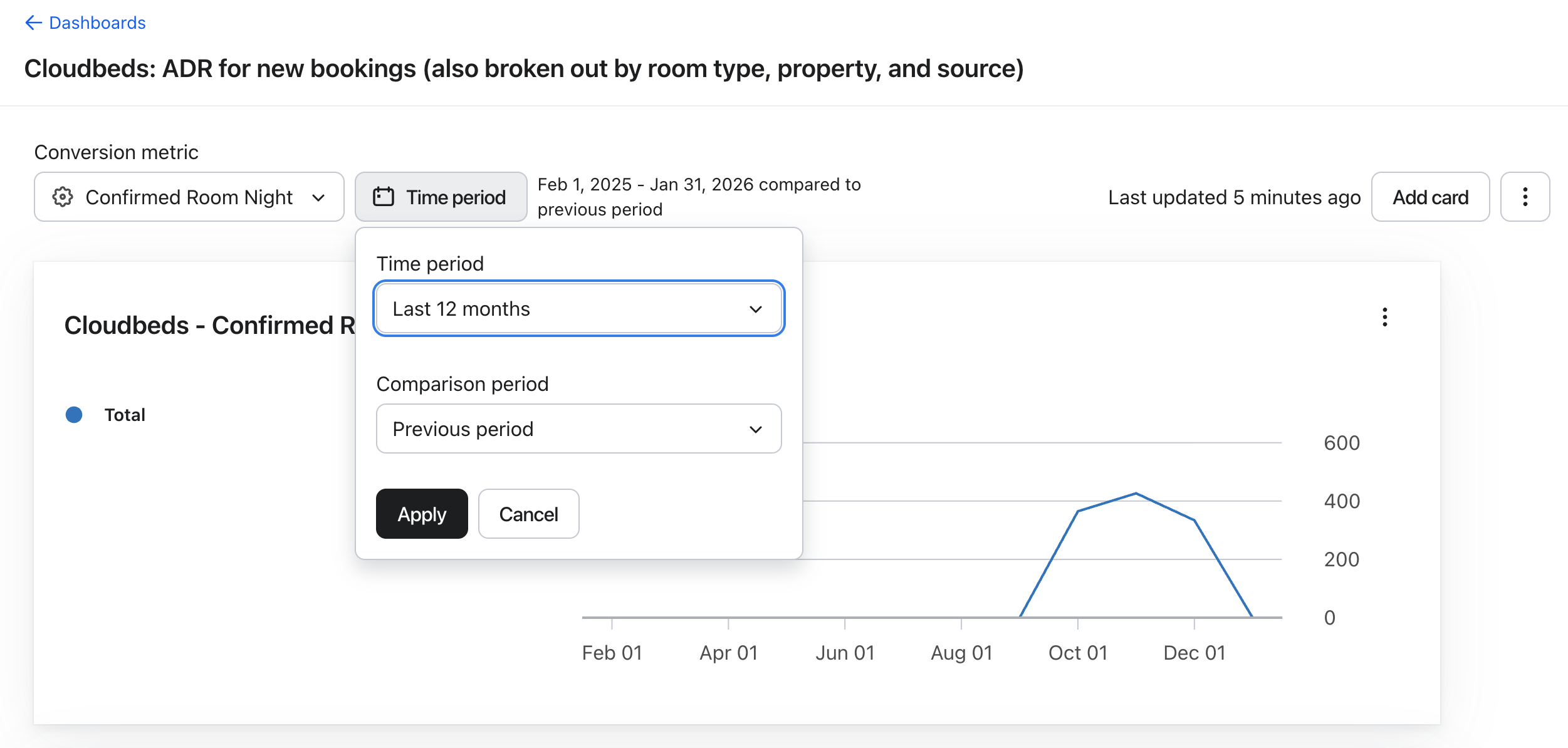
Set the time period as you like and the conversion metric to Confirmed Room Night. Click Save.
Understanding the Metrics
Property | What It Means |
|---|---|
$value | The nightly room rate for that specific night |
PropertyName | The name of the property/hotel |
Source | Where the booking came from (e.g., Direct, Booking.com, Airbnb, Vrbo) |
RoomTypeName | The room type or name (e.g., Deluxe Queen, Presidential Suite) |
StartDate | The calendar date the night begins |
> Note: Because each Cloudbeds reservation generates one Room Night event per night of the stay, revenue is attributed to the specific night it was earned — not to the overall reservation total. This enables day-level revenue reporting that was not previously possible.