How to automatically sync website content for Customer Agent
You will learn
You will learn how to enable automatic reindexing (auto-sync) when adding a website to Customer Agent. Auto-sync helps keep your Agent's knowledge of your products and policies up to date and reduces the manual effort of refreshing website content.
Before you begin
- Prerequisites: You must have the Customer Agent feature enabled and a public website URL to import into Knowledge.
- Availability: This feature is available only to paying Customer Agent subscribers. It is not available on trial or free plans.
- Roles: You must have Owner, Admin, or Manager permissions to manage Agent content.
- Time to complete: ~2 minutes.
- Important: Automatic syncing runs weekly. For time-sensitive updates (e.g., a flash sale launching in 10 minutes), use Resync to start a manual update. Syncing takes time, so check that the updated content is available before relying on it.
Overview
Customer Agent uses content you upload to answer customer inquiries accurately. Previously, if you added new products or changed your return policy, you had to manually trigger a "reindex" for the Agent to learn that information.
With automatic syncing, Klaviyo periodically crawls your connected websites to detect changes. During a website crawl, Klaviyo imports newly discovered pages and updates changed content in your Agent’s knowledge. This reduces manual refreshing for stores that frequently update their website content.
Enable auto-sync when adding a website
If your website is already in Knowledge, you can use Resync to refresh it manually. The steps below apply when adding a new website source.
- In Customer Agent, select Knowledge.
- Click Add website.
- Enter the URL you want to keep updated (e.g., your storefront or FAQ page). If this is your storefront, select Set as my storefront URL.
- Make sure Turn on auto syncing is selected.
- Choose Import all pages from this URL for a website, or Import only this page for a standalone page. If you selected Set as my storefront URL, the all-pages option is selected automatically.
- Click Add webpage.
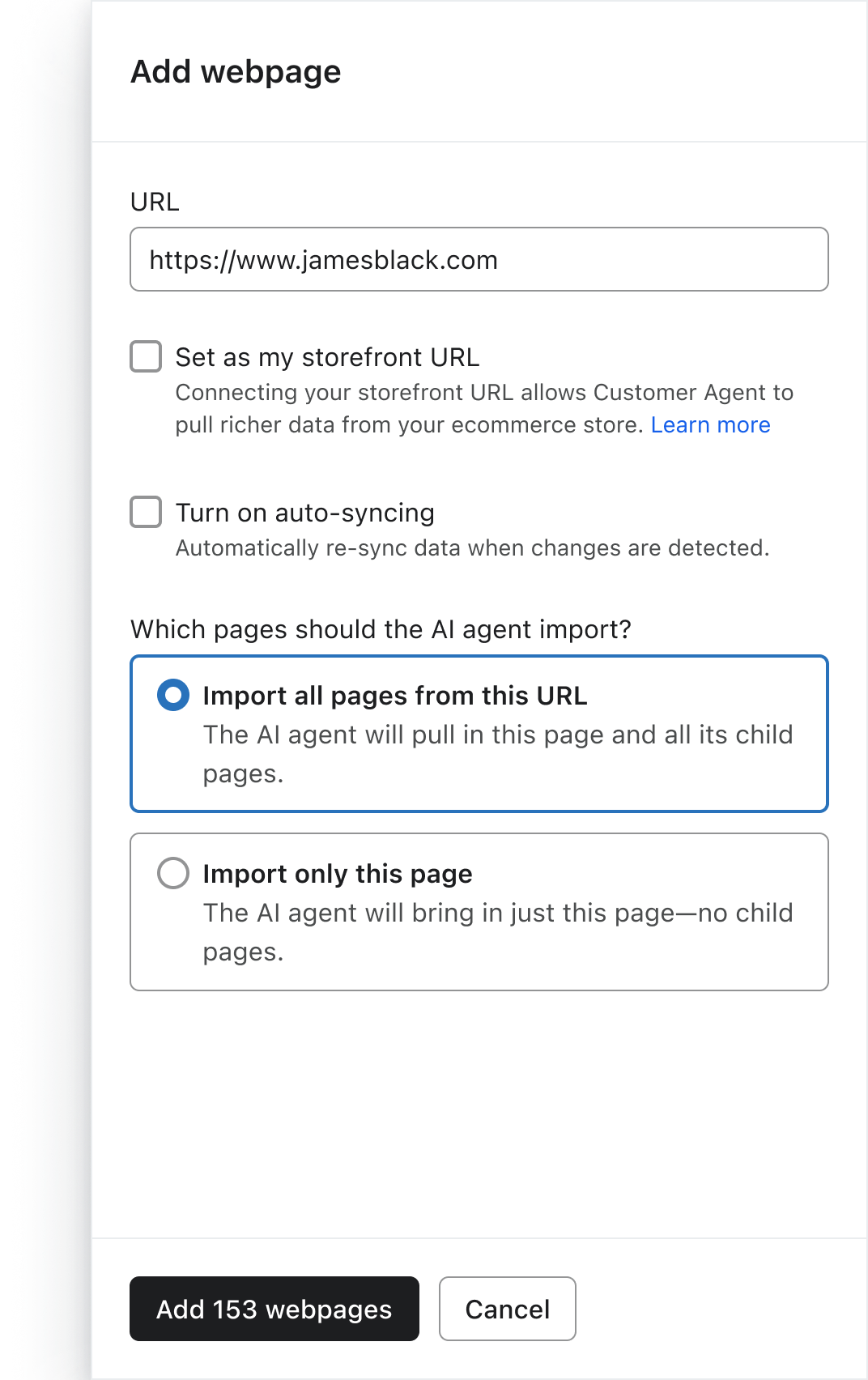
Expected result: Klaviyo imports the source and saves your auto-sync setting. The source shows Syncing while processing is in progress. Check the imported pages and their statuses when syncing finishes.
Tip: Selecting Set as my storefront URL also selects Turn on auto syncing. Pages imported as part of a website share that website’s auto-sync setting; you do not need to enable each child page separately.
Best practices
- Enable for frequently updated pages: Use auto-sync for your primary storefront and “New Arrivals” content to keep website information up to date between manual refreshes.
- Monitor the last sync: Use the Last synced column in your content table to verify when the crawler last refreshed your data.
- Combine with manual indexing: Auto-sync runs periodically. If you make a critical update to your shipping policy right before Black Friday, open the source and click Resync. Wait for syncing to finish and check the imported content.
- Use one-time imports for static content: When adding a standalone archived blog page that rarely changes, you can leave Turn on auto syncing unchecked. Pages imported as part of a website share the website’s setting.
Measure success
- Key metrics to watch:
- Last synced timestamp: Compare this with your latest website change. Because auto-sync runs weekly, a timestamp older than 3–4 days does not by itself mean syncing has failed.
- Resolution rate: Monitor if the Agent is successfully answering questions about new products.
- If the Agent provides outdated answers:
- Check the Last synced column for the affected page. For a page imported as part of a website, open the website source to find its child pages.
- If the date is older than your recent site change, open the affected page and click Resync.
- Wait for syncing to finish, then check the page’s imported content. Test Customer Agent with a question about the update.
Troubleshooting
Symptom: The Agent doesn't know about a product I added this morning. Likely cause: The weekly auto-sync has not run yet, or the new page has not been imported. Fix: Open the website source in Knowledge and click Resync. After syncing finishes, check whether the product page was imported. If it is still missing, add its URL using Import only this page, then test the Agent again.
Symptom: My website is not automatically syncing while I am on a trial. Cause: Scheduled auto-sync requires a paid Customer Agent subscription. Fix: Use Resync for manual updates, or upgrade to a paid Customer Agent subscription for scheduled syncing.
Symptom: The Last synced date changed, but the content didn't update. Likely cause: The crawler found the same content as before, so there was no new content to index. Fix: Verify you published your changes on your website, then wait for the next cycle or open the affected page and click Resync.
FAQ
Q: Does auto-sync crawl my entire website every time? A: Not necessarily. Klaviyo uses your sitemap’s update information and crawl history to decide which pages to revisit. A page can be crawled again even if it has not changed. If the content is unchanged, Klaviyo skips indexing it again.
Q: Is auto-sync set separately for every page? A: Pages imported as part of a website share that website’s auto-sync setting. A standalone page has its own setting, which you choose when adding it.
Q: Does this feature work for uploaded PDF files? A: No. Automatic syncing applies to website sources and standalone webpages. Files and text snippets must be updated manually.
Compliance & data handling
When you enable auto-sync, you authorize Klaviyo to periodically crawl the public-facing content of the provided URLs. Ensure your website's robots.txt file does not block Klaviyo's crawler, as this will prevent updates. This information is not legal advice. Consult your legal counsel for guidance on applicable laws.
Next steps
- Review non-website content: Check if your uploaded PDFs or text snippets need manual refreshing.
- Monitor conversations: Review Customer Agent conversations to see how the Agent handles questions about your newest products.
Additional resources
- How to test your Customer Agent
Learn how to strengthen your Customer Agent’s ability to resolve shopper inquiries by testing its responses and adding knowledge for any gaps you discover.
- Understanding the performance dashboard
Learn how to use the performance dashboard to analyze your Customer Agent’s performance and monitor its interactions.