How to use event funnels in segmentation
Estimated 4 minute read
|
Updated Jan 20, 2026, 12:00 AM EST
Overview
Event funnels in segmentation let you build segments based on a specific sequence of events. Previously, segmentation only allowed you to check if someone had or hadn’t done certain actions, but not the order in which those actions happened. You can now target users who completed a series of actions in a particular order, unlocking more advanced behavioral targeting and analysis.
For example, you can now create a segment of profiles who:
- Placed an order and then requested a refund
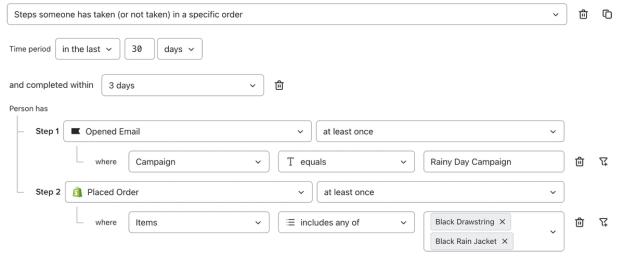
- Opened a specific campaign email and then purchased a product within 3 days
This feature is available to accounts with Personalization or Advanced KDP. Learn more here.
Key concepts
- Funnel steps: The sequence of events you want to track (e.g., Opened Email → Placed Order)
- Time period: The time period in which Klaviyo will look for qualifying events (e.g., in the last 30 days). The maximum time period we support currently is 365 days.
- Completion window: The maximum amount of time allowed between the first and last step in the funnel (e.g., all steps must be completed within 1 week).
How to create a segment with an event funnel
- Navigate to Audience > Lists & segments.
- Click Create > Segment.
- Enter a name for your segment. If you’re in the Create segment panel, click Create segment to open the builder.
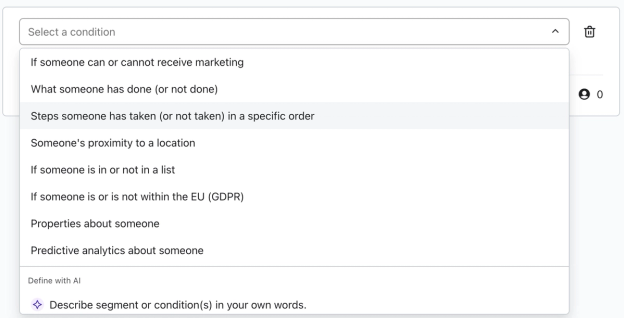
- In the condition dropdown, select Steps someone has taken (or not taken) in a specific order.
- Choose the metric for each step in the order the events should occur. Click Add funnel step to add steps, up to 5 total. Click Add filter to narrow an event to a specific campaign, product, or other event property. Each event can have up to 10 filters applied to it.
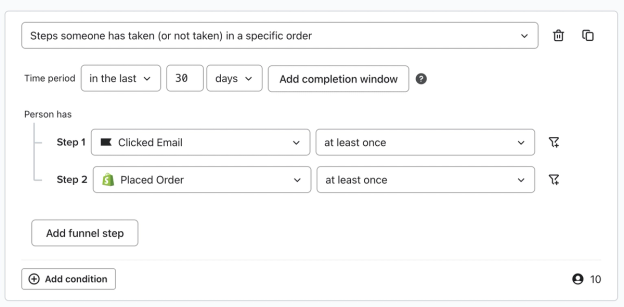
- Set the Time period for qualifying events. You can choose a fixed date range, a relative date range, or a period such as the last 30 days. This feature supports a time period of 1 year max.
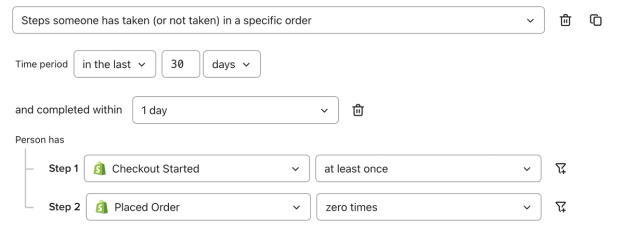
- Click Add completion window if desired, then select a duration. If you don’t add a completion window, it will default to matching the time period.
- If you wish to add other conditions (ex. Properties about someone or If someone is in or not in a list), you can add those with and/or conditions as usual.
- Click Create segment to save the definition and create your segment.
Example use cases
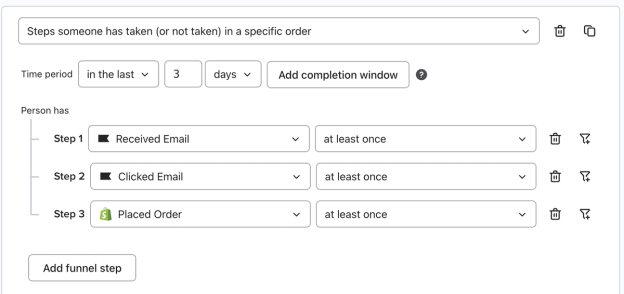
- Identify customers who received a campaign, clicked a link, and then made a purchase in the last 3 days.
- Find users who started a checkout but did not complete a purchase within 24 hours.
- Target profiles who opened a product launch email and then placed an order for the relevant product.
Feature limitations
The following limits currently apply to this feature:
- Time period: Maximum of 1 year.
- Completion window: Adding a completion window is optional.
- If you don’t add a completion window, it will default to matching the time period.
- If you choose to specify a completion window, you can select from our predefined options (1 hour, 1 day, 3 days, 5 days, 7 days, 30 days, 90 days, 180 days, or 365 days).
- Only 1 funnel condition per segment is supported. If you try to add another funnel condition to a segment that already has one, that option will appear grayed out.
- Funnels must have a minimum of 2 steps, and a maximum of 5 steps.
- Count filters are limited to “at least once” or “zero times.”
- More specific occurrence logic (ex. Placed Order 3 times) is not currently supported.
- “Zero times” can only be selected as the last step in a funnel. If you add another step after a zero times step, the earlier step changes to at least once. Review the count filters after adding steps.
- For example: You can create a segment with the criteria: “Opened Email at least once and then Placed Order zero times.” You cannot create a segment that says: “Opened Email zero times and then Placed Order at least once.”
Access and availability
- Event funnels in segmentation are available to accounts with Personalization or Advanced KDP. You can create segments with event funnels from the funnel analysis report. Learn more here.
- If your account loses access to Personalization or Advanced KDP, funnel-based segments will be retained for the standard grace period of 5 days, and then made inactive. During the grace period, you cannot edit or update the segment definition, but it can still be used in campaigns and flows.
- If these segments have become inactive, you must manually reactivate them after regaining access to Personalization or Advanced KDP.
Was this article helpful?
Use this form only for article feedback. Learn how to contact support.