How to create a WhatsApp automation
Only Owners, Admins, and Managers can access this feature.
See how to build a WhatsApp automation, which allows you to ask questions and send personalized recommendations.
For instance, you can run quizzes, surveys, and buying guides all through WhatsApp messages. Not only is this a quick and easy way to engage your audience, it is a great way to gather more data and inform your marketing strategies.
This article focuses on the steps to create an automation. For details on how automations work, their settings, etc., see getting started with automations, although note that it currently does not mention WhatsApp specifically.
Before you begin
Please note the following:
- You must already have WhatsApp set up.
- Your outbound messages are "service" messages and free.
- Automations require an inbound channel match. If a customer messages a brand through an automation, their message must be sent through the same channel in order for the automation to work.
- For example, there's an automation configured via WhatsApp and a message is sent to them. A customer must reply to that automation in WhatsApp in order for it to work. They can't reply via SMS.
- For example, there's an automation configured via WhatsApp and a message is sent to them. A customer must reply to that automation in WhatsApp in order for it to work. They can't reply via SMS.
Set up the trigger and trigger keywords
The trigger defines what inbound message kicks off the automation.
- In your new automation, click on the Trigger.
- Select a trigger type: Always on (evergreen entry points like buying guides) or Message response (replies to a specific campaign or flow).
- Type in the word or phrase you want as the trigger keyword. Trigger keywords:
- Must be 3–20 characters
- Must be unique across your automations
- Cannot contain special characters (+, -, &) or be a subscribe/compliance keyword (STOP, JOIN)
- Can contain spaces (e.g., "I love pets")
- Are not case-sensitive
- Matching behavior depends on trigger type:
- Always on uses exact word match. "Pets" triggers for "pets" or "PETS" but not "petsitter."
- Message response uses fuzzy matching. "Outdoor furniture" triggers for replies containing "Outdoor," "Furniture," or common variations.
- Click Save. To add more keywords, click the trigger again and select Add keyword.
- Highly recommended: toggle on Assign responses as a profile property to save which keyword each subscriber used. For example, "Linen," "Apple Cider," and "Pumpkin" can all map to a "Favorite scent" property, giving you a segmentation signal you can use across email, SMS, and WhatsApp.
Branching from the trigger: When you add multiple trigger keywords, each keyword can route subscribers down a different path. Click the plus (+) button under a specific keyword to add a Question, Message, or Recommendation that only fires for subscribers who used that keyword. This is the first place branching can happen, before any questions are asked.
Build the automation
WhatsApp automations are built from three block types: Questions, Messages, and Recommendations. Click the plus (+) button under the trigger (or under a previous block) to add the next step.
Add a Question
Use a Question to collect a response from the subscriber that you can branch off of or save to a profile property.
- Click the plus (+) button and select Add question.
- Add your question text in the Question box.
- Choose a Question type:
- Choices (minimum 2) — the subscriber picks from preset options. Use this when you want to branch the automation or send a personalized recommendation. Choices are numbered, recognized using contains logic, and can be replied to by text or click of quick reply button. Avoid single letters or numbers, and long phrases.
- Free text — accepts any open-ended reply and saves it as a profile property. Use for things like "What's your name?" Cannot be used for branching.
- Email — accepts and validates an email address. If it matches an existing profile, Klaviyo may merge the two so you have a unified view across email and WhatsApp.
- Date — accepts and validates a date, useful for birthdays, anniversaries, or event dates.
- To add more choices, click Add choice.
- Highly recommended: under Settings, toggle on Assign response to a profile property to save the answer. This works for all four question types.
- Optional: name your question in the Internal name field to make it easier to reference later.
- Click Save.
Add a Message
Use a Message to respond with plain text. Messages can stand alone as a single-step automation or close out a longer flow.
- Click the plus (+) button and select Add message.
- Add your text and optionally name the message in the Internal name field.
- Optional: attach an image, video, or URL button.
- Click Save.
Add a Recommendation
Recommendations send a personalized response based on which choices a subscriber selected earlier. Recommendations only branch off Choice-type questions.
- After your questions, click the plus (+) button and select Add recommendation.
- Name your recommendation something descriptive (e.g., "Chocolate strawberry lovers").
- Add your message text.
- Optional: attach an image, video, or URL button.
- Select which choice combination this recommendation applies to. You can select multiple combinations per recommendation.
- Click Save and repeat for each combination you want to personalize.
Default recommendation: every automation includes a fallback that fires for any choice combination you didn't explicitly cover. Click the arrow for Default recommendation, name it, and add your fallback message (a best seller or new product works well). Click Save.
Optional: adjust your settings
Optional: adjust any session settings for your automation. To do so:
- Click the gear icon in the upper right.
- Select Session settings.
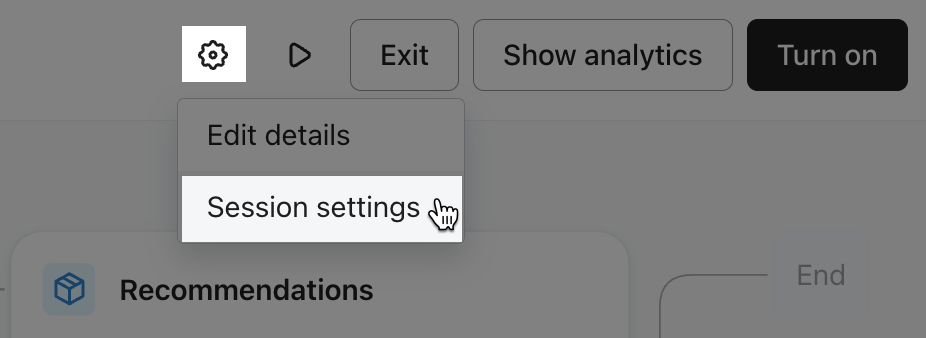
- You can update the following settings:
- Channel Scoping
- Reprompt response
- Fallback response
- Maximum number of reprompts
- Maximum timeout (in hours)
Preview and turn on an automation
Once you're happy with your automation:
- Preview the automation by clicking the "play" button in the upper right
- The preview is slightly different from the live experience. It doesn't catch typos or show link shortening. Learn more about previewing an automation.
- Double-check your trigger keywords, messages and choices, and recommendations.
- Once the automation is on, you must turn it off to edit it, which causes it to immediately drop everyone currently in the automation.
- Click Turn on in the upper right.
Once you turn on an automation, it will send to any WhatsApp subscriber who sends a trigger keyword.
Coupons, personalization, and links
You can include either static coupons or dynamic coupons in your message. Static coupons use one shared code for all recipients. Dynamic coupons generate a unique code for each recipient.
You can also personalize your message with profile and custom properties. Add these directly to your content using the appropriate variable syntax. Profile properties created within the automation will not populate in the message. Make sure the property already exists on the profile before the message sends.
All links in your message are automatically shortened.