How to add an SMS action to a flow
You will learn
Learn how to add an SMS action into a flow and about the settings for this action.
People almost always view SMS messages within 3 minutes. This makes SMS not only a great way to drive conversions, but also to provide a better customer experience.
For instance, with flows, you can text someone as soon as their package is delivered or when a new product drops.
Which flows to add SMS to
You can use SMS in any flow where you're currently using email.
The first 3 flows to add SMS to are:
*For welcome series flows, it is best practice to create separate flows for email and SMS as customers may sign up to receive messages from each at separate times. With all other flows, add SMS to your existing email flows.
Add an SMS action
Before you begin, set up SMS in Klaviyo and have an active sending number for the countries you want to reach. Recipients must have consented to SMS marketing before you send them marketing messages; email consent does not cover SMS.
To add a new SMS into a flow:
- Navigate to Flows and open the flow where you want to add SMS.
- Drag Text message from the left sidebar and drop it on a drop point on the flow canvas.
- Click on the SMS message in the flow.
- In the details sidebar, click Edit.
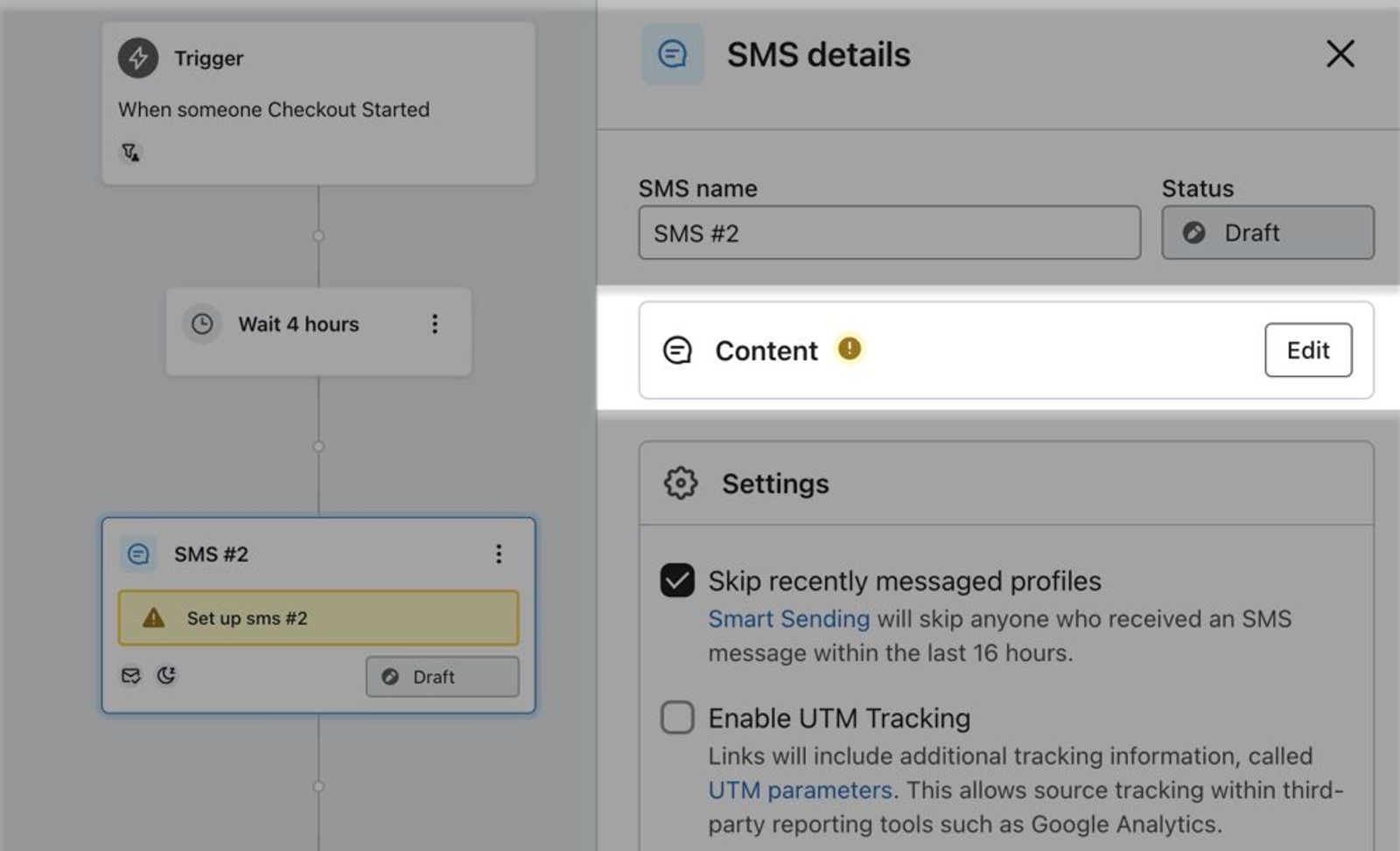
When you click Edit, you'll be taken to a page where you can update the following for your new SMS message:
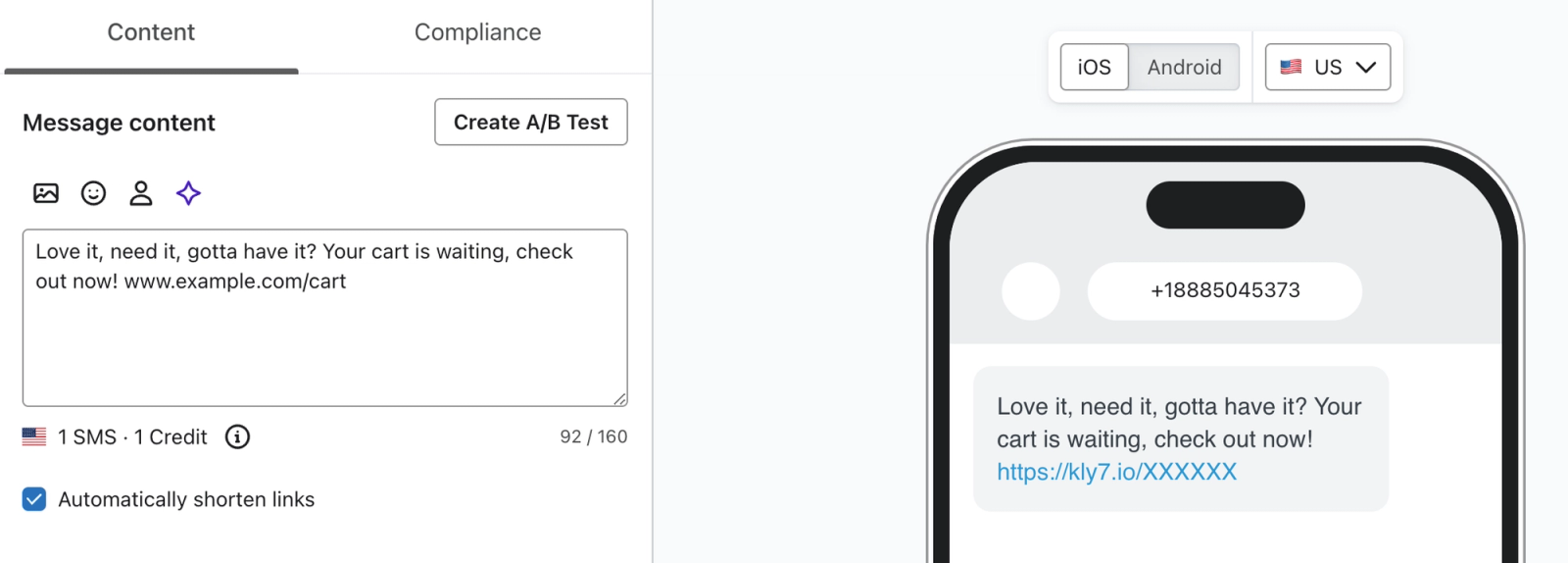
- Content
The message itself. You can also choose to automatically shorten any links you include in the message to conserve space (recommended). You must use the Klaviyo link shortener for revenue to be attributed to SMS. If you add an image, the message becomes an MMS where MMS is supported. MMS costs vary by recipient country and your plan. Learn more about the differences between SMS and MMS. - Compliance
Includes several options for staying compliant. Each will show to recipients in a specific country, which is listed underneath the option. We do not recommend disabling these options, as they are typically required in the jurisdictions listed.
Compliance options
There are several options for compliance for each SMS action you add to a flow, outlined below.
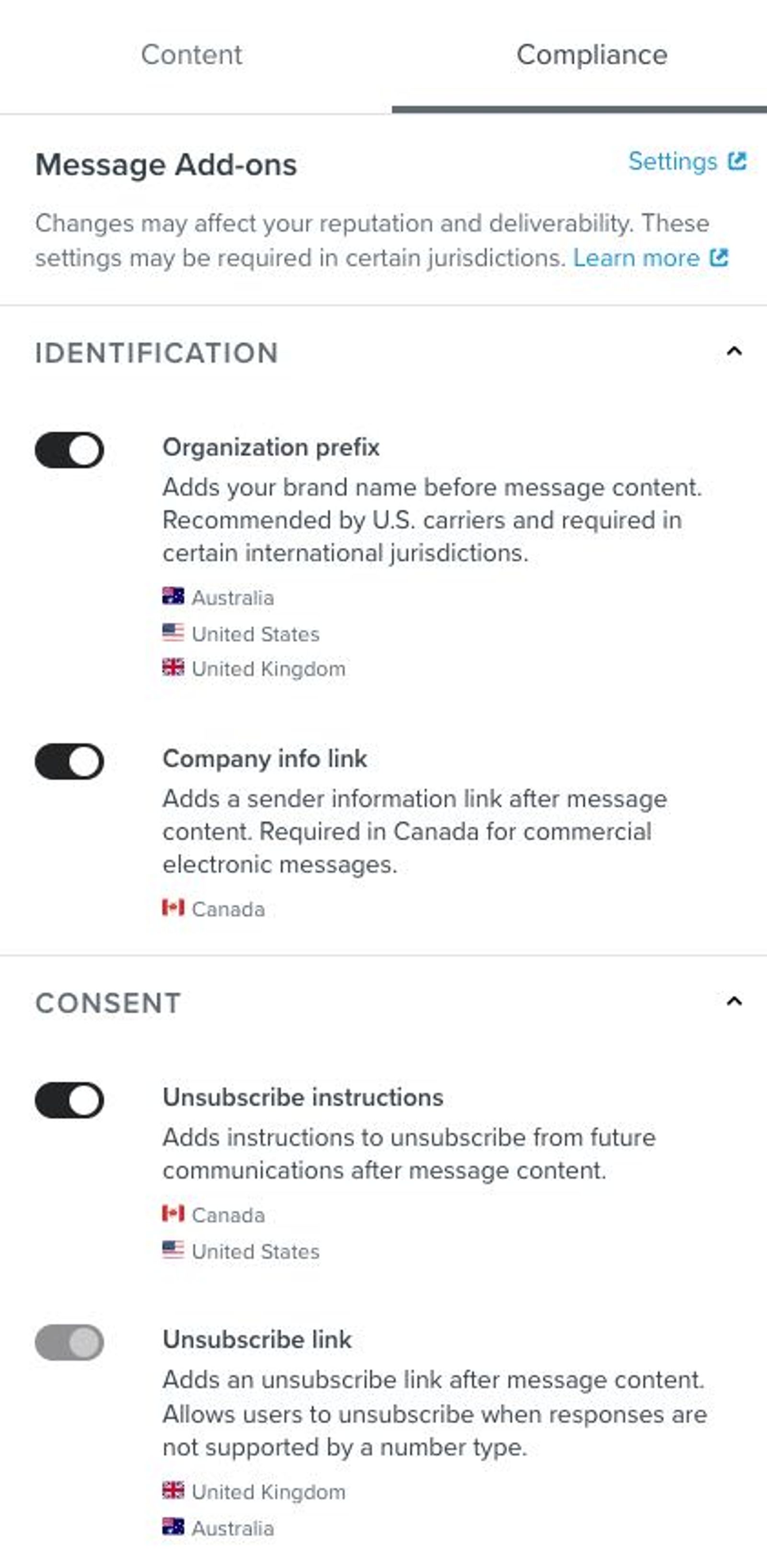
- Organization prefix
When you send from a phone number, recipients may not recognize your business. Including an organizational prefix provides a clear way for your recipients to identify you as the sender of a given message.
When this option is enabled, Klaviyo adds the organization prefix set in your account settings to the start of messages for the countries listed under the option. In countries where the prefix is required for your sending number, Klaviyo includes it even if you turn this option off. - Company info link (Canada and New Zealand)
If any of your SMS subscribers are in Canada or New Zealand, you need to include contact information within every commercial text message. This option creates a link with this information automatically, adding it to the end of the SMS or MMS. This link shows to recipients in Canada and New Zealand. For more information, check out this article on the company info link. - Unsubscribe instructions
For sending numbers that can receive replies, including US and Canadian numbers and UK and Australian long codes, the simplest way of giving recipients a way to opt out is by telling them an opt-out keyword (e.g., "STOP"). Including opt-out language along with every message is essential. If you don't make it clear how recipients can opt out, they are more likely to report your number as spam. This can lead to fines and the permanent blocking of your number by providers like AT&T, T-Mobile, and Verizon. - Unsubscribe link
Branded sender IDs cannot receive SMS or MMS messages, but you still need to give recipients a way to opt out. Include an unsubscribe link for these sending numbers. When recipients click this link, they open a confirmation page and must click Unsubscribe to opt out. Clicking the link does not count toward the message’s click rate.
Preview and save your message
- Click Preview to review your message, then close the preview.
- Click Next to save your message and return to the flow.
Configure SMS settings
You can configure the following settings for your SMS message:
- Smart Sending
Enable Smart Sending to skip over recipients that have already received another SMS message from you too recently. This is on by default, and you can configure your Smart Sending window for SMS—which is different from email—in your account settings. By default, the SMS Smart Sending window is 24 hours. - Quiet hours
Quiet hours are on by default and delay messages until the next permitted sending time. The standard default window is 8 p.m.–11 a.m. In France, quiet hours run from 10 p.m.–8 a.m. and also cover Sundays and public holidays. In the US and Canada, your settings can use the recipient’s phone number area code or Eastern Time. Australia uses Australian Eastern Time. Review your schedule in Text message settings. Mandatory quiet hours still apply in some countries even if you turn this setting off. Learn more about text message quiet hours in flows. - UTM Tracking
Enable UTM tracking to add small codes to the end of links that help Google Analytics and other site traffic tracking tools identify where your visitors originated from. - Additional Filters
Add additional filters to an SMS to further restrict who will receive it. This is off by default.
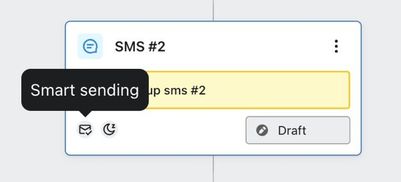
After changing settings in the message’s details sidebar, click Save. Enabled settings appear as badges on the message card on the canvas.
Change an SMS message's sending status
After you've created the content for your new SMS message and previewed it, you are ready to turn it from draft to manual or live:
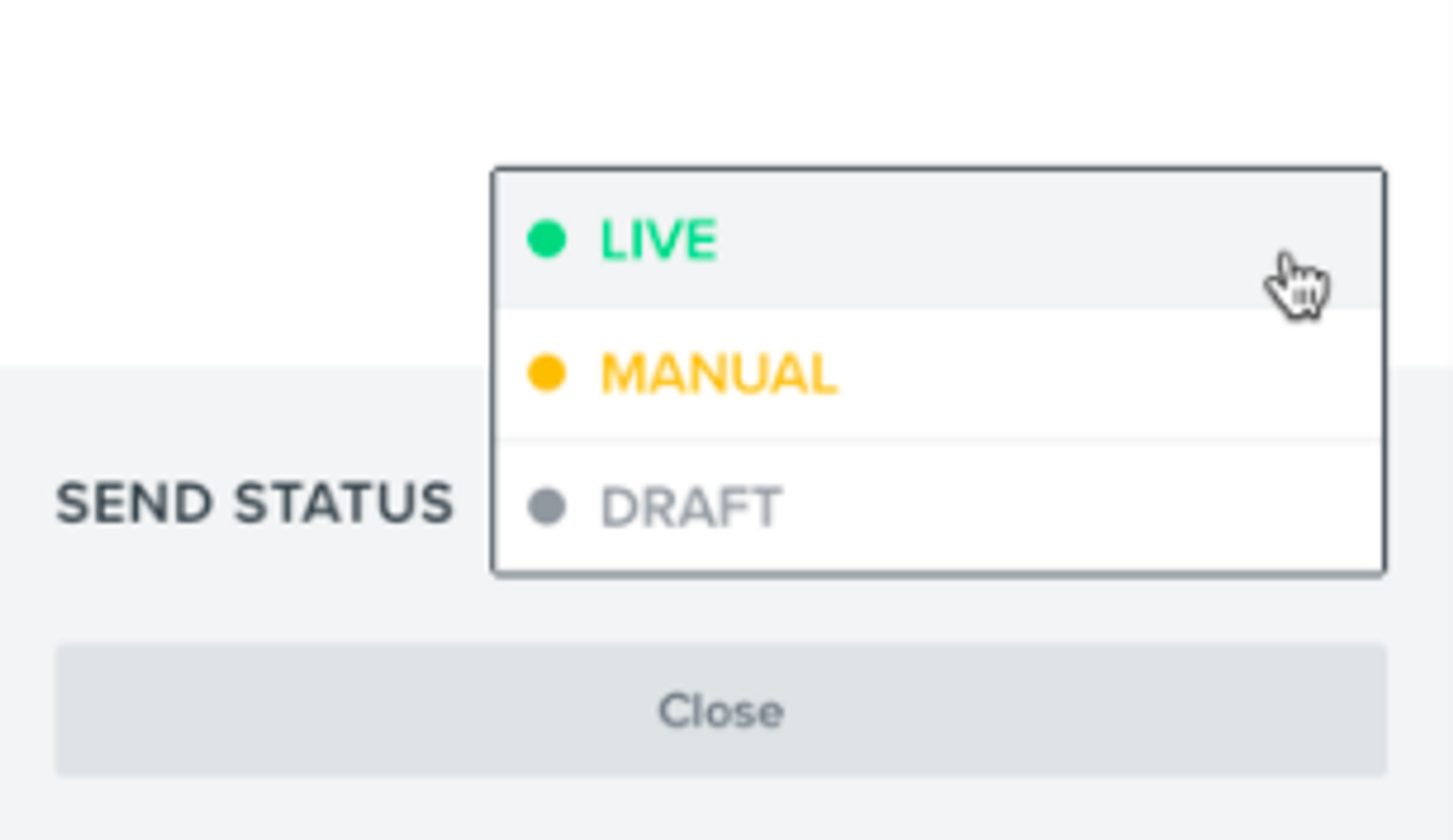
- Draft
This is the default status for a new message and is the status you should use while you're still configuring your content and adjusting settings. When a message is in draft, nobody will be queued up or receive the SMS. - Manual
When you are done configuring a new message and are interested in testing it out, you can place it in manual mode. When a message is in manual, it is active in your flow but no messages will trigger automatically at send time. You will need to manually review and send all scheduled messages. - Live
To "turn on" a message in a flow series, you will need to change the message's status to live. A live message is active in your flow and is sending automatically.
Note that every new message is in a draft state by default. Until you configure the content, you will not be able to adjust the status to manual or live.
To change the status from the details sidebar, select Draft, Manual, or Live from the Status dropdown, then click Save. Alternatively, select a status directly on the message card on the canvas.
Additional resources
Start creating flows!
- How to create an SMS welcome flow
Learn how to create a welcome flow for your SMS subscribers.
- How to create an abandoned cart flow
Learn how to set up an abandoned cart flow in Klaviyo in order to increase your ecommerce revenue and personalize communication to your customers.