Shopify data reference
You will learn
Learn what data syncs from Shopify to Klaviyo and where to view it. This includes both order data (such as Placed Order, Ordered Product, etc.), delivery data, onsite tracking data, and customer data. If you have not already, read our guide on getting started with Shopify for step-by-step instructions on integrating, before continuing with this article.
About the initial data sync
When you first integrate with Shopify, Klaviyo syncs the last 90 days of order and customer data so you can start engaging your most recent customers. Klaviyo then syncs older data, covering up to 10 years by default. Depending on how many orders, customers, and products your store has, it can take anywhere from a few minutes to several days to finish. You can check the progress bar on your Shopify integration page.
Once this historical sync is complete, new data will sync to Klaviyo in real time.
How to view your data
Navigate to Analytics > Metrics to view the metrics in your account. To see Shopify-branded metrics, select Shopify in the Integration filter. The Shopify integration and onsite tracking can record the following events:
- Checkout Started
- Placed Order
- Ordered Product
- Fulfilled Order
- Fulfilled Partial Order
- Cancelled Order
- Refunded Order
- Confirmed Shipment
- Delivered Shipment
- Marked Out for Delivery
- Active on Site
- Viewed Product
- Viewed Collection
- Submitted Search
- Added to Cart
Shopify-branded events have a Shopify icon. Active on Site and the Viewed Product events tracked through Klaviyo's app embed have a gear icon. Shopify pixel tracking can also record a Shopify-branded Viewed Product event, so check the source when choosing between metrics with the same name.
For onsite events, complete the Shopify onsite tracking setup. Shopify-branded Viewed Product, Viewed Collection, Submitted Search, and Added to Cart require Track behavioral events to be enabled in your Shopify integration settings.
Confirmed Shipment, Delivered Shipment, and Marked Out for Delivery events will only sync to Klaviyo if they are available in Shopify. Please note that Shopify only provides these notifications for certain shipping carriers.
Checkout Started
Klaviyo's Shopify integration supports Shopify One-page Checkout and multi-page checkout. A Checkout Started event can be recorded once Shopify sends checkout information with a valid email address or phone number. If you've customized your checkout, customers may need to progress to the next step before the event is recorded. Additional customer information is updated in Klaviyo once the customer is created in Shopify.
The event that Klaviyo tracks includes all of the product information about the items in someone's cart including product names, images, and variant information so you can use this information in your abandoned cart emails.
This event syncs with a checkout URL property, which links back to each customer’s unique cart. If someone opens an abandoned cart email from a new device, this link will rebuild the person's cart when clicked through. You can filter and target Checkout Started events based on the following criteria:
- $value
The total value of the cart at time of started checkout. This may include any line prices, taxes, shipping costs, tips, and discounts. - Items
The names of the products in someone's order, e.g., t-shirt or pants. - Collections
The complete set of the collections of the products in someone's order, e.g., t-shirts, men's, pants and sale. - Item Count
The count of line items in the order, e.g., 2. Note that this does not account for the quantity of items. Additionally, it is possible to add the same item to a cart multiple times and have it counted as multiple line items in Shopify; Klaviyo does not check for uniqueness or merge these for Item Count. - Discount Codes
Any discount or coupon codes someone used towards the order, e.g., SPRING2015. - Total Discounts
The total amount of discounts applied, including automatic discounts, e.g., 10.00. - Customer Locale
The customer’s locale when placing the order, e.g., en-US. - Location Name
The name of the Shopify location associated with an order, when available. This field can appear when Klaviyo creates a Checkout Started event from an order; it is not included in checkout events received before purchase. Shopify Markets is not required. - Location ID
The ID of the Shopify location associated with an order, when available. This field can appear when Klaviyo creates a Checkout Started event from an order; it is not included in checkout events received before purchase. Shopify Markets is not required. - $extra
Additional data including localized product information.
If there is billing address information available, we will also capture all relevant address details. If there is a referring site captured by Shopify, we will sync this as well.
Checkout Started vs Abandoned Checkout
Checkout Started records checkout activity, including checkouts that lead to a purchase. An abandoned checkout is a checkout that remains incomplete. In Klaviyo, a checkout-based abandoned cart flow uses Checkout Started as its trigger, with a time delay and a Placed Order filter to exclude shoppers who purchase. You can also use Added to Cart for a separate abandoned cart flow. See How to create an abandoned cart flow for setup instructions.
Do I need to disable the Abandoned Checkout notification in Shopify or will Klaviyo do this automatically?
You need to turn off Shopify's abandoned checkout messages manually before enabling your Klaviyo recovery flow, so customers do not receive duplicate reminders. Follow Shopify's instructions for turning off a marketing automation and turn off the recovery automation you are replacing.
Placed Order
This event is tracked when a customer completes the checkout process and creates an order in your Shopify store. The event Klaviyo tracks includes all of the product information about the items someone purchased including product names, images and variant information so you can use that information in purchase follow up emails. You can filter and target Placed Order events based on the following criteria:
- $value
The order total reported by Shopify, including shipping, taxes, and tips, with discounts applied. - Items
The names of the products in someone's order, e.g., t-shirt or pants. - Collections
The complete set of the collections of the products in someone's order, e.g., t-shirts, men's, pants, and sale. - Item Count
The count of line items in the order, e.g., 2. Note that this does not account for the quantity of items. Additionally, it is possible to add the same item to a cart multiple times and have it counted as multiple line items in Shopify; Klaviyo does not check for uniqueness or merge these for Item Count. - Discount Codes
Any discount or coupon codes someone used towards the order, e.g., SPRING2015; while this isn't synced as a specific metric, there will be a Discount Codes property for each order that will allow you to see who purchased using particular codes. - Total Discounts
The total amount of discounts applied, including automatic discounts, e.g., 10.00. - Customer Locale
The customer’s locale when placing the order, e.g., en-US. - $extra
Additional data including localized product information. - Source Name
POS, Mobile etc. - Location Name
The name of the Shopify location associated with the order, when available. Shopify Markets is not required. The name may be unavailable if Klaviyo cannot access the location details. - Location ID
The ID of the Shopify location associated with the order, when available. Shopify Markets is not required. - OptedInToSmsOrderUpdates
This value (True or False) indicates that the shopper has provided their phone number with their shipping information during checkout.
Triggering off of Placed Order events
Placed Order and Ordered Product events are synced to Klaviyo seconds apart. For this reason, it is important to be consistent with the metric you use to trigger and filter your flows and segments. For example, if your flow is triggered by the Placed Order event and you add a filter to exclude anyone who Ordered Product since starting the flow, all recipients will be skipped because the two events are separate, but sync seconds apart. As a best practice, use the Placed Order event to trigger and filter flows and segments.
Ordered Product
This event is also tracked when a customer places an order, but a separate event is tracked for each item someone purchases. For example, if someone buys a t-shirt and a pair of pants, one Placed Order event will be tracked along with two Ordered Product events; one Placed Order event for the purchase as a whole, and then one Ordered Product event for the t-shirt and one Ordered Product event for the pants.
The events Klaviyo tracks include detailed information about each product someone purchases. This is useful when creating behavioral segments based on product variant options and other detailed information that's not available in the Placed Order event. You can filter and target Ordered Product events based on the following criteria:
- $value
The total value of the item purchased; no shipping costs or discounts included. - Name
The name or title of the ordered product in Shopify, e.g., t-shirt. - Variant Name
The name or title of the product variant in Shopify, e.g., red, size medium t-shirt. - SKU
The SKU of the product variant, e.g., REDMEDIUMTSHIRT. - ProductID
The ID associated with the product in your store. - Quantity
The quantity is 1 for each Ordered Product event, including when someone buys multiple units of the same item. Klaviyo records up to 100 Ordered Product events per line item in an order. - Collections
The complete set of collections or categories applied to the product, e.g., t-shirts, men's and sale. - Tags
Any tags applied to the product in your store. - Variant Option: <OptionName>
The name and value of any variant options for the variant ordered, e.g., Variant Option: Size would be Medium and Variant Option: Color would be Red. - Attribute: <AttributeName>
The name and value of any product attributes for the product ordered, e.g., Attribute: Season would be Spring. - Variant ID
The ID associated with the product variant on your store. - Customer Locale
The customer’s locale when placing the order, e.g., en-US. - Location Name
The name of the Shopify location associated with the order, when available. Shopify Markets is not required. The name may be unavailable if Klaviyo cannot access the location details. - Location ID
The ID of the Shopify location associated with the order, when available. Shopify Markets is not required. - $extra
Additional data including localized product information.
Fulfilled Order
This event is tracked when an order is marked as "fulfilled" in your Shopify store. Klaviyo will track a Fulfilled Order event specifically when we sync an order with a Fulfillment Status of "fulfilled."
The event Klaviyo tracks includes all product information regarding the items someone purchased including product names and images so you can use that information in purchase follow up emails. You can filter and target Fulfilled Order events based on the following criteria:
- $value
The total value of the fulfilled order. - Items
The names of the products in someone's order, e.g., t-shirt or pants. - Collections
The complete set of the collections of the products in someone's order, e.g., t-shirts, men's, pants, and sale. - Item Count
The count of line items in the order, e.g., 2. Note that this does not account for the quantity of items. Additionally, it is possible to add the same item to a cart multiple times and have it counted as multiple line items in Shopify; Klaviyo does not check for uniqueness or merge these for Item Count. - Discount Codes
Any discount or coupon codes someone used towards the order, e.g., SPRING2015. - Total Discounts
The total amount of discounts applied, including automatic discounts, e.g., 10.00. - Customer Locale
The customer’s locale when placing the order, e.g., en-US. - Location Name
The name of the Shopify location associated with the order, when available. Shopify Markets is not required. The name may be unavailable if Klaviyo cannot access the location details. - Location ID
The ID of the Shopify location associated with the order, when available. Shopify Markets is not required. - $extra
Additional data including localized product information. - OptedInToSmsOrderUpdates
This value (True or False) indicates that the shopper has provided their phone number with their shipping information during checkout.
Fulfilled Partial Order
This event is tracked when part of an order is fulfilled. For example, if you fulfill items in separate batches, you can use Fulfilled Partial Order events to send a transactional email for each batch. Fulfillment does not confirm delivery. A final partial fulfillment can also trigger Fulfilled Order, so configure your flows to avoid duplicate messages. View our guide to setting up flows based on Fulfilled Partial Order events for the available options.
Cancelled Order
This event is tracked when a customer creates an order in your Shopify store but then cancels the order before fulfillment. The event Klaviyo tracks includes all of the product information about the items someone purchased including product names and images. You can filter and target Cancelled Order events based on the following criteria:
- $value
The total value of the canceled order. - Items
The names of the products in someone's order, e.g., t-shirt or pants. - Collections
The complete set of the collections of the products in someone's order, e.g., t-shirts, men's, pants and sale. - Item Count
The count of line items in the order, e.g., 2. Note that this does not account for the quantity of items. Additionally, it is possible to add the same item to a cart multiple times and have it counted as multiple line items in Shopify; Klaviyo does not check for uniqueness or merge these for Item Count. - Discount Codes
Any discount or coupon codes someone used towards the order, e.g., SPRING2015. - Total Discounts
The total amount of discounts applied, including automatic discounts, e.g., 10.00. - Customer Locale
The customer’s locale when placing the order, e.g., en-US. - Location Name
The name of the Shopify location associated with the order, when available. Shopify Markets is not required. The name may be unavailable if Klaviyo cannot access the location details. - Location ID
The ID of the Shopify location associated with the order, when available. Shopify Markets is not required. - $extra
Additional data including localized product information. - OptedInToSmsOrderUpdates
This value (True or False) indicates that the shopper has provided their phone number with their shipping information during checkout.
Refunded Order
This event is tracked when an order is refunded in full in your Shopify store. Partial refunds do not trigger this event. The event Klaviyo tracks includes all of the product information about the items someone purchased including product names, images, and variant information. You can filter and target Refunded Order events based on the following criteria:
- $value
The total value of the refunded order. - Items
The names of the products in someone's order, e.g., t-shirt or pants. - Collections
The complete set of the collections of the products in someone's order, e.g., t-shirts, men's, pants and sale. - Item Count
The count of line items in the order, e.g., 2. Note that this does not account for the quantity of items. Additionally, it is possible to add the same item to a cart multiple times and have it counted as multiple line items in Shopify; Klaviyo does not check for uniqueness or merge these for Item Count. - Discount Codes
Any discount or coupon codes someone used towards the order, e.g., SPRING2015. - Total Discounts
The total amount of discounts applied, including automatic discounts, e.g., 10.00. - Customer Locale
The customer’s locale when placing the order, e.g., en-US. - Location Name
The name of the Shopify location associated with the order, when available. Shopify Markets is not required. The name may be unavailable if Klaviyo cannot access the location details. - Location ID
The ID of the Shopify location associated with the order, when available. Shopify Markets is not required. - $extra
Additional data including localized product information. - OptedInToSmsOrderUpdates
This value (True or False) indicates that the shopper has provided their phone number with their shipping information during checkout.
Confirmed Shipment
This event is tracked when the carrier is made aware of the shipment but hasn't received it yet. You can filter and target Confirmed Shipment events based on the following criteria:
- $value
The sum of product prices, including discounts, for item(s) in the shipment. - Collections
The product collections for product(s) in the shipment. - Customer Locale
The customer’s locale when placing the order, e.g., en-US. - Estimated Delivery
The estimated delivery date for the shipment. - Fulfillment Service
The fulfillment service associated with the shipment, e.g., manual. - Items
An array of the product(s) in the shipment. - Item Count
The total number of items in the shipment. - Shipment Status
The status of the shipment, e.g., confirmed. - Source Name
The source of the order, e.g., web. - Tracking Company
The name of the tracking company. - Tracking Numbers
The tracking number(s) of the shipment. - Location Name
The name of the Shopify location associated with the order, when available. Shopify Markets is not required. The name may be unavailable if Klaviyo cannot access the location details. - Location ID
The ID of the Shopify location associated with the order, when available. Shopify Markets is not required. - OptedInToSmsOrderUpdates
This value (True or False) indicates that the shopper has provided their phone number with their shipping information during checkout.
Delivered Shipment
This event is tracked when a fulfillment’s shipping status is marked as delivered on your Shopify store. You can filter and target Delivered Shipment events based on the following criteria:
- $value
The sum of product prices, including discounts, for item(s) in the shipment. - Collections
The product collections for product(s) in the shipment. - Customer Locale
The customer’s locale when placing the order, e.g., en-US. - Delivery Hours
The number of hours the shipment took to be delivered after it was created. - Estimated Delivery
The estimated delivery date for the shipment. - Fulfillment Service
The fulfillment service associated with the shipment, e.g., manual. - Items
An array of the product(s) in the shipment. - Item Count
The total number of items in the shipment. - Transit Hours
The number of hours the shipment has been in transit. - Shipment Status
The status of the shipment, which is delivered. - Source Name
The source of the order, e.g., web. - Tracking Company
The name of the tracking company. - Tracking Numbers
The tracking number(s) of the shipment. - Location Name
The name of the Shopify location associated with the order, when available. Shopify Markets is not required. The name may be unavailable if Klaviyo cannot access the location details. - Location ID
The ID of the Shopify location associated with the order, when available. Shopify Markets is not required. - OptedInToSmsOrderUpdates
This value (True or False) indicates that the shopper has provided their phone number with their shipping information during checkout.
Marked Out for Delivery
This event is tracked when a fulfillment’s shipping status is marked as out_for_delivery on your Shopify store. You can filter and target Marked Out for Delivery events based on the following criteria:
- $value
The sum of product prices, including discounts, for item(s) in the shipment. - Collections
The product collections for product(s) in the shipment. - Customer Locale
The customer’s locale when placing the order, e.g., en-US. - Estimated Delivery
The estimated delivery date for the shipment. - Fulfillment Service
The fulfillment service associated with the shipment, e.g., manual. - Items
An array of the product(s) in the shipment. - Item Count
The total number of items in the shipment. - Transit Hours
The number of hours the shipment has been in transit. - Shipment Status
The status of the shipment, which is out_for_delivery. - Source Name
The source of the order, e.g., web. - Tracking Company
The name of the tracking company. - Tracking Numbers
The tracking number(s) of the shipment. - Location Name
The name of the Shopify location associated with the order, when available. Shopify Markets is not required. The name may be unavailable if Klaviyo cannot access the location details. - Location ID
The ID of the Shopify location associated with the order, when available. Shopify Markets is not required. - OptedInToSmsOrderUpdates
This value (True or False) indicates that the shopper has provided their phone number with their shipping information during checkout.
Active on Site
This event tracks when an identified user is active on your site. The top-level properties are:
- Browser
User agent for the originating browser (e.g., “Chrome”). - Os
User agent for the originating operating system (e.g., “Mac”). - Page
The URL of the visited page. - utm_medium
The marketing channel the user comes from to the website. - utm_source
The source of traffic to the website. - utm_campaign
The name of the marketing campaign associated with the traffic. - utm_id
The unique identifier for the marketing campaign associated with the traffic. - utm_term
This is an optional UTM parameter that marketers can set to track paid search terms. - utm_content
The content or variation identified by the URL's utm_content parameter. - fragment
The part of the URL beginning with #, such as an anchor that points to a section of the page. This property is omitted when the URL has no fragment. - Other URL parameters
Up to 10 non-UTM query parameters are captured as separate event properties. Klaviyo excludes _kx, utm_email, and parameters that conflict with reserved fields such as browser or os. Parameters beyond this limit are not captured. - initial_page_path
The path of the page when Active on Site is recorded, such as /products/shirt. The homepage path is /. - kx_present
This property is true when the URL contains _kx=, even if its value is empty. Otherwise, the property is omitted. It indicates whether the visit could be associated with a link in a Klaviyo message.
For each UTM parameter, Klaviyo uses the last value if the parameter appears more than once in the URL. If the parameter is absent, it is omitted from the event.
Viewed Product
This event tracks when an identified user views a product on your site. The properties below describe the Viewed Product metric with a gear icon. The Shopify-branded version uses some different property names, including Product Name instead of Product.
- URL
URL of the product. - Activity ID
Activity ID for the event. - Product
Name of the product. - ProductID
ID of the product. - ImageURL
URL for the product image. - Brand
Product’s vendor name. - Categories
The categories that the product belongs to. - Price
Product variant’s price. - CompareAtPrice
Price before discounts.
Viewed Collection
This event tracks when an identified user views a collection on your site. The top-level properties are:
- URL
Collection URL. - Activity ID
Activity ID for the event. - CollectionName
Name of the collection. - CollectionID
ID for the collection. - _ip_country_code
ISO 3166-1 alpha-2 (two-letter) country code (e.g., “US”). - _ip_region_code
ISO 3166-2 region code (e.g. province, state such as “MA”).
Submitted Search
This event tracks when an identified user submits a search on your site. The top-level properties are:
- URL
URL for the search query. - Activity ID
Activity ID for the event. - SearchQuery
Contents of search query (e.g., “Mens Large Tshirts”). - SearchQueryParts
The search query split into a list of terms, e.g., ["Mens", "Large", "Tshirts"]. - _ip_country_code
ISO 3166-1 alpha-2 (two-letter) country code (e.g., “US”). - _ip_region_code
ISO 3166-2 region code (e.g. province, state such as “MA”).
Added to Cart
This event tracks when an identified user adds an item to their cart. This event tracks 1 product at a time within its top-level properties. The top-level properties are:
- URL
URL of the item added to the Cart. - Browser
User agent for originating browser (e.g., “Chrome”). - OS
User agent for the originating operating system (e.g., “Mac”). - $value
The variant price multiplied by the quantity added to the cart. - Product Name
Name of the product. - ProductID
ID of the product. - VariantID
ID for the product variant. - Variant Name
Name of the product variant. - Categories
Categories applied to the product. - ImageURL
URL for the product image, or the product variant image if available. - Brand
Product’s vendor name. - Price
Product variant’s price. - CompareAtPrice
Shopify's compare-at price for the variant. If Klaviyo cannot match the variant in its catalog, this uses the variant's current price instead. It can be empty when the catalog and shopper prices differ. - $currency
Currency code for the price. - Product Type
Product type specified by the merchant. - Variant SKU
SKU associated with the variant. - Quantity
Quantity for the product. - _ip_country_code
ISO 3166-1 alpha-2 (two-letter) country code (e.g., “US”). - _ip_region_code
ISO 3166-2 region code (e.g. province, state such as “MA”).
Synced customer data
In addition to the metrics Klaviyo syncs from Shopify, Klaviyo will also create a unique profile for every customer that we sync. When we sync contact information, there are also certain custom properties that may get added to each Klaviyo profile. You can use these properties in segments and in flows. Here are the properties that are automatically synced from Shopify:
- Email, First and Last Name, City, State/Region, Zip Code, Country, Phone Number
These built-in Klaviyo fields are automatically populated with all available data from Shopify. - Locale information
The Locale property includes the profile’s locale synced from Shopify (e.g., “en-US”). The Locale: Language and Locale: Country properties are derived from Locale and contain the language and country information, respectively. - Marketing consent
Whether or not a customer has opted-in to receive email and/or SMS marketing. - Shopify Tags
Any custom tags assigned to that customer in Shopify, e.g., Wholesale or VIP.
Please note that profiles deleted in Shopify are not correspondingly deleted in Klaviyo.
Frequency of the Shopify sync
Metrics and profile properties from Shopify are synced in real-time. You should see event data appear in your Klaviyo account within a few seconds of when the event is tracked in your Shopify store.
Because we sync all metrics in real-time, any tags - such as Order Tags - that might be added to an order after it is processed will not sync into Klaviyo. Klaviyo does not re-sync metrics after the initial event takes place, so no tags or adjustments made to an order after-the-fact will be updated in Klaviyo.
How we calculate revenue
Revenue, or Placed Order value, uses the order total reported by Shopify. It includes product prices, shipping, taxes, and tips, with discounts applied.
You may see that the Revenue value on your Klaviyo dashboard does not always match up with the revenue value you see in Shopify; this is because Shopify subtracts canceled and refunded orders from their revenue calculation, while Klaviyo does not.
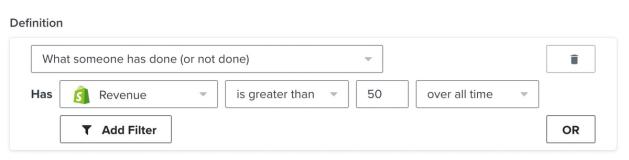
To create a segment or flow condition based on a customer's total order value over a period, choose the Shopify Revenue option. This totals Placed Order values; selecting Placed Order instead counts orders.
Segmenting based on value
To segment customers by the total value of products ordered or checkouts started over a period, select What someone has done (or not done) > Person has > [Event] Value in the segment builder. Set the comparison, amount, and time range. In the example below, Ordered Product Value totals the values of the customer's Ordered Product events during that period.
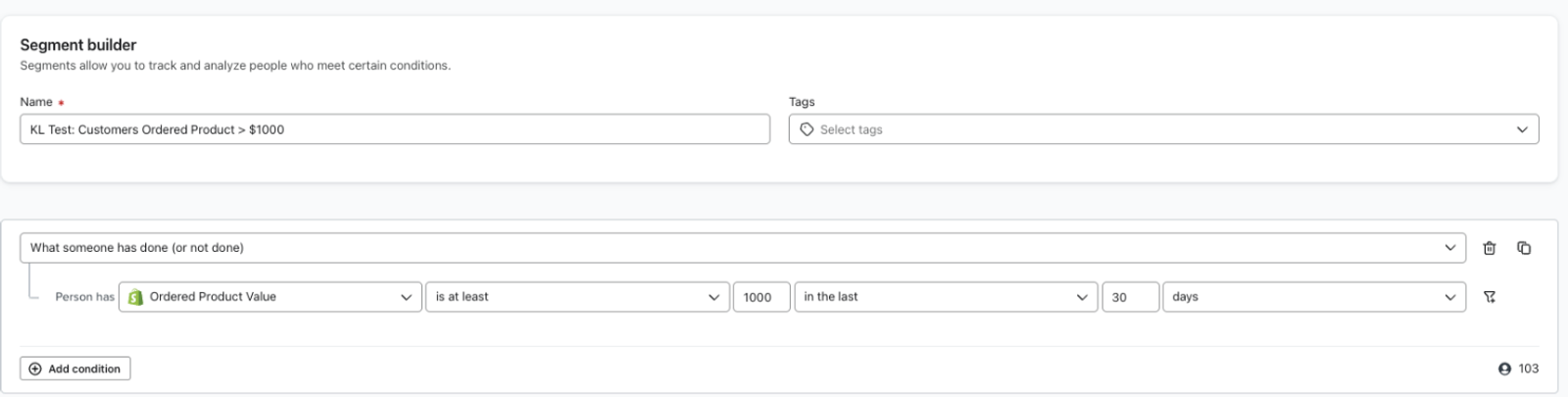
Note that you should not use the $value event property to segment customers in this way.
Additional resources
- Getting started with Shopify
Learn how to integrate Klaviyo with Shopify in order to bring your customer profile and order data into Klaviyo and reach customers with targeted messaging. Additionally, enable Klaviyo onsite tracking and sign-up forms, and sync data from Klaviyo to Shopify.
- How to differentiate Shopify POS and Shopify web data
Learn how to distinguish between your POS and web orders in Klaviyo, if you use the Shopify point of sale (POS) system. This is done through filtering orders or creating segments. Klaviyo syncs the source_name when a customer completes the checkout process and creates an order in your Shopify store, which records the source of the order.