Understanding sign-up form analytics
You will learn
Learn how to analyze your sign-up forms' performance so you can iterate and optimize based on knowledge of areas you excel in and areas where you can improve. This guide will help you gain a better understanding of your sign-up form analytics and each of the available reporting pages (i.e., Overview tab and A/B test results tab).
You can measure performance for sign-up forms at the individual level, or compare data between multiple sign-up forms. Views and submits include tracked and untracked visitors. Revenue metrics rely on identified profiles.
Before you begin
On the Sign-up forms tab, you will see a list of all the forms in your account and their key details, including:
- Form name with the list the form submits to beneath it
- Form type
- Status
- Submitted form events from the last 30 days (defined below)
- Form submit rate from the last 30 days (defined below)
- Total revenue from the last 30 days (defined below)
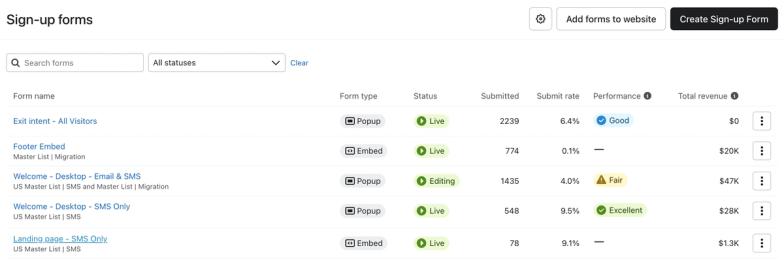
Take note of the benchmark status icon beside Form submit rate, which enables you to quickly contextualize how each form is performing (i.e., Poor, Fair, Good, or Excellent), so you can identify underperforming forms and know where to focus your improvement efforts. This status is calculated using the submit rate for a form compared to peer benchmark data for the last 3 months.
Benchmark statuses are available for accounts hosted in Klaviyo's US region. The icon appears for popup forms with benchmark data. Benchmarks are not available for flyout, full page, or embed forms.
Analyze an individual sign-up form's performance
Analytics is available after a form has been published. To analyze its performance:
- Select Sign-up forms in Klaviyo's main navigation.
- Select the 3 dots > Analytics next to the sign-up form you want to analyze.
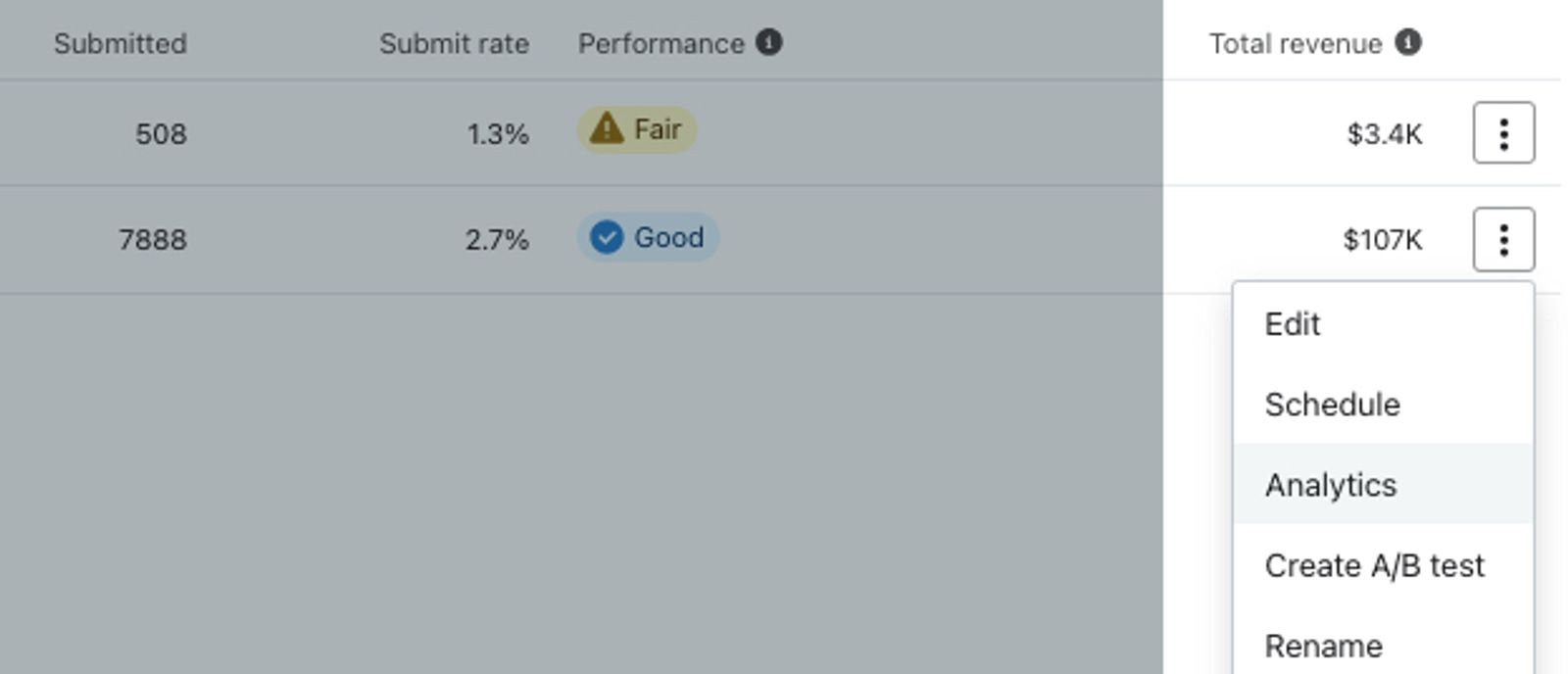
- From here, you can toggle between the Overview tab and the A/B test results tab (if applicable) to get a comprehensive view of how your form is performing.
The following sections of this guide will detail each tab's information in the order it appears on the page.
Overview tab
Effective April 1, 2025, Klaviyo implemented an improved method for filtering out bot and crawler activity from form analytics. This update enhances the accuracy of form metric counts by eliminating artificial activity. As a result, you may notice a decrease in the number of Viewed form events accompanied by a higher Submit rate due to the removal of non-human interactions.
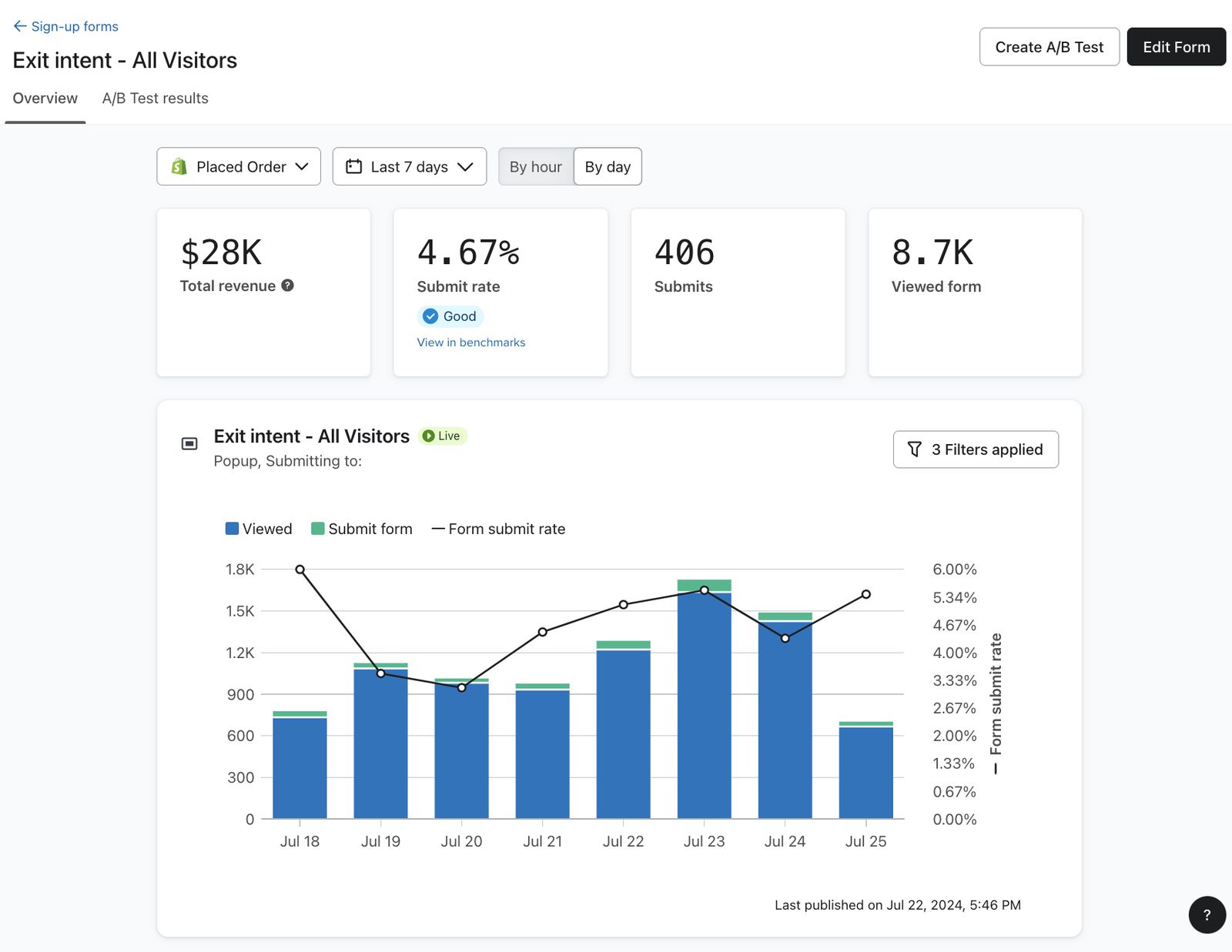
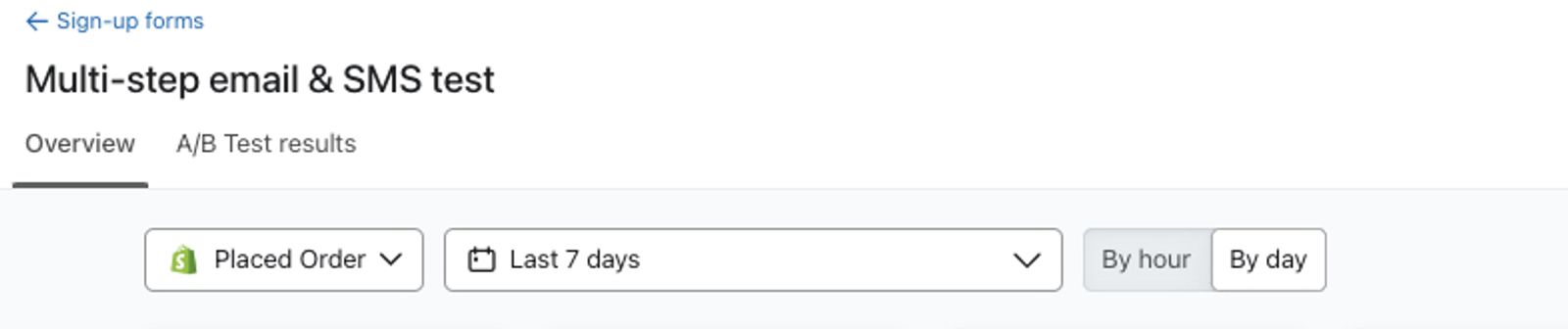
By default, the Overview page displays data from the past 7 days, grouped by day. Use the dropdowns at the top to select the conversion metric, date range, and grouping. To analyze revenue from placed orders, select Placed Order.
Note that if you set the timeframe to a date prior to December 13, 2023, engagement rates will not be available.
Metric definitions
In the Overview tab, you will see the following metrics displayed on cards:
- Total revenue
This card displays purchase revenue attributed to your form. Klaviyo uses your form revenue settings to attribute purchases after a visitor submits the form or reaches the success step. The lookback window determines how long after that interaction a purchase can receive credit. By default, revenue is attributed after a submission within a 2-hour window. A purchase can be attributed to multiple forms if the visitor interacts with them within that window. Learn more about revenue metrics for sign-up forms.
Revenue metrics for forms are only collected as of June 5, 2024.
- Submit rate
This card displays the ratio of total submitted form events divided by the number of total viewed form events. Note that the Submit rate encompasses when any visitor submits, not solely unique profiles.
For popup forms, a benchmark status icon displays on the Submit rate card when benchmark data is available for the selected time period. Select View in benchmarks to open the sign-up forms benchmarks page, which provides a view of your popup's success by comparing your submit rates to peer benchmarks.
- Submits
This card displays the total number of Submitted form events. A submission can be counted before a visitor finishes every step, as described below. Clicking a Go to URL button can also count as a submit. If a form submission has already been counted during that form opening, a later URL click does not add another submit.
If you're using a multi-step sign-up form that collects both email and phone numbers across multiple steps, submitting whichever appears first in the form counts as a submit.
- Viewed form
This card displays the total number of Viewed form events, which are tracked whenever a site visitor views the sign-up form. Note that this encompasses the total number of times that a form has been viewed, not the number of views per unique user.
If you're using a multi-step sign-up form, this metric reflects the number of views of the first step of the form.
If your sign-up form includes a teaser, the analytics will reflect actions taken on the form itself, not the teaser. This means that Viewed form counts views of the first step of the form and excludes teaser-only views. Similarly, Submit rate divides total counted submissions by total form views. A counted submission does not require completion of every step. Teaser-only views are excluded from this calculation.
If you're looking to view the answers submitted in your sign-up forms, see how to view sign-up form responses.
Metric graphs
There are 3 graphs on the Overview tab to help you visualize the performance data for your forms.
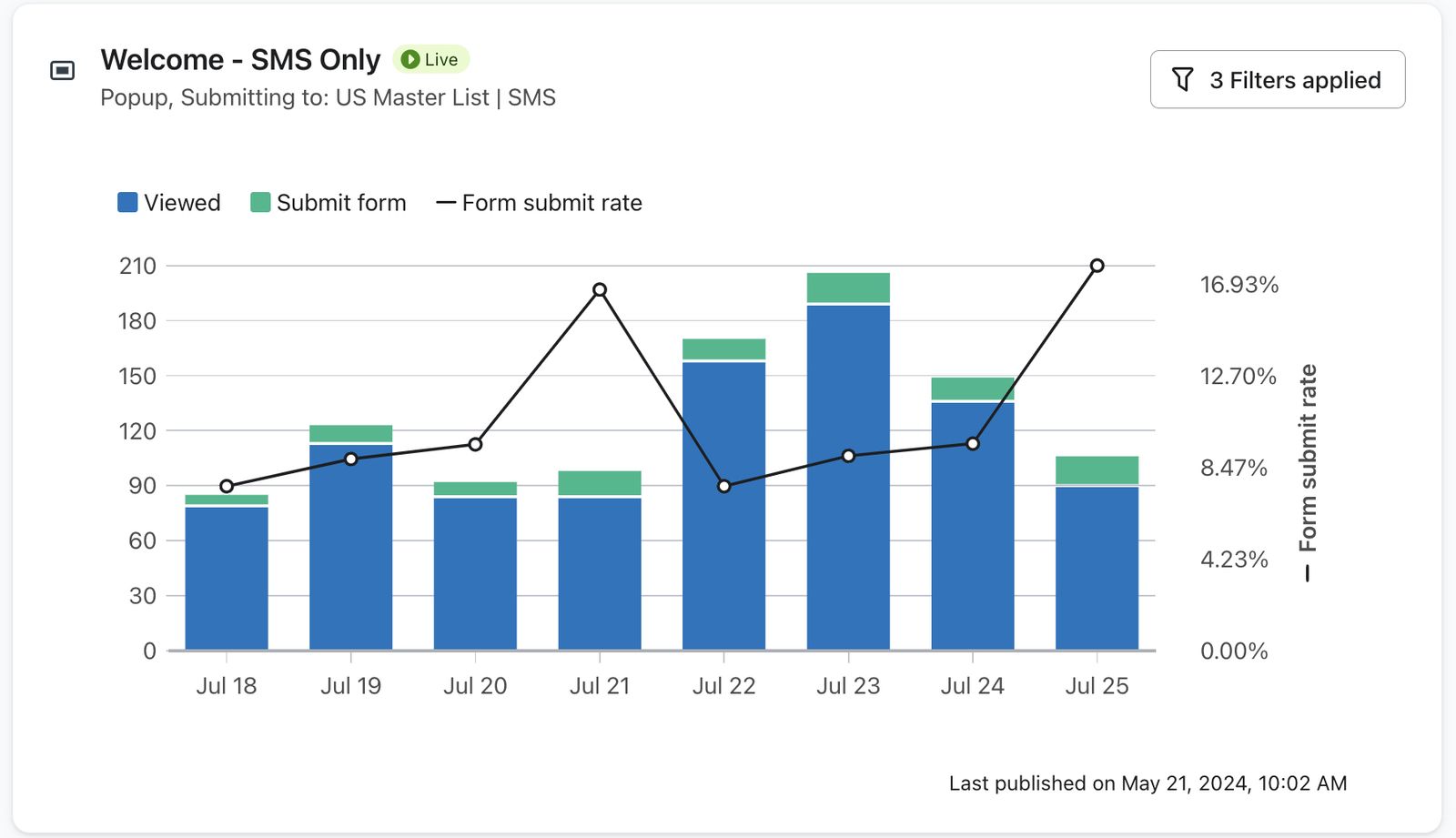
- Submission metrics graph
This graph displays form views, submits, and form submit rate for the configured date range.
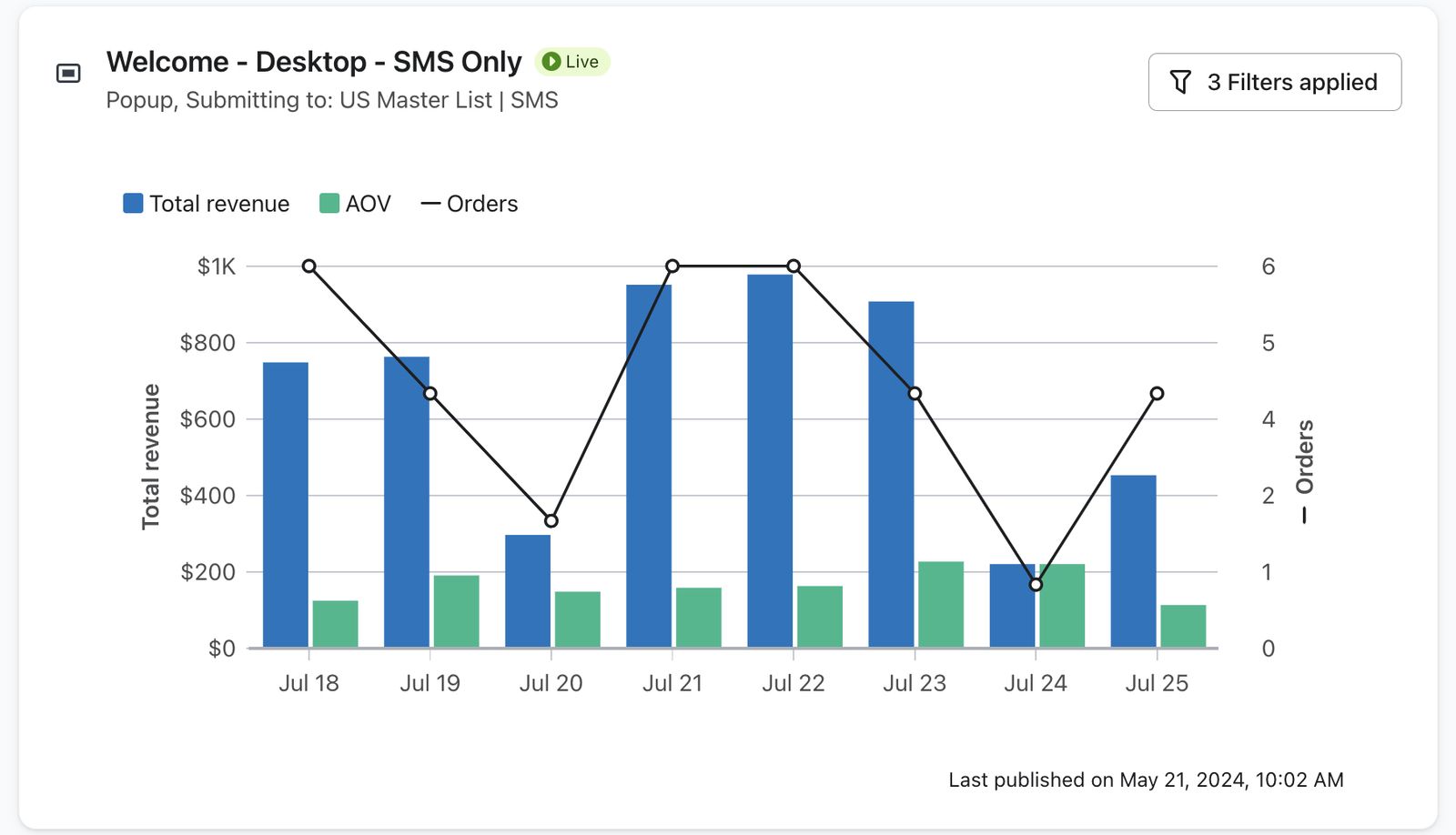
- Revenue metrics graph
This graph displays the total revenue, average order value (AOV), and orders for the configured date range. Learn more about revenue metrics for sign-up forms.
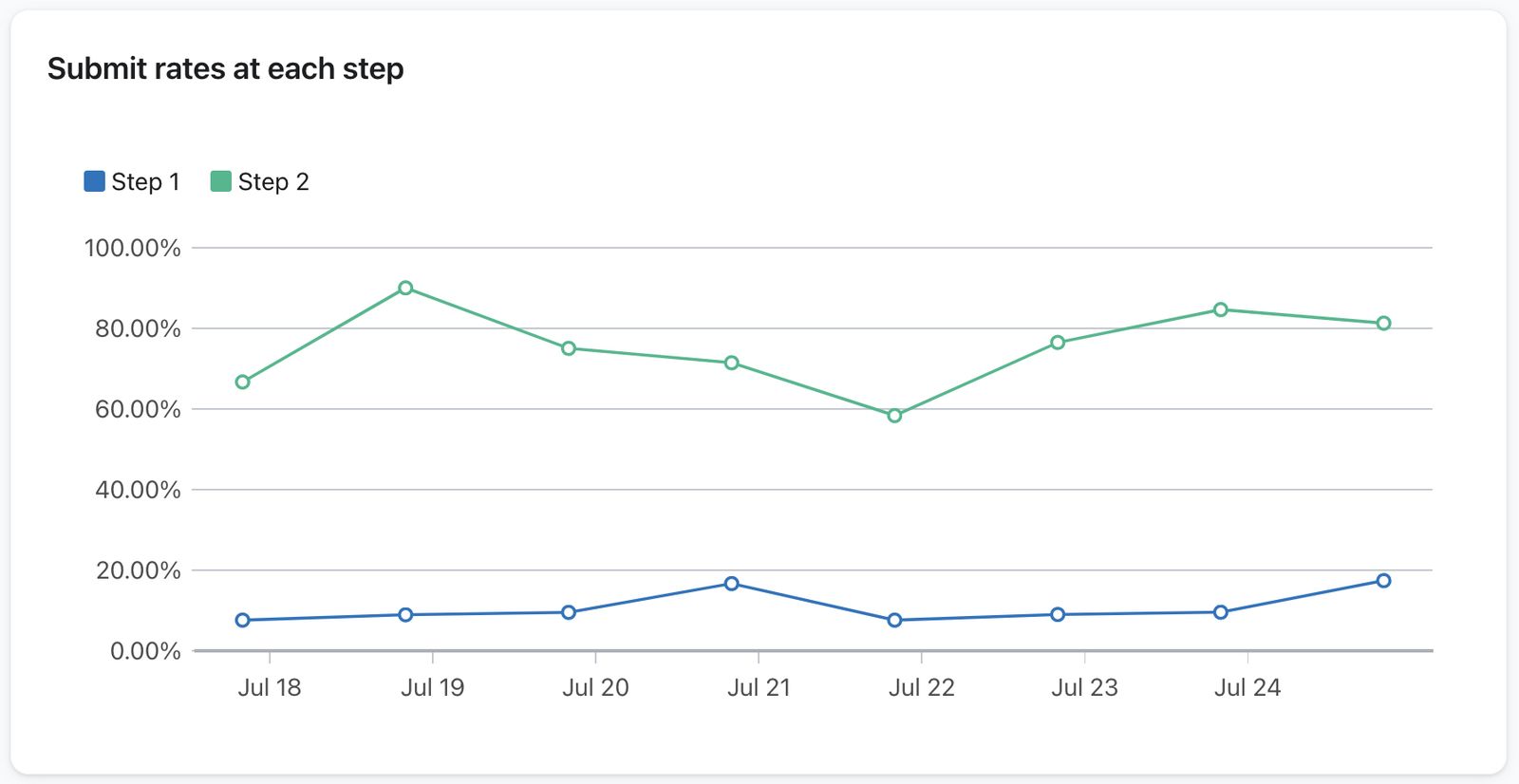
- Submit rates at each step graph
If your sign-up form has multiple steps, this graph displays submit rates for each step for the configured date range. Each rate divides submissions on that step by views of that same step. This differs from the step funnel below, which uses first-step views as its denominator.
Engagement rates
In the Engagement rates section, analytics for each step in your sign-up form are displayed. Here you can view:
- Step 1 engagement rate
This card divides engagements with the first step of your sign-up form by views of the first step. - Users who engaged with all steps
This card divides engagements with the last step included in the funnel by views of the first step. Use it to see how much of the form activity reaches the end of the funnel.
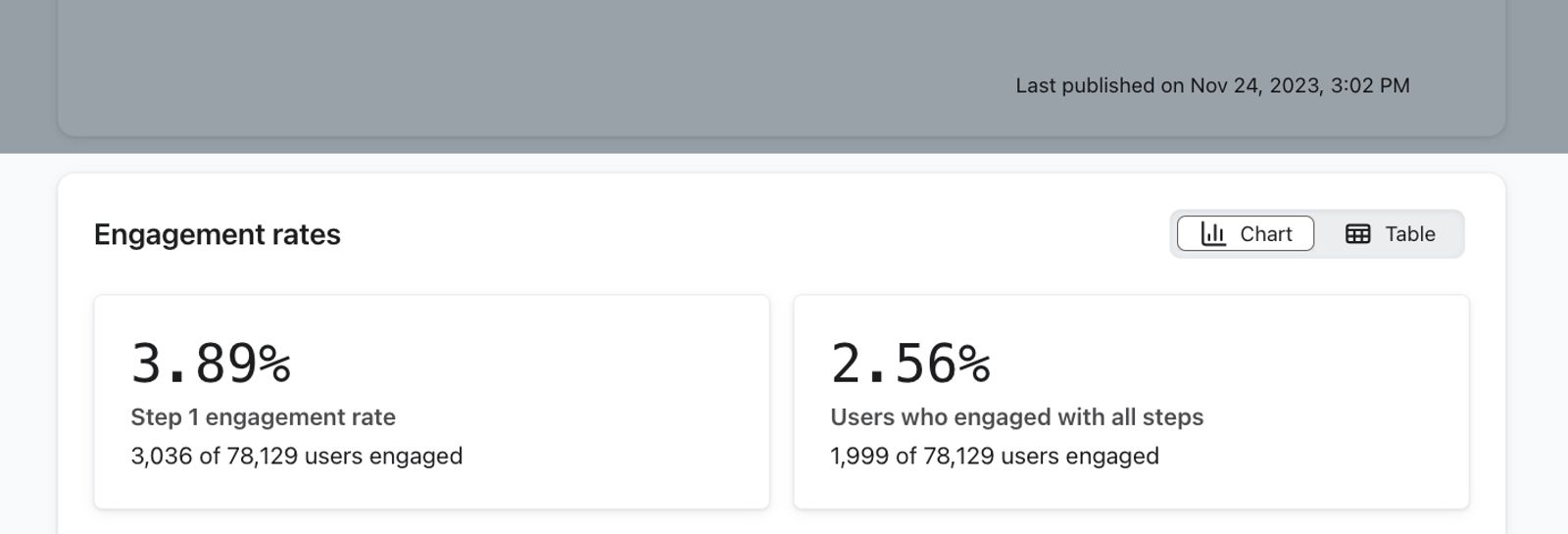
Overview engagement rates use total step engagements divided by the number of Viewed form events on the first step. Repeated activity from the same visitor can count more than once.
- A Step funnel that breaks down the engagement rates per step of the sign-up form. The form's primary conversion action is used to determine the engagement rate on each step.
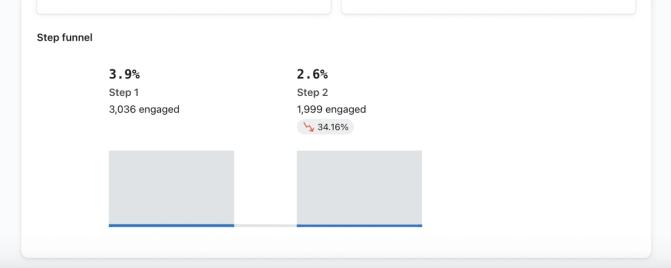
The percentage of decline listed beneath the number of engagements reflects the percent difference in engagement rate from the prior step. This metric is calculated by subtracting the current step's Submits from the previous step's Submits, and then dividing that number by the previous step's Submits.
The success step is excluded from the step funnel when it has no recorded engagement. A success step without a call-to-action button therefore does not appear. Clicking a Go to URL button on the success step records engagement for that step. A Close form button does not record step engagement.
To compare engagement rates for individual variations during an A/B test, open the A/B test results tab. The Overview funnel shows combined form activity.
Additional reports
In the Additional reports section at the bottom of the page, you can review revenue, orders, average order value, Viewed form, Submitted form, and Submit rate split by:
- Device type (desktop or mobile)
- Utm_source
- Utm_medium
- Utm_campaign
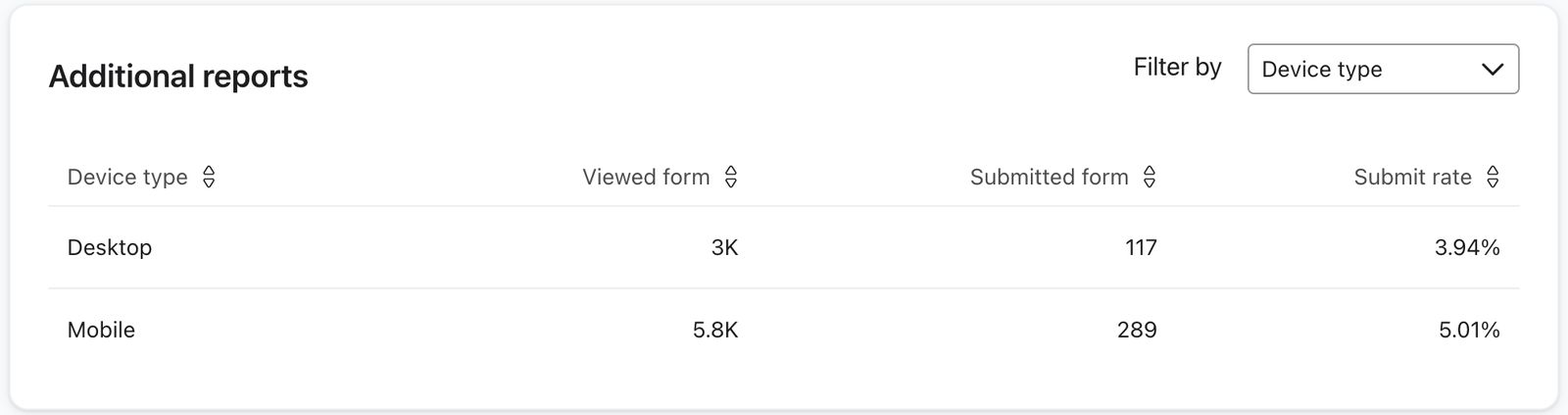
Select a column heading to sort the table by that value.
A/B test results tab
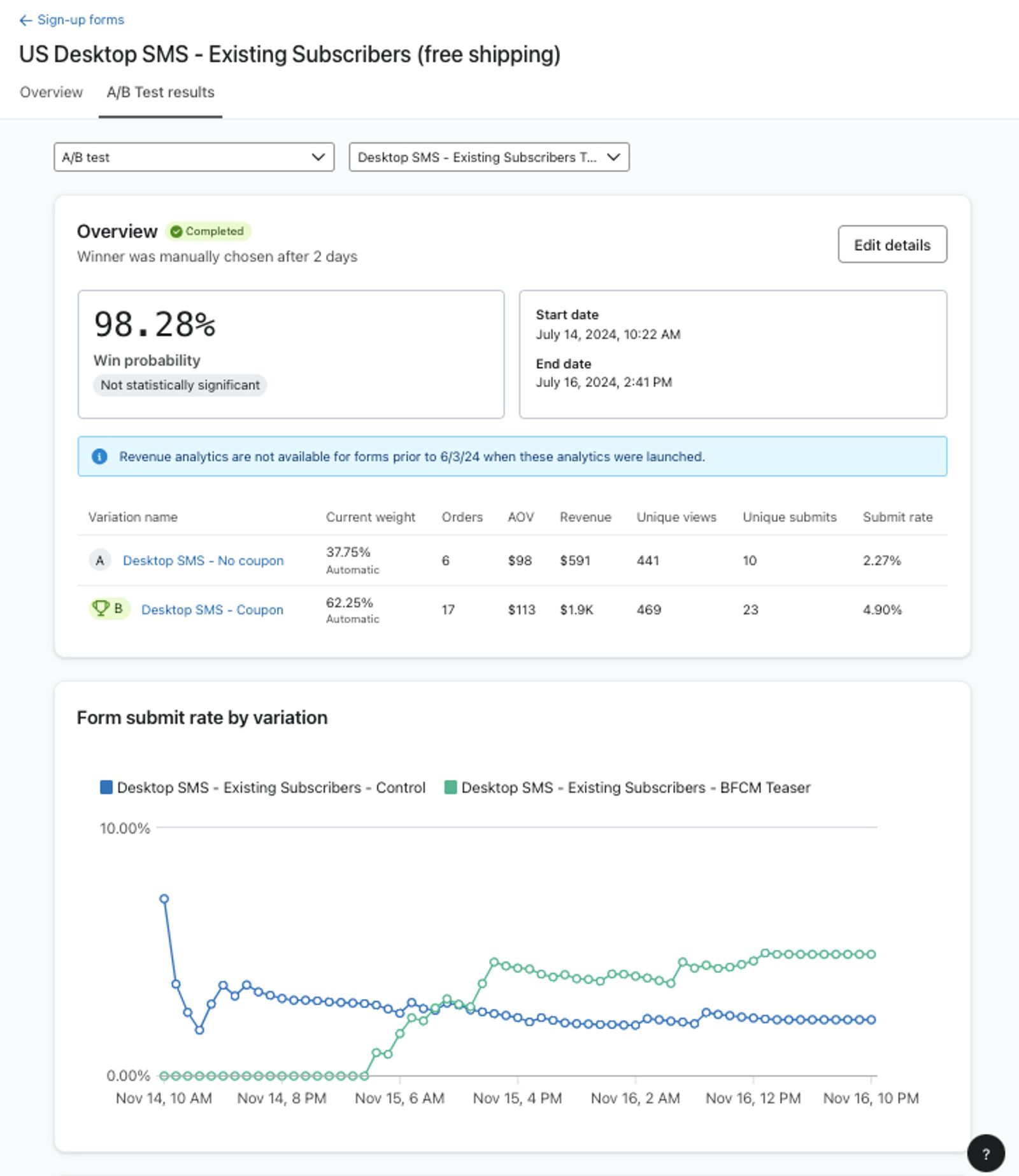
On the A/B test results page, you can measure how your A/B test is performing, or analyze results from a completed test if applicable. Revenue metrics use the conversion metric selected on Overview. Select Placed Order there to analyze purchases. This page shows a graph of Form submit rate by variation, and data for each of the following metrics by variation:
A/B test results use unique views and unique submits to compare form variations. A visitor who views or submits the same variation more than once is counted once for that metric. The Overview tab uses total views and submits, so its counts can differ.
- Current weight
The current weight of traffic directed to each form variation. If you have manually set the traffic distribution, the numbers will match your initial settings. If you're using Klaviyo's data science model, traffic weight will adjust over time, favoring the winning form to optimize list growth. - Orders
The number of placed orders associated with this form. - Average order value (AOV)
The store revenue associated with this form divided by the number of orders associated with the form. - Revenue
The sum of placed order values attributed to this variation within the lookback window. Attribution uses your form revenue settings: after a submission or after reaching the success step.
To learn more about how revenue is linked to sign-up forms, see Understanding revenue metrics for forms.
- Unique views
The number of unique users who have viewed the sign-up form variation (e.g., if 1 site visitor views your form twice, it counts as 1 unique view). - Unique submits
The number of unique users with a counted submit for this variation, including qualifying Go to URL clicks as described in the Overview metric definitions (e.g., if 1 site visitor submits your form twice, it counts as 1 unique submit). A submit can be counted before the visitor completes every step. A URL click after an already-counted submit does not add another submit. - Submit rate
The Unique submits value divided by the number of Unique views. Because this rate uses unique metrics, it can differ from the Submit rate on the Overview tab, which uses totals.
Note that if you are testing different display times in your A/B test (e.g., Show immediately on page load and Show 30 seconds after page load), you will see Eligible Unique Views and Eligible Submit Rate instead. Eligible views are based on the number of site visitors who could have seen this form, in order to accurately compare form variations. Head to our A/B tests FAQ to learn more.
Engagement rates by variation
If you're running an A/B test on a multi-step form, you can view each variation's engagement rates for site visitors who completed step 1, and visitors who completed all steps in the form. These rates use unique step engagements and unique first-step views for each variation. Beneath that, the Step completion rate by variation funnel enables you to visualize engagement rates across the steps in each sign-up form variation. For more details on A/B testing sign-up forms and reviewing the results, head to how to A/B test a sign-up form.
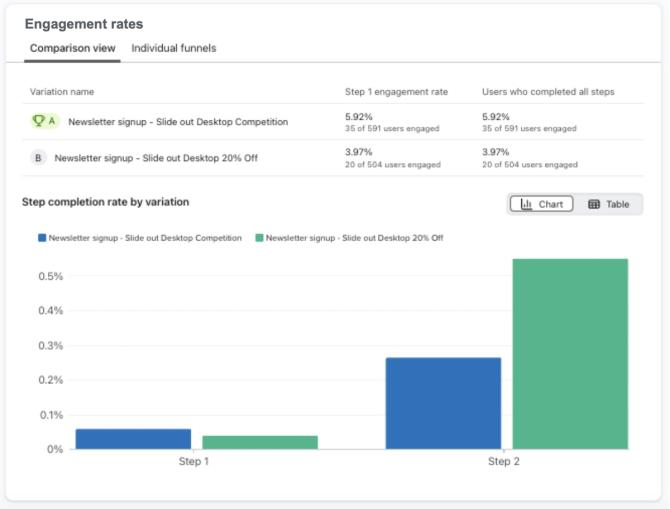
If you started an A/B test for a sign-up form before December 13, 2023, the A/B test results tab will not display engagement rates for each variant.
Multiple sign-up forms activity
To measure performance across multiple sign-up forms, use the Forms Performance card in an analytics dashboard. You can add it to an existing dashboard or create a new one. You need permission to add cards.
- Navigate to Analytics > Dashboards.
- Open an existing editable dashboard. To create a new dashboard, select Create Dashboard, enter a name, and select Create Dashboard to open it.
- If the dashboard already has a Forms Performance card, use that card. Otherwise, select Add card, choose Forms Performance in the library, and select Add Data View.
By default, this card shows the aggregate submit rate across all forms over time for the selected date range. It divides total submissions across those forms by their total views. Use the forms dropdown to view an individual form.
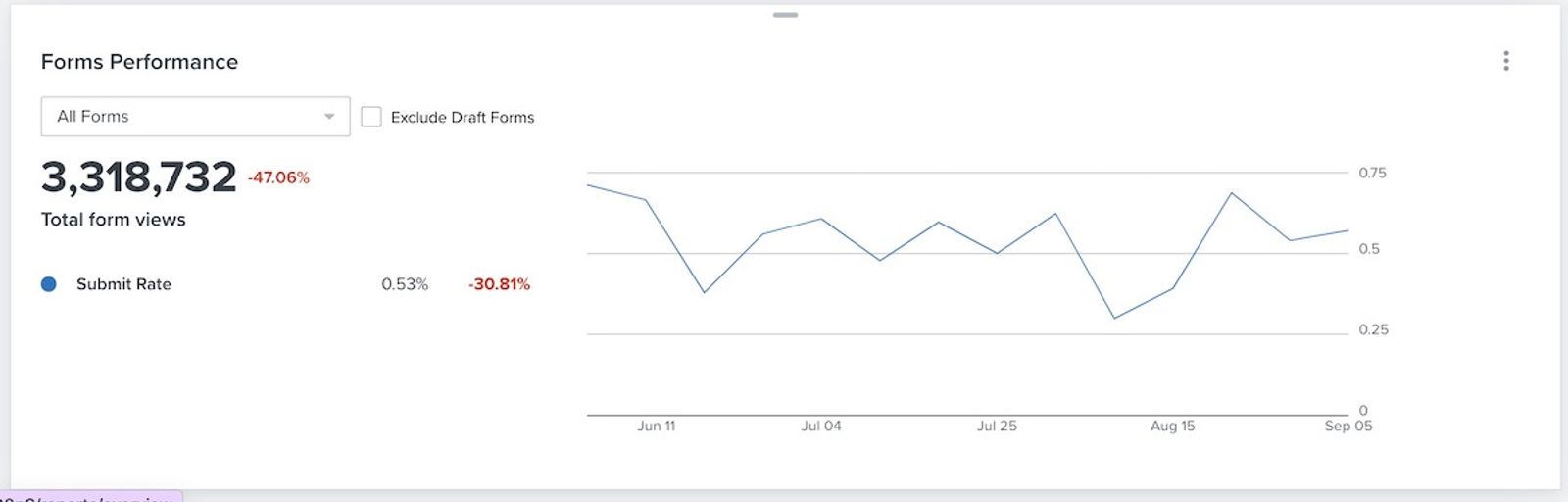
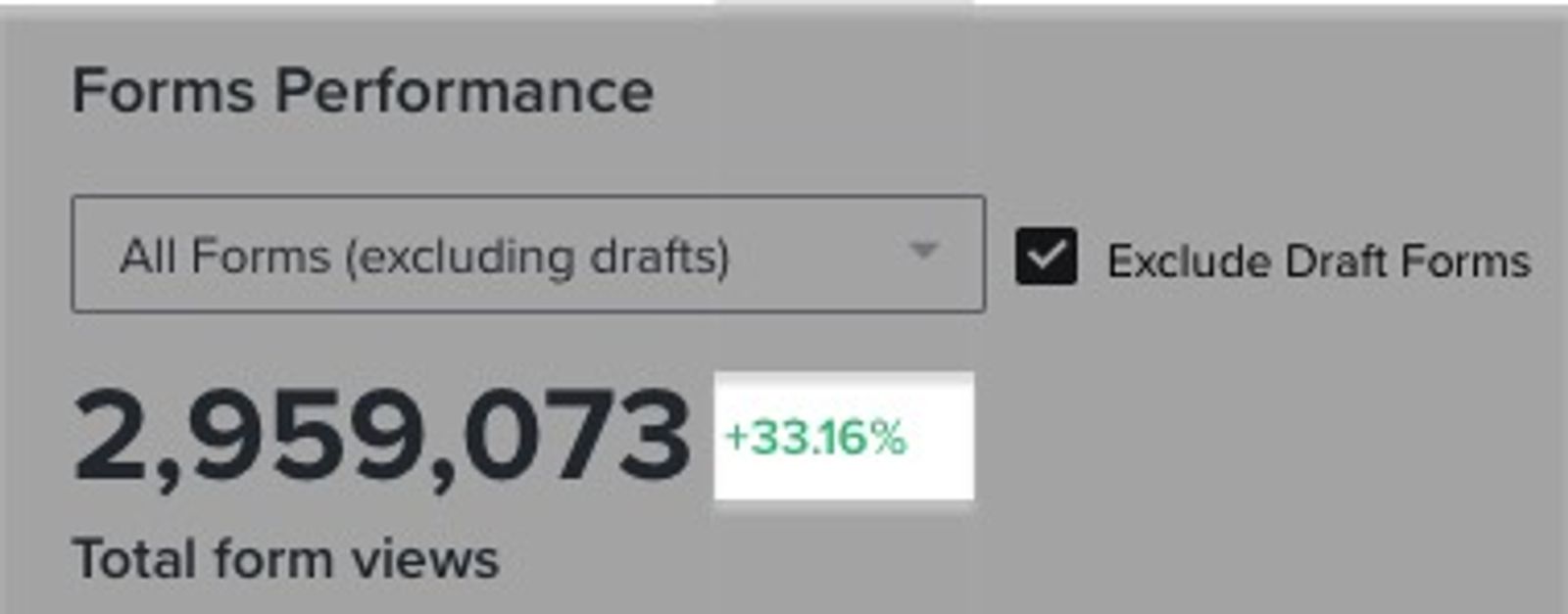
You will also see Total form views count on the left, along with the percentage change from the previous period. A positive percentage change will show in green text, while a negative percentage change will show in red text.
Below the view count, you can review the submit rate and its change from the comparison period. To compare a popup form with peer benchmarks, open its individual analytics as described above. If a form is underperforming, analyze its individual results to diagnose the issue, or review ways to improve its submission rates.
To exclude forms that are currently in draft status from the card’s data, select Exclude all drafts next to the forms dropdown.

Learn more about setting up and adjusting your forms card in your overview dashboard.
What are good rates for a form?
While what "good" means for each form will differ depending on the purpose of the form, we recommend that you aim for your form submit rate for popups and flyouts to be about 3% or higher. You should also look beyond submit rate to analyze the quality of these new subscribers. Cues that indicate an engaged list include the engagement rate of the messages in your welcome series and the conversion rates for those messages.
If your form submit rate in Klaviyo is lower than in your previous list growth tool, compare how each tool counts views and submissions, including whether it uses total or unique counts. If you're looking for inspiration to improve your sign-up forms, see Best practices for sign-up forms. If you're concerned issues are related to your forms not working properly, head to our guide on troubleshooting sign-up forms.
Additional resources
Understanding revenue metrics for sign-up forms
How to A/B test a sign-up form
Course: Klaviyo practitioner certificate