How to assign tickets in your Klaviyo Helpdesk
Requirements: Only Owners, Admins, Managers, or Support roles can assign tickets. Creating teams and changing round robin settings also require permission to edit Helpdesk settings.
You will learn
Learn how to assign tickets within your Klaviyo Helpdesk to efficiently manage customer inquiries and delegate responsibilities among your support team. By understanding views in Helpdesk and assignment actions, you can ensure efficient, organized customer support operations.
About ticket assignment
You have 3 options for assigning tickets in Klaviyo's Helpdesk:
- Routing to teams
- Use routing rules to send tickets to specific teams based on ticket or customer information, such as tags or segment membership. A team's assignment method determines whether tickets are automatically assigned to agents or require manual assignment.
- Round robin (auto-assignment)
- When Round robin assignment is enabled, Klaviyo automatically assigns new support tickets to agents whose status is Available, in a rotational order. This is a great option if you have a dedicated support team with multiple users monitoring tickets.
- Manual assignment
- Manually review and assign each ticket to yourself or another user managing your Helpdesk.
Helpdesk views for accessing tickets
When using ticket assignment, it’s helpful to understand the different Helpdesk views for proper ticket management and organization.
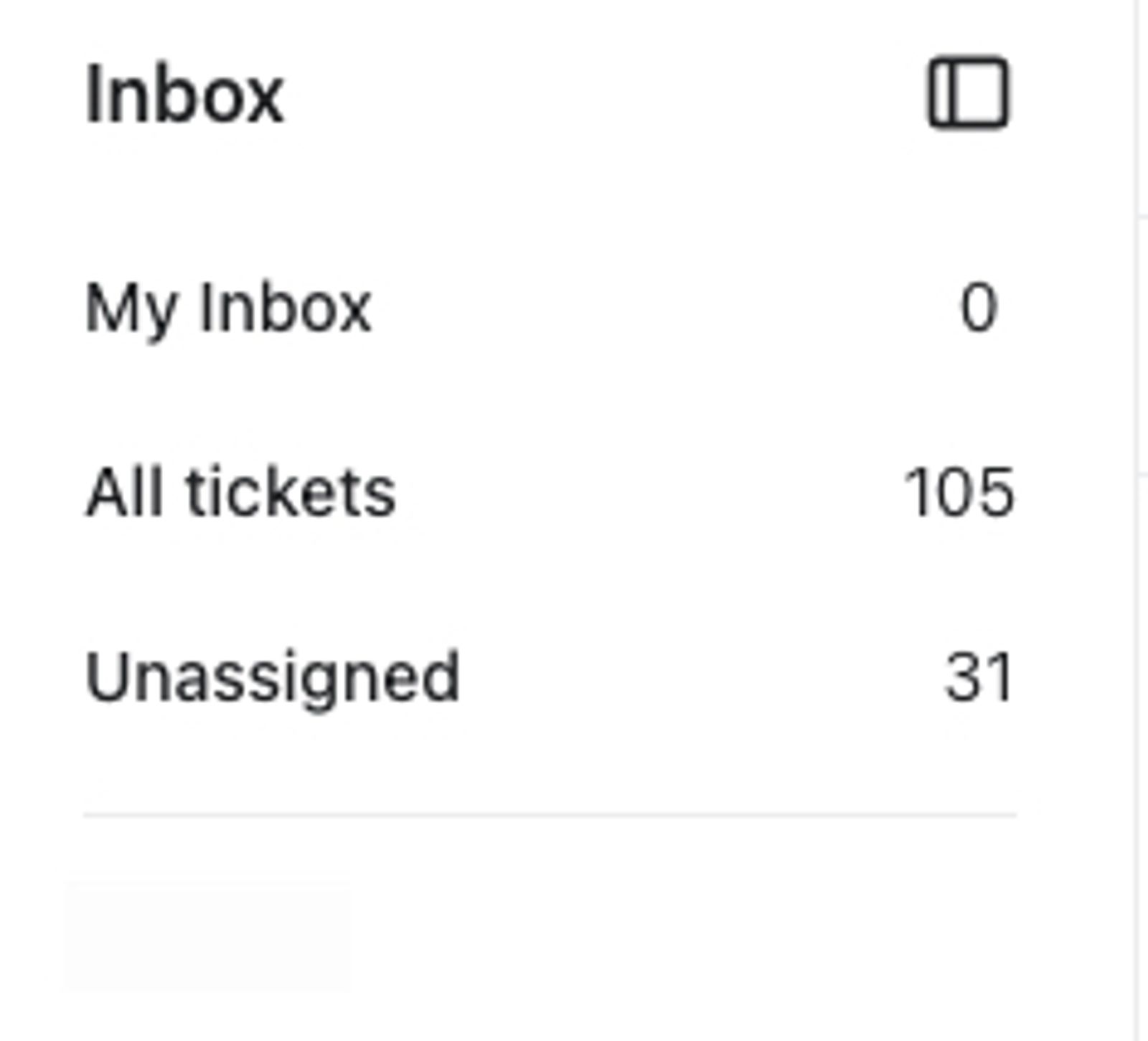
Tickets can be organized into the following views:
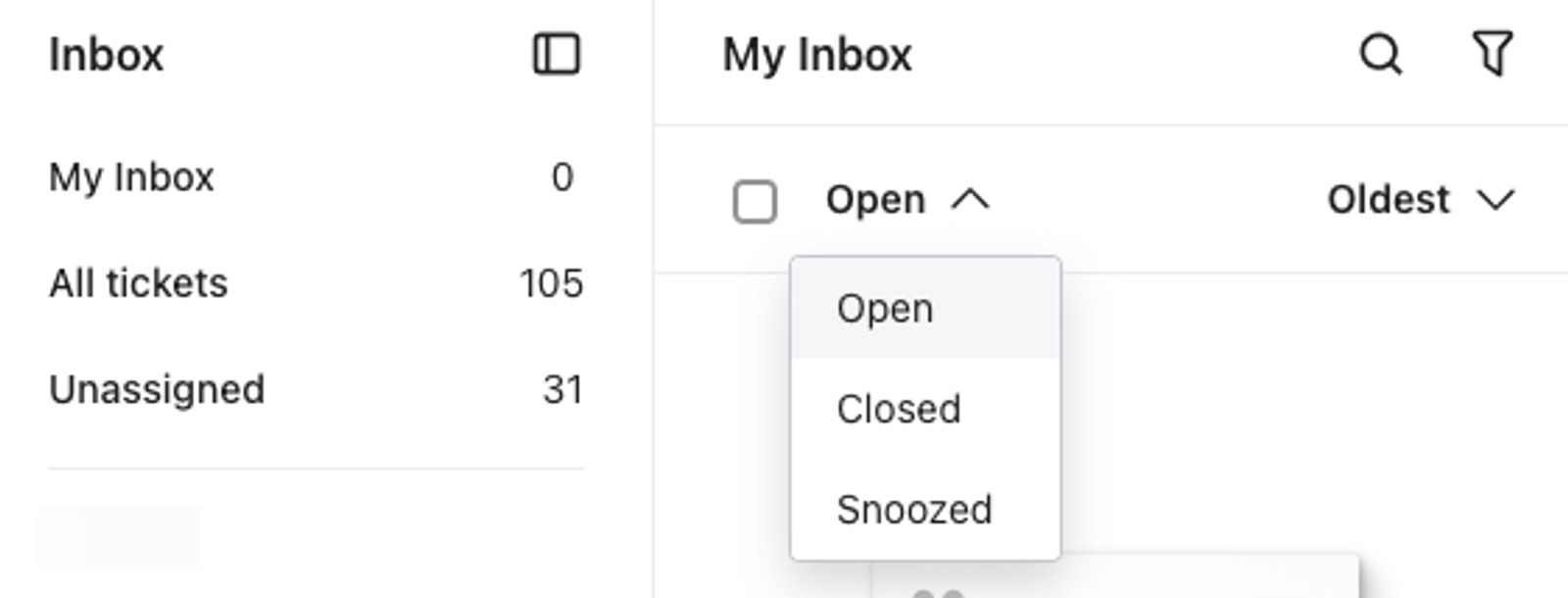
- My Inbox: Shows only the tickets assigned to you (i.e., the user who is currently logged in and viewing the Helpdesk).
- All tickets: Shows tickets in Helpdesk regardless of who they are assigned to.
- Unassigned: Displays tickets that are not currently assigned to anyone and may require attention.
By default, these views are filtered to show open tickets only, but you can apply additional filters to view tickets by status or other criteria.
Create a team for ticket routing
To route tickets to a group of agents, first create a team and add at least 1 agent. Choose how tickets assigned to the team should be distributed among its members. Routing conditions, such as tags or customer segment membership, are configured separately from the team.
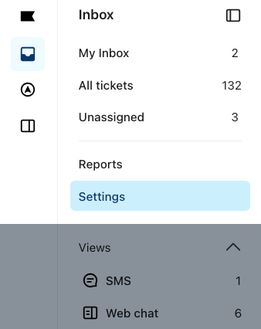
- Navigate to Service > Helpdesk in Klaviyo's main navigation.
- Select Settings.
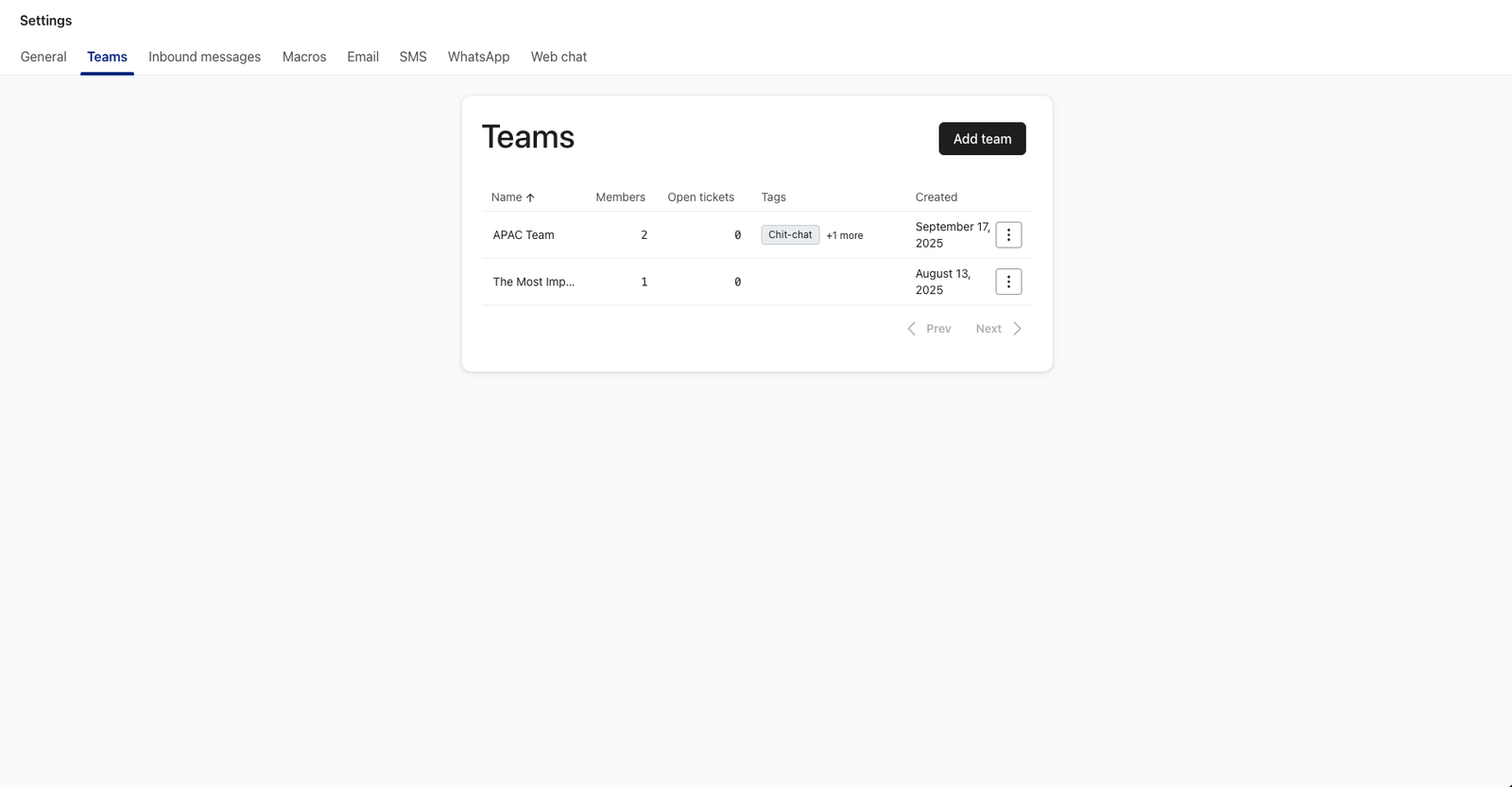
- Select Teams in the settings sidebar.
- Click Add team.
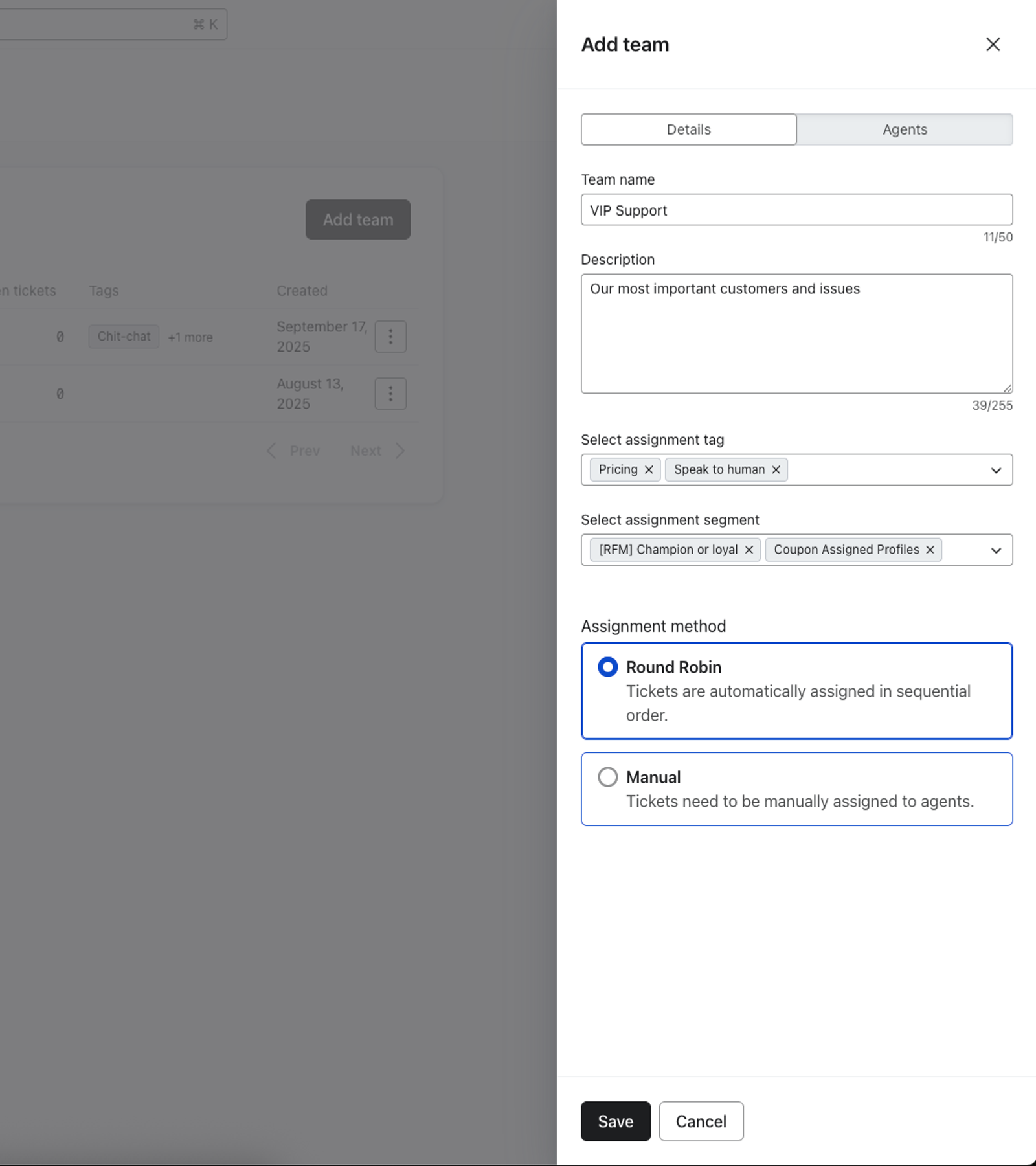
- In Details, enter a unique team name and a description. Under Assignment method, select how agents receive the team's tickets:
- Round Robin: Automatically assign tickets to agents in sequential order.
- Manual: Require tickets to be manually assigned to agents.
- Select the Agents tab, then click Add next to each agent you want on the team.
- Click Save.
Saving a team does not create a routing rule. To define which tickets should go to the team, see how to configure advanced routing rules in Klaviyo Helpdesk.
Enable round robin to auto-assign tickets
Round robin assignment allows Klaviyo to automatically and evenly assign new tickets among support agents who are available to receive them. This helps distribute responsibility among agents ready to assist customers.
To turn on Round robin assignment:
- Navigate to Service > Helpdesk in Klaviyo's main navigation.
- Select Settings.
- Select General in the settings sidebar.
- Turn on the Round robin assignment toggle.
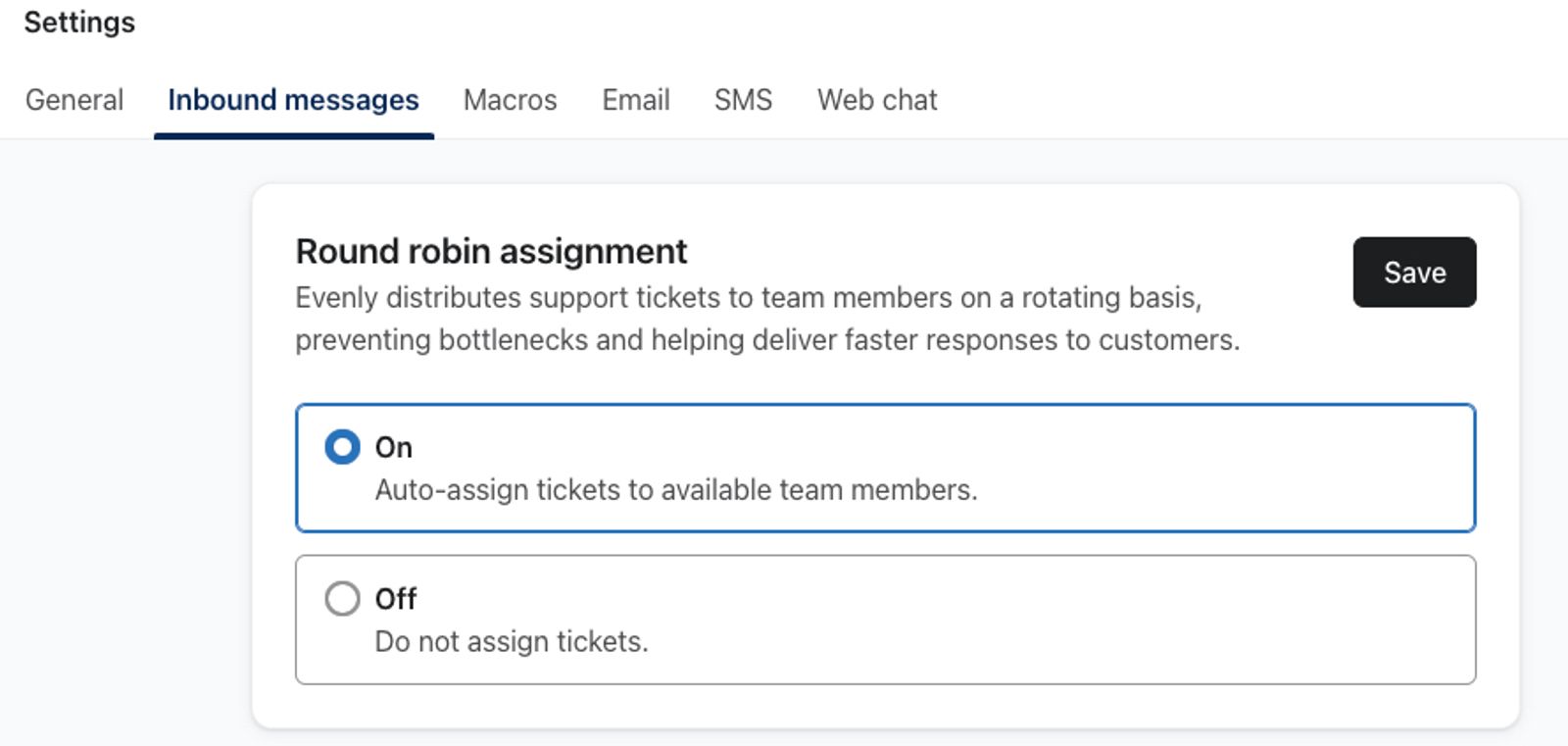
- Click Save.
Agents can set their status using the Available/Unavailable switch in Helpdesk. The switch is available even when round robin assignment is disabled. For automatic assignment, set your status to Available when you are ready to receive tickets, and Unavailable when you are not. Klaviyo only includes agents whose status is Available in automated ticket assignment.
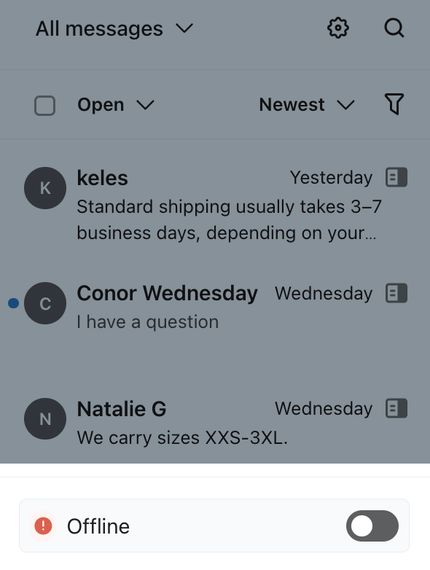
It is not possible to set another agent's status for them. Logged out users are automatically marked as Unavailable.
Round robin assignment also respects your office hours, meaning that tickets are only auto-assigned during the working hours you've configured in your Helpdesk settings. Outside of these hours, even active agents will not receive tickets automatically. However, they can still manually assign tickets to themselves outside of office hours, and this will not disrupt the round robin rotation. Auto-assignment resumes when your office hours begin again.
Manually assign a ticket to someone
If you do not want to have Klaviyo auto-assign Helpdesk tickets, you can instead opt to have your team members manually assign themselves to tickets they're working on, and thus keep the Round robin assignment setting disabled.
If multiple users manage tickets within your Helpdesk, ensure that a ticket is unassigned before taking ownership. To streamline this process, assign tickets from the Unassigned view:
- Navigate to Service > Helpdesk in Klaviyo.
- Select the Unassigned ticket view to display tickets without an assigned agent.
- On the desired ticket, select the 3 dots (additional options) menu, then choose Assign.
- To assign multiple tickets to a person, select the checkbox on each ticket, then click Assign in the action bar at the bottom of the ticket list instead.
- Select the user to whom you want to assign the ticket.
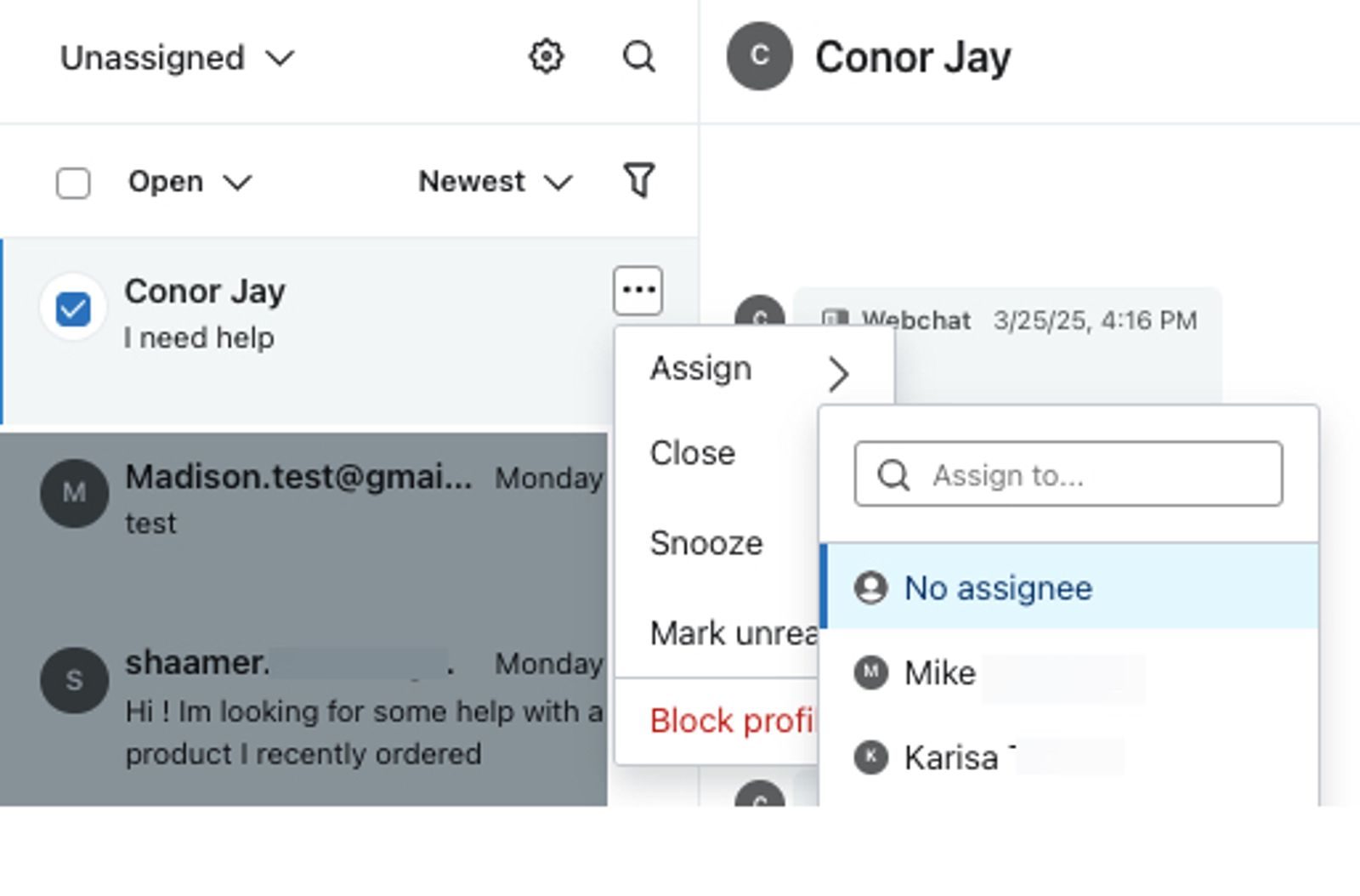
The assigned tickets appear in the appropriate view:
- If you assigned a ticket to yourself, it moves to the My Inbox view.
- If you assigned the ticket to another user, it moves to their My Inbox view.
Once a user is assigned, the ticket's Overview pane will be updated to show their name as the assigned agent (e.g., Kris Test is the assignee in the image below).
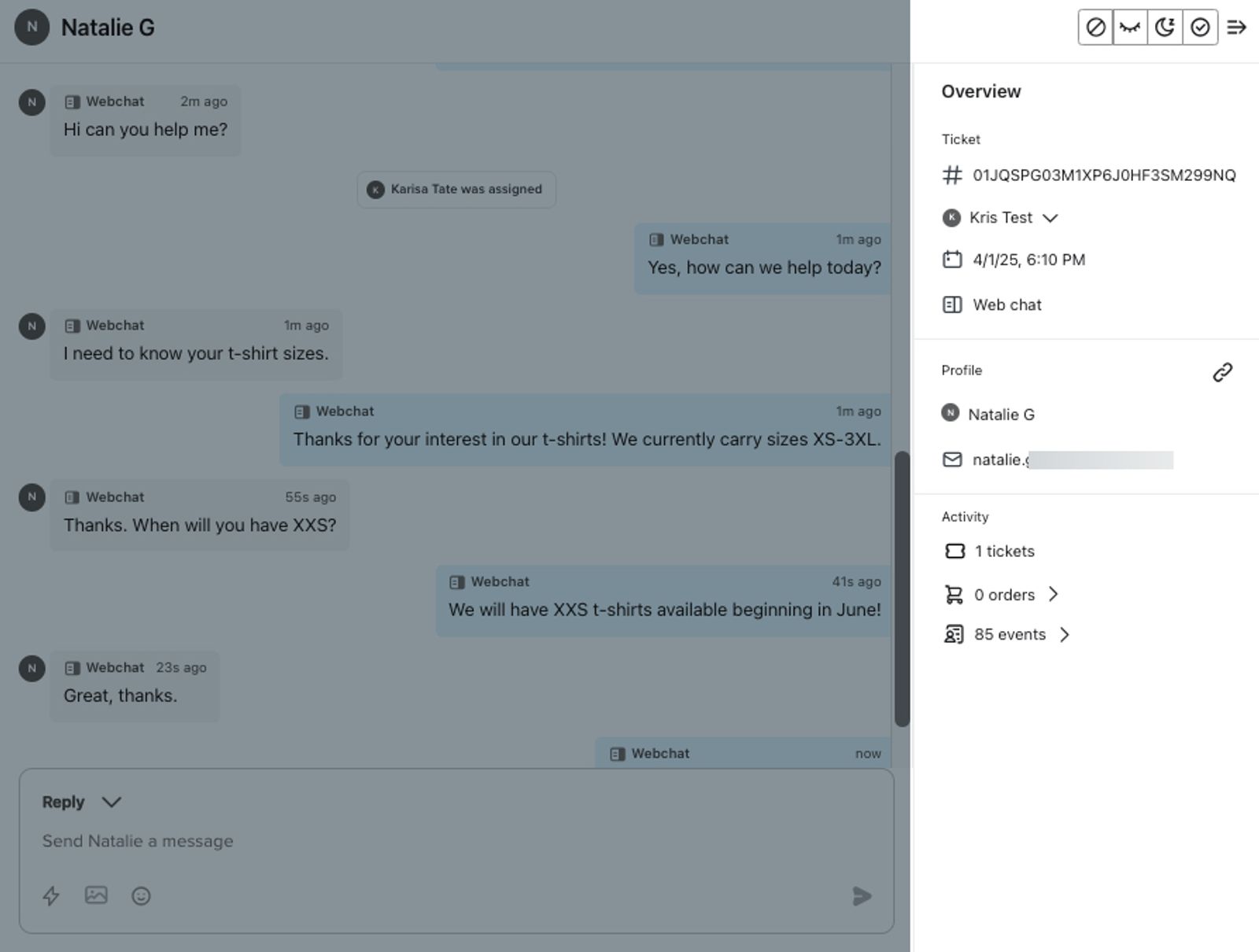
Note that the Overview section also includes other ticket information (e.g., ticket number, creation date, channel (SMS or web chat), total number of tickets associated with that customer, etc.), providing additional context for your support team. For more information on how tickets function in Helpdesk, see our guide to navigating the Inbox tab.
Reassign a ticket
To change the assignee for a ticket, or temporarily set a ticket back to unassigned:
- Open the ticket in your Helpdesk.
- In the Overview section along the right, find the assignee's name and click the dropdown menu next to it.
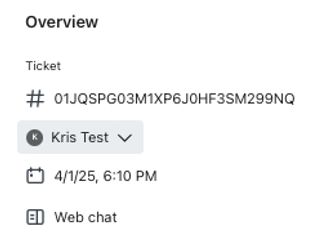
- Select a new assignee, or select No assignee to remove the assignment.
The reassigned ticket will move to the new assignee's My Inbox view. If you select No assignee, the ticket will return to the Unassigned view.
Additional resources
- Guide to Klaviyo Helpdesk
Learn about Klaviyo Helpdesk, which helps you manage support conversations across all channels, powered by the data you already have in Klaviyo.
- Getting started with web chat
Learn about web chat, which is a 2-way communication channel you can add to your website. Web chat can be set up on its own for you to use with Customer Agent and Helpdesk, but it's also designed to be a seamless part of Customer Hub. Web chat allows your business to engage in live, personalized conversations with visitors on your website so they can easily get answers to their questions or assistance with issues.
- How to leave internal notes on Helpdesk tickets
Discover how to create and use notes to manage tickets in Klaviyo Helpdesk.