How to Configure Advanced Routing Rules in Klaviyo Helpdesk
Advanced Routing Rules allow you to automatically distribute incoming tickets to the right team or view based on all the customer data you already have in Klaviyo.
In this article, you will learn how to move beyond basic routing (based on tags) and leverage the full Klaviyo Data Platform—including predictive analytics, purchase history, and real-time events—to prioritize your support queue.
Before you begin
- User Permissions: You must be an Owner, Admin, or Manager to create or edit routing rules.
- Team Setup: Ensure your Teams (e.g., "VIP Support", "Returns") are already created in Helpdesk settings before setting up rules to route to them.
- Data Availability: Routing rules can use any data currently available in a customer's profile, including custom properties from third-party integrations (like Recharge) and predictive analytics (like Churn Risk).
Step 1: Access the Routing Rule Builder
The routing configuration is located within your Helpdesk settings.
- Log in to Klaviyo and select your account.
- Navigate to Helpdesk
- Select Routing from the sidebar
- Click the Add Rule button to open the builder.
Step 2: Define Your Logic Conditions
The Rule Builder uses the same logic interface as the Klaviyo Segment Builder. You can define rules using any combination of the three main categories of data.
Customer Behavior (Events)
This is best for catching urgent issues like "Where is my order?" or cancellations.
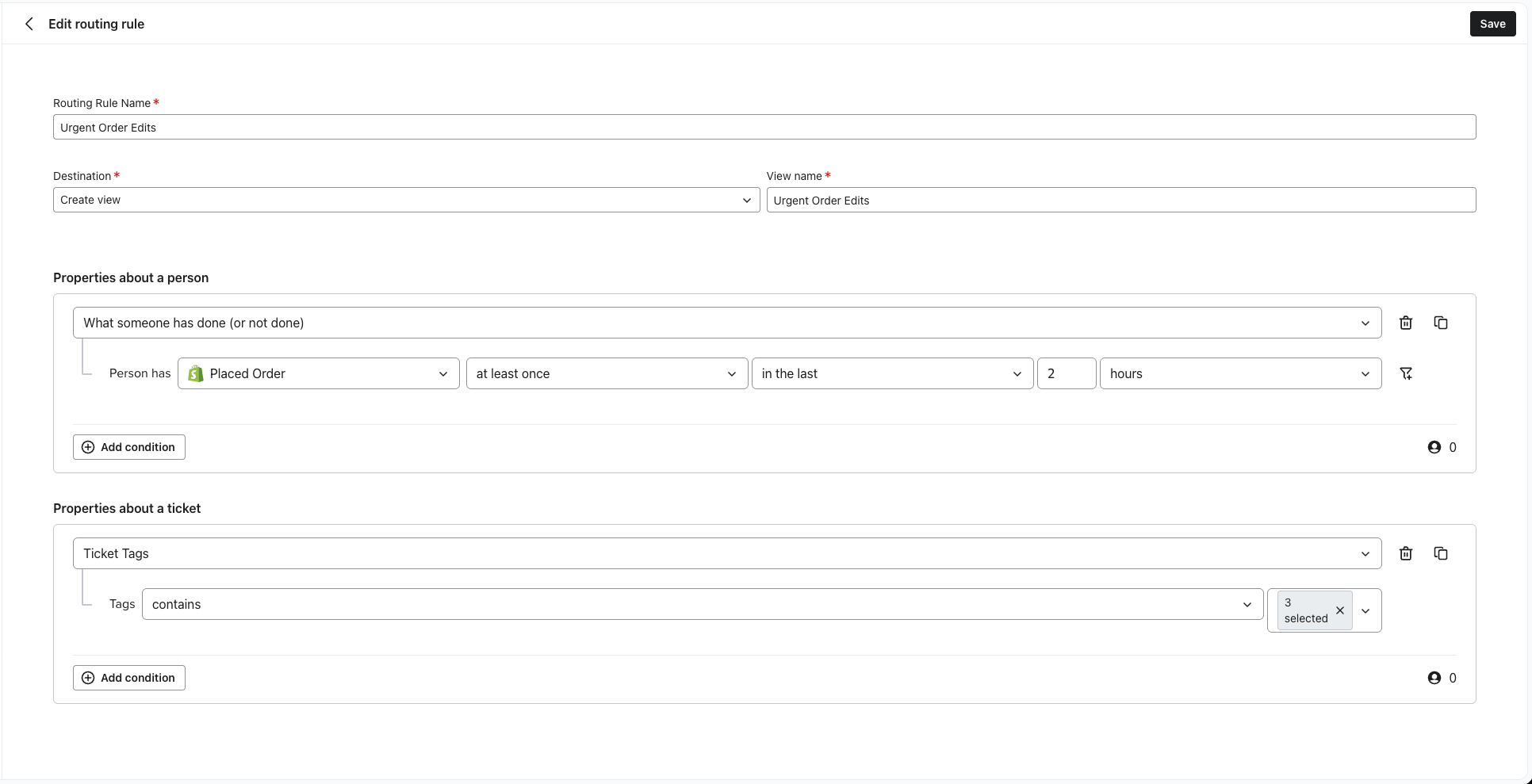
- Example: Route customers who placed an order in the last 2 hours to an "Urgent Modifications" queue.
- How to set it:
- Select What someone has done (or not done).
- Choose an event (e.g.,
Placed Order). - Add a time constraint (e.g.,
in the last 2 hours).
Route by Profile Properties
Use this for static attributes like location, language, or custom data points.
- Example: Route French-speaking customers to the "France Support Team."
- How to set it:
- Select Properties about someone.
- Choose a property (e.g.,
$country). - Set the value (e.g.,
equals France).6
Route by Ticket Properties
Leverage the topics and channel of the ticket to help the customer get to the right person or team.
- Example: Route SMS order issues to Team A
- How to set it:
- Select if ticket_channel = SMS AND ticket_tags contains Order.
Step 3: Select a Destination
Once a ticket matches your condition, you must decide where it goes. You have two options:
1. Assign to Team
This action transfers ownership of the ticket to a specific group of agents.
- Best for: Specialized workflows where a specific skill set is required (e.g., Returns, B2B, VIP).
- Result: The ticket is removed from the general "Unassigned" queue and placed directly in the Team's inbox.
2. Save as View
This action tags the ticket into a filterable list but does not assign it to a specific team immediately.
- Best for: Monitoring high-risk issues or creating "Watch Lists" (e.g., Potential Fraud, Negative Sentiment) that supervisors can review.
- Result: The ticket remains available for any agent to pick up, but appears in a specific filtered view for easy visibility.
Common Use Cases
Here are two standard configurations to help you get started:
The "Churn Defense" (High Risk)
Intercept dissatisfied customers before they leave.
- Condition:
Properties about someone>Churn Risk>equals High - Action: Assign to Team: Retention Specialists
- 1
The "Urgent Order Mod" (Fast Track)
Prioritize customers who just purchased to prevent shipping errors.
- Condition:
What someone has done>Placed Order>at least oncein thelast 2 hours - Action: Save as View: Urgent Modifications