How to create a spin-to-win sign-up form
Learn how to add a spin-to-win wheel to your sign-up form, configure its rewards, and send follow-up flows based on the winning outcome. Spin-to-win wheels are interactive and encourage site visitors to subscribe for a chance to win a discount or reward.
Spin to win is a sweepstakes promotion. Check for compliance with local laws governing sweepstakes and prize promotions, including GDPR and marketing consent requirements before releasing a spin to win form on your website.
About spin-to-win forms
General requirements:
- Each spin-to-win form must have only 1 wheel and at least 1 email or SMS consent field.
- The wheel must be reachable on each device your form targets. You can display the form on desktop only, mobile only, or all devices.
- The form must include appropriate disclosure language for each type of consent collected (e.g., email, promotional SMS, and transactional SMS).
- You can mark an email field as required. Phone number fields must stay optional, even when the form collects only SMS consent.
Functionality details:
- The spin-to-win wheel cannot be placed:
- Before any email or SMS consent field. Include a consent field on the same step as the wheel or on an earlier step.
- On a step that has both email and SMS fields. Place the wheel on a different step, or move 1 of the fields to another step.
- On the form’s success step.
- Forms that use a tap-to-text method for SMS consent cannot use spin-to-win wheels.
- Spin-to-win forms cannot use Smart Opt-in or Continue with Shop.
How spin-to-win forms work
Spin-to-win sign-up forms work as follows:
- Add the spin-to-win block to your sign-up form. You can customize its appearance, the reward for each section (“slice”) of the wheel, and the probability of a shopper landing on each slice.
- Klaviyo automatically creates a success step for each slice that you add to the wheel. You can then customize each success step and configure the appropriate coupon for each possible reward.
- Determine your preferred sequence for spinning the wheel and collecting visitor information. For example:
- Consent first:
Ask for consent and any other personal information on steps before the wheel. Visitors submit those steps before reaching the wheel. Only fields marked as required must be filled out; phone number fields stay optional. - Collect and spin:
Place an email or SMS consent field and the spin-to-win wheel on the same step. Visitors fill out any required fields and submit the step to spin the wheel. This combines information collection and the spinning action into 1 step.
- Consent first:
- After visitors complete the necessary steps, the wheel spins (if it hasn’t already) and reveals the winning slice. This will occur regardless of whether the visitor has confirmed their subscription for lists that use double opt-in.
- The success step for the winning slice automatically displays on the form, showing the visitor their reward.
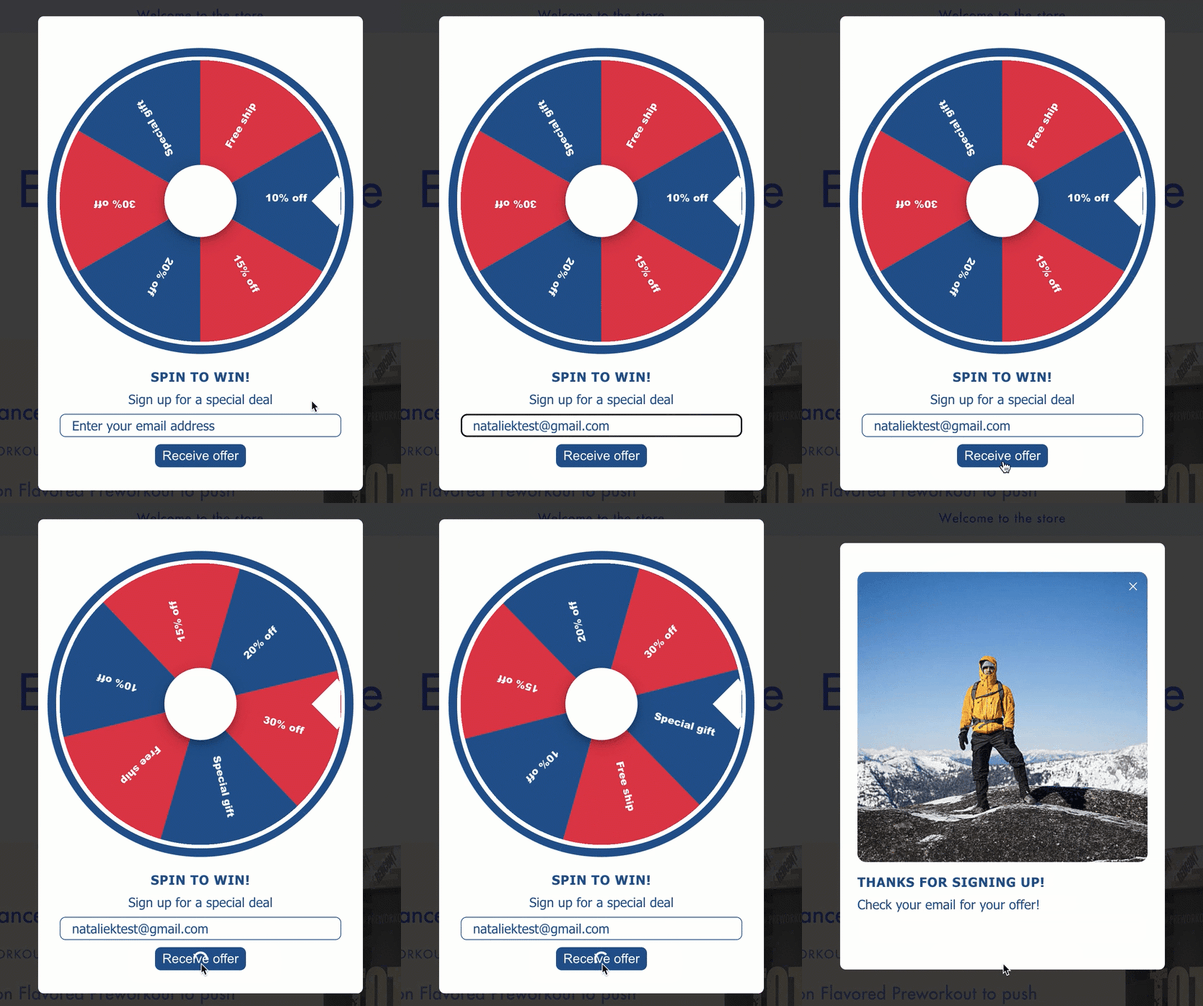
Add a spin-to-win wheel to a form
- In Klaviyo’s left-hand navigation, select Website > Sign-up forms.
- For an existing form, open its 3-dot menu and select Edit. To start a new form, click Create form and complete the form setup.
- Select Add content in the editor’s sidebar to open the Add blocks panel.
- Drag and drop a Spin-to-win block onto the step where you want visitors to spin the wheel.
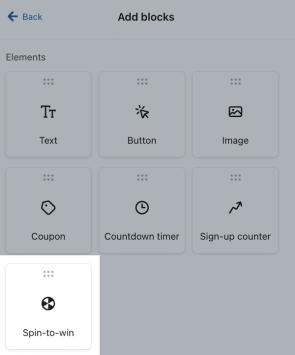
The wheel step can contain an email field or a phone number field, but cannot contain both. Place the other field on a different step, and keep phone number fields optional.
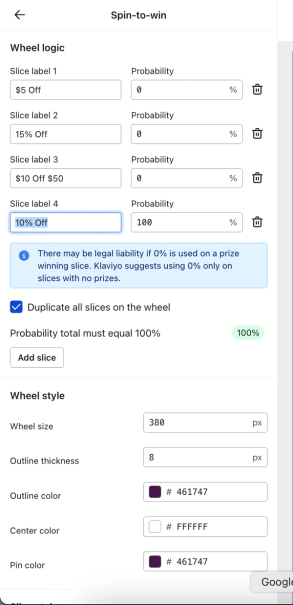
- In the Wheel logic menu along the left, customize each slice’s:
- Label
- Determine the number of slices on the wheel and label each with a potential reward (e.g., 10% off, free shipping). By default, the wheel has 6 slices, but you can adjust it to have between 2 and 6.
- Probability (e.g., 20%).
- Assign each slice a whole-number probability from 0% to 100%. All slice probabilities must add up to 100%; decimals are not permitted. A slice set to 0% cannot be selected. To guarantee 1 outcome, set that slice to 100% and every other slice to 0%.
- Label
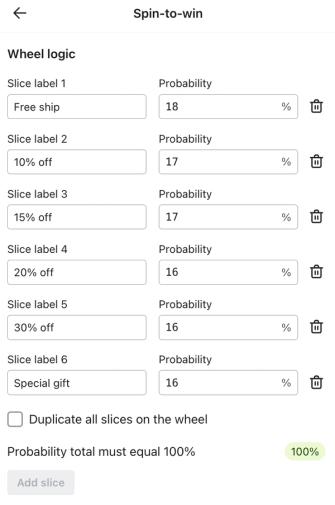
As a best practice, give every slice that can be selected a prize so participants avoid a “try again” or similar message. Setting a prize slice to 0% may create legal liability because visitors cannot win that prize. Use 0% only for slices without prizes.
- Optional: select Duplicate all slices on the wheel to display each slice twice, opposite its duplicate.
- Note that duplicating does not change slice probability.
- Use the Wheel style, Slice style, and Text style sections to customize the design to fit your brand (e.g., sizing, coloring, and label text).
- Open the Success menu above the form preview and select a slice’s success step. Klaviyo automatically creates a success step for each slice on your spin-to-win wheel.
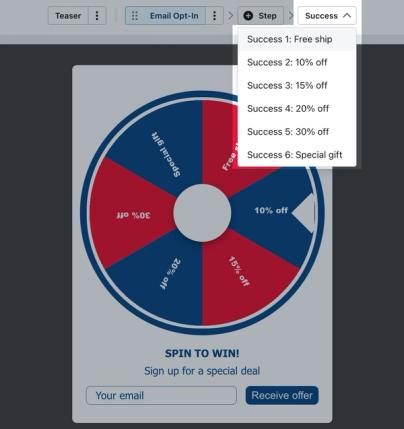
- Ensure that you customize and add the appropriate coupon on each success step (e.g., configure a 10% off coupon on the 10% off success step). For assistance creating coupons, head to our Guide on adding coupon blocks in forms.
For SMS-only spin-to-win forms shown to new visitors, use static coupons. Unique coupons require an email field marked as required, unless the form is shown only to existing profiles. Phone number fields cannot be required on spin-to-win forms.
- Select Edit styles and Targeting & behavior in the sidebar to refine the rest of your form’s design and behavior. The Targeting & display behavior panel includes your device, audience, and display settings.
- Once you’re satisfied with the form’s configuration and design, click Publish or schedule.
- Resolve any blocking alerts, then click Publish now to make the form live.
Coupon management for spin-to-win forms
Klaviyo reuses an existing unique coupon code for the same profile and coupon offer. For example, if a regular form issues a unique code for coupon A and a returning visitor later submits a spin-to-win form with coupon A on an eligible slice, Klaviyo selects that slice and shows the same code. This happens before a new outcome is randomly selected.
Slices set to 0% are excluded from this check, so a returning visitor cannot receive a 0% slice through an existing code. If no existing code is found for an eligible slice, Klaviyo selects the outcome using your configured probabilities.
Send flows based on the spin-to-win outcome
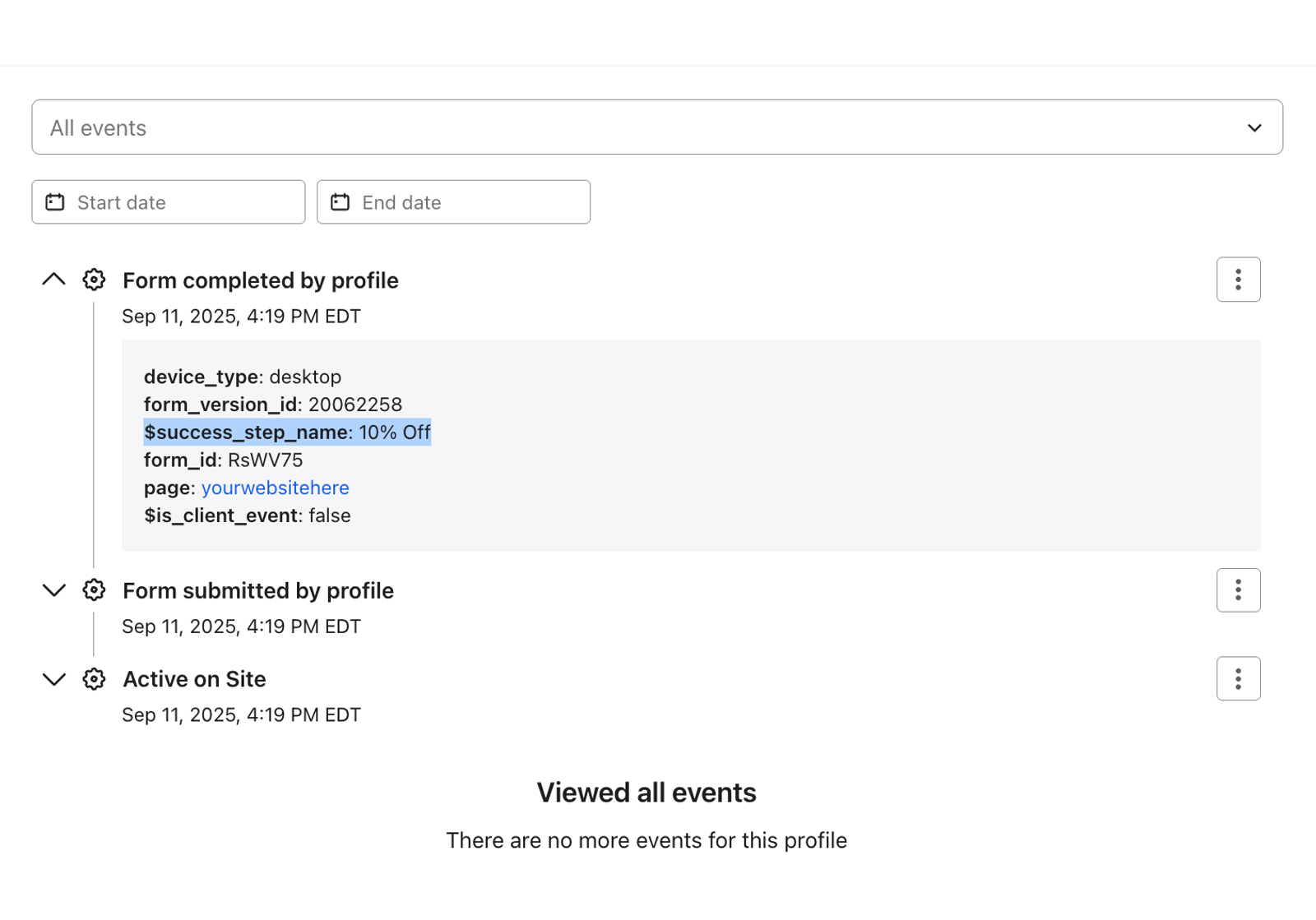
Create a segment for each winning outcome, then use that segment to trigger a follow-up flow. Klaviyo records the outcome in the $success_step_name property of the Form completed by profile event when an identified visitor completes the form.
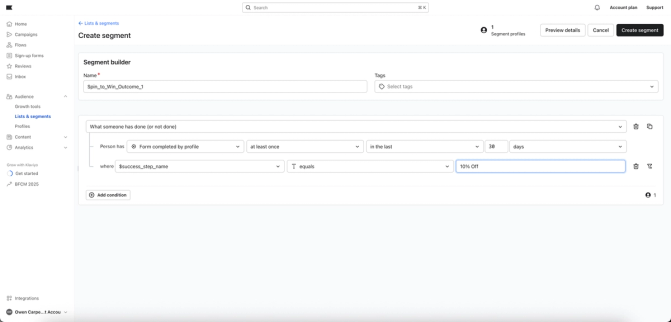
- In a new segment, select What someone has done (or not done). Choose Form completed by profile at least once and choose your time window (e.g., in the last 30 days).
- Filter that event where
$success_step_nameequals the slice label for the reward (e.g., “10% Off”). Also filter whereform_idequals this form’s ID to keep outcomes from other forms out of the segment.
- Check that your
$success_step_namefilter exactly matches the slice label you set in Wheel logic, then click Create segment.
Create a segment-triggered flow for each outcome segment and set the messages you want to send live. Profiles enter when they newly join the segment and meet the flow’s filters and re-entry settings. Winning the same prize again does not trigger another entry while the profile is still in that segment.
Next steps
Make sure Klaviyo onsite tracking is enabled on your website so the form can display. After publishing, visit your website in an incognito browser to test the form’s appearance and functionality. Fill out the form to check that the winning slice leads to the matching success step and reward.
Tip: If you want to test the impact of the spin-to-win gamification element, you could A/B test the spin-to-win form versus a standard consent collecting form.
Additional resources
- How to add coupon codes to sign-up forms
Learn how to add static and unique coupon codes to your sign-up forms to drive higher submission and conversion rates, and encourage customers to spend more on your site.
- Getting started with coupon codes in Klaviyo
Learn how to create and upload unique and static coupon codes in Klaviyo to incentivize customers to engage with your brand. Offering an incentive can help you improve the customer experience, resulting in higher sales and increased lifetime value.
- Understanding styles for a sign-up form
Learn how to use Klaviyo’s sign-up form builder to design your form by editing the design settings available in the Styles section. Style settings apply across your sign-up form, including in all of a form’s steps and in its success message.