How to unset profile properties
You will learn
Learn how to bulk remove profile properties from profiles in Klaviyo. If you have a profile property that you’d like to remove for a group of profiles, you can do this using a CSV upload.
Unset profile properties with a CSV upload
For help removing the Klaviyo property $id, contact Klaviyo’s support team. Email addresses cannot be removed using $unset.
First, group all the profiles you want to remove a property for in a list or segment, and export the group. When you export the group, include Email along with the properties you’d like to remove.
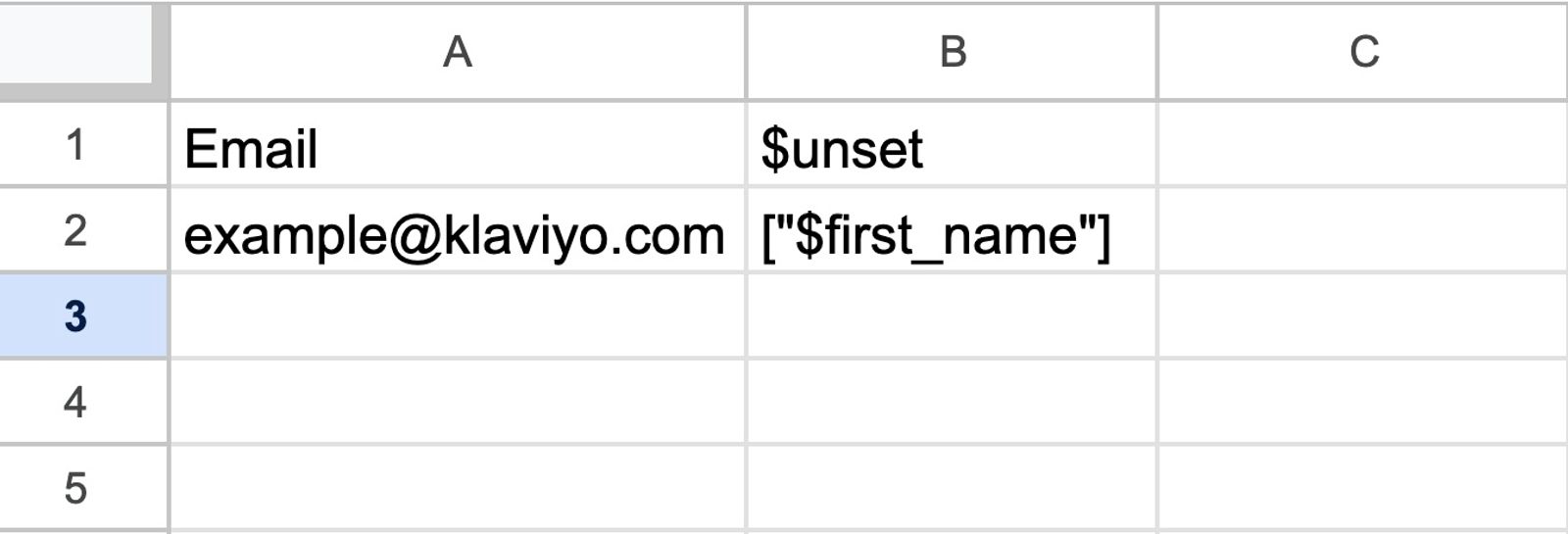
Once you have the exported CSV file, you’ll need to update it to match the following structure:
- The first column should have the header Email, with each row corresponding to the email address of a profile that will have the property removed.
- The second column should have the header $unset, with each row containing the names of properties to be removed. Use square brackets and straight double quotes, for example, ["Favorite Color", "Preferred Size"]. Enter this list in a single cell and match each property name’s spelling and capitalization exactly.
To unset a native Klaviyo property, add the prefix $. For example, to unset the Klaviyo property city, use $city in your CSV file.
Choose a list that does not trigger flows if you only want to update profile properties. Importing can add profiles to the list and trigger its flows.
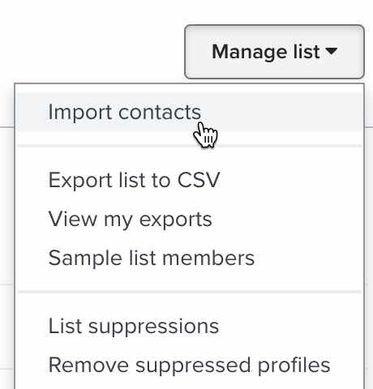
- Open the new or existing list you want to upload the profiles to. Select Manage list > Import contacts, upload your CSV file, then select Next.
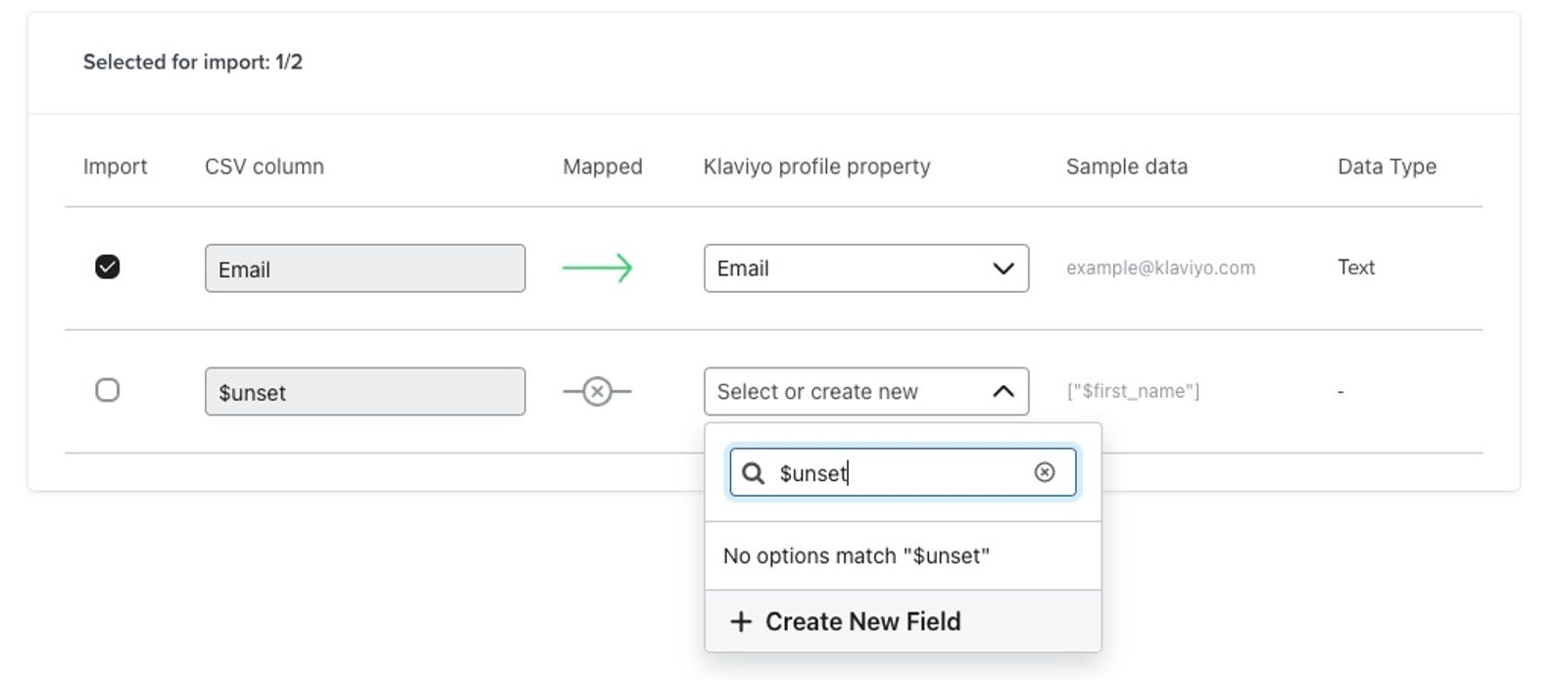
- On the Import contacts page, map the Email column to Email and the column containing your property names to $unset. Set the $unset column’s data type to List.
If $unset is not available in the property dropdown, select Create New Field. Enter $unset as the Profile property name, choose List as the data type, then select Create.
- Once you are done mapping, select Next to continue to the consent step.
- Select Only import the consent in my file to update properties without applying bulk consent. Then select Import.
- Wait for the import to finish. The properties will be removed from profiles whose rows were successfully imported. Open an affected profile to confirm the properties were removed.
Additional resources
- Profile properties reference
Learn about the difference between custom and Klaviyo properties, how to use them to track information about your subscribers, how to remove them, best practices, and more.
- How to export a list or segment to a CSV file
Learn how to export any list or segment in Klaviyo to a CSV file.