How to combine 2 or more lists in Klaviyo
You will learn
Learn how to merge 2 or more lists in Klaviyo. We recommend maintaining 1 list per channel to streamline list cleaning, stay organized, and better understand your audience. Merging lists allows you to clean up your account and remove unnecessary lists without sacrificing data.
Key terms
- Source list
The list of contacts that will be merged into the destination list. - Destination list
The primary list that contacts will be merged into. Use this as your main list for that channel moving forward.
Before you begin
Merging lists does not change anyone’s subscription consent or send double opt-in messages.
Before merging lists, review the following connections. Update forms, filters, and integrations to use your destination list:
- Change List to Submit to your destination list for any sign-up forms.
- Edit any flow filters or segment conditions that reference the source list.
- Update any integrations that sync contacts to the source list.
- Review any flows triggered by a source list before deleting it. Deleting the list disables those flows.
- Review any scheduled campaigns that use a source list before deleting it. Deleting a list does not cancel a campaign or reliably remove its contacts from a send whose recipients are already finalized.
Merge 2 or more lists
- Navigate to Audience > Lists & segments.
- Select your intended source list (the list you want to move contacts away from).
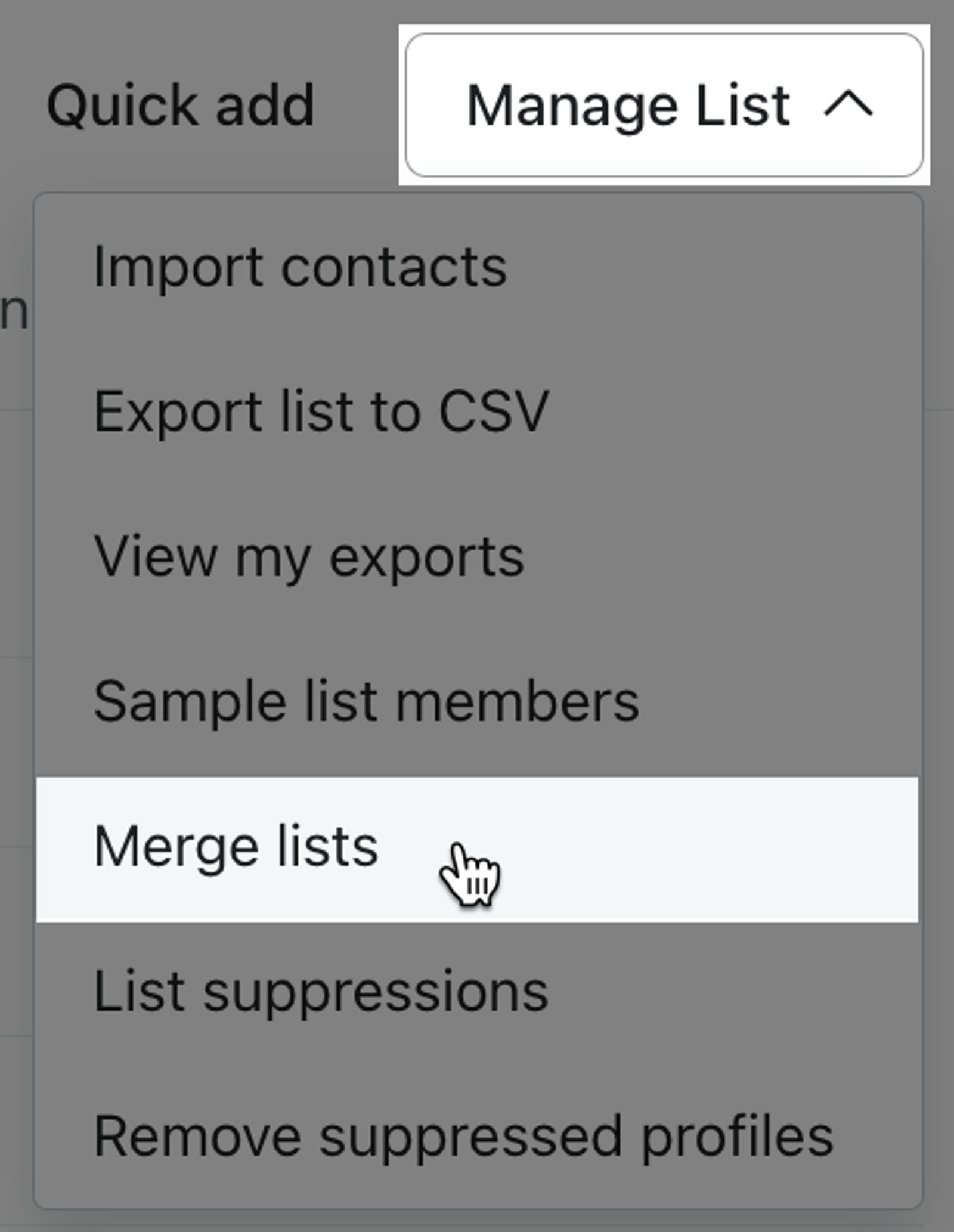
- Open the Manage list dropdown.
- Select Merge lists.
- If desired, select additional source lists, up to 5 source lists in total, including the list you opened.
- Choose a destination list. All contacts from your source list(s) will be added to the destination list.
- Choose No, keep source lists or Yes, delete source lists.
- If you keep your source lists, contacts added to them after the merge will not be added to the destination list.
- If you choose to delete the source lists, no profile data will be lost, but you cannot restore those lists from your account. Select the checkbox labeled I acknowledge that I would like to delete these lists.
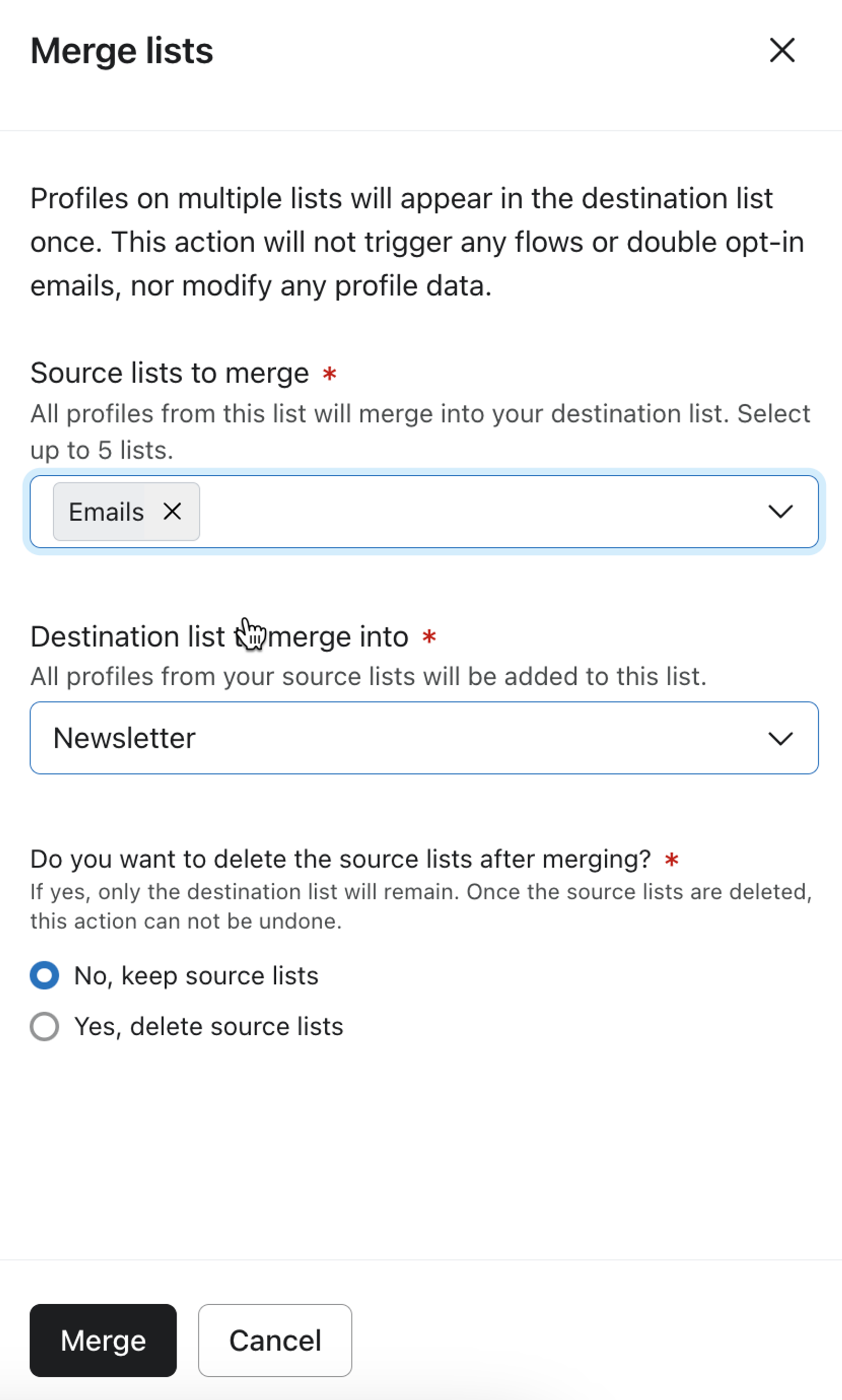
- Click Merge.
The merging process may take several minutes. When it finishes, Klaviyo opens the destination list and displays a success message.
Frequently asked questions
Why can’t I select my list?
Only lists, not segments, can be merged. A list selected as a source will not appear in the destination dropdown, and the selected destination will not appear in the source dropdown.
You must be below your account’s list limit to create or convert a list. Converting a segment to a list is permanent, and the list will no longer dynamically update as contacts meet the former segment’s criteria. To convert it, open the segment, select Manage segment > Convert to list, then click Convert to list in the confirmation window. Converting a segment to a list does not update any members’ consent or send double opt-in messages.
To merge a segment’s current members while keeping the original segment:
- Open the segment and select Manage segment > Create list of current members.
- Enter a List name, then click Create list.
- Wait for the new list to finish populating, then use it as a source list in the merge steps above. The original segment continues to update; the new list does not update as the segment changes.
What happens if a profile is on more than 1 of the lists being merged?
During the merge, Klaviyo de-duplicates your lists and ensures each contact only appears once. All profile and event data is maintained during the merge.
Once the merge is complete, every contact from both the source and destination lists will appear in the destination list exactly once.
What if I want to merge more than 5 source lists?
Merge up to 5 source lists at a time. To merge more lists, wait for the first merge to finish, then repeat the process with the additional source lists and the same destination list.
Will merging lists trigger my welcome flow?
No, merging lists will not trigger the welcome flow (or any list-triggered flows) for any profiles that get added to that list. Use the Add past profiles button to send the flow to these contacts.
How can I undo a merge?
There is no undo action for a list merge. You can still remove individual contacts from the destination list, but this does not restore the lists to their previous state. If you delete your source lists, you cannot restore them from your account.
What happens if a list is deleted while a campaign is scheduled to send to that list?
Deleting a list does not cancel a scheduled campaign. Klaviyo finalizes campaign recipients once, either when you schedule the campaign or shortly before sending starts, depending on the scheduling option. Deleting a source list after recipients are finalized does not remove those contacts from that campaign’s audience.
For example, a campaign is scheduled to send to List A, List B, and Segment C. If List A is deleted after recipients are finalized, contacts selected from List A can still receive the campaign. If sending has already started, some messages may already have been delivered.
To stop the send, cancel the scheduled or sending campaign. Cancellation cannot recall messages already delivered.
Additional resources
- Understanding the benefits of having a main list for each marketing channel
Learn about the benefits of using one main list per marketing channel (e.g., SMS and email) and how to organize your lists in Klaviyo. Additionally, see the tools you can use to identify and target subscribers based on their behavior or how they subscribed.
- Getting started with segments
Learn how to create and use segments in Klaviyo, which are a powerful tool for understanding your audience and sending targeted messages.
- Email list hygiene: Best practices for a clean subscriber list