How to add a product block to an email
You will learn
Learn how to add a product block to an email, choose products manually or use a dynamic product feed, and style the block.
Product blocks do not support any custom HTML. If you want to custom code your product block, you'll need to use an HTML template and manually insert product information. Product blocks can display unique items from your catalog and select items at the product level, not the variant level. Individual variants cannot be selected in product blocks.
To add a standard product block to a custom HTML email, create a hybrid email template.
The product block feature is available by default for the ecommerce platforms listed in our article How to use product feeds and recommendations. If you use an ecommerce platform that is not listed there, you'll need to sync your product catalog into Klaviyo by following our guide, Sync a custom catalog feed to Klaviyo.
Add a product block to an email
- Open the email where you want to insert a product block.
- Drag a Product block into your email.
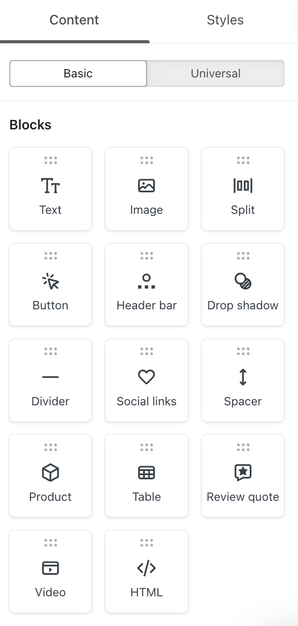
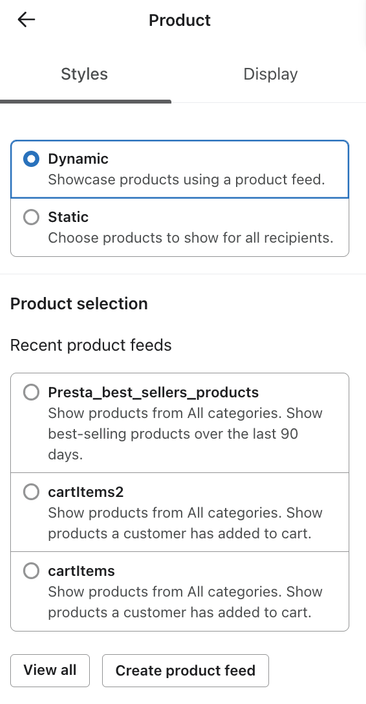
- Choose a product block type:
- Dynamic
Dynamic product blocks show products based on business trends (e.g., best-sellers in the last 90 days) or customized to each recipient based on what Klaviyo predicts they will be most interested in. Learn how to create a dynamic product feed below. - Static
Static product blocks show a set list of items that you select.
- Dynamic
- Follow the instructions below for the product block type you chose.
Use a dynamic product feed
Select an existing product feed
- Select Dynamic in the product block settings.
- Click View all, or Change selection if a feed is already selected.
- Choose a product feed, then click Select product feed.
Create a new product feed
- Select Dynamic in the product block settings.
- Click Create product feed.
- Enter a descriptive name for your product feed, like RECENTLY_VIEWED_PRODUCTS. Use only letters, numbers, and underscores.
- If you have more than 1 catalog, select the catalog to use for this feed.
- Set the criteria for your product feed. You can choose to show products based on overall performance (e.g., best-selling products) or recipient behavior (e.g., recently viewed items). If prompted, choose a fallback for recipients with limited history. Learn more about product feed settings.
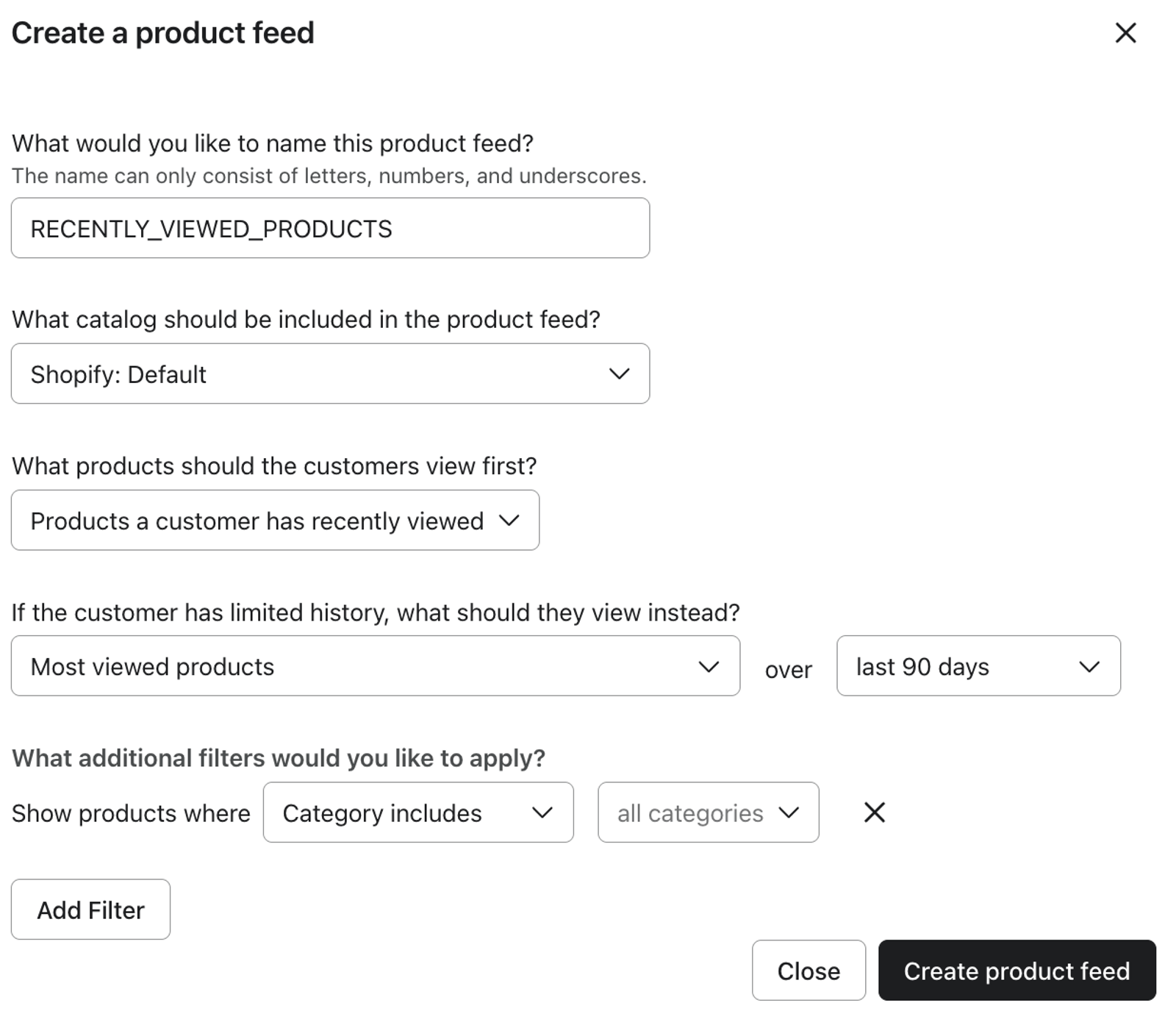
- Click Create product feed. The new feed is selected for your product block.
After selecting or creating a feed, use Product details to choose which details to display. Under Layout, choose Products per row and Number of rows for a horizontal layout, or Number of items for a vertical layout. For example, 2 rows with 3 products per row display up to 6 products.
To edit a product feed after you’ve created it, navigate to Content > Products > Product feed. Select your feed, make your changes, then click Save Product Feed.
This option is great for automated email flows, as it reduces the need to edit your messages frequently. With product feeds, you can curate the right items to feature based on your feed's definition, so your most popular and trending items will be included in your flow emails even as trends shift.
For Shopify stores, products are excluded from feeds when all their variants are out of stock and don’t allow continued selling. Products with a variant that allows continued selling can remain in feeds at 0 inventory. Magento also excludes out-of-stock products; for Magento 2, this applies when inventory tracking is enabled.
Dynamic product blocks show placeholder items while you edit the template. Use the email preview to see real products from your catalog, including personalized recommendations for the profile you select.
Manually select products from your catalog
If you manually select products for a message that won't send right away (i.e., a flow email or a campaign scheduled for a future date), item details will not update dynamically at send time when Localize for recipient is turned off, even if you edit the product details on your site. To keep catalog details up to date at send time, first create a feed containing those items, then use the Dynamic option to display them. If you use localized catalogs, you can also enable Localize for recipient in a static product block, as explained below.
To hand-pick products for a campaign or flow email:
- Select Static in the product block settings.
- Click Add products.
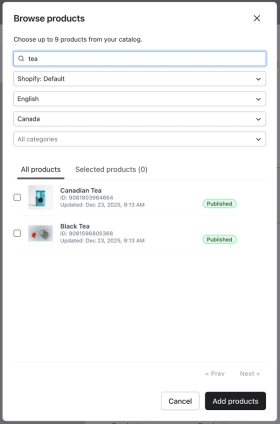
- Browse your product catalog and select up to 9 items. If you use localized catalogs, choose a language and region before selecting products to use that localized product information.
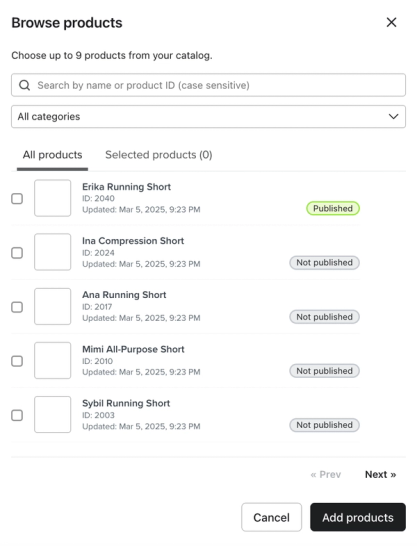
- When you’ve selected 1 or more items, click Add products.
If you use custom descriptions, we recommend keeping each description under 120 characters. Keep your descriptions for each item a similar length to avoid alignment issues with this block in your email. Custom descriptions are only supported for static product blocks.
If you use localized catalogs with Shopify Markets enabled, the Localize for recipient checkbox appears in your static product block settings after you add products. Check it to localize your selected products at send time.
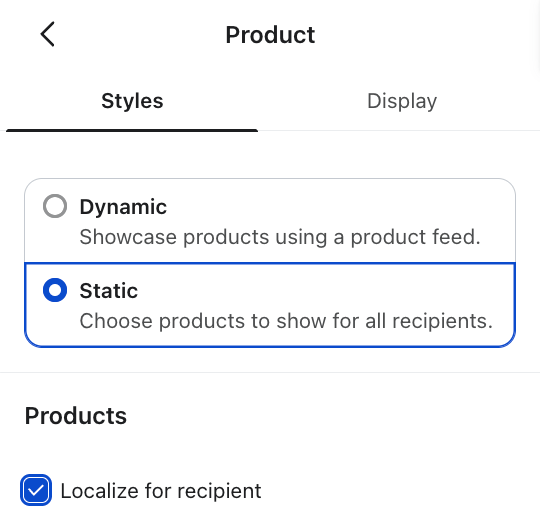
When Localize for recipient is enabled, the products in your static product block will automatically display localized pricing, currency, and product information that matches each recipient's language and region at send time. This means a single email can show USD pricing to a recipient in the United States, GBP pricing to a recipient in the United Kingdom, and AUD pricing to a recipient in Australia without creating separate emails or product blocks for each market.
If the recipient’s locale or localized product data is unavailable, Klaviyo uses the language and region selected for the block. If you did not select a language and region, it uses your Klaviyo account locale. If no localized version is available for that fallback, Klaviyo uses the base catalog information.
You can uncheck Localize for recipient if you want all recipients to see the same product information regardless of their region. You can manually select localized versions of your products with localized product information including title, price, and URL by choosing a language and region when adding products to the block.
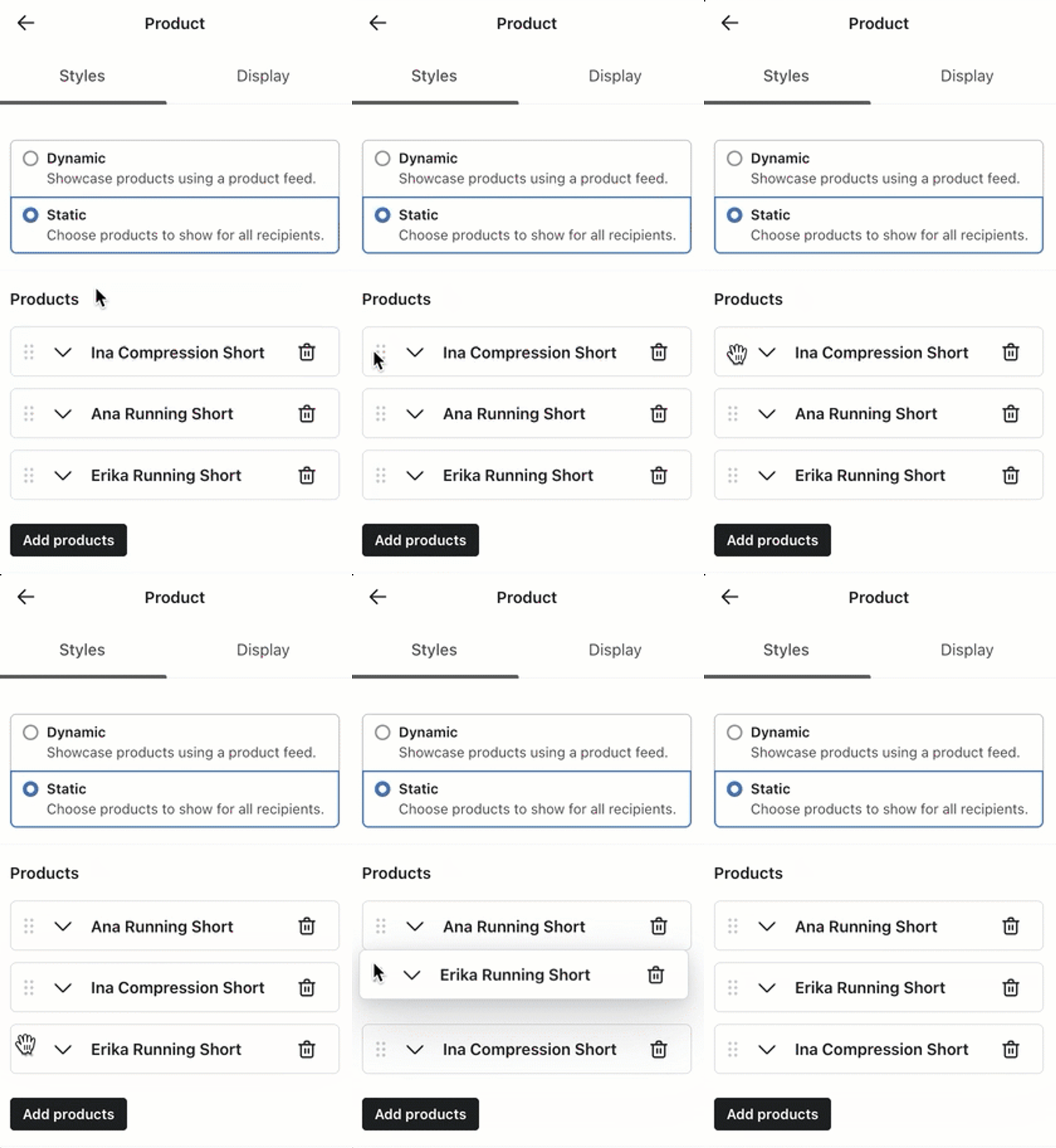
After you select 1 or more products to feature, you may want to rearrange how the items appear in your template. Drag the items in the product block settings to reorder them.
Style a product block
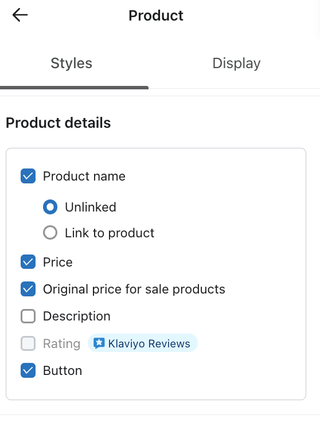
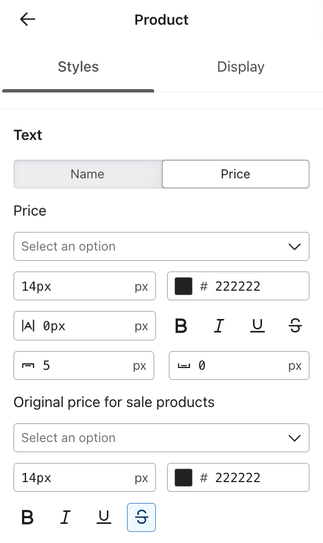
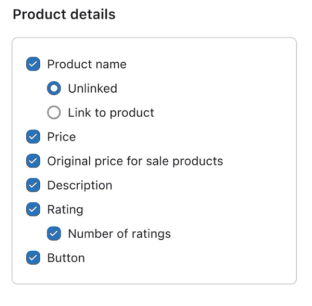
To adjust the appearance of a product block, head to that block's Styles tab. Here, you can choose which product details appear (e.g., product name, price, original price for sale products, etc.) and how they are styled, including font style, size, and color.
Original price for sale products
In the product block’s Styles tab, select Price, then Original price for sale products to display the original price with a strikethrough next to the sale price.
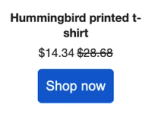
For dynamic product blocks, this setting is available for Shopify, BigCommerce, WooCommerce, and PrestaShop catalogs. Klaviyo fills in the original price from the catalog when it is available. In a static product block, you can also edit the Original price field for each selected product. You can style the original price independently of the sale price.
Show a product's rating
Klaviyo Reviews must be enabled to show product ratings. In the Styles tab, select Rating under Product details to display the product’s average rating. Select Rating count to show how many ratings it has received. Learn how to show product ratings in emails with a product block.
Preview the product block
- Click Preview in the email editor.
- Select a preview profile and review the products, prices, and links. If you use personalized recommendations or Localize for recipient, check profiles with different product histories or locales.
- Click Done to close the preview.