How to use product feeds and recommendations
Learn how to create a product feed in Klaviyo in order to use product recommendations in your messaging. Product feeds take in data from your product catalog and customer behavior (e.g., the products they’ve viewed or purchased in the past) and use this information to provide custom product recommendations for your subscribers.
Product blocks are only supported in Klaviyo's drag-and-drop and hybrid email editors. To add a product block to a custom HTML email, create a hybrid email.
Key terms
- Catalog
A catalog is a list of your products synced from your ecommerce integration into Klaviyo. View your catalog by clicking Content > Products in the Klaviyo sidebar.
Product catalog limits
- Item limit: 250,000
- Product variant limit: 500,000
- Category limit: 2,500
To request a limit raise, reach out to the Klaviyo support team.
- Custom catalog
A custom catalog is any catalog synced to Klaviyo through the custom catalog process or via API, rather than through a built-in Klaviyo ecommerce integration. - Product feed
Product feeds are sets of products selected based on rules you set in Klaviyo. You can choose to include or exclude products from a feed based on category, price, stock level, and how your customers have engaged with your products. - Product block
A product block is a type of block used in a Klaviyo email template. When you add a product block to a template, you can choose which product feed it should display products from, or manually select specific products.
Before you begin
Custom catalog feeds do not support OAuth authentication.
Product feeds are available by default for the following ecommerce integrations:
- Shopify
- WooCommerce
- For WooCommerce catalogs, whether an item is treated as published is based on the product’s stock_status rather than its WordPress post status. A product can remain eligible for recommendations if it is still instock, even if its WordPress post status is Draft, Pending, Private, and in some cases Trash. To guarantee the product is not published in Klaviyo, set the stock_status field to outofstock.
- BigCommerce
- Magento 1 and 2
- PrestaShop
- For all PrestaShop integrations created after January 25, 2023, product prices synced to your Klaviyo product catalog via the PrestaShop integration include VAT.
- Salesforce Commerce Cloud
- Spree
- Square
- Wix
- Mi9
- Shift4Shop
If you use an ecommerce platform that is not listed above, sync your product catalog into Klaviyo by following our guide on how to sync a custom catalog feed to Klaviyo, or via API.
The following will not appear in product recommendations:
- Items without associated images
- Items that have already been purchased by the recipient
- Out-of-stock items that your catalog marks as unavailable. Custom catalog feeds can allow out-of-stock items, depending on their inventory policy. See the custom catalog inventory settings.
- Items in the flow trigger event for a given email
Recommendations based on viewed products are not available if you have not yet set up Viewed Product tracking. Learn how to set up Viewed Product tracking for your ecommerce store.
The option to base recommendations on “Products a customer has added to cart” is informed by either the Added to Cart or Checkout Started metric in your account. If you have not set up Added to Cart tracking (which is tracked automatically for most ecommerce platforms, but must be manually enabled for Shopify and BigCommerce) those recommendations will only rely on Checkout Started.
Configure a product feed
- In Klaviyo, select Content in the left hand menu.
- In the dropdown, click Products.
- Select the Product feed tab, then click Create feed.
- Name your feed. Use a descriptive, unique name of up to 64 characters, containing only letters, numbers, and underscores, with no spaces. Do not begin the name with an underscore (_).
- If you have more than one catalog in your Klaviyo account, select the catalog you intend to use. If you only have one catalog, you will not see this option.
- Under What products should the customers view first?, select an option from the dropdown. You can choose an option that is Classic or Personalized for each customer. Note that Products a customer has recently viewed and Products a customer has added to cart will look at the last 90 days.
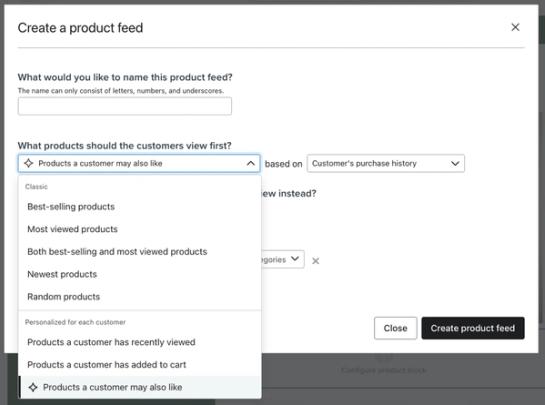
- Depending on what option you select, you may be prompted to choose an additional filter. For instance, Products a customer may also like can be informed by a number of metrics, such as a customer’s view or purchase history. For some other options (such as Best-selling products) you can choose the timeframe to be over the last 3 days or over the last 90 days.
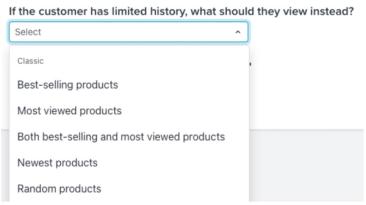
- If you selected an option under Personalized for each customer, you’ll be prompted with an additional question: If the customer has limited history, what should they view instead? Choose an option from the dropdown for this default. Note that these defaults are across all customers and are not personalized.
- Optionally, select filters under What additional filters would you like to apply?
- You can filter based on category includes or category excludes. When selecting category includes or category excludes, you can select one or multiple categories for the input. When selecting either option, you can also choose whether to match any of or all of the selected categories.
- Any of means items that match at least one of the selected categories will be included or excluded (an OR condition).
- All of means items that match every selected category will be included or excluded (an AND condition).
- You can select one or multiple categories for each filter input. When multiple categories are selected and any of is chosen, any item belonging to at least one of the selected categories will be included. When all of is selected, only items that belong to all selected categories will be included.
In the includes and all of example below, any item in both the Tshirts and Grey category will be included.
In the excludes and any of example below, if an item is either a Tshirt or Grey, it will be excluded. For example, both grey pants and red tshirts would be excluded, but red pants would be included.
- You can filter based on category includes or category excludes. When selecting category includes or category excludes, you can select one or multiple categories for the input. When selecting either option, you can also choose whether to match any of or all of the selected categories.


- You can filter based on Stock level. For both Stock level and Price, enter a minimum, maximum, or both, and make sure the maximum is not lower than the minimum. Leave a field blank to apply no limit in that direction. If you enter a minimum stock level, it must be greater than 0.
- You can filter based on Price and set a minimum and maximum.
- You can add multiple filters by clicking Add Filter and making another selection.
- When you’re finished configuring your feed, click Save Product Feed.
Use a product feed in an email
- Open an email in Klaviyo (i.e., an email template, unsent campaign, or flow email).
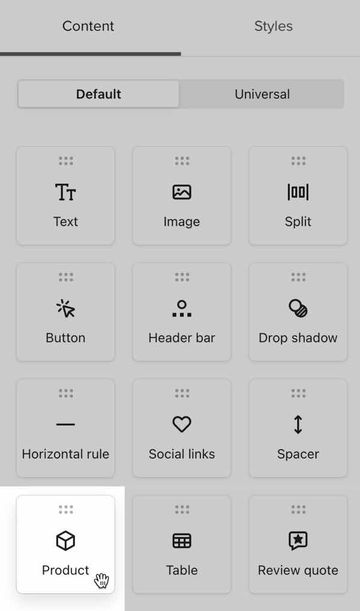
- Drag a Product block into your email.
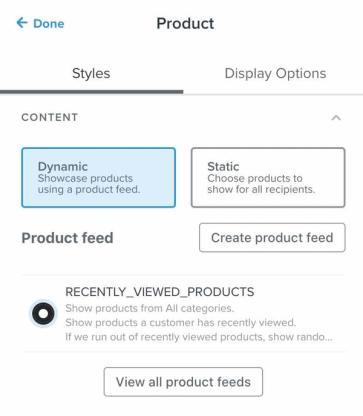
- In the product block’s Styles tab, leave the product selection set to Dynamic (the default setting).
- Select a feed under Recent product feeds. To choose another feed, click View all, select the feed, then click Select product feed. If a feed is already selected, click Change selection to choose a different one.
- Under Product details, choose which product details to display. Options include the item’s title, item’s price, and a customizable button. If all of these options are toggled off, each product’s image will appear without accompanying text. For more details on all available settings, check out our article How to insert a product block.
- Under Layout, choose how many products to display. For a horizontal layout, set Number of rows and Products per row. Multiply them to calculate the maximum number of products shown (e.g., 2 rows with 3 products per row can display 6 products, and 1 row with 1 product per row can display 1 product). For a vertical layout, set Number of items. Fewer products appear if the feed does not return enough eligible items.
- Adjust any other color, font, and style settings as desired.
- Click Preview to see a preview of your message with products from your catalog. If you aren’t seeing the results you expect, head to the FAQs section below for troubleshooting help.
You can select any existing product feed or create a new one from within the template editor. To edit an existing product feed, navigate to Content > Products, select the Product feed tab, and click the feed’s name. Make your changes, then click Save Product Feed.
Product feed use cases
Below are examples of how you can use a product feed in your emails.
Product feed above footer
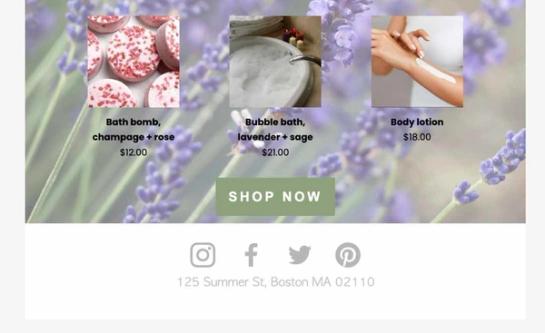
Consider including a small product feed (e.g., 1 row with 3 items) at the end of your email content. These recommendations can serve as a final opportunity for a recipient to click through to your website if they’ve read to the bottom of your email and still haven’t converted. Use a feed based on products a customer may also like, or a feed of your most popular products.
Browse abandonment flow email
Use a product feed based on the items someone has recently viewed in your browse abandonment flow. This can encourage casual site visitors to return and complete an order they were considering previously. The product that triggered the browse abandonment flow is excluded from the feed, so use the feed to show other recently viewed products. Learn how to insert recently viewed items into an email.
Welcome email featuring bestsellers
Consider adding a product feed with your best-selling products to your welcome flow. This can help introduce new subscribers to the products your customers love the most. Because you’re using a dynamic feed (rather than manually inserting products), the items shown will automatically update throughout the year based on stock levels and customer trends.
FAQs
My feed is set to be personalized for each customer. Why is my product block showing the same product to all recipients?
When dynamic recommendations aren’t available, Klaviyo falls back to the secondary recommender you’ve selected (i.e., best-selling or most viewed products). This can happen when:
- An email recipient doesn’t have enough data for us to provide personalized recommendations.
- For Products a customer may also like, the recommendation model may not yet be fully trained. It typically takes 2 days to 1 week for Klaviyo’s systems to train the model.
- For Products a customer may also like, your Viewed Product or Ordered Product events are very recent. These recommendation models are generally trained once every 2-7 days, depending on use. It may take a few days for the recommendation model to consider brand-new events.
What integrations support the price and inventory filters?
We support price and inventory filters for the following integrations:
- Shopify
- BigCommerce
- Magento 2
- Wix
Price and inventory filters are available for variants in custom catalogs as well.
How does the “Newest products” recommender work? What date does it use to sort products?
Newest products prioritizes products most recently added to your Klaviyo catalog. When you first sync your catalog, the initial import order may not reflect which products are newest in your store. Once you’ve added new items after that initial sync, the feed can prioritize those items.
This also means that items will not be prioritized by the recommender just because they’ve been “updated” or have recently come back in stock. This recommender will only prioritize net new products added to your catalog.
I applied a price or inventory filter, but I see an item in the product block that is outside the range I specified. Why is this?
Filters apply to variants, but product blocks render items. If the sum of the inventory for all variants of a product is above the threshold of the filter, it is eligible to show within a product block. Items have default images and prices, so it’s possible an item will show an image and price of a variant that doesn’t exactly match the price or inventory filter.
What currency do the price filters use?
It depends on how the item was configured in your ecommerce platform. Klaviyo will use whatever currency value the catalog uses.
Where are web feeds?
If you are looking to set up a web feed (instead of a product feed), click your account name in the lower left corner, then navigate to Settings > Other > Web feeds. From here, you can add a new web feed.
What happened to “trending?”
The "trending" option is now expressed as a look back window of "3 days." Any option that uses "over the past 3 days" will be a version of the old "Trending" order.
I’m using some custom statistics to power product recommendations. Will these be compatible with the new experience?
Yes. For details, please refer to our developer portal article, Sync a custom catalog feed to Klaviyo.
How does the “Recently viewed” recommender work?
We use a model that weighs both recency and frequency of views to order the products. This means that if a customer viewed a product 5 times yesterday, and a different product once today, we may still prioritize the product they viewed 5 times because we take view frequency into account.
How is "Best-selling" calculated?
Best-selling products are identified based on purchase activity. The last 90 days option ranks products by the number of Ordered Product events. The last 3 days option gives more weight to recent purchases. An item's purchase price is not taken into consideration when identifying best-selling products.
How are "Products a customer may also like" determined?
"Products a customer may also like" uses AI to suggest products a recipient may be interested in. Klaviyo uses collaborative filtering to predict what a recipient is likely to buy next, based on the view history, purchase history, or both that you select, and how their behavior is similar to other customers. While the model may include products someone has viewed, it doesn't exclusively show these products. The model takes a look at the behavior of other customers in your account - for instance, if Klaviyo sees customers have commonly viewed products A, B, and C together, and a given customer has only viewed A and B, then we may recommend product C.
Additional resources
- How to add a product block to an email
Learn how to insert a product block into Klaviyo emails in order to dynamically show your best-selling or most popular products.