How to integrate with Spree
You will learn
Learn how to integrate Spree with Klaviyo. After completing these steps, you'll be able to personalize and target emails based on each customer's purchases and website activity. Here's the data we sync from Spree:
- Sales and order data including which products were purchased, product images, variant details and any discounts applied
- Customer information including first name, last name, and location
- Fulfilled order data
A security patch pushed for Spree versions 2.2.14, 2.3.13, 2.4.10, and 3.0.4 forces searchable parameters to be allowlisted. The updated_at property of products and orders was not included in the default allowlist. Klaviyo's integration relies on this parameter, and thus you will need to push an update to allowlist this property to ensure your integration runs smoothly. If you don't allowlist the updated_at property for orders, Started Checkout events may not sync until an order is placed.
Add the Spree integration in Klaviyo
- In Klaviyo, select the Integrations tab.
- Click Explore apps, search for Spree, and click the card. Then, click Install.
- On the next page, you'll need to provide your Store URL and a Spree API key / Encrypted Password. You can generate this API key in your Spree admin by navigating to Users, choosing an account, and then selecting Generate API Key.
- Back in Klaviyo, paste your Store URL and API key/encrypted password in the boxes.
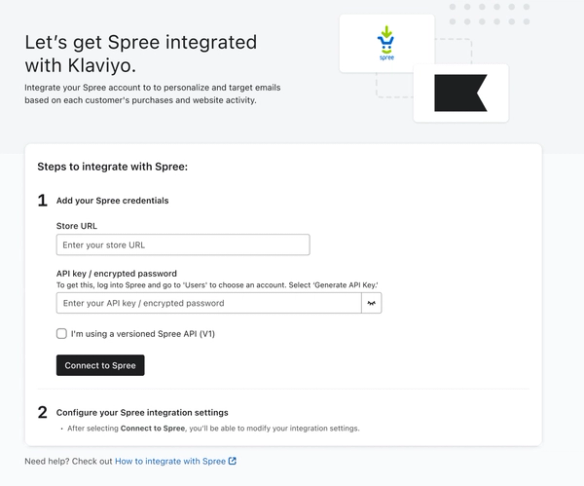
- If you are using a versioned Spree API (V1), check I'm using a versioned Spree API (V1).
- Click Connect to Spree.
The list setting below adds customers synced from Spree orders and checkouts without checking their email opt-in status in Spree. List membership does not establish email consent.
- Optional: To add synced Spree customers to a Klaviyo list, check Add new Spree customers to a Klaviyo list on the next page, then select the list.
- When you're ready, click Complete setup. You should then see a success message indicating you have integrated successfully.
Install Klaviyo onsite tracking
To install onsite tracking for Active on Site and Viewed Product, first find your public API key. Log in to your Klaviyo account and go to Account name > Settings > API keys. Your public key is 6 characters long. Securely copy this key for use in the next step.
There are 2 types of onsite tracking you can leverage:
- Active on Site
This metric is tracked whenever an identifiable browser visits your website - Viewed Product
This metric is tracked whenever an identifiable browser views a product page on your website
"Active on Site" tracking
This metric is tracked whenever an identifiable browser visits your website.
- To begin tracking Active on Site activity, add the following snippet of code to your main store template so it's included on all pages. You should place this snippet either with other analytics scripts you use or right before the closing </body> tag.
- Make sure to replace
PUBLIC_API_KEYwith your Klaviyo account's Public API key:
<script type="text/javascript" async="" src="https://static.klaviyo.com/onsite/js/klaviyo.js?company_id=PUBLIC_API_KEY"></script>
<script type="text/javascript">
//Initialize the Klaviyo object on page load
!function(){if(!window.klaviyo){window._klOnsite=window._klOnsite||[];try{window.klaviyo=new Proxy({},{get:function(n,i){return"push"===i?function(){var n;(n=window._klOnsite).push.apply(n,arguments)}:function(){for(var n=arguments.length,o=new Array(n),w=0;w<n;w++)o[w]=arguments[w];var t="function"==typeof o[o.length-1]?o.pop():void 0,e=new Promise((function(n){window._klOnsite.push([i].concat(o,[function(i){t&&t(i),n(i)}]))}));return e}}})}catch(n){window.klaviyo=window.klaviyo||[],window.klaviyo.push=function(){var n;(n=window._klOnsite).push.apply(n,arguments)}}}}(); </script>- Optional: To identify customers when they log in to your store, add a
klaviyo.identify()call with the logged-in customer's email address and, if available, first and last name. Use your store's template language to include this call only when the visitor is logged in. See the onsite tracking guide for more about custom tracking for logged-in users. - Save and publish your store template. This tracking code records Active on Site events for known browsers so you can use data about site visits and visitor behavior in Klaviyo.
- To test that your onsite tracking is set up properly, go to a page in your store and add
?utm_email=email@example.comto the end of the URL, replacing email@example.com with your email address. If the URL already contains a question mark, use&utm_email=email@example.cominstead. Reload the page, then search for your email address in Klaviyo. Open your profile and check for an Active on Site event.
"Viewed Product" tracking
If you'd like to set up a browse abandonment flow or build segments based on product browsing data, you'll want to add JavaScript event tracking for a Viewed Product metric.
- On your product page template, add the following example after the main onsite tracking snippet. Adapt the placeholders to your store before publishing:
<script type="text/javascript">
 var klaviyo = window.klaviyo || [];
 klaviyo.track("Viewed Product", {
    Title: '{{ product.name }}',
    ItemId: {{ product.id }},
    Categories: {{ category in product.categories|json }}, // The list of categories is an array of strings.
    ImageUrl: '{{ product.image_url }}',
    Url: '{{ product.permalink }}',
    Metadata: {
    Brand: '{{ product.brand }}',
    Price: {{ product.price }},
    OnSale: {{ product.on_sale }},
    RegularPrice: {{ product.regular_price }},
    SalePrice: {{ product.sale_price }}
 }
 });
</script>- Replace the
{{ }}placeholders with values rendered dynamically for the product being viewed, using your store's template language. JSON-encode dynamic strings and arrays so quotes in product names do not break the JavaScript. Remove the example’s surrounding quotes when inserting JSON-encoded values. RenderCategoriesas an array of strings, and render prices and sale status as valid JavaScript values. - Save and publish your product page template. To test it, identify your browser using the email-address test above, then visit a product page and check your Klaviyo profile for a Viewed Product event. Once configured, this data will populate as known visitors browse your product pages.
When adding product details to a browse abandonment email, use the property names from your own Viewed Product event. In the example above, the product title is Title, the image is ImageUrl, and the price is Metadata.Price.
How onsite tracking works
Klaviyo uses an identified browser to associate onsite activity with a profile. A previous visit alone does not identify a browser. There are 2 common ways Klaviyo can identify a site visitor:
- If someone has, at some point, clicked through a Klaviyo email to your website
- If someone has, at some point, subscribed/opted-in through a Klaviyo form
When anonymous visitor activity backfill is enabled, Klaviyo can store onsite events in the visitor's browser before identification and add them to their profile once they are identified. This requires browser local storage to be available. Learn about anonymous visitor activity backfill.
Monitor the Klaviyo sync
To check your integration:
- Open Integrations, select Spree, then select Data. Under Historical data, review the sync progress. When the import finishes, the card confirms that your historical data has synced.
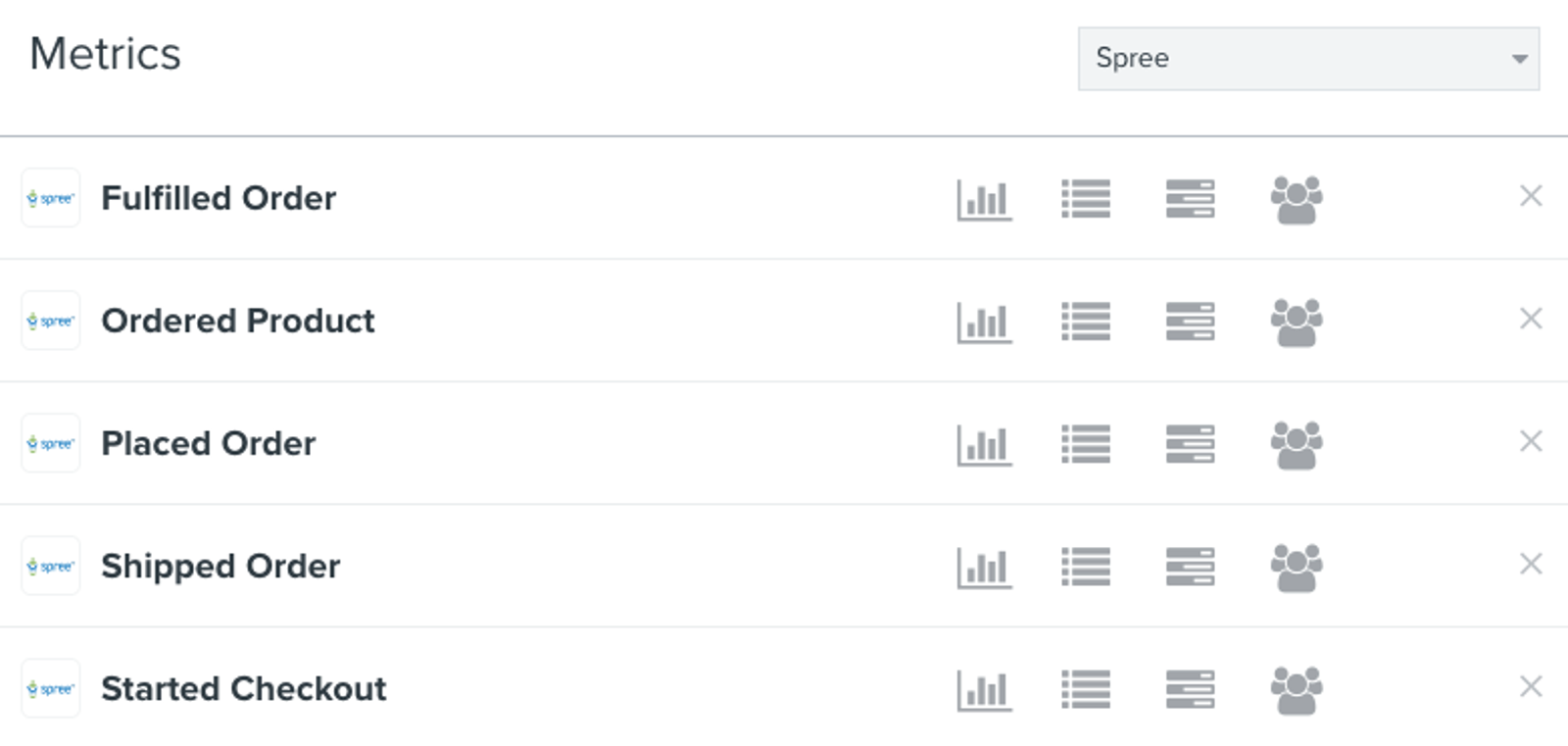
- Click the Analytics dropdown in Klaviyo and select Metrics. Here, you can filter to view all Spree metrics.
- Open Spree's Placed Order metric, then select the Activity feed tab. If your integration has begun syncing data, you will see Placed Order events here.
- Klaviyo automatically imports historical order data. Once that import is complete, select the Chart tab for Placed Order. Choose a Date range that includes the day you want to check, set View by to Daily, and set Measurement to Total. For example, hover over yesterday's data point or use the table below the chart to see how many orders were recorded yesterday.
- Compare that number with completed orders in Spree for the same day. Orders need a valid customer email address and at least 1 item to sync. If counts differ, confirm that the historical import has finished, allow for the hourly sync, and check that the Klaviyo and Spree time zones match.
- To check your timezone setting in Klaviyo:
- Click your account name in the lower left.
- Select Settings > Account.
- Scroll down to Time zone.
Data synced from Spree
The Spree integration syncs with Klaviyo every hour.
Below is a list of metrics that Spree syncs into Klaviyo. You can view all Spree metrics which sync into your account under Analytics > Metrics.
Placed Order
This metric records an event when an order in Spree is complete, meaning a customer has completed the checkout process. It does not confirm payment success. With this metric, you can easily create segments of people based on the number of orders they've placed or their lifetime value. You can also create emails to re-engage past customers or send customer thank you emails for first time buyers. You can filter and target Placed Order events based on the following criteria:
- IsDiscounted
If an order had a discount applied, e.g., true or false. - ItemNames
The names of the products purchased in this event.
Ordered Product
This metric is similar to the Placed Order metric, however an event is recorded for each unit of an item someone orders. For example, if someone purchased a t-shirt and a pair of shorts, this would appear in Klaviyo as 1 Placed Order event and 2 Ordered Product events, one for the t-shirt and one for the pair of shorts. This metric is useful for building segments that target customers who purchased (or have not purchased) specific items or items in specific categories. You can also use the Ordered Product metric as a trigger for flows to send emails about related products that naturally go together, but some customers haven't already bought.
- Categories
The categories the product ordered belongs to, e.g., Shirts, Mens or Sale. - Name
The name of the product purchased, e.g., Men's Red T-Shirt. - ProductId
The id of your product as it is set in your store, e.g., 2022, 2023, 2024. - Quantity
The quantity represented by this event, which is 1. An order for 3 units of the same product creates 3 Ordered Product events. - SKU
The SKU of the product as it is set in your store. - Variant Option: Color
The color of the product, if available, e.g., Red or Blue. - Variant Option: Size
The size of the product, if available, e.g., Medium or Large.
Fulfilled Order
This metric records an event when a completed order is marked as shipped in Spree. The event in Klaviyo includes the tracking number for any shipments, so you can use this metric as a trigger for shipping confirmation emails. Another common email based on the Fulfilled Order metric is the product review email, where you ask customers to leave a review for items they recently purchased. Using the Fulfilled Order metric lets you time these emails from shipment, but does not confirm delivery. Add a delay that allows time for delivery before sending a product review request. You can filter and target Fulfilled Order events based on the following criteria:
- IsDiscounted
If an order had a discount applied, e.g., true or false. - ItemNames
The names of the items purchased in this event.
Started Checkout
This metric records an event for a checkout with a valid customer email address and at least 1 item. The primary use for this metric is sending abandoned cart emails. With Klaviyo, you can easily set up an email flow to send a cart reminder if someone started to checkout but hasn't placed an order after a few hours. The Started Checkout event contains all the information about someone's cart, so you can show the products in their cart as well as images of those products. For more advanced users, you can set up 2 abandoned cart flows: one for first-time customers that includes a discount code, and one for repeat purchasers that doesn't include a discount code. You can filter and target Started Checkout events based on the following criteria:
- IsDiscounted
If an order had a discount applied, e.g., true or false. - ItemNames
The names of the items in the checkout cart.
Customer data
In addition to the metrics Klaviyo syncs from Spree, there are also customer properties that are added to Klaviyo profiles when available in the order data. You can use these properties in segments and flows. Here are the properties that are synced from Spree. Name, location, and phone details come from the order’s billing address:
- First Name
- Last Name
- City
- State/Region
- Zip Code
- Country
- Phone Number
Outcome
You've now integrated your Klaviyo account with Spree, installed onsite tracking, and reviewed your synced data.
Additional resources
- How often integrations sync reference
Learn what data syncs from a particular Klaviyo integration and how often the sync runs. We've organized these integrations by ecommerce platforms, email service providers, and other data integrations.
- Klaviyo's Agency Partners