How to change your attribution model
You will learn
Learn how to adjust your attribution lookback window settings, remove bot clicks and Apple Privacy opens from attribution, and preview attribution model changes.
Default message attribution settings
By default, Klaviyo uses a last touch attribution model with the following lookback windows for new accounts:
- 5 days for email clicks
- 5 days for email opens
- 5 days for text message clicks
- 1 day for text message opens (RCS only)
- 12 hours for text message deliveries
- 5 days for push opens
- 5 days for WhatsApp clicks
- 24 hours for WhatsApp opens
- 1 day for Active on site for non-Klaviyo platforms (Advanced KDP or Personalization customers; must be enabled separately)
However, you may find that you want to adjust these settings to better align with your customer behaviors or marketing strategies. The guide below provides a step-by-step walkthrough on adjusting your attribution settings for each channel.
Updating your attribution model
The standard limit is 3 saved attribution updates in 30 days. Use Compare model to explore changes before saving. If your role has read-only access, you can preview changes but cannot save them.
- Click on the account menu in the lower left of your account.
- Choose Settings from the menu.
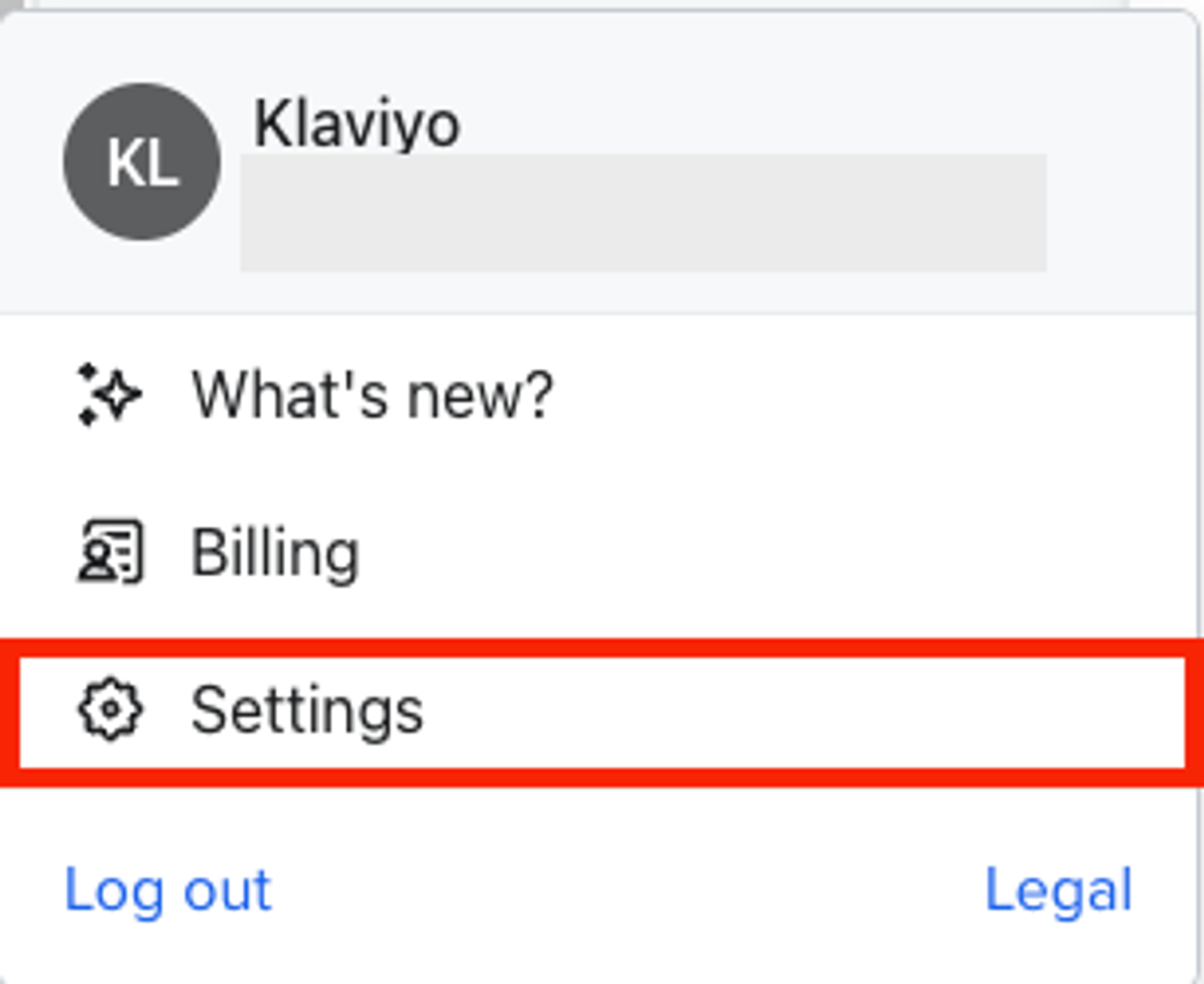
- Navigate to Attribution.
- In Attribution windows, expand a channel and select the checkboxes next to the interactions you want to include in attribution. Only channels available in your account appear.
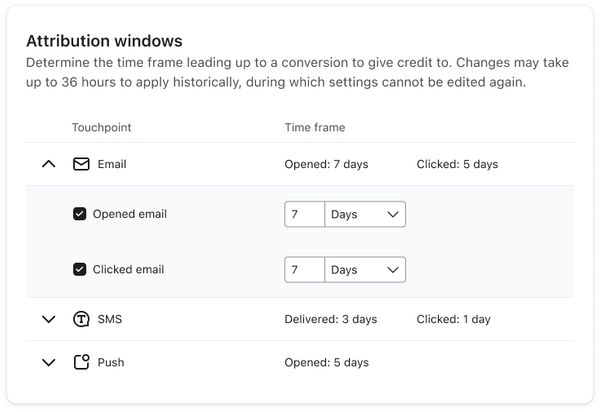
If you clear an interaction checkbox, Klaviyo will exclude that interaction from attribution. This does not turn off tracking for the channel.
- If you see Enable next to Non-Klaviyo platforms, select it, review the required tracking settings, and select Save in the setup panel. After the panel closes, continue below to finish and save your attribution changes.
- Optional: if you want to adjust the Time frame values, use the picker to add or subtract.
For any channels that have more than one option (i.e., SMS or email), it is advised to choose options that do not potentially skew your attribution data and marketing strategies. For example, selecting a longer email open window instead of clicks may introduce a bias towards opens, which may not be conclusive indicators of conversions.
- Optional: open the unit dropdown and choose Days or Hours. The standard maximum is 90 days or 2,160 hours. Check the value after changing units.
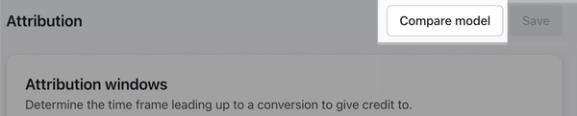
- Optional: select the Compare model button to preview your changes and how they may adjust your attributed performance tracking. Learn more in the section below about using the comparison tool.
- If you already selected Apply settings in the comparison tool, your changes are saved. Otherwise, select Save.
It can take up to 36 hours for your settings to be applied to historical data. You cannot edit the settings again until the update finishes.
Other attribution model settings
In Settings > Attribution, use Tracking and reporting data to select the types of interactions you want to exclude:
- Interactions with transactional messages
- Email bot clicks: Removes email bot clicks from your reporting and attribution. These include clicks made by third-party security software, certain inbox providers, etc.
- Text message bot clicks: Removes text message bot clicks from your reporting and attribution. These include clicks made by third-party security software, certain mobile carriers, etc.
- Apple Mail Privacy Protection (MPP) opens: Removes Apple Privacy Protection (MPP) opens from your attribution. Note that this does not include removal from reporting.
By default for all new accounts email and text message bot clicks are excluded from attribution and reporting.
Select Save after choosing your exclusions. Klaviyo will update your attribution data historically to reflect these changes.
Attribution that relies on email opens only reflects opens that Klaviyo records. If you turn off open tracking for your account, or set open tracking consent to unsubscribed for some recipients, those opens are not recorded and are not available for open-based attribution. For more, see How to manage open tracking.
Using the comparison tool
The Compare attribution models tool provides options for previewing potential changes to your attribution and bot click settings and how these will affect your performance reporting. This tool helps ensure any changes you make to your settings align with your brand’s measurement needs.
The comparison tool provides a snapshot of your performance tracking data based on a message's sent date. However, given this preview is reflective of that point in time, these may not match what your actual reporting shows.
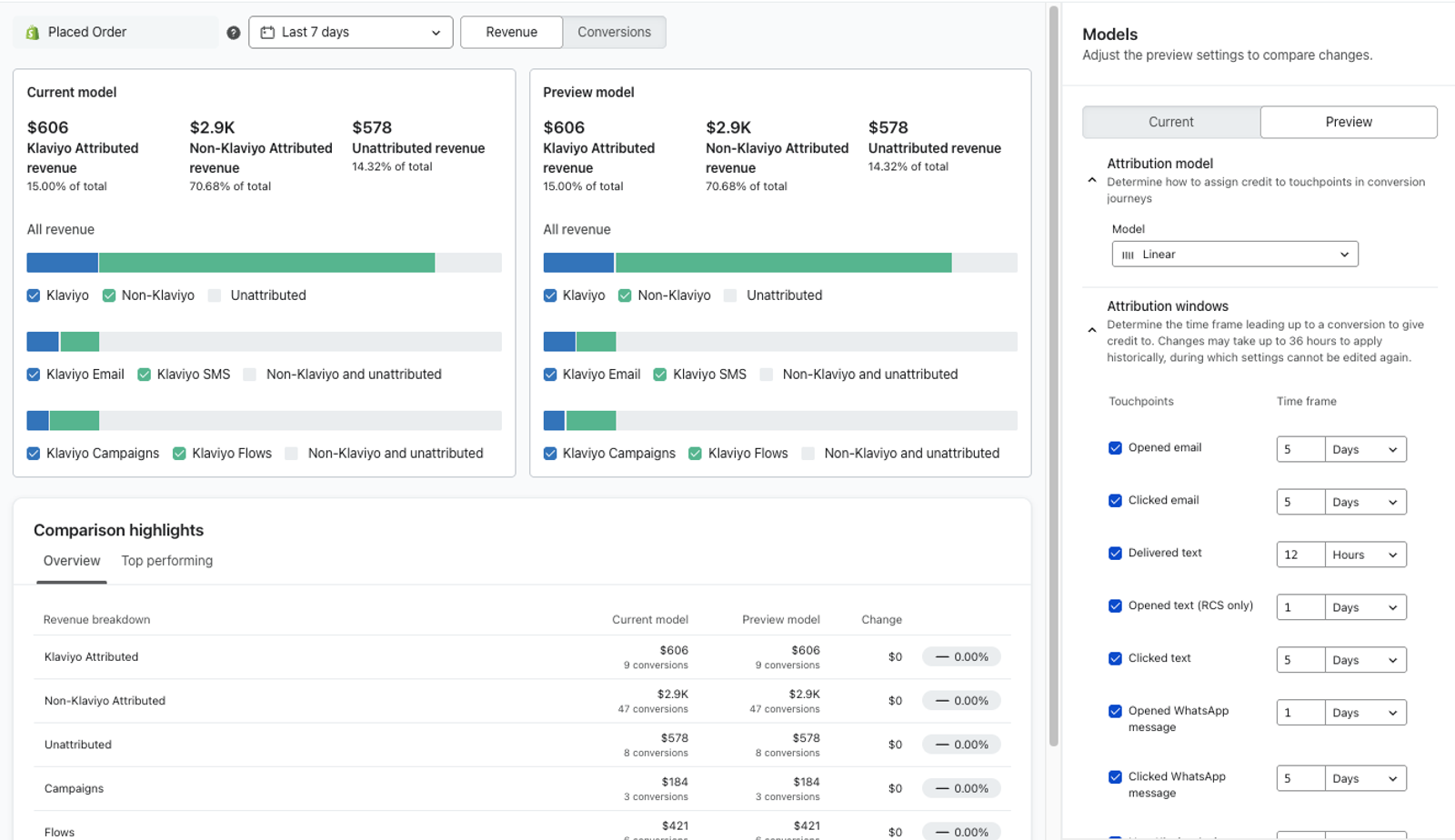
The comparison tool will use the set or custom mapped metric for revenue. If you see Add your revenue metric, select Add metric and map your revenue metric before returning to the comparison tool.
- From Settings > Attribution, select Compare model before saving your changes.
- In the Models panel on the right, the Preview tab is selected by default and includes any unsaved changes you made on the Attribution page. Select Current to review your saved settings, then return to Preview to experiment with changes.
- Adjust any of your attribution or bot click settings as necessary. Once you adjust anything, you will see the following sections of the tool update and show you a preview:
- Preview model section
Review how your Klaviyo attributed and other non-attributed revenue adjusts across each marketing channel. Compare this section to the Current model section on the left to see how your performance changes when you adjust your settings.
- Preview model section
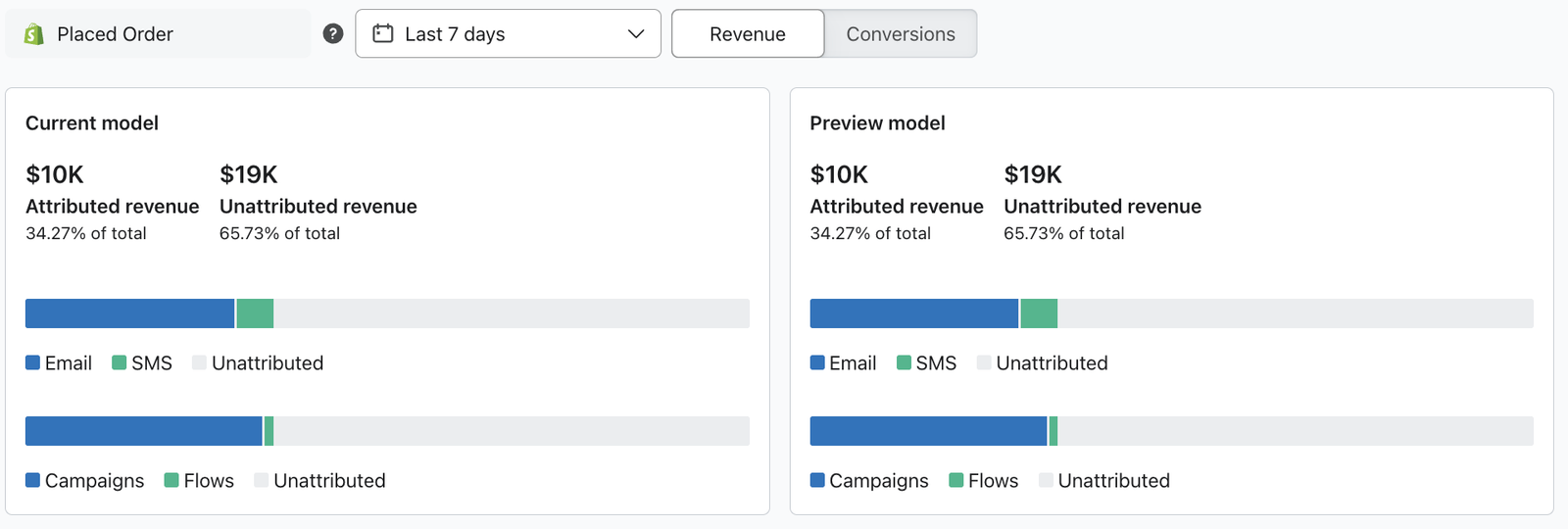
- Comparison highlights section
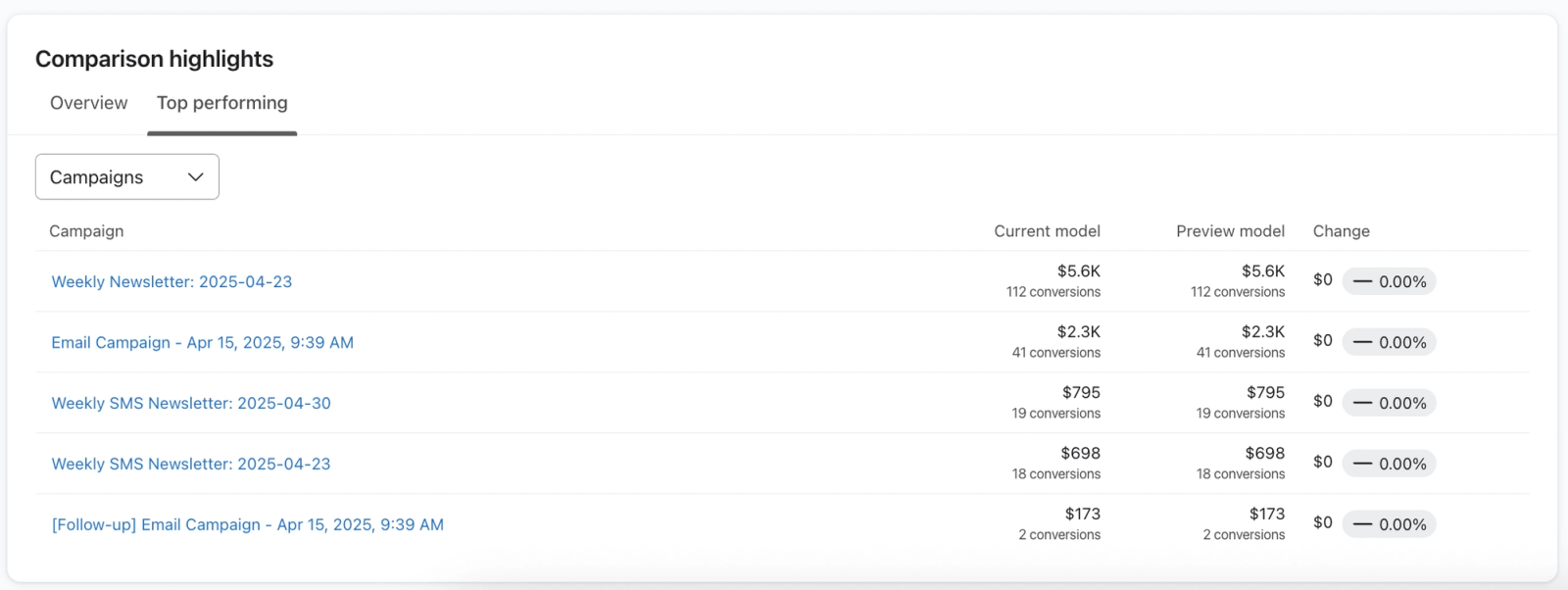
In the Overview tab, review how your attributed, unattributed, and specific channel revenue performance changes depending on your chosen Current model vs. Preview model settings. In the last column, you will see a percentage change indicating how these settings adjusted your performance tracking overall.
In the Top performing tab, click on the Campaigns dropdown to toggle between your top performing sent campaigns (email, SMS, push, or WhatsApp) or flows and how performance changes depending on your settings. In the last column, you will see a percentage change indicating how these settings adjusted your tracking per campaign or flow.
- Optional: click on the timeframe dropdown to adjust the preview's timeframe.
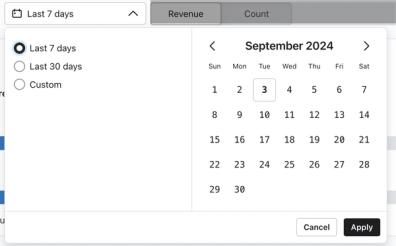
7 days is the default timeframe. Additionally, the max window for a custom number of days is 31.
- Optional: select the Conversions option to review data by total counts instead of revenue.

By choosing Apply settings, your attribution and bot clicks settings will update to match what you selected in your Preview model section. Click this button only when you are satisfied with your settings. Additionally, note that any changes to attribution will apply to both historical and future conversions.
- Once you finish adjusting your attribution or bot click settings, select Apply settings.