How to view and restore email template versions
You will learn
Learn how to use version history in the drag-and-drop email editor to see earlier versions of an email template, preview them, and restore one if you need to undo changes.
Before you begin
- Version history is available for drag-and-drop email templates, including templates you edit from a campaign or flow.
- Klaviyo saves versions automatically when you leave the editor. You don't need to do anything to start saving versions.
Version history isn't available for HTML templates or in the universal content editor.
How versions are saved
Klaviyo saves a version of your template each time you leave the editor after making changes, for example when you click Exit, use the back arrow, click Next in a campaign, or go back to your flow. If you leave without making changes, no new version is saved.
Versions saved within 15 minutes of each other are grouped into one row in your history. The row shows the most recent version in the group and lists everyone who edited the template during that time. When you preview or restore a grouped row, you get the most recent version in the group.
How to view version history
- Open a drag-and-drop email template in the editor.
- Click the history icon (a clock with an arrow) in the top right of the editor to open the Version history panel.
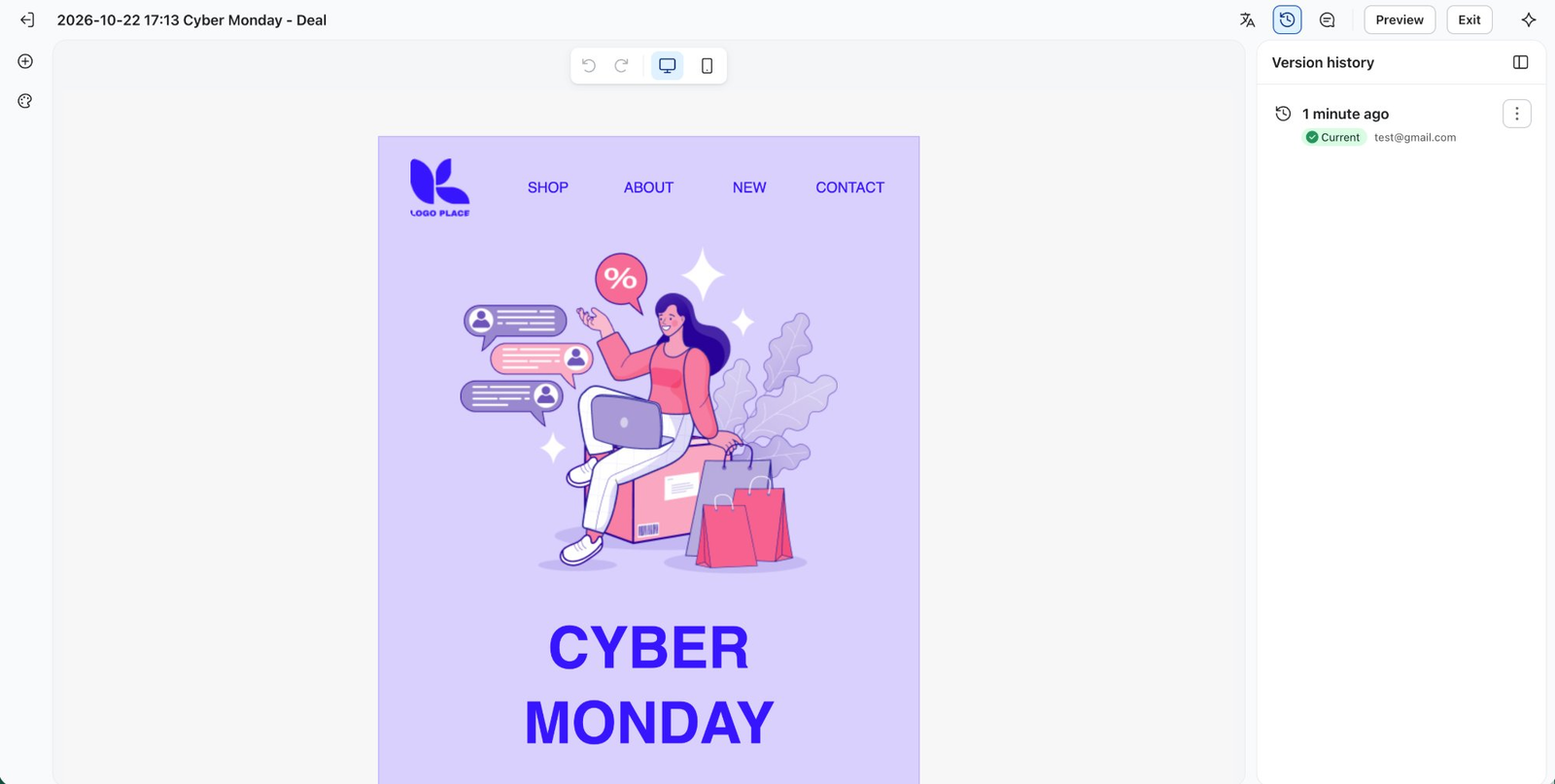
The panel lists your saved versions, newest first. Each row shows:
- When it was saved: recent versions show a relative time, such as 1 minute ago. Versions older than a week show the date and time.
- Who saved it: the person, or people, who edited the template.
- Current: marks the version that matches your template as it is now.
If no versions have been saved yet, the panel shows No versions yet. Your first version appears after you make changes and leave the editor.
How to preview a version
- In the Version history panel, click the ⋮ menu on the version you want to see.
- Select Preview version.
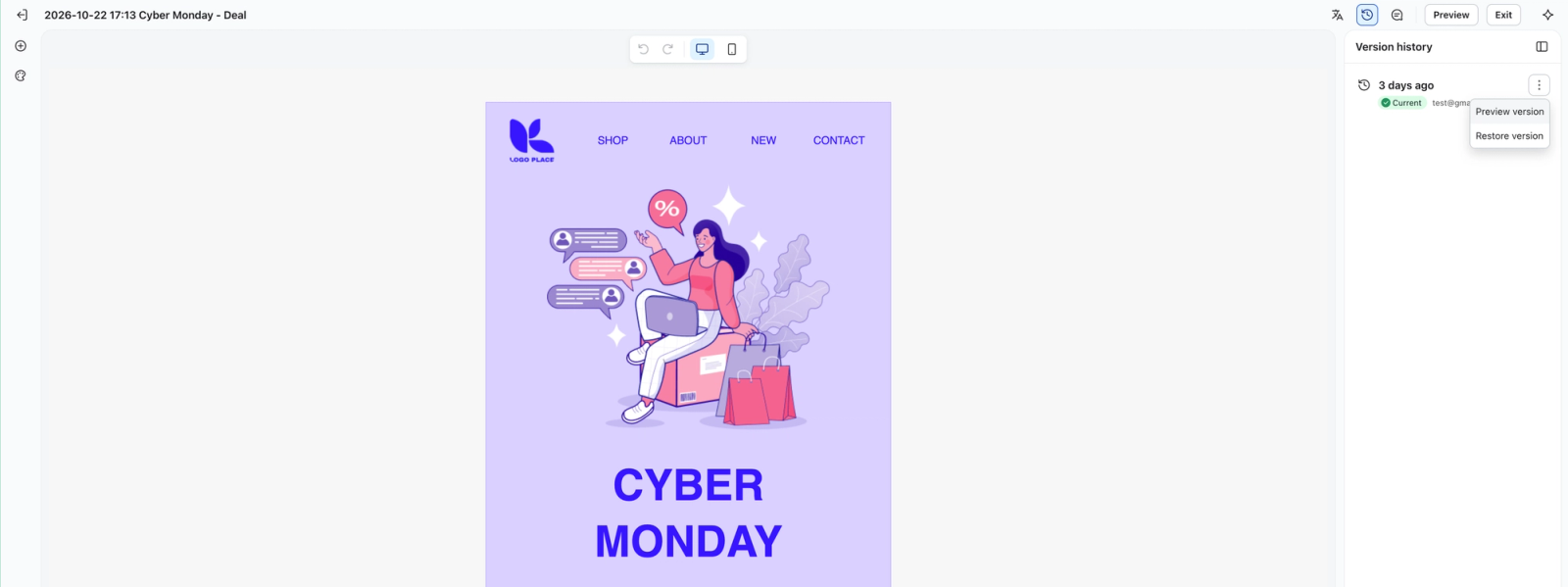
The version opens in the canvas as read-only, so you can't edit it. A bar above the canvas shows when the version was saved and who edited it, and the version is marked Previewing in the panel. From here you can:
- Preview a different version by selecting Preview version on another row. The panel stays open.
- Go back to your current template without changing anything by clicking Cancel.
- Restore the version you're previewing by clicking Restore version.
How to restore a version
- In the Version history panel, click the ⋮ menu on the version you want to restore.
- Select Restore version.
- Confirm the restore in the dialog.
If you restore from the preview bar instead, the restore starts right away without a confirmation dialog.
When the restore finishes, you'll see Version restored. and the canvas shows the restored content. Here's what happens to your history:
- The version you restored becomes your newest version. Restoring doesn't overwrite or remove anything. It adds the restored content as a new version at the top of your history.
- Your work from before the restore is saved too. Right before restoring, Klaviyo saves your template as a Before restore version, so you can always get back to where you were.
If the version you choose already matches your current template, nothing changes and no new versions are added.
Undo a restore
To undo a restore, restore the Before restore version that was saved right before it. Like any restore, it becomes your newest version, so your template is back to how it was before.
How restoring works with universal content
Restoring a version only changes content that belongs to the template you're restoring. It never changes universal content, so other templates, campaigns, and flows that use the same universal content aren't affected.
Here's what happens to universal blocks and sections when you restore:
- Universal in the version and in your current template: it stays linked and shows the universal content as it is now.
- Universal in the version, but unlinked since: restoring links it to the universal content again.
- Universal in the version, but the universal content has since been deleted: restoring adds the content as it was in the version, as a regular block or section.
- Not universal in the version, but universal now: restoring unlinks it in this template and uses the content from the version. The universal content itself doesn't change.
Previews follow the same rules, so what you see in a preview is what you get when you restore.
If you translate your emails into other languages: when a restore unlinks a universal block or section, or brings one back after its universal content was deleted, that block or section is restored without its translations. Recipients who get a translated version of your email could see it in the original language. Check and update the translations for those blocks or sections before you send.
Additional resources
- Guide to the email template editor
Learn about Klaviyo’s drag-and-drop email template editor, including how to use template styles and configure each block type.
- How to create and manage universal and saved content
Learn how to create, edit, and use universal or saved content to reuse specific blocks or sections within a template and avoid duplicative work. For example, if you have a header or a footer that you use in all your email templates, you can save it to avoid recreating it from scratch in every new email.