How to show or hide template blocks and sections based on dynamic variables
You will learn
Learn how to show a particular block or section in an email to certain recipients using the template editor’s show/hide logic, and how to show different versions of the same block or section to different audiences using show/hide logic variants.
You can use this to display different content to, for example, those in certain loyalty tiers or who purchased a particular product. With logic variants, you build each audience’s version of a block or section in one place, choose which version takes priority, and add a fallback for everyone else. This feature allows you to target your email content based on information about your subscribers, so each recipient has a highly personalized marketing experience.
Before you begin
Both the logic builder and the custom-coded show/hide conditions below are used in drag-and-drop templates. If you have a saved HTML template, create a drag-and-drop copy first. You need permission to edit templates.
- Go to Content > Templates and select Email: saved.
- Open the HTML template’s three-dot menu and select Clone to drag and drop.
- Select Converted templates. When the status is Ready to use, click the converted template’s name to open it in the drag-and-drop editor.
Your original HTML template stays unchanged. Review the copy’s layout and dynamic content before adding show/hide conditions. Learn more about converting an HTML template to drag and drop.
You can show/hide content based on:
- Profile data (i.e., profile or custom properties)
- Event variables, when both of these conditions apply:
- Event-triggered (also called metric-triggered) flows
- Custom-coded show/hide blocks
Before you craft your email, you must have the data you need in your account. In other words, you must have 1 event or profile with the property you want to use.
Using profile data
If you want to show or hide content based on profile data (e.g., location or language), you need at least 1 profile with that data.
Profile and custom properties can be added in the following ways:
- Sign-up forms
- CSV uploads
- Ecommerce integrations
- List growth and loyalty integrations, like Typeform or Yotpo
Learn more about profile properties in Klaviyo.
Using event properties
Similarly for event properties, there must be 1 event in your Klaviyo account. Then, you can show/hide blocks based on that flow’s trigger event using custom-coded blocks. You cannot reference event data using the logic builder.
So, in an abandoned cart flow with the trigger Started Checkout, you can build show/hide conditions based on a cart’s value or the specific items the customer added.
Show a block or section to one audience
The show/hide logic builder supports profile data formatted as text, numbers, and lists. It does not support event data, dates, or booleans. If you’d like to use unsupported data in your show/hide condition, use custom code to write the condition.
- Add a block or section to an email template.
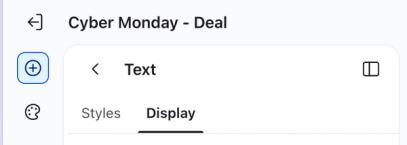
- Select the block or section, then select the Display tab.
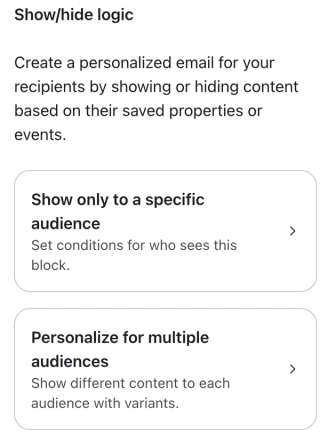
- Under Show/hide logic, select Show only to a specific audience.
- Under Condition type, select Properties about someone. Choose a property, select its data type and comparison operator, and enter a value if the condition requires one.
- You can create a simple condition with a single criterion, or a more complex condition with several criteria connected by AND or OR. Learn more about AND versus OR connectors.
- Use the Add condition button to add additional conditions, if desired.
- Select Save.
After you save, the Show/hide logic panel shows Edit logic and Remove logic. To show different content to other audiences in the same spot, select Personalize for multiple audiences and follow the steps to show different content to multiple audiences.
Click Preview and check profiles that meet and do not meet your conditions, including profiles without the property. Confirm that each sees the intended content.
If you apply show/hide logic to both a section and a block inside it, the block appears only when both conditions are true. Conflicting conditions can hide the block for every recipient. Learn more about display options.
AND vs. OR in show/hide conditions
When evaluating show/hide logic, conditions connected by AND are evaluated before conditions connected by OR. Consider the order your logic will be evaluated when writing it to ensure it is interpreted as you intend.
As an example, consider the following condition:
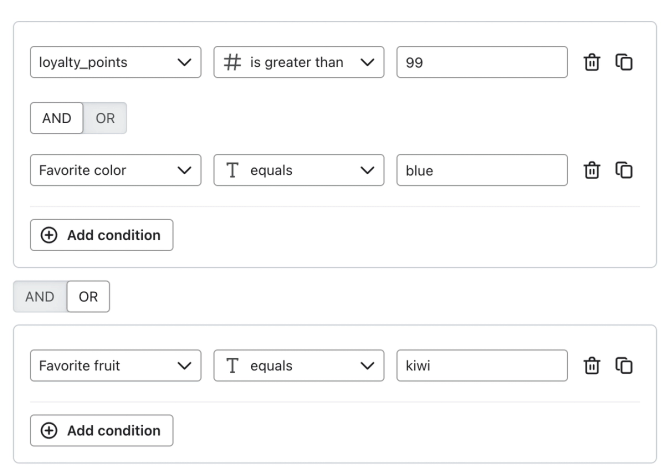
Following these criteria, see whether the block is visible for some sample recipients:
Recipient | Does the block appear? | Why? |
Jane loyalty_points = 145 Favorite color = green Favorite fruit = banana | No | Jane could qualify if her favorite color was blue, or if her favorite fruit was kiwi. |
Alex Favorite color = blue Favorite fruit = apple | No | Alex could qualify with more loyalty points, or if his favorite fruit was kiwi. |
Amanda Favorite color = blue Favorite fruit = pomegranate | Yes | Amanda qualifies because she has > 99 loyalty points and her favorite color is blue. Her favorite fruit is not considered because she meets both criteria on the opposite side of the OR operator. |
Stephanie Favorite color = orange Favorite fruit = kiwi | Yes | Stephanie qualifies because her favorite fruit is kiwi. The other conditions are not considered because she meets the criteria on one side of the OR operator. |
Show different content to multiple audiences with logic variants
Use show/hide logic variants when each audience should see its own version of the same block or section, like a different banner for each loyalty tier. Instead of stacking separate blocks that each have their own show/hide logic, you build every version in one place. Each logic variant has a name, its own content, and its own show/hide condition.
How logic variants work
- Logic variants are checked from top to bottom. Each recipient sees only the first variant they match, even if they also match a variant further down the list.
- Recipients who don’t match any variant see the fallback. If you don’t add a fallback, they don’t see anything in that spot.
- Each variant is its own copy of the block or section. Changing one variant’s content or styles doesn’t change any other variant.
- You can add up to 10 logic variants to a block or section, plus 1 fallback.
- Each variant’s condition works like any other show/hide condition. You can build it with the logic builder or write it as custom code.
Create logic variants
- Select the block or section you want to personalize, then select the Display tab.
- Under Show/hide logic, select Personalize for multiple audiences. If the block already has show/hide logic, this option appears below Edit logic and Remove logic.
- In the Add variant panel, enter a Variant name that describes the audience, like VIP. Names are optional and can be up to 50 characters. Unnamed variants are labeled by their position, such as Variant 1, and are renumbered when you reorder them.
- Under Logic, build the condition for this audience. To write the condition yourself, select Use code.
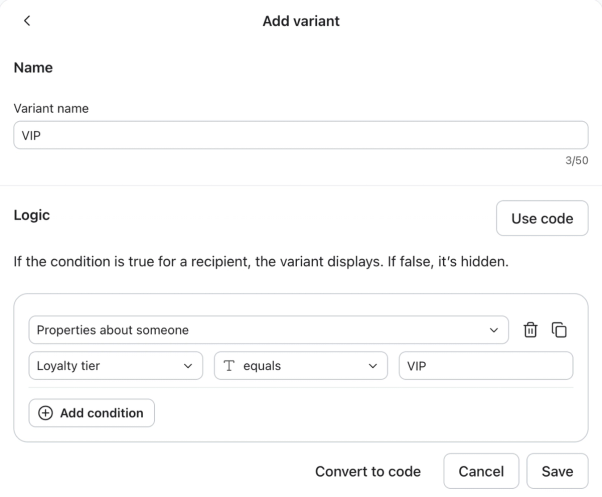
- Select Save. If the block didn’t have show/hide logic, it becomes your first variant. If it already had show/hide logic, it keeps that logic as the first variant, and a copy with your new condition is added as the second variant.
- Select Add variant to create a version for another audience. Enter a name, build its condition, and select Save. The new variant starts as a copy of the variant you have selected and is added to the bottom of the list.
- On the canvas, edit the new variant’s content. For example, swap its image or change its text.
- Repeat steps 6 and 7 for each audience.
- Optional: select Add fallback to show content to everyone who doesn’t match a variant. The fallback starts as a copy of your last variant without a condition, so edit its content for a general audience. It’s labeled Default and always stays at the bottom of the list.
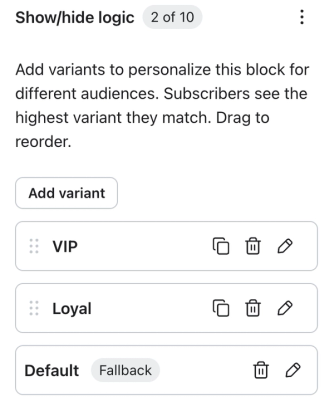
- Click Preview and check a profile from each audience, plus a profile that doesn’t match any variant. Confirm that each one sees the intended version.
View logic variants on the canvas
When you select a block or section with logic variants, a bar appears below the editor toolbar. Select All to see every variant on the canvas, or select One and choose a variant from the Variant to show dropdown. You can also select a variant’s card on the Display tab to select it on the canvas. Each variant is labeled with its block type and name, such as VIP.
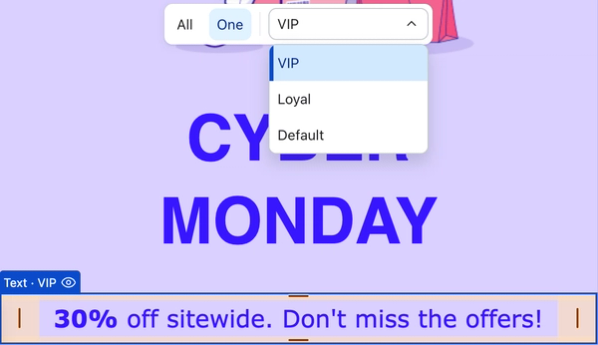
The canvas shows the variant you choose and doesn’t evaluate conditions. To see which variant a specific recipient will get, use Preview with that recipient’s profile.
Manage logic variants
Manage your variants from the Show/hide logic panel on the Display tab:
- Change priority: Drag variant cards up or down. Put your most specific audiences at the top. The fallback always stays at the bottom.
- Rename a variant or change its condition: Select the edit icon (Edit logic) on the variant’s card, update the name or condition, and select Save.
- Copy a variant: Select the clone icon (Clone variant). The copy is added directly below the original with the same content and condition.
- Delete a variant: Select the trash icon (Delete variant). If only 1 variant is left and there’s no fallback, it goes back to regular show/hide logic and keeps its condition.
- Rename or delete the fallback: Use the Rename or Delete fallback icons on the fallback card.
- Duplicate or delete every variant at once: Open the three-dot menu next to the count badge and select Duplicate all or Delete all. Delete all removes every variant and the fallback from your email.
- Move the block: Dragging a block or section with logic variants on the canvas moves all of its variants together.
Logic variants and existing show/hide logic
Logic variants don’t change any show/hide logic you’ve already built. Blocks and sections with existing logic, whether created with the logic builder or custom code, render exactly as they did before. On the Display tab, they show Edit logic and Remove logic under Show/hide logic.
Separate blocks that each have their own show/hide logic aren’t combined into logic variants automatically. To combine them, create logic variants on one of the blocks, recreate the other versions as variants, then delete the extra blocks.
Limitations
- Universal content blocks and sections, and custom object sections, support show/hide logic for one audience only. Logic variants aren’t available for them.
- A block or section with logic variants can’t be saved as universal content.
- Message analytics aren’t broken out by variant.
- If a variant includes a coupon, codes are still generated for recipients who see a different variant. Learn more about coupons in messages.
Use cases for show/hide logic and logic variants
Loyalty program banner
If you have a loyalty program, show active participants how many points they currently have. Offer contacts who haven’t yet signed up for the program an incentive for joining. To set this up, add a banner and create 2 logic variants.
Show loyalty program participants with a positive points balance a variant named Members with this show/hide condition:
Loyalty points > is greater than 0

If your integration leaves loyalty_points unset for people who have not joined, add a variant named Not enrolled with this condition:
loyalty_points > is not set

Adjust the criteria based on the data available in your account. The “is not set” condition also matches empty or false values, including numeric 0. If program members can have 0 points, use a membership property to distinguish members from people who have not joined.
Personalized imagery
If you collect information about how your subscribers use your product, show them imagery that relates to them.
For example, a brand that sells backpacks might ask whether subscribers use them for commuting, travel, or hiking. Depending on their answer, this brand could show imagery of their products in those environments.
To set this up, add an image block and create 2 logic variants plus a fallback, each showing your product in a different setting.
Show commuters a picture of a biker wearing the backpack during a commute with a variant named Commuting and this condition:
Bag preference = Commuting

Show travelers a picture of one of your backpacks in a busy airport with a variant named Travel and this condition:
Bag preference = Travel

Then, select Add fallback and use a picture of one of your backpacks in a scenic outdoor landscape. The fallback doesn’t need a condition. It shows to anyone who doesn’t match the Commuting or Travel variants, including recipients who don’t have a bag preference.
Notice that the fallback isn’t just targeted at hikers; anyone who isn’t a commuter or traveler will see it. A fallback makes sure recipients who don’t have this property set still see an image, so your email looks great for everyone.
Product-specific notes
Referencing an item from within a flow’s trigger event requires using custom code.
Communicate product-specific information to cart abandoners, to give them key information that might influence their purchase decision. For example, if you are running out of a product, add a text block with a low-stock warning that only appears for people with that item in their cart with this condition:
'ITEM_NAME' in event.Items
Replace ITEM_NAME with the exact product name. This example assumes your trigger event has an Items list containing product names; use the variable and structure from your own event data.

Location-specific messaging
Location-specific conditions can only evaluate text; they cannot evaluate distance from a zip code. Show a custom banner to residents who live in a certain area, like those in the same town as your brick-and-mortar pop-up shop with this condition:
City = Boston

If you have pop-up shops in several cities, create a logic variant of the banner for each city, such as City = Boston and City = Chicago, and add a fallback for everyone else.
Troubleshooting show/hide blocks
Converting logic to code is not reversible.
If your show/hide block isn’t rendering as expected, select the block or section and click Edit logic. Select Convert to code, review the confirmation, and click Convert. Inspect and adjust the code, then click Save. For a logic variant, select the edit icon on the variant’s card instead of Edit logic.
Check how the property is stored and choose the appropriate condition type. Text comparisons distinguish the number 22 from the text value “22”. However, Number conditions in the logic builder convert numeric text, such as “22”, to a number before comparing it. Values that cannot be converted to numbers evaluate as 0, so check for missing or nonnumeric values when troubleshooting.
A recipient sees the wrong logic variant
Recipients see the first variant they match, starting from the top of the list. If a recipient matches more than 1 variant, drag the variant you want them to see higher in the list, or make its condition more specific.
Some recipients don’t see any content
If a recipient doesn’t match any variant and there’s no fallback, nothing shows in that spot. Add a fallback, or check that your conditions cover everyone, including recipients who don’t have the property set.
Converting text to numbers
For custom-coded numeric comparisons, convert numeric text to a number using the |multiply filter. Add the filter directly after the variable name. For example, if your Age property stores age as numeric text:
person|lookup:'Age'|multiply:"1" > 21
Booleans stored as text
If your true/false data is stored as text, not as a boolean, or if you are referencing a property that contains both booleans and text, you can use these structures to cover all scenarios. Include all spellings and capitalizations that are present in your data.
Sample condition | Show the block if... |
person|lookup:'VIP' == 1 or person|lookup:'VIP' == 'true' or person|lookup:'VIP' == 'True' | The VIP property is set to the boolean value true or the strings true or True |
person|lookup:'VIP' == 0 or person|lookup:'VIP' == 'false' or person|lookup:'VIP' == 'False' | The VIP property is set to the boolean value false or the strings false or False |
Comparison symbols in condition values
In the logic builder, condition values cannot contain comparison symbols such as =, <, or >. These values produce a validation error when you save. This restriction applies to the value you enter, not the property name. Other punctuation, such as spaces or an @ symbol, is not blocked by this validation. Property names and text values are case-sensitive, so match your data exactly.
Custom coding show/hide blocks
If you prefer more control, or if you’d like to build a condition using event data, dates, or booleans, custom code your show/hide blocks rather than using the logic builder. To start from scratch using code, select Use code next to Logic in the logic builder. You can write custom code for show/hide logic and for each logic variant.
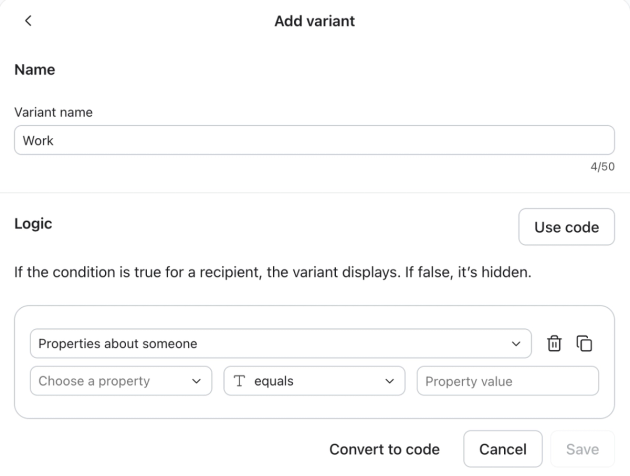
Converting logic to code is not reversible.
To convert an existing condition, click Edit logic (or the edit icon on a variant’s card), then Convert to code. Review the confirmation and click Convert. After editing your code, click Save.
If you choose to use code, make sure you have a strong understanding of Django, programming logic, and Klaviyo’s data types. Klaviyo’s support team is not able to provide direct support or troubleshooting for custom code.
Learn more about supported condition structures.
Show/hide conditions based on event data
If your email is sent as part of an event-triggered flow (e.g., an abandoned cart or order confirmation flow), you can show/hide blocks based on the details of that flow’s trigger event. So, in an abandoned cart flow with the trigger Started Checkout, you can custom code show/hide conditions based on a cart’s value or the specific items the customer added. Learn more about event variables.
Understand how data is stored
Before configuring your show/hide condition, check to see how your data is stored. There are 5 data types in Klaviyo:
- Text
- Number
- Date
- Boolean
- List
How your data is stored will influence which show/hide conditions will work for you. Learn how to identify data types in your own account.
Craft your message
The first step to adding custom-coded show/hide conditions in a message is to build the email template. This section will walk through a specific example using logic variants, but you can follow the same steps to set any block to display based on your own criteria.
For example, if your company sells leather bags, you may collect customer preferences for how they use their bags with a sign-up form, as shown below.
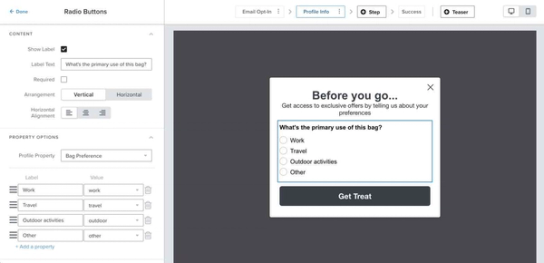
You can then display a different image based on your customer’s bag preference. For example, if the customer’s preference is “Work,” the bag will appear in an image next to a laptop. If the customer’s preference is “Outdoors,” the bag will appear near a scenic overlook on a hiking trail.
- Create a campaign or flow message.
- Add an image block.
- Upload the work-related image to the block.
- Click Display from the image block’s customization menu.
- Under Show/hide logic, select Personalize for multiple audiences.
- Enter Work as the Variant name, then select Use code.
- Add this condition: person|lookup:'Bag Preference' == 'Work'.
- Click Save.
This variant will show only to people who have selected “Work” as their preference.
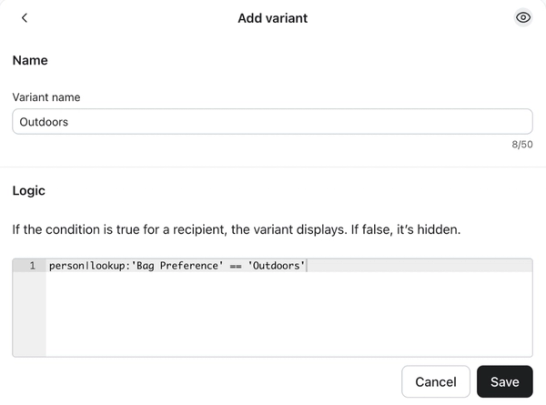
Next, select Add variant. Name the variant Outdoors, select Use code, and use the condition person|lookup:'Bag Preference' == 'Outdoors'. Click Save, then replace the image in the new variant with the outdoor image.
This variant will only show to people who have selected “Outdoors” as their preference.
Finally, select Add fallback and replace the fallback’s image with a more generic image. The fallback appears for anyone who hasn’t selected either “Work” or “Outdoors,” including people who have never selected a preference, so it doesn’t need a condition.
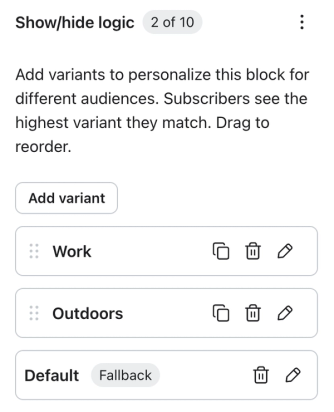
Once you’ve configured each of the variants, preview your message using 3 profiles. These profiles should be subscribers who meet one of each of the image criteria:
- Customer who chose “Outdoors”
- Customer who chose “Work”
- Customer with no preference or a preference other than “Work” or “Outdoors”
You can use these steps to show or hide blocks based on profile data. For event data, use a metric-triggered flow and reference properties from its trigger event.
Create a show/hide condition with profile data
If you are building a custom-coded show/hide condition based on a profile property, replace the sample variable from the tables in the conditional logic reference (e.g., person|lookup:'Favorite Color') with your profile property.
To find the correct variable to use:
- Select a text block, then click Personalization to open the personalization menu.
- Choose an option from the menu to add it to the text block.
- Copy the variable from inside the tag. Remove the curly brackets and fallback or formatting filters that you do not need for the comparison, such as |default:''. Keep any lookup filters that select the property.
For example, in the screenshot below, the full tag is {{ person|lookup:"Accepts Marketing"|default:"" }}. The variable name is person|lookup:"Accepts Marketing", so select that portion to use in your show/hide condition.

Create a show/hide condition with event data
You can use event data to show or hide a block if your message is part of an event-triggered flow. Only data within the trigger event can be used in a show/hide condition.
To identify event variables:
- From the template editor, click Preview.
- For a saved template, under Preview data source, click Event. In a metric-triggered flow message, the trigger event’s data is selected automatically.
- If an event dropdown is available, select the metric that will trigger your flow. Use the arrows to choose a sample occurrence of the event.
- Scroll through the Event properties to find the data you’d like to include.
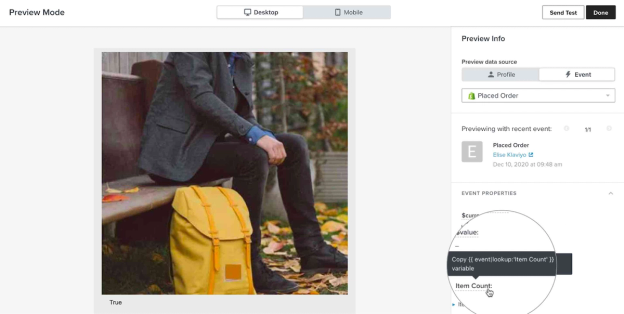
- Click the property name to copy the tag.
- Paste the tag into a text block or text editor.
- Remove the curly brackets (i.e., {{ and }}) and fallback or formatting filters that you do not need for the comparison. Keep any lookup filters that select the event property.
- Use the variable that remains in your show/hide condition.
In the screenshot below, you’ll see the tag {{ event|lookup:'Item Count' }}. You’ll only need the text event|lookup:'Item Count' for your show/hide condition. Note that your data may use a different structure, like {{ event.extra.line_items.0.title }} or {{ event.ShippingAddress.address1 }}. Use the variable as it appears in your event data.
Customize your show/hide conditions
Learn how to build custom show/hide conditions using the conditional logic reference. This resource contains sample conditions, which you can customize using your own profile and event data.
Additional resources
- Conditional logic reference for templates
Learn about all the available conditions you can use to dynamically display a block, section, or custom-coded piece of content only to certain recipients. To learn how to use these conditions in your templates, head to our article on how to show or hide template blocks based on dynamic variables.
- Message personalization reference
Learn how to use Klaviyo’s personalization variables, or tags, to customize the experience for your customers.
- Understanding profiles in Klaviyo
Learn about profiles, including how to find them and the data available on the profile page. Profiles are used to keep track of all the information you have about your customers and prospects.
- Apply programming logic concepts to build more personalized messages