How to convert an HTML template to drag and drop
You will learn
Learn how to convert an HTML email template into a drag-and-drop template, so you can edit it block by block in the drag-and-drop editor instead of in code.
Before you begin
- Clone to drag and drop works on HTML templates saved in Content > Templates > Email: saved.
- You need permission to edit templates in your account.
- Converting creates a new template. Your original HTML template is never changed, so you can keep using it while you review the copy.
- A conversion takes a few minutes. You don't have to stay on the page while it runs.
How to convert a template
You can start a conversion from the template library or from inside the HTML editor.
From the template library
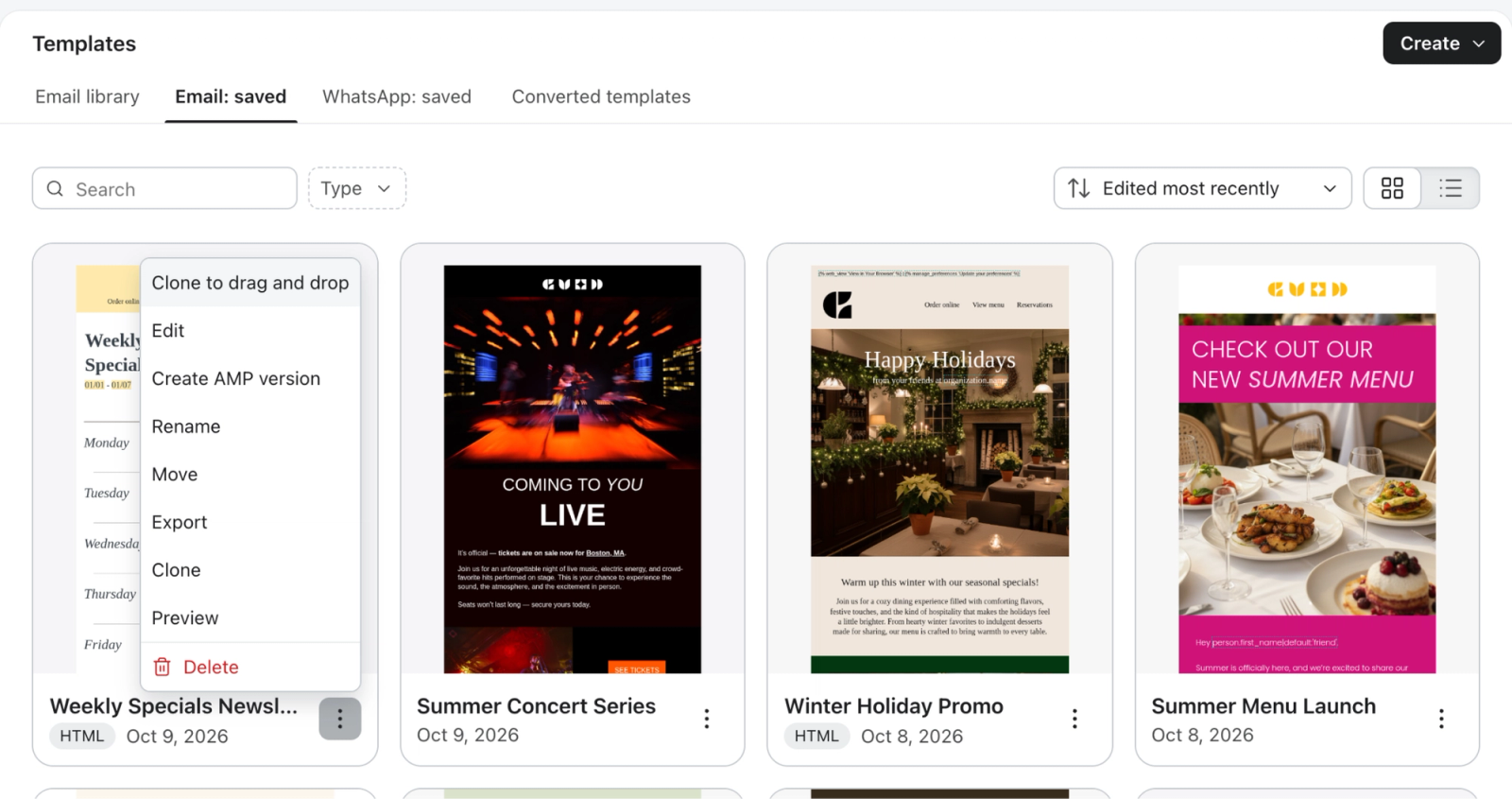
- Navigate to Content > Templates and select the Email: saved tab.
- Find the HTML template you want to convert, then click the … menu on its card.
- Select Clone to drag and drop.
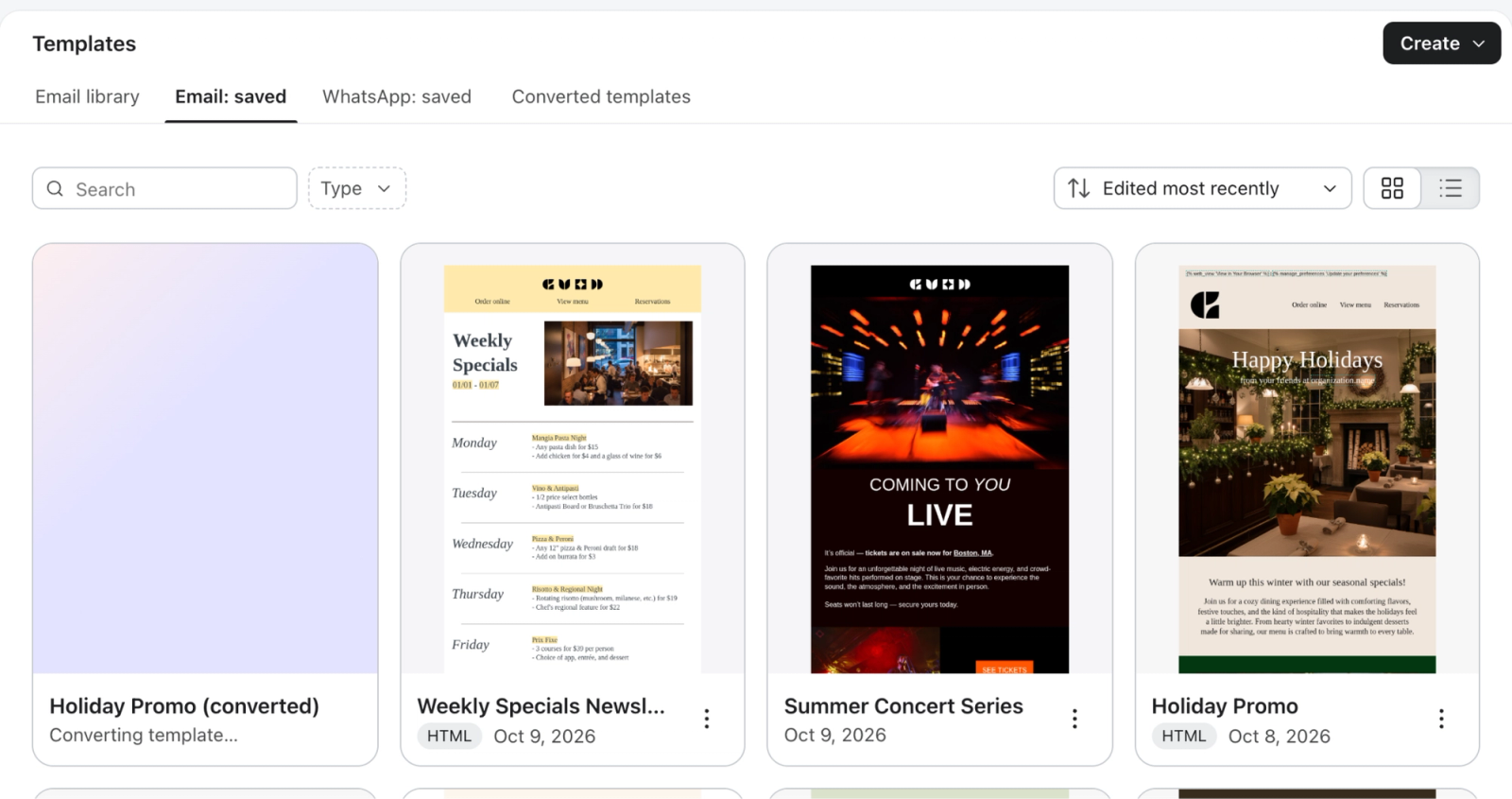
A placeholder card named {template name} (converted) appears at the start of your templates in the Email: saved tab with the message Converting template…
When the conversion finishes, it's replaced by your new drag-and-drop template.
From the HTML editor
- Open the HTML template you want to convert.
- Save any changes. Clone as drag-and-drop is unavailable while you have unsaved changes.
- Click Clone as drag-and-drop in the top right of the editor.
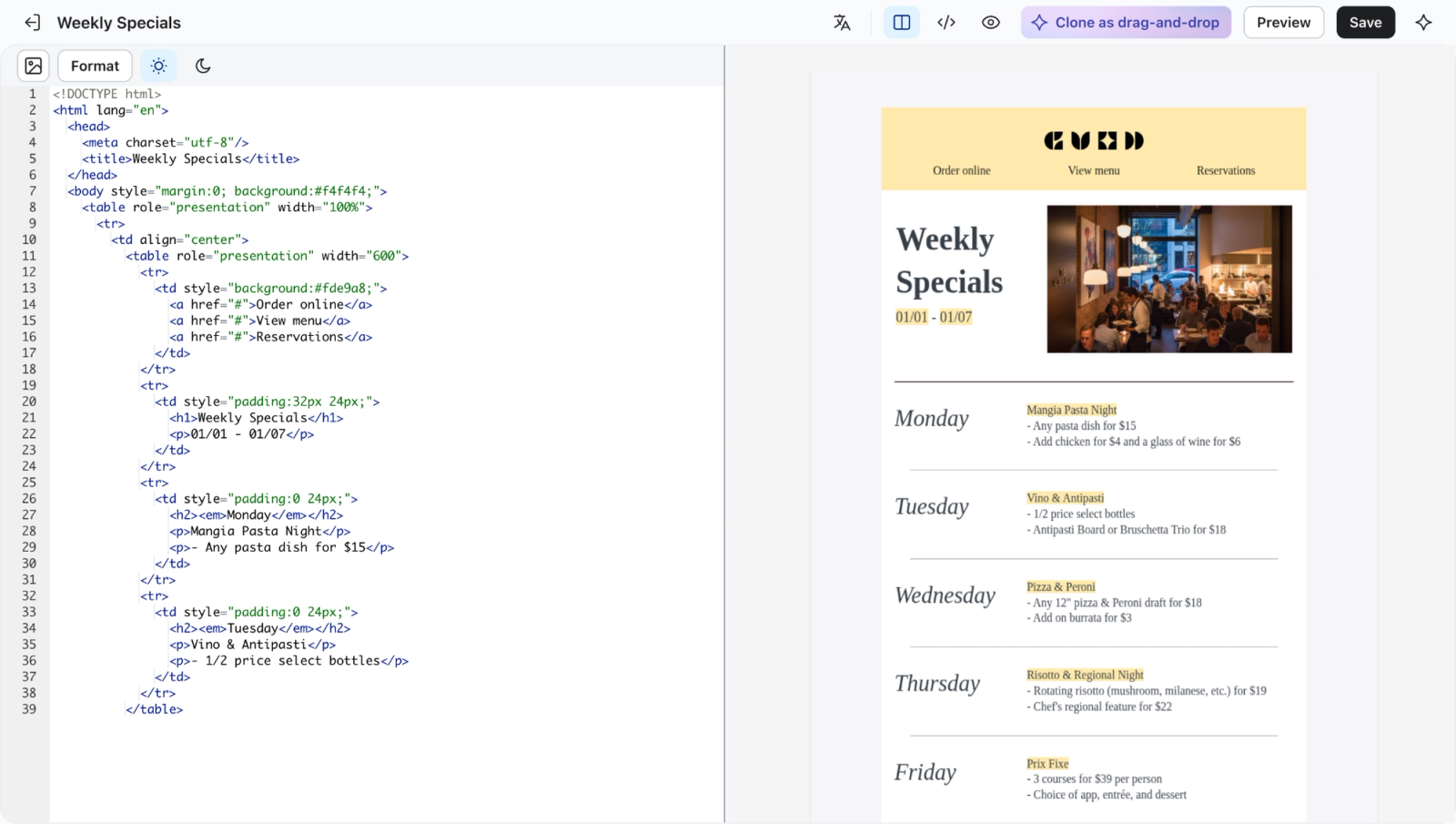
The conversion keeps running if you leave the page. If you stay, Klaviyo shows the message Your drag-and-drop template is ready. and opens the new template in the drag-and-drop editor when it finishes. If you leave, you'll find it in the Converted templates tab.
Check on your conversions
Select the Converted templates tab in Content > Templates to see every conversion from the past 30 days, including ones that are still running or that failed. This is the place to check if you left the page while a conversion was running.
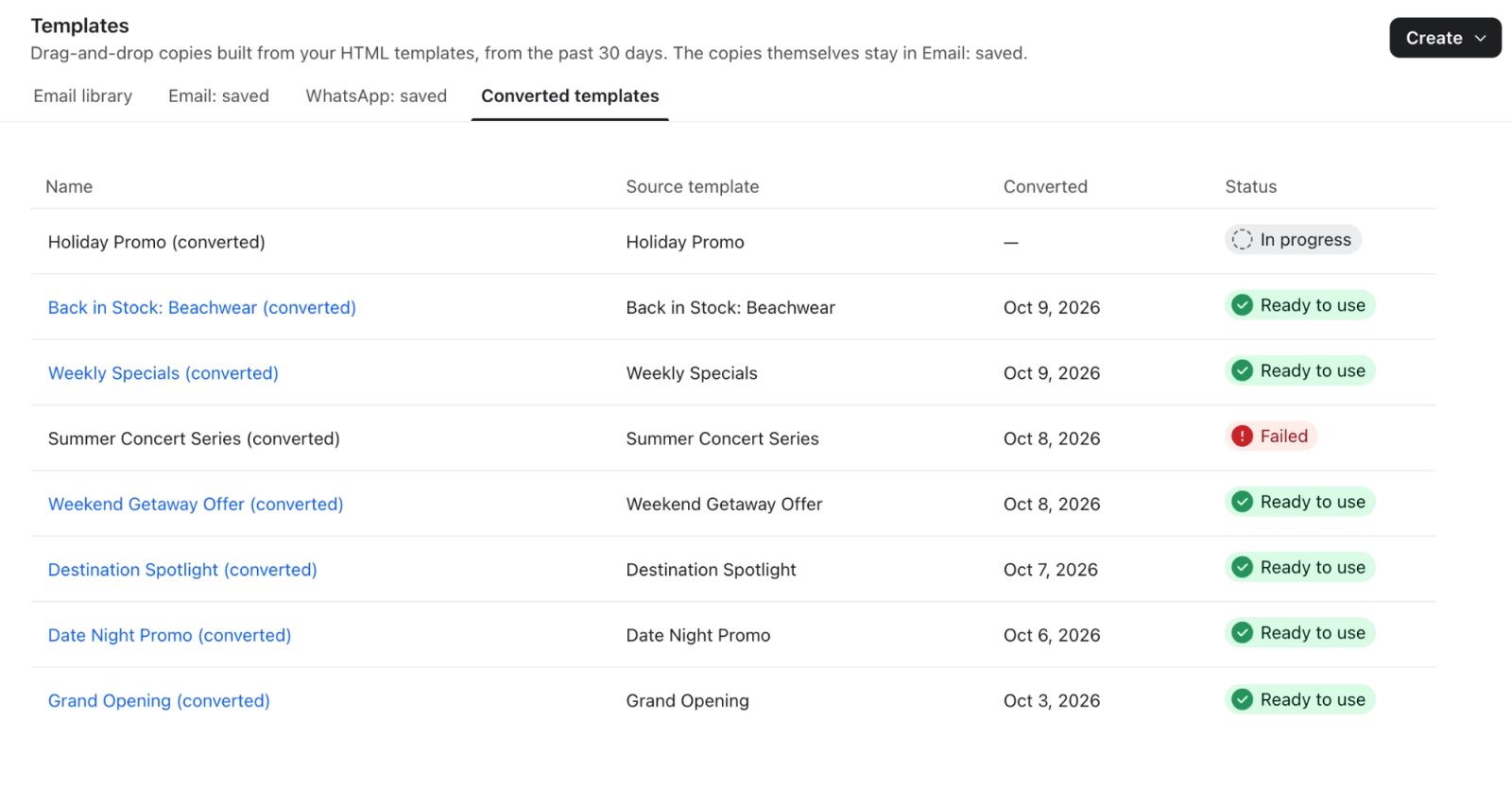
Each row shows:
- Name: the name of the new drag-and-drop template. Click it to open the template in the editor.
- Source template: the HTML template it was converted from.
- Converted: when the conversion finished.
- Status: one of the following:
- Ready to use: the new template is in Email: saved and ready to edit.
- In progress: the conversion is still running.
- Failed: no template was created. Hover over the status to see why.
If a conversion fails
Hover over the Failed status to see the reason:
- The conversion failed. Try again. Start a new conversion from the template's menu.
- The conversion took too long. Conversions stop after 10 minutes of processing. Very long or complex templates are the most likely to hit this limit.
A failed conversion doesn't create a template or change your original.
Review your converted template
Your new template is saved in Email: saved as {original name} (converted), at the top level of your templates. It's a normal drag-and-drop template: you can rename it, move it into a folder, and use it in campaigns and flows.
Before you send with it, open it in the drag-and-drop editor and compare it with the original:
- Check that text, images, buttons, and links match the original.
- Check that personalization tags and dynamic content work as expected.
- Review image alt text.
- Preview it on desktop and mobile.
- Send yourself a test email.
The conversion rebuilds your template from drag-and-drop blocks, so small differences in spacing or styling from the original are possible.
Some HTML features don't have a drag-and-drop equivalent and may not carry over exactly. For example, if your template includes AMP content, the converted template won't include an AMP version.
Outcome
You've converted an HTML template into a drag-and-drop template that you can edit block by block, while your original HTML template stays unchanged.
Additional resources
- Guide to the email template editor
Learn about Klaviyo’s drag-and-drop email template editor, including how to use template styles and configure each block type.
- How to create a hybrid email template
Learn how to create custom HTML templates that are compatible with Klaviyo’s drag-and-drop editor (i.e., hybrid templates). By following these steps, you can design a fully custom HTML email while maintaining access to features only available in the drag-and-drop editor (e.g., product blocks or universal content blocks).