Understanding display options
You will learn
Learn about how display options can create a highly personalized experience for your email recipients. These settings enable you to choose which types of devices a block or section of content will appear on (i.e., desktop, mobile, or both), set a block to be visible only for recipients who meet certain criteria, show different versions of a block or section to different audiences, and to repeat a block to reflect the items in a list (e.g., the items in an abandoned cart).
Where to use display options
Display options can be set for sections and specific blocks in the drag-and-drop email editor. These settings control which recipients will see each piece of content, as well as the intended device types for each block. Select a block or section, then open its Display tab to access these settings.
If you're starting from an HTML template, first convert it to a drag-and-drop template. Conversion creates a separate copy and leaves your original HTML template unchanged. Open the converted copy to use display options.
Types of display options
Device visibility
Choose where your block or section will appear by device. When Set same visibility for all blocks in this section is on, the section’s visibility setting overrides the settings for its blocks, including when you select All devices.
To set device visibility for a section:
- Select the section and open the Display tab.
- Under Visibility, turn on Set same visibility for all blocks in this section.
- Select Desktop only, Mobile only, or All devices.
To set device visibility for an individual block:
- In the section’s Display tab, make sure Set same visibility for all blocks in this section is off.
- Select the block, open its Display tab, and choose Desktop only, Mobile only, or All devices under Visibility.
Click in the blank area above or below the email template to close the settings and save your changes.
If a block or section is set to desktop-only, changes made to that content will not impact the mobile version of the email, and vice versa.
Show/hide logic
Individual blocks and entire sections can be shown to or hidden from recipients who meet certain criteria you set.
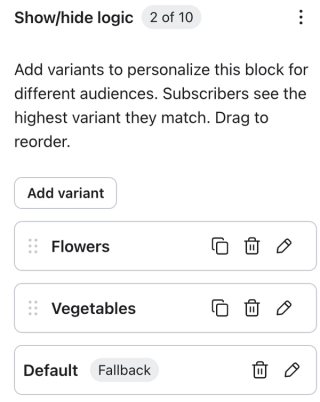
To show different content to different audiences in the same spot, use show/hide logic variants. Each logic variant is its own version of the block or section with its own condition. Variants are checked from top to bottom, and each recipient sees only the first variant they match. You can also add a fallback for recipients who don’t match any variant.
As an example, consider a company that sells gardening supplies. They’ve used a form to ask their customers if they are more interested in flower gardens, vegetable gardens, or both. When they send a campaign, they can create 2 logic variants of the same image block: one that shows flower seed packets to those interested in flower gardening, and one that shows vegetable seeds to vegetable gardeners. A fallback that shows both kinds of seeds covers everyone else.
When configuring your show/hide rules, it’s important to make sure that your block and section show/hide rules don’t conflict. For example, if a section is set to show to recipients in Canada, don’t set a block in that section to display only to recipients in Massachusetts. If you do, the block will be hidden for all recipients. The same applies to logic variants: a block variant inside a section appears only if the recipient also matches the section’s condition.
Learn how to show or hide template blocks and sections and create logic variants based on a recipient’s profile information or event details.
Content repeat
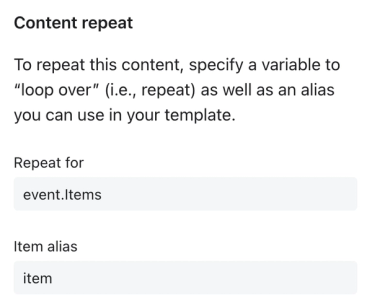
Individual blocks and entire sections can be set to repeat based on profile or event data. For example, in an order confirmation flow, the Content repeat feature can be used to display a block for each item in the order. Within the block or section, dynamic variables can be added to display details about each specific item.
Learn how to set up a section repeat.
Additional resources
- Message personalization reference
Learn how to use Klaviyo’s personalization variables, or tags, to customize the experience for your customers.
- Conditional logic reference for templates
Learn about all the available conditions you can use to dynamically display a block, section, or custom-coded piece of content only to certain recipients. To learn how to use these conditions in your templates, head to our article on how to show or hide template blocks based on dynamic variables.