How to import profile properties using a CSV upload
You will learn
Learn about profile properties and how to import them by uploading a CSV file.
This method of adding profile properties to Klaviyo requires that you upload contacts to a list. If your file includes contacts that have not explicitly opted in to email or SMS marketing, exercise caution to ensure you don’t send those contacts unwanted messages, as this can hurt your deliverability. Learn more about deliverability.
Table of contents
To import profile properties using a CSV upload:
Create a CSV file
The first step in uploading profile properties to Klaviyo is creating a correctly formatted CSV file containing those properties. Use any spreadsheet tool to create your file, like Excel or Google Sheets.
When you import a new value for an existing custom property, it replaces that property’s current value. Blank cells do not clear existing property values.
- In your CSV, label the first row of the first column Email.
- In the first cell of the following columns, add the name of the profile properties you'd like to upload (e.g., First Name, Last Name).
- In the following rows, add in the email address and profile properties you'd like to upload.
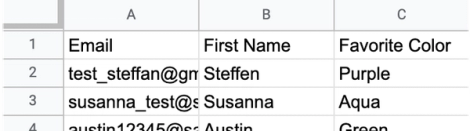
Make sure that all the data in your spreadsheet is in a format that can be read by Klaviyo. Learn more about data types in Klaviyo, including how to format them.
To update properties without changing subscription status, leave consent and consent timestamp columns out of your CSV file. If your file already includes these columns, deselect them when mapping fields.
Upload profile properties
Contacts newly added to a list can enter its list-triggered flows. Temporarily set connected flows to Draft before importing if you don’t want these contacts to enter them. Alternatively, use a new list with no connected flows.
Once your CSV file is ready to upload:
- Navigate to Audience > Lists & segments in Klaviyo.
- Choose a new or existing list:
- For a new list, select Create > List, enter a Name and any Tags, then click Create list. In the empty list, click Upload contacts.
- For an existing list, open the list, then select Manage list > Import contacts.
- Click Upload and select the CSV file you just created in the upload modal.
- Select the columns you want to import, map each one to the appropriate Klaviyo property, and check its Data Type. Deselect any consent or consent timestamp columns to keep subscription status unchanged.
- If a property doesn’t yet exist in Klaviyo, open Select or create new and select Create New Field. Enter the Profile property name, choose a data type, and click Create.
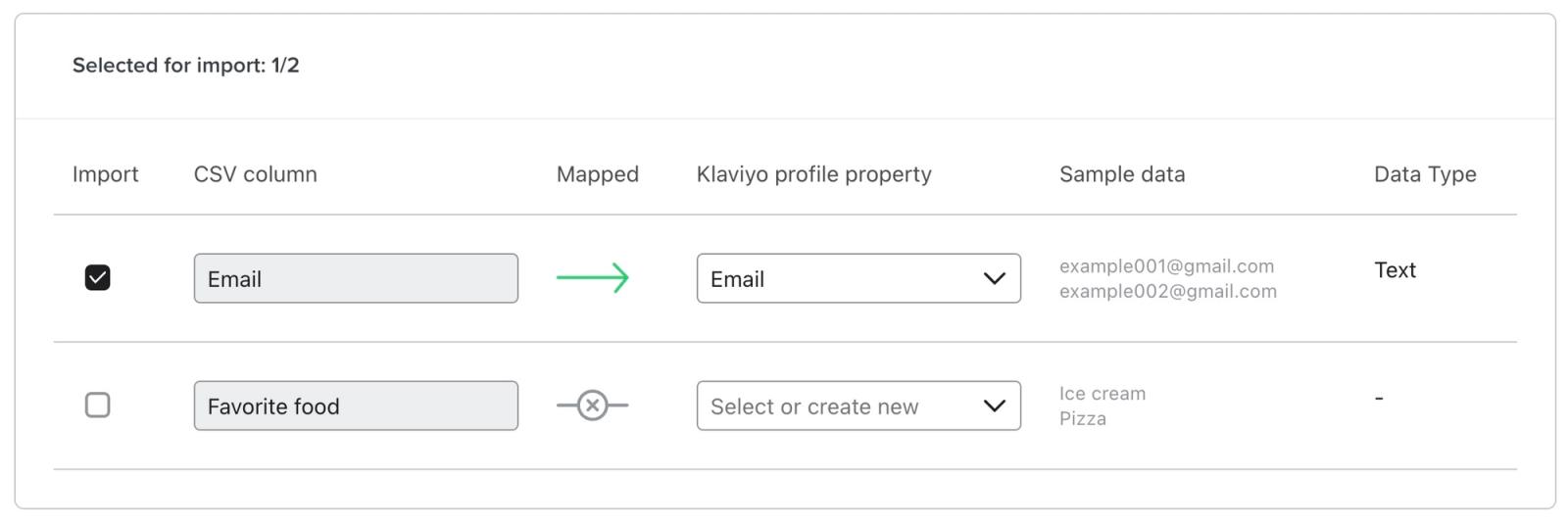
Do not select Apply bulk consent for a property-only update. It can subscribe the imported contacts, including contacts who previously unsubscribed. To keep existing subscribers subscribed and unsubscribers suppressed, exclude consent and consent timestamp columns and select Only import the consent in my file.
- Click Next.
- Select Only import the consent in my file. With consent and consent timestamp columns excluded, this leaves existing subscription status unchanged and does not subscribe new contacts.
- Click Import.
Your import may take anywhere from a few seconds to a few hours, depending on the size of your list. You can navigate away from the page and the upload will continue.
Having trouble with your upload? Head to Klaviyo’s guide to troubleshooting list imports.
Review your import
Once the import is complete, open your list and click a profile included in the import. Select the Details tab and review Custom properties for the custom values you uploaded. Default properties such as first name, last name, and phone number appear at the top of the profile.
Ensure compliance
In order to maintain strong deliverability and comply with data privacy and marketing laws, make sure you only market to people who have explicitly opted in to email or SMS marketing. If the list you uploaded contains profiles who haven’t opted in, we recommend taking precautions to ensure you don’t reach out to them accidentally. For example, you could:
- Review your segment definitions to confirm only opted-in subscribers are included.
- If you created a list just for this import, delete it after the import is complete to avoid selecting it for a send. Go to Audience > Lists & segments, open the list’s more options menu, and select Delete List. Review the warning, then click Delete to confirm. Deleting the list keeps the profiles and their properties; it does not unsubscribe or suppress them. Avoid deleting a list used by campaigns, forms, or flows.
To maintain the security of your data, Klaviyo's support team is not able to open your CSV files. For further assistance troubleshooting a list import, contact the support team with a detailed description of the problem and screenshots of the error you encounter.
Additional resources
- Understanding the information section of a profile
Learn about the information section of a profile in Klaviyo, which contains details such as when and how the profile found you and the last time they were active.
- Profile properties reference
Learn about the difference between custom and Klaviyo properties, how to use them to track information about your subscribers, how to remove them, best practices, and more.
- Understanding data types
Learn about the different options available for storing your data in Klaviyo, and how to use each one. Klaviyo allows you to harness the data collected about your customers to power data-driven marketing choices that will grow your brand. That being said, it's important to understand the data that's being pulled into your account.