Profile properties reference
You will learn
Learn about the difference between custom and Klaviyo properties, how to use them to track information about your subscribers, how to remove them, best practices, and more.
Profile properties allow you to understand your subscribers on a personal level and segment them based on this knowledge. By the end of this article, you'll gain new insights into your customers and leverage properties in a more strategic and organized way.
Before you begin
Start with profiles in your Klaviyo account. Integrate your ecommerce store if you want to sync customer information from it. It is also a best practice to publish sign-up forms so that you can gather custom as well as Klaviyo properties about your subscribers.
Sign-up forms are enabled by a code snippet called Klaviyo.js. This snippet is automatically installed through the Klaviyo integration for most ecommerce platforms. Learn more about Klaviyo.js and your ecommerce platform.
Differences of properties used in metric reports
In addition, it's important to note that metric reports record profile properties when they are initially ingested into Klaviyo. In comparison, segments recognize profile properties that are currently present on the profile. This means that if you are building a metric report with a filter for say a location and that individual has since moved, it may not capture this update accurately.
Custom vs. Klaviyo properties
You can find profile properties within any profile in your account. Go to Audience > Profiles. The page shows 50 profiles per page by default, with the newest profiles first.
To see the properties for a profile:
- Click into a profile or search for one directly in the search bar at the top of your page
- Open the Details tab to view the Custom properties and Information sections.
There are two different types of profile properties: custom properties and Klaviyo properties.
Custom properties
Custom properties are found in the Custom properties section of the Details tab on a profile. Custom properties are completely customizable properties that you generate yourself and are specific to your content, brand, and use case.
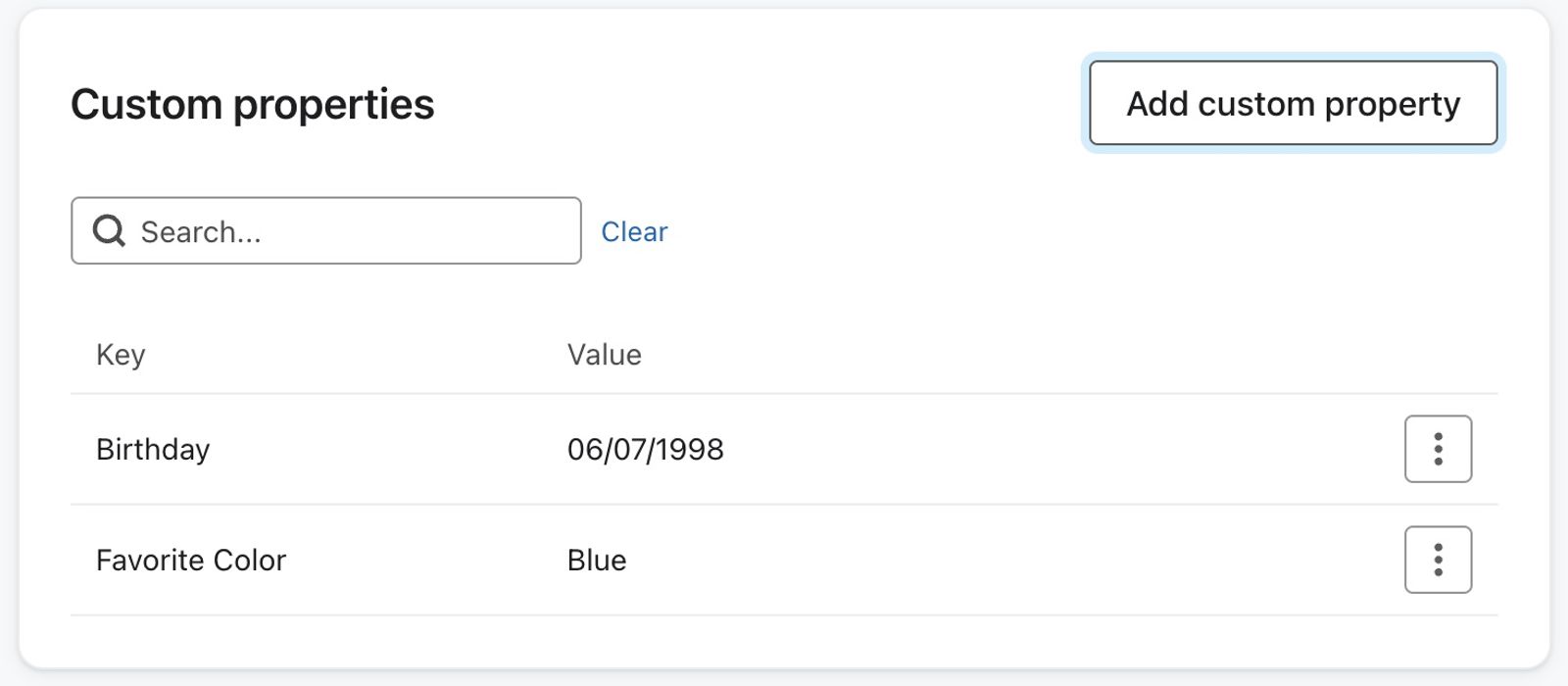
Custom properties that you may consider gathering include:
- Information about gender, size, interests, and birthdays
- Preferences around email frequency, type of content, etc.
- Responses to a questionnaire
If a profile property has the same name as a Klaviyo property on your account, you will not be able to segment on that custom property. We recommend that you avoid giving custom profile properties the same name as Klaviyo properties for this reason.
Klaviyo properties
Klaviyo properties are default properties in your account, and you can find them listed in various spots within a profile.
When exported in a file, many of them are identified by a dollar sign ($) prefix. This dollar sign prefix is not necessary to add to your CSV when uploading the same properties into Klaviyo as you will be prompted to map the upload with the property of your choice.
Klaviyo properties include:
- Klaviyo ID
- First name
- Last name
- Organization
- Title
- Phone number
- Address
- Address 2
- City
- State / region
- Country
- Zip Code
- Latitude
- Longitude
- Source
- Consent
- SMS consent timestamp
- First active
- Last active
- Profile created on
- Date added
- Last open
- Last click
- $consent_form_id
- $consent_form_version
- $consent_method
- $timezone
- $id
- $locale
- $locale_language
- $locale_country
Shopify's locale field syncs automatically to $locale in Klaviyo.
The First active and Last active properties are displayed on profiles in your browser's timezone, but are evaluated in the UTC timezone in segmentation.
Note that the following Klaviyo properties cannot be edited with a CSV import:
- Klaviyo ID
- First active
- Last active
- Profile created on
- Date added
- Last open
- Last click
- $locale_language
- $locale_country
When you export a profile, the last open and click, first and last active, and date added properties do not appear in your CSV.
Using the $id property for identifying profiles is often not best practice. However, if you choose to do so, please refer to our API documentation to learn how to use it for template sends, personal messages, and targeted exports.
As of April 2022, the external id ($id) property has a limit of 64 characters. Any characters over the limit will be truncated.
Dos and don'ts for properties
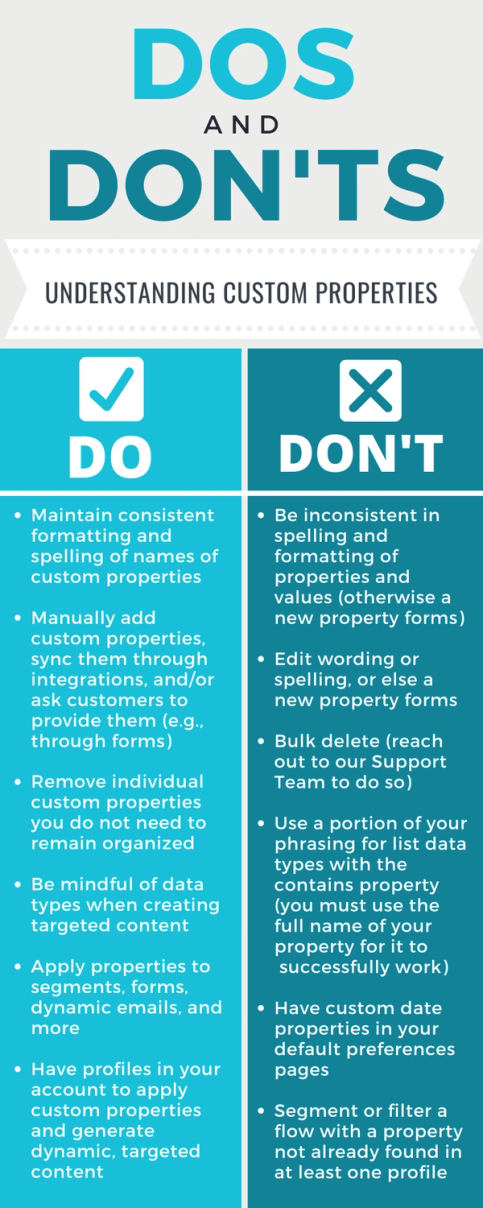
Use clear, consistent names for profile and event properties so you can distinguish information about a person from information about an action they took.
Add custom properties to a profile
There are three ways you can add custom properties to profiles in your account:
- Manually add them (from a list or individually)
- Ask customers for them
- Sync them through your integration
Manually add them
Upload custom properties with a CSV
When uploading a CSV, map each column to the profile information it contains. Column order does not determine the mapping. For example, you could have a "Gender" column that corresponds with each contact's gender.
Keep the total data sent in each profile update below 100 KB, including custom properties.
- Include an "Email" column. If you don't have the email, use "Phone Number".
- Include "First Name" and "Last Name" columns if you want to add or update those values.
- Add your columns for custom properties (e.g., "Gender").
- Add the property value for each person.
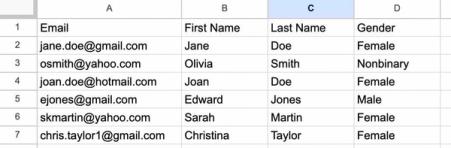
If you are uploading a list of values for each custom property, you will need to format the value as an array (e.g., ["value 1", "value 2", "value 3"]).
If you are uploading a date property, you must format dates as either YYYY-MM-DD or MM/DD/YYYY. To set a time, you can use the format HH:MM:SS (e.g., 00:00:00 for midnight).
Before importing, check whether the destination list triggers a flow. Adding new members to the list can trigger that flow. If you are only updating properties, use a list without a connected flow or set the affected flow messages to Manual before importing.
- Navigate to Audience > Lists & segments in Klaviyo.
- Open an existing list. To create one, select Create > List, enter a name, and click Create list.
- In the list, select Manage list > Import contacts.
- Click Upload, select your CSV file, then click Next.
- Map each column from your CSV to the appropriate property in Klaviyo and check its data type. Deselect any columns you do not want to import. For a properties-only update, leave consent status and consent timestamp columns unmapped.
- If a property does not yet exist, open Select or create new and choose Create New Field. Enter a Profile property name, use Choose data type to select its type, then click Create.
- Click Next.
- To update properties without changing consent, confirm that you have left consent status and consent timestamp columns unmapped, then choose Only import the consent in my file. This option still imports consent information if it is included in your mapped columns.
- Click Import.
For information on how to format dates so that they upload successfully in Klaviyo, head to our article on formatting dates and timestamps in CSVs.
If any contacts in your list don’t have an existing Klaviyo profile, a new profile will be created for them. Otherwise, new properties will be added to their existing profile. Imported values replace existing values for the same property. Blank cells are skipped, and properties omitted from the import stay unchanged. After the import finishes, open a profile to check its updated values.
Individually
You can also manually add individual custom properties to a profile, rather than in a list of profiles.
- Navigate to the profile you wish to add a property to and open the Details tab.
- Select Add custom property next to Custom properties.
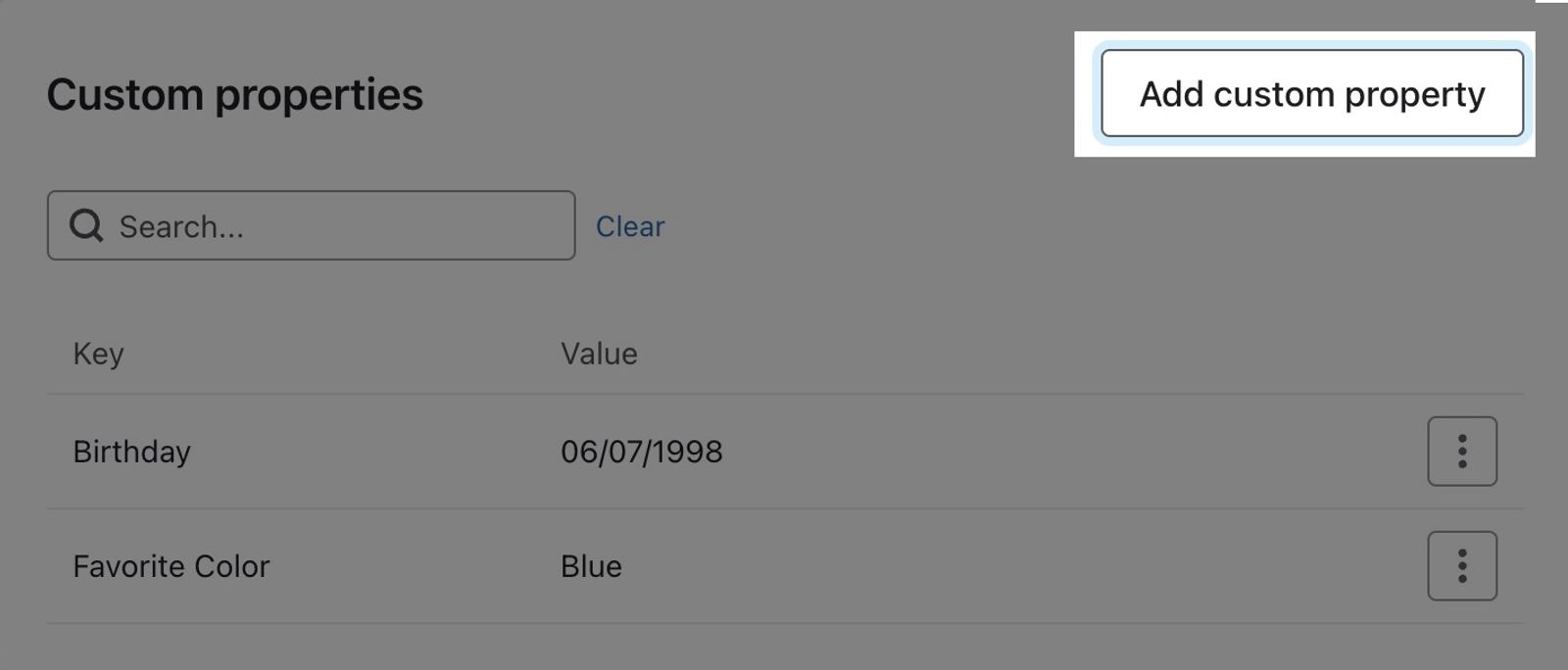
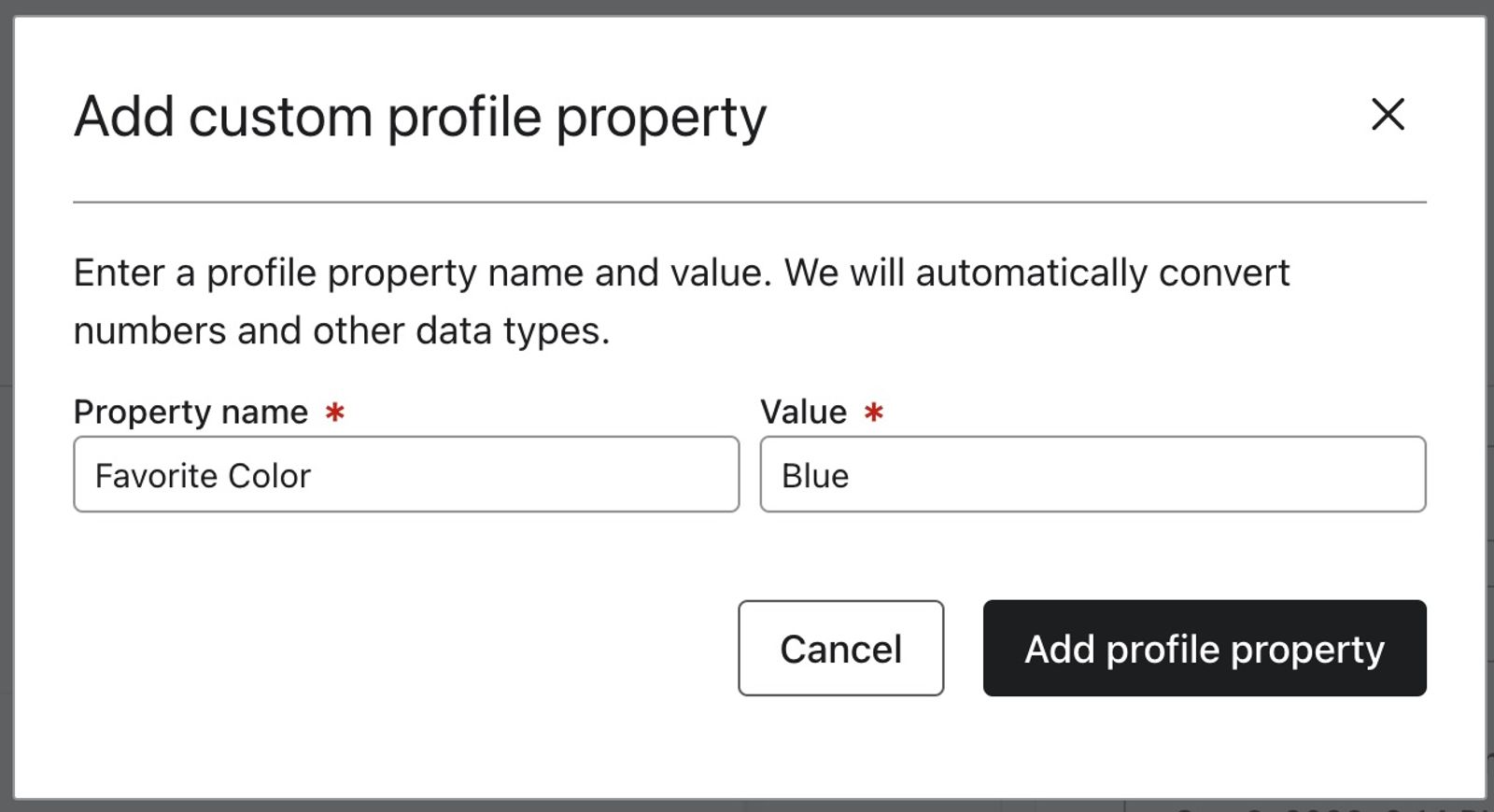
- Enter a Property name and Value in the form.
- Custom property: Favorite Color
- Value: Blue
- Select Add profile property to add it to the profile.
Ask customers for properties
The second way to gather custom properties is to ask your customers for this information directly. You can take three possible routes to collect information from customers:
Sign-up form
- Open the sign-up form you want to edit in the form editor.
- Drag and drop an input field into the form.
- Select the block
- Configure the details of the block, including the text and styling, in the left-hand sidebar
- Select an existing profile property or create a new one
- For a dropdown, radio button, or multi-checkbox field, add the labels customers see and the values you want to store under Property Options.
- When you are ready to make the changes live, click Publish or schedule, then Publish now.
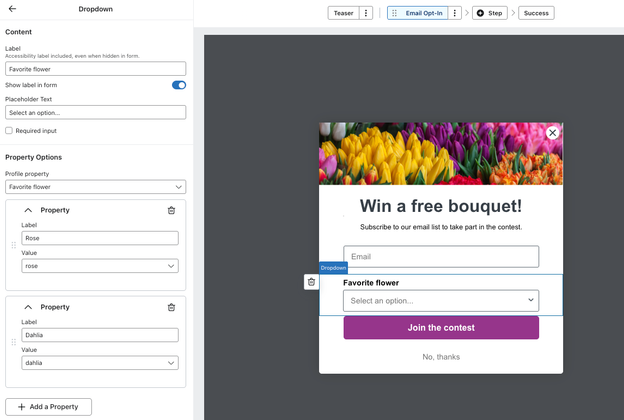
For the example above, a dropdown allows a customer to select their favorite flower. If they select “Dahlia,” this will be mapped to their profile within your account. If this person already has a value for that property on their profile, when they submit the form, the existing value will be overwritten by their new value.
Form with hidden fields
You can also acquire profile properties through hidden fields on a Klaviyo form. Hidden fields collect information discreetly as they are attached to the submit button of your form. They typically collect properties centered around form content or its location on your site. By default, all new sign-ups have a Source property as a hidden field. This identifies where the profile came from in the List Growth Report.
If you add hidden fields that correspond to properties that already exist on someone's profile, they will be overwritten by the new value when someone submits the form.
- Select the form’s submit button to open its editor.
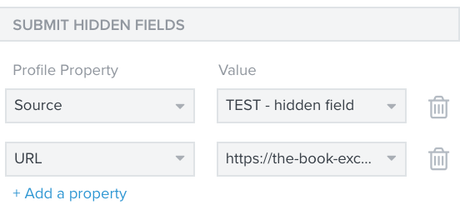
- Select Add a property under Submit hidden fields.
- Choose an existing profile property or create a new one
- Input the value for the property
- When you are ready to make the changes live, click Publish or schedule, then Publish now.
If you have different forms on different pages, you can use a hidden field to record the page associated with each form. Enter that page’s URL as the hidden field’s value and target the form to that page. For example, a bookstore can use a form on a particular genre page to record interest in that genre. The hidden field submits the value you configure; it does not automatically capture the visitor’s current URL.
Sync them through an integration
The third way to collect custom properties is to sync them directly from your integrations. This happens automatically, and the type of properties that appear depend on what integrations you have. For example, a Shopify integration automatically syncs an Accepts Marketing custom property to Klaviyo.
For more information on the custom properties that are synced through integrations, please refer to the integration documentation on our Help Center.
Manage properties
Name properties
To keep formatting consistent across profiles, choose a custom property name before creating it. Property names are case-sensitive: changing the spelling or capitalization creates a different property name. Editing a value under an existing property name updates that property; it does not create a new one.
For example, changing "gender" with a lowercase g to "Gender" capitalized would result in both inputs becoming their own properties, despite the fact that they are meant to be the same. Keep spelling and formatting consistent for all properties and their values as you add them to profiles over time. "Gender: Male" and "gender: male" would have two different properties and two different values if they were both to be put into your account.
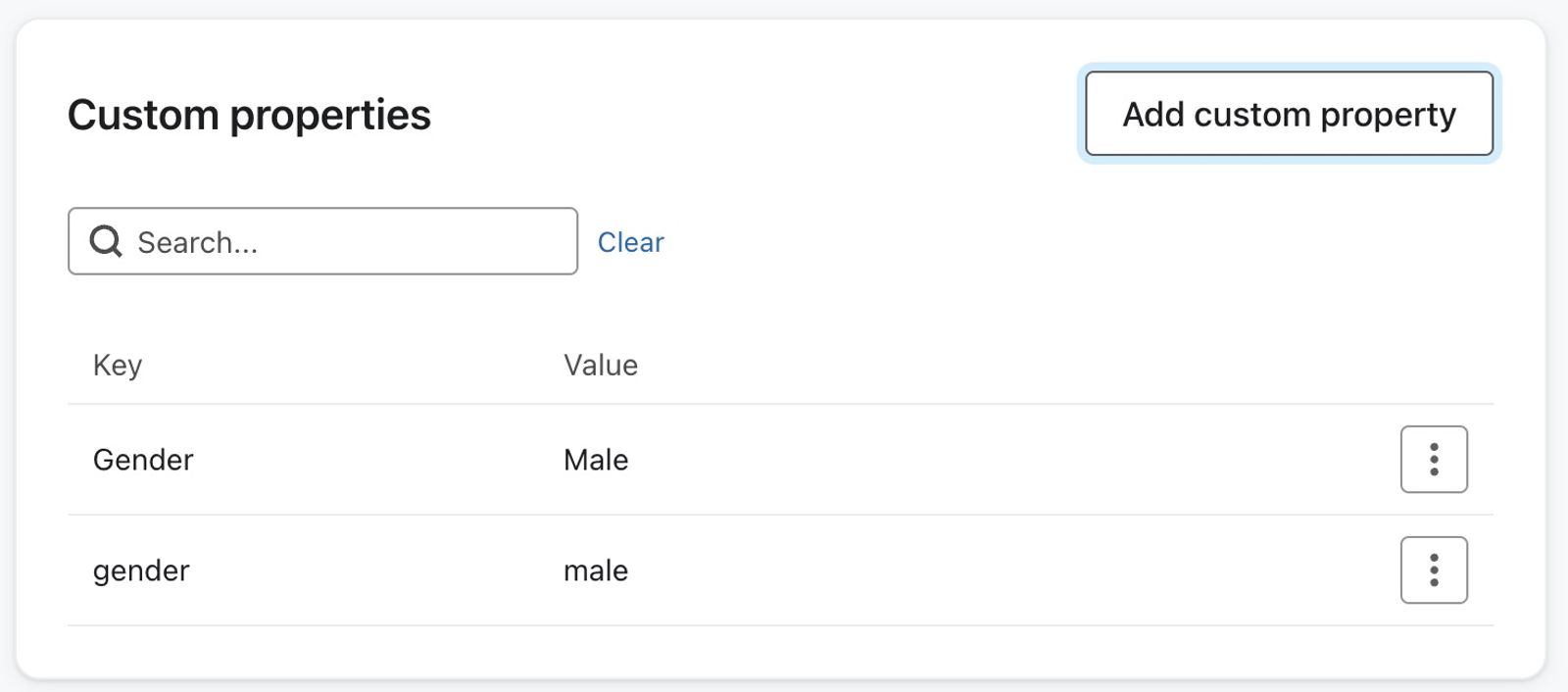
Consider the naming conventions you use beforehand so you don’t end up with extra clutter that you will have to go back and delete. Remember, consistency is key.
To rename a custom property on a few profiles, add a property with the desired name and copy the existing value. Verify the new value, then delete the old property. For a bulk rename:
- Create a segment of profiles with the property, then export those profiles with their identifiers and the property values.
- Rename the property column in the CSV and import it using the steps above. Check the new property values before removing the old property.
- Remove the old property from those profiles using the CSV removal method under Delete properties below. If you need to purge the old property from your account, contact our support team.
Maintain properties
In general, the goals of property management are to remain organized, cut out superfluous properties that you don’t need, and pay attention to our rules around naming and editing. When naming and editing properties, make sure that the name and value match across your account as this is case sensitive.
To change a custom property value on a profile:
- Open the profile’s Details tab and find the property in Custom properties.
- Expand the property’s menu and select Edit value.
- Change Current value, then click Update.
Delete properties
It is best practice to clean out properties that are no longer useful to you. Klaviyo’s built-in property fields remain part of the platform, even when a profile has no value for a field. You can remove a custom property from an individual profile or from multiple profiles with a CSV import.
To remove custom properties from multiple profiles, import a CSV with each profile’s identifier and a $unset column. In each row, list the exact property names to remove as an array, such as ["Favorite Color", "Old Preference"]. Map $unset with the List data type. Follow How to unset profile properties for the full procedure. To purge a property from your account, contact our Support Team and include the property names in your ticket.
To delete a property from a single profile:
- Navigate to that profile
- Open the Details tab and find the Custom properties section.
- Find the custom property.
- Expand the menu for the property and select Delete.
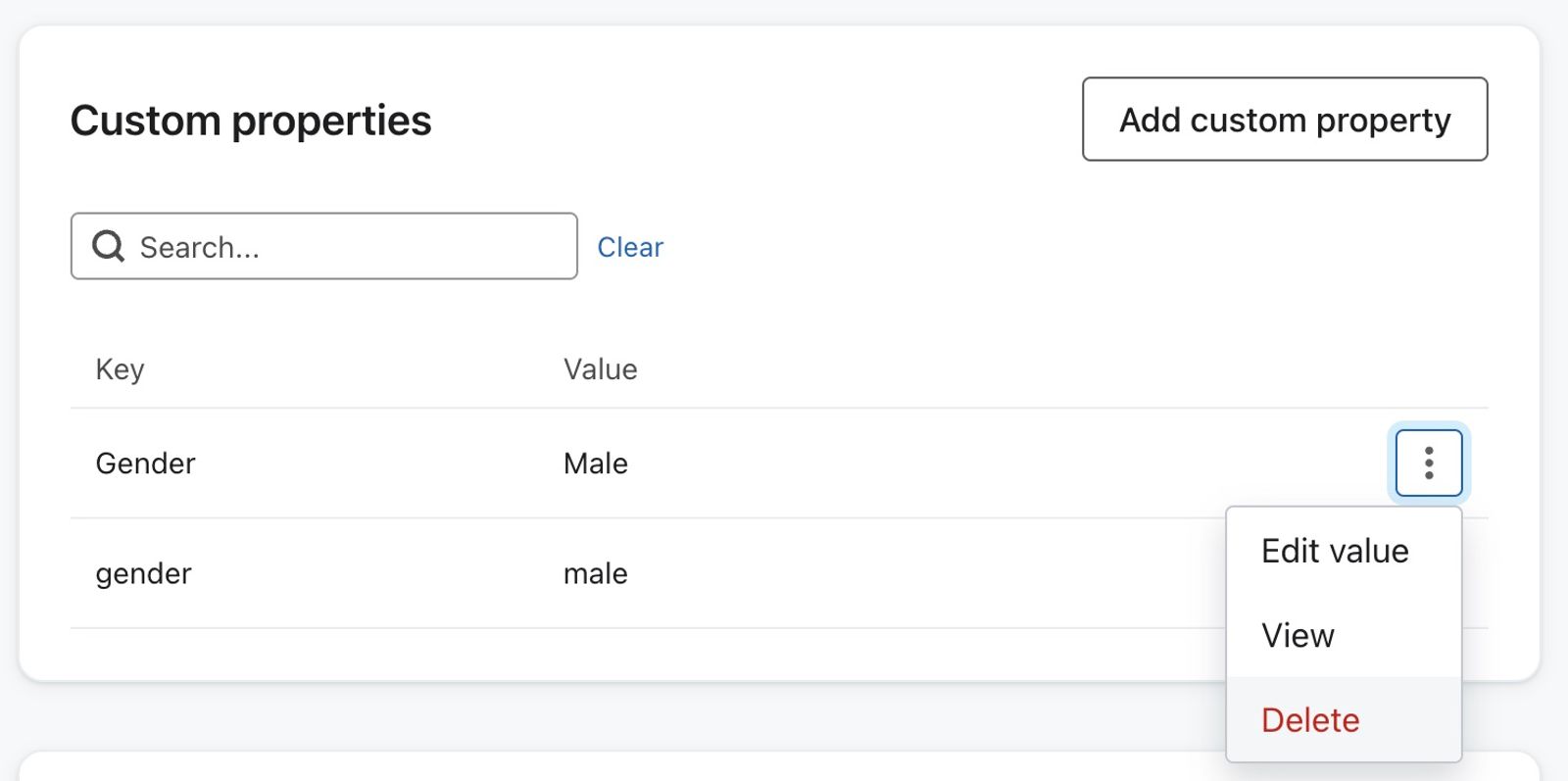
- Select Delete when prompted to confirm you want to delete the property.
Note that deleting a property from one profile will not automatically delete it from other profiles. This should only be done when you want to remove properties from a single, or a small, number of profiles.
Use profile properties
You’ve learned what properties are, how to upload them, and how to manage them. Now, the question is: how do you use profile properties? In this section, we'll go through examples of how to use Klaviyo and custom properties in your account.
More specifically, we will outline:
- How to input dynamic properties into Klaviyo emails
- How to use properties to create key segments for advanced targeting
- Best practices around filtering flows based on properties.
To select a custom property in a segment or flow filter, first add it to at least 1 profile in Klaviyo. You can use a test profile to make the property available before building your segments and flows.
Input dynamic properties in Klaviyo emails
To input properties in emails, you can use variable syntax. Variable syntax allows you to customize content to be user-specific by inputting the person variable and adding the lookup filter with your property attached. This will dynamically populate emails with customer-specific content.
Here is an example in which Favorite Color is the desired input.
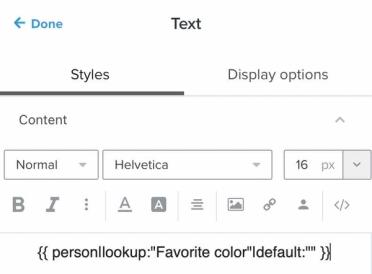
It's usually a good idea to provide a default value in case someone doesn't have the custom property you're trying to use by including the default filter. It is also important to note that we don't recommend placing a custom date property in your default preference pages in Klaviyo, as you will need to make sure people enter a date in a format we accept.
Use properties to create key segments
A key factor in sending successful email campaigns is to segment your audience. Segmentation allows you to target email recipients with specific content that appeals to them. Moreover, you can use segments to send customers content via social media ads, targeted forms, and SMS.
The example below shows a segment of women who are Patriots fans. The custom property is brand, and these specific individuals chose the Patriots as their brand of choice.
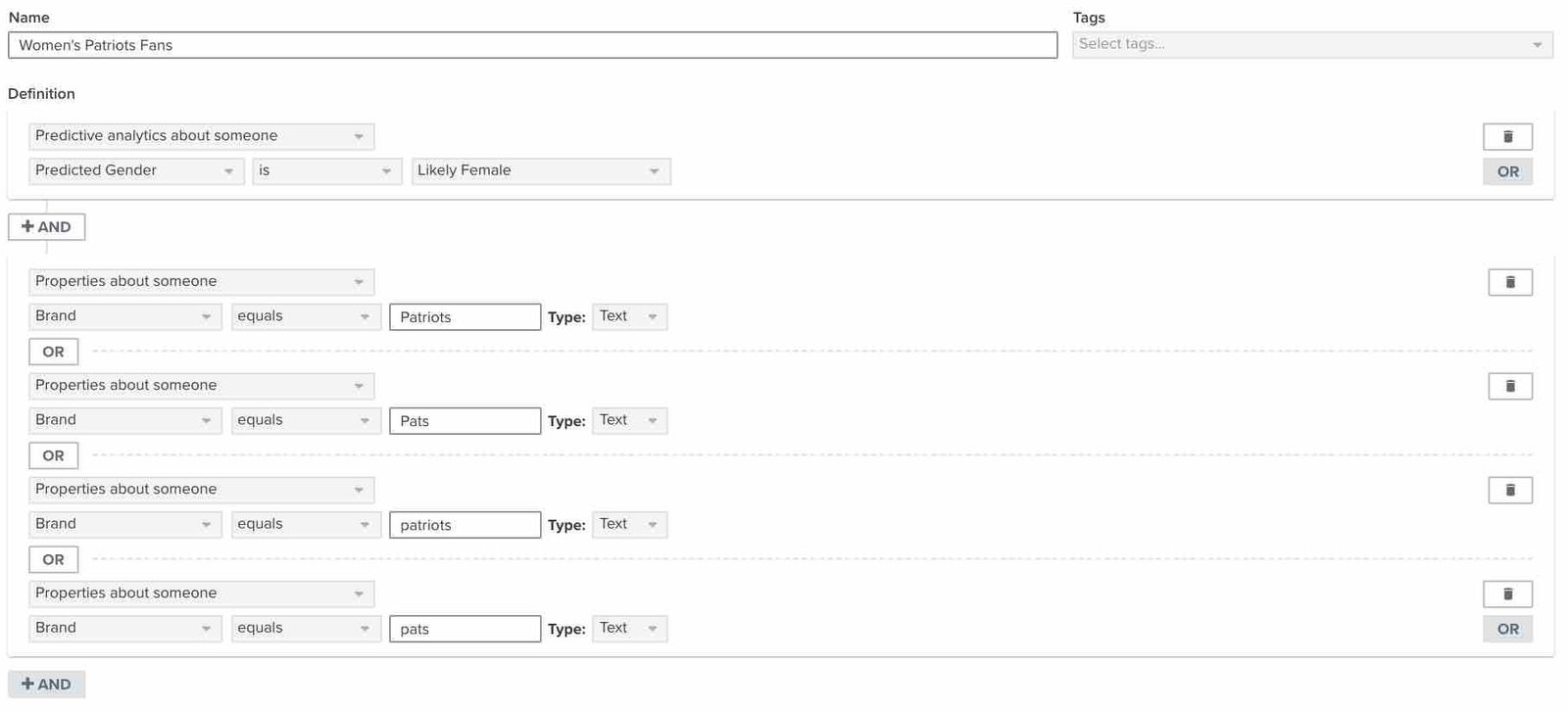
Make sure that all instances of that property value and name are included if you have not remained consistent across profiles. Moreover, customers may add their sports preference differently, in this case with Pats, Patriots, patriots, and pats. Another common instance when this occurs is with country. Someone from the United States may list their country of origin as USA, US, us, United States, etc. All values that you add need to be accounted for, split between OR conditions.
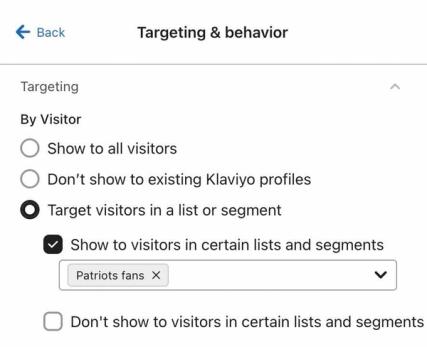
Next, target this segment with a form that informs customers of new deals on women’s Patriots apparel. Instead of having an area to subscribe to marketing, have a link to that page of your website. Likewise, set the form to only target individuals within the chosen segment.
You can also set your segment to include anyone whose property contains a certain value. This means that your segment condition would state: Properties about someone > contains ________.
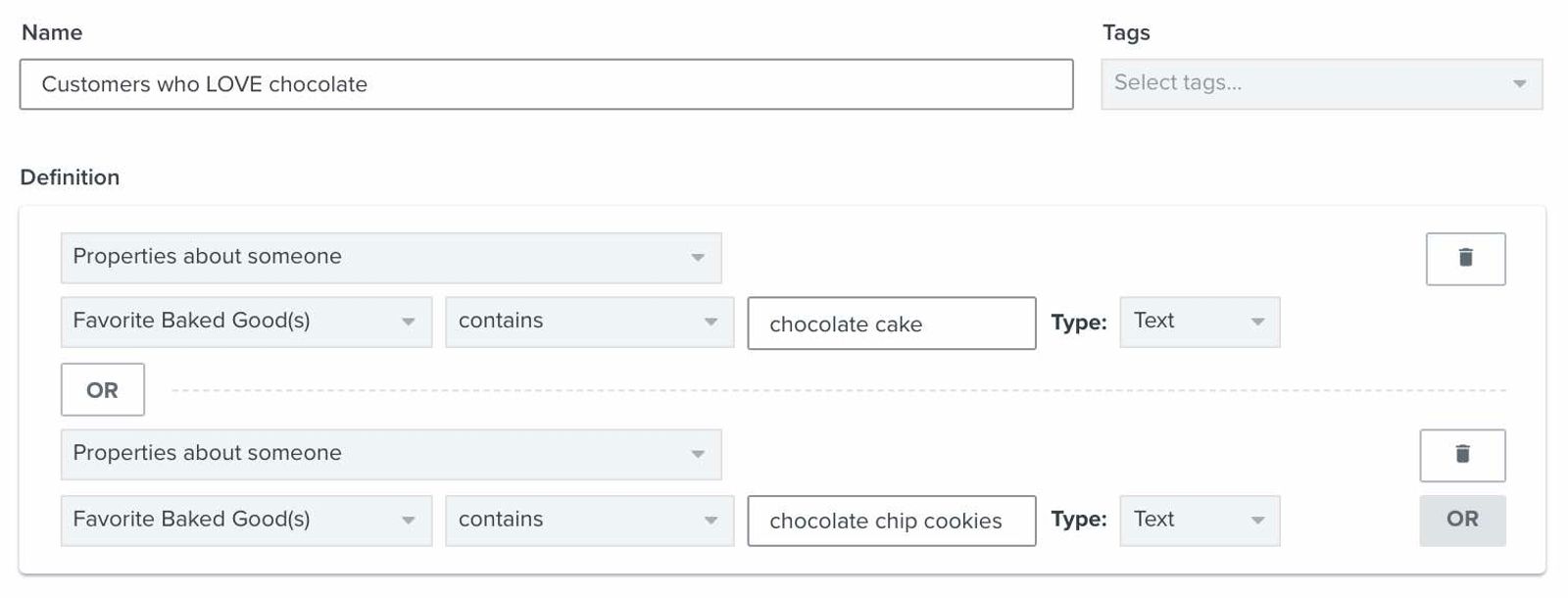
You can apply contains to both Text and List data types. For Text, it matches part of a value. For List, it matches a complete item in the list. List data types are formatted as an array in your account. For example, if you own a bakery and gather customers’ favorite baked goods, you can let them select multiple values for one property, such as chocolate cake, vanilla cake, chocolate chip cookies, and sugar cookies.
For this List property, contains chocolate will not match "chocolate cake" or "chocolate chip cookies". Use the complete list-item values in separate OR conditions, as shown below:
For more information and ideas for segments that you can customize and use to boost sales, check out our Advanced segmentation reference.
Use properties to trigger and filter flows
You can use profile properties in Profile filters to target customers with specific information that is relevant to them. You can also use a Date property to trigger a flow. For example, collect birthdays when customers sign up for your newsletter, then use that property to trigger a birthday flow that sends a coupon or thoughtful message via email or SMS. Set the flow to repeat annually and choose timing that matches your customers’ local times and your content needs. Learn how to create a date property-triggered flow.
Use profile-property conditions for information stored on the person’s profile. For a flow triggered by an event, use trigger filters for details of that triggering event.
By now, you’ve learned how to create, manage, and use custom properties. You will also have a deeper understanding of the differences between Klaviyo and custom properties that you make yourself. Check out our complete list of the do's and don’ts of custom properties earlier in this guide as another resource to add to your Klaviyo toolkit. Then, see how you can use properties to create targeted content that directly pertains to your business. This is just another step in the direction of truly owning your marketing.
Additional resources
- Understanding the information section of a profile
Learn about the information section of a profile in Klaviyo, which contains details such as when and how the profile found you and the last time they were active.
- Advanced segmentation reference
Learn effective advanced segmentation strategies that provide insights into your customer base and create highly personalized experiences for your subscribers.
- Understanding data types
Learn about the different options available for storing your data in Klaviyo, and how to use each one. Klaviyo allows you to harness the data collected about your customers to power data-driven marketing choices that will grow your brand. That being said, it's important to understand the data that's being pulled into your account.