Salesforce Commerce Cloud Optimized Catalog Sync
You will learn
Learn how to enable the Optimized catalog sync feature for your Salesforce Commerce Cloud integration.
Before you begin
- The SFCC store must already be integrated with Klaviyo. If it is not, complete Getting started with Salesforce Commerce Cloud first.
- Optimized catalog sync is optional. No Klaviyo cartridge update is required to use it.
- Ask Salesforce Support to confirm that Delta Exports are enabled on your account. Not all instances have this by default.
- Access to SFCC Business Manager is required to complete setup.
Default catalog sync vs. optimized catalog sync
A catalog sync has 3 components:
- The product and its associated variants
- Price and product status
- Inventory
In the default periodic catalog sync, Klaviyo uses the Data OCAPI POST /s/-/dw/data/{version}/product_search endpoint and GET /s/-/dw/data/{version}/products/{master_product_id}/variations endpoint to sync all 3 components at the same time.
The last_modified attribute indicates the last time product data changed. However, it does not update when a price or inventory change occurs. Due to this limitation, Klaviyo must re-sync the entire catalog on every default sync run to catch every price and inventory update.
The larger your catalog, the longer it will take Klaviyo to run a periodic catalog sync. A full sync generally takes 8 hours or more.
Optimized catalog sync separates products and variants, inventory, and price and product status into 3 syncs:
Data | How it syncs | Cadence |
Products and variants | Delta sync. Pulls only products changed since the last run. | At specified cadence |
Inventory | Delta export from SFCC's native inventory list export. | At specified cadence |
Price | Full crawl of the catalog, price fields only. | Once a day, at a chosen time in your Klaviyo account's time zone |
In doing so, both the products/variants and inventory have moved to a delta sync, only updating the products that were last_modified since the previous sync run. Enabling hourly updates to reach Klaviyo.
The price sync will still be ran against your entire catalog. Since the requests are only querying for price, it will be significantly faster to run through the entire catalog compared to the default catalog sync. You can schedule the price sync to kick off at the same time every day, to ensure any price changes you implemented reach Klaviyo shortly afterward.
How to set up optimized catalog sync
Complete these steps in order. No cartridge upgrade is required.
Step 1: Request Delta Exports access
Delta exports are not available by default on all SFCC accounts. Contact Salesforce Support to activate the feature. See Salesforce's Delta Exports documentation for details.
Step 2: Create a Delta Export for the inventory list
In SFCC Business Manager, go to Administration > Site Development > Delta Exports.
Create one Delta Export for each site that syncs to Klaviyo. For each export:
- Set Consumer to
klaviyo. - Set Export Name to
klaviyo-{site ID}. Replace{site ID}with the actual site ID. - Add the Inventory Lists data type.
- Select the one inventory list for that site. Do not select all lists.
- Set the schedule to every 3 hours.
- Run the export once to complete setup.
Each export must contain exactly 1 inventory list. Klaviyo assigns every record in an export to the site identified by the export name, so include only that site's inventory list.
Step 3: Grant Klaviyo WebDAV access
In Business Manager, go to Administration > Organization > WebDAV Client Permissions.
Grant read access to /impex/src/platform/outbox/klaviyo for the client ID that already has OCAPI access.
Example text that should be added in WebDAV Client Application Permissions:
{
  "client_id": "{Client ID that is assigned to Klaviyo}",
  "permissions": [
    {
      "operations": [
        "read"
      ],
      "path": "/impex/src/platform/outbox/klaviyo/"
    }
  ]
}
Important: Before continuing, confirm that WebDAV access and OCAPI access use the same client ID. This is the most common setup error.
Step 4: Turn on Optimized catalog sync in Klaviyo
- In Klaviyo, go to the Salesforce Commerce Cloud integration settings.
- Click Enable on the Optimized catalog sync card.

- Under Price and status, choose the time for the daily sync to start. The time uses your Klaviyo account's time zone, shown in the dialog.
- Click Enable in the dialog to save your settings and turn on optimized catalog sync.
Under Product and inventory, check the status for each site. Healthy means Klaviyo can access export files for that site. Last export shows the most recent export time when available; it does not confirm that Klaviyo has finished syncing the export.
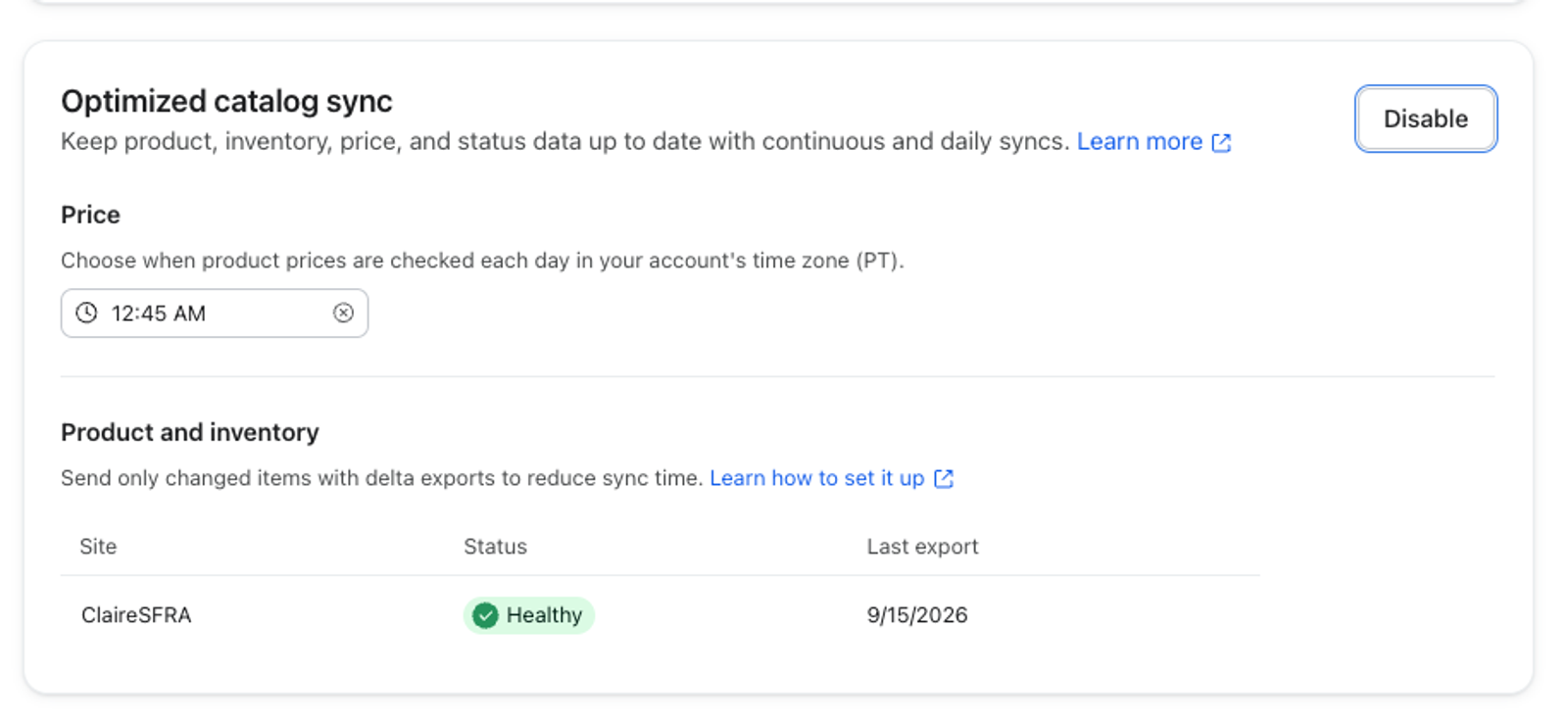
If a site shows No access, confirm that the same API client ID used for OCAPI has read access to /impex/src/platform/outbox/klaviyo.
If a site shows No export found, confirm that its export uses klaviyo as the consumer and klaviyo-{site ID} as the export name, and that it has run at least once.
Additional resources
- Getting started with Salesforce Commerce Cloud
Learn how to integrate Salesforce Commerce Cloud with Klaviyo. The Klaviyo cartridge and API integration allows websites using Salesforce Commerce Cloud (formerly Demandware) to quickly connect and send both real-time and historic data to Klaviyo. When you integrate Klaviyo with Salesforce Commerce Cloud (SFCC), Klaviyo will start tracking actions people take in real-time like website navigation, search tracking, viewing products, viewing categories, adding items to a cart, checking out, and ordering.