Customizing your next best product (NBP) recommendations
You will learn
Learn how to configure your next best product (NBP) recommendations to make certain products or categories eligible to appear in your account's messages or flows. You can exclude products or categories, choose a lookback window for previous purchases, and set price and stock filters.
NBP recommendations are available with a Personalization or Advanced KDP subscription or active trial. Before customizing your recommendations, set up Catalog insights.
How to edit your NBP settings
Choose which products or categories are eligible for your account’s NBP recommendations by excluding products or categories, setting a lookback window for previous purchases, and choosing price and stock filters. These settings apply across your account and are separate from the exclusions for your Product Analysis and Category Analysis reports.
Account Owners, Admins, Managers, and Analysts can update NBP settings across your account.
Navigating to the settings
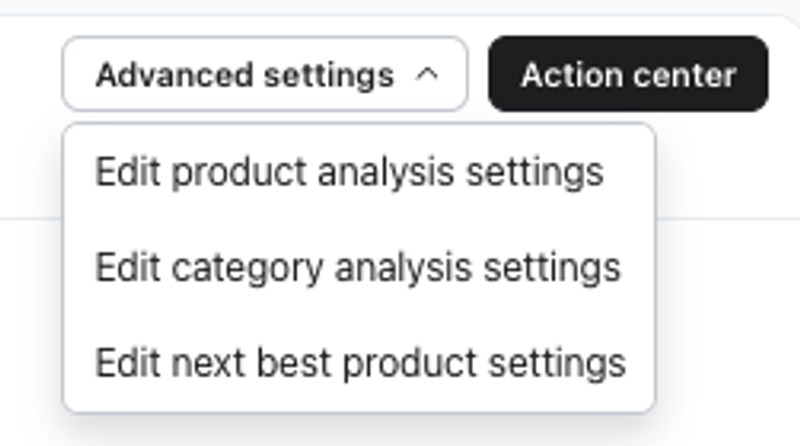
- Navigate to Personalization > Catalog insights > Advanced settings. Then select Edit next best product settings from the dropdown. You will be on the Next best product settings tab.
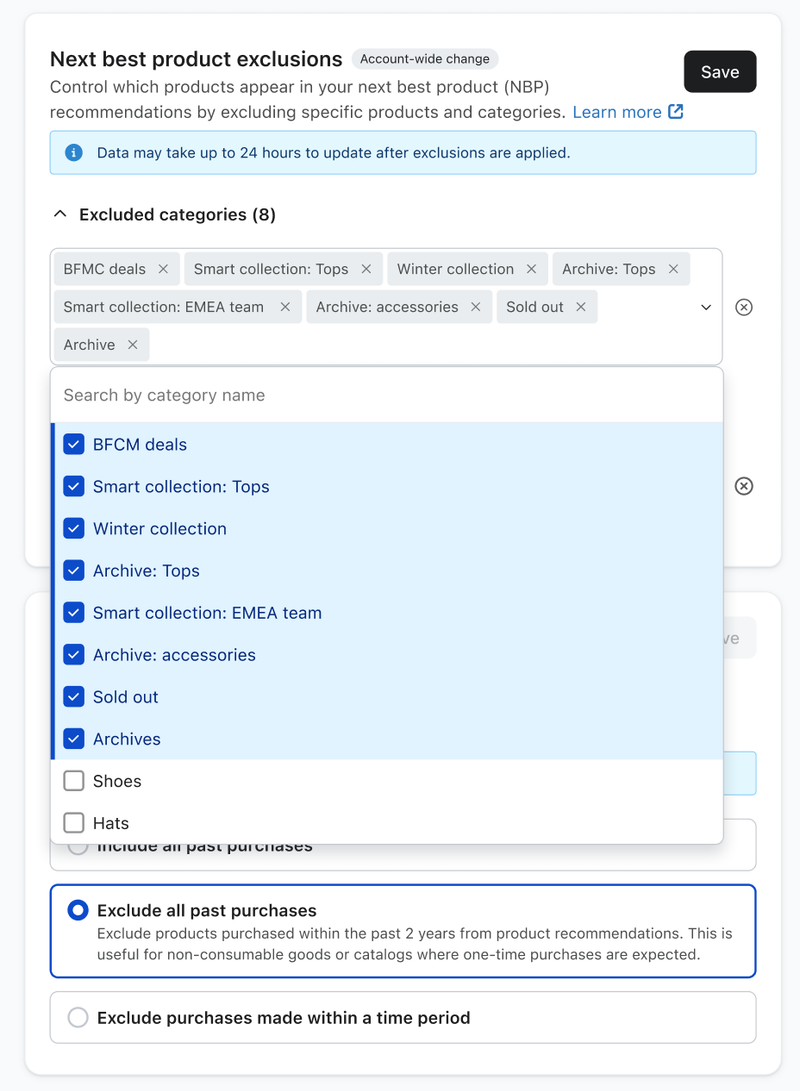
Excluding certain products or categories from recommendation
- Under Next best product exclusions, expand Excluded categories or Excluded products.
- From here, select or search for any categories or products you wish to exclude from being eligible for NBP recommendations.
- Select Save, then Apply changes in the confirmation dialog to apply changes to your NBP recommendations. These changes may take up to 24 hours to be reflected.
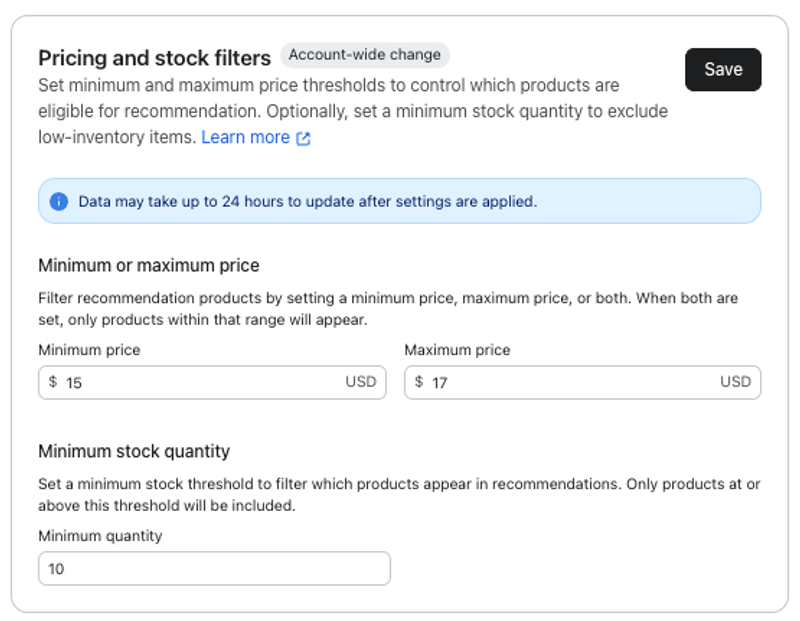
Choosing price and stock filters
Use the price and stock filters to control which products are eligible for recommendation based on their cost and inventory levels.
- Navigate to the Pricing and stock filters section.
- In the Minimum or maximum price section, fill in the fields to set a minimum price, maximum price, or a range. To set a range that products can fall within, use both a minimum and maximum price together. Prices must be 0 or greater, and the maximum must be greater than or equal to the minimum.
- In the Minimum stock quantity section, fill in the field for the minimum amount of stock you need for a product to appear in recommendations. Note that negative and non-whole numbers are not supported.
- Select Save, then Apply changes in the confirmation dialog to apply changes to your NBP recommendations. These changes may take up to 24 hours to be reflected.
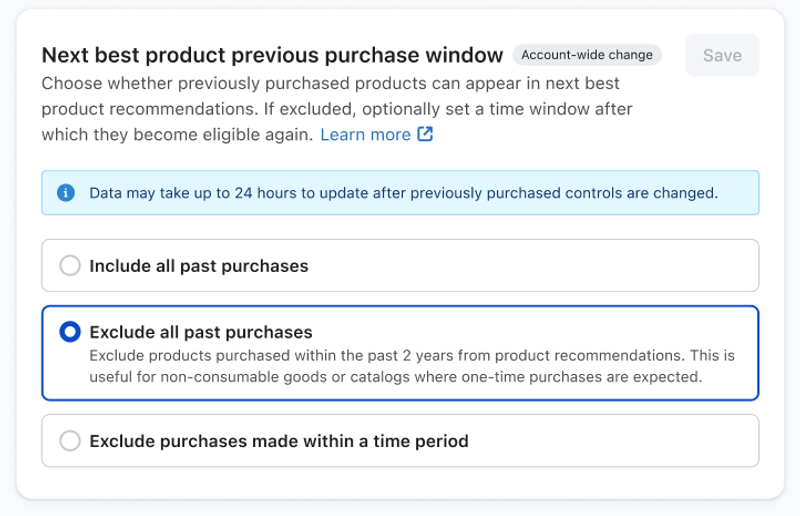
Updating when previously purchased products can be recommended
Control whether previously purchased products can appear in NBP recommendations. Additionally, you can set if previously purchased products can be recommended to customers after a certain period of time by setting your own lookback window.
- Navigate to the Next best product previous purchase window section.
- Choose one of the following options to include or exclude prior purchases:
- Include all past purchases: This allows previously purchased products from the past 2 years to be recommended. This is useful for consumable goods or catalogs where repurchasing is expected.
- Exclude all past purchases: Exclude products purchased within the past 2 years from product recommendations. This is useful for non-consumable goods or catalogs where one-time purchases are expected.
- Exclude purchases made within a time period: Temporarily exclude products purchased within the selected window. After that period, those products can become eligible again. This applies to up to 2 years of purchase history, and is useful if you have mixed catalogs, seasonal items, or if you want more control over when past purchases can be included in product recommendations again.
- If you choose Exclude purchases made within a time period, select a window of 30, 60, 90, 120, 180, or 365 days. For example, Last 60 days excludes products purchased in the last 60 days.
- Select Save, then Apply changes in the confirmation dialog to apply changes to your NBP recommendations. These changes may take up to 24 hours to be reflected.