How to register your Spain SMS or RCS branded sender ID directly with the CNMC
How to register your Spain SMS or RCS branded sender ID directly with the CNMC
This article covers direct registration with the CNMC — an optional path that you manage yourself through the CNMC's portal. If you are completing registration through Klaviyo's in-app process, you do not need to follow the steps in this article.
Spain's telecommunications regulator (CNMC) now requires all businesses sending SMS and/or RCS to Spanish phone numbers using an alphanumeric (branded) sender ID to register that sender ID in a national registry. From September 15, 2026, any unregistered sender ID will be blocked by Spanish carriers; this applies to all businesses sending to Spanish numbers, regardless of where the business is based.
Direct registration lets you submit and monitor your application through the CNMC portal. The CNMC's standard review period for an individual application is up to 1 month, counted from submission or, if required, the alias holder's authorization. Bulk applications submitted by providers have a review period of up to 3 months. The CNMC decides whether to approve your registration.
SMS and RCS are registered separately. If you use the same brand name for both channels, you need 1 registration per channel — registering your SMS sender ID does not cover your RCS sender ID. Complete this guide once per sender ID, selecting the matching Message Type in Step 4 each time.
Before you start: Obtain your digital certificate
You cannot access the CNMC portal without a valid digital certificate. Which type you need depends on where your company is registered.
If you cannot obtain an accepted certificate, you can authorize a representative who has one to act for your company. Use the applicable authorization-letter template from the CNMC registration page.
If your company is registered in Spain: FNMT certificate
Spanish companies use a certificate issued by the FNMT (Fábrica Nacional de Moneda y Timbre, Spain's national mint). The end result is a certificate file you download and install on your computer.
Before applying, check the FNMT requirements for your selected certificate and identity-verification route. The online routes require an eligible FNMT personal certificate or, for the administrator certificate, an electronic DNI. Allow time to obtain that credential and gather the required documents.
How to obtain it:
- Go to the FNMT representative certificate page and select the certificate for your entity and representative. For an S.A. or S.L. whose representative is a sole or joint-and-several administrator registered in the Commercial Register, select Administrador Único o Solidario. Other representatives should check the requirements for Persona Jurídica or Entidad sin Personalidad Jurídica.
- Install the software required by the FNMT before submitting your application. Instructions are provided on the configuration page.
- Submit the online application. You will receive a request code by email.
- Complete the identity verification required for your certificate. For Persona Jurídica, online verification is available for entities whose NIF starts with A, B, C, or D, provided the representative has the required documents and an FNMT personal certificate obtained through video or in-person identification, not an online renewal. Otherwise, follow FNMT’s instructions for verification at an authorized office. The Administrador Único o Solidario application uses an FNMT personal certificate or electronic DNI.
- Download and install your certificate on the same device and browser you used to apply, following the instructions for your selected FNMT certificate. The Persona Jurídica certificate costs €14 plus tax; the Administrador Único o Solidario certificate costs €24 plus tax. Both are valid for 2 years.
If your company is registered in an EU member state (but not Spain)
The CNMC portal requires a digital certificate issued by a provider on Spain's Ministry of Economic Affairs approved list. You can view the full list at https://sedeaplicaciones.minetur.gob.es/prestadores/.
Most EU-recognised Qualified Trust Service Providers (QTSPs) appear on this list. Obtain a qualified electronic signature certificate from your country's national QTSP, or check the Ministry list above to confirm your provider is accepted before purchasing.
Look for a Qualified Electronic Signature (QES) certificate product. Standard SSL or S/MIME certificates are not sufficient.
Timeline: Allow 1 to 3 weeks depending on your provider.
If your company is registered outside the EU (including US, UK, and Australia)
The only internationally accessible provider confirmed on Spain's Ministry registry is Sectigo (sectigo.com). You will need to obtain a Sectigo eIDAS-qualified electronic signature certificate. When purchasing, look specifically for their Qualified Electronic Signature (QES) product — standard SSL or S/MIME certificates from Sectigo are not sufficient and will not be accepted by the CNMC portal.
Note that DigiCert, GlobalSign, Certigna, and D-Trust do not appear on Spain's Ministry registry and their certificates will not be accepted.
Installing your certificate for use with the CNMC portal
The CNMC portal works with certificates installed in your browser or operating system certificate store. After obtaining your certificate:
- Windows: Import the certificate via Internet Explorer / Edge certificate manager, or through the Windows Certificate Store. Firefox users need to import separately via Firefox Settings > Privacy & Security > Certificates.
- Mac: Import the certificate into Keychain Access. Safari and Chrome will pick it up automatically. Firefox users need to import separately.
Test your certificate works by logging in to the CNMC portal before filling in the registration form. If the portal does not recognise your certificate, contact your certificate provider's support team.
Step 1: Access the CNMC Alias Registry portal
Go to the CNMC Alias Registry portal and log in using your digital certificate.
Portal URL: https://tramites.cnmc.gob.es/formulario/213/
Alternatively, you can access the portal via the CNMC's electronic sede at https://sede.cnmc.gob.es/tramites/telecomunicaciones/gestion-del-registro-de-alias.
Step 2: Fill in your Applicant details (Solicitante)
You are registering on behalf of your company, so select:
"On behalf of" / En representación de
Fill in the following fields:
Field | What to enter |
|---|---|
Tax ID of the company (NIF de la empresa) | Your company's tax ID. Spanish companies: NIF/CIF. Companies outside Spain: provide a NIF or EU VAT ID where possible. If your company has neither, contact the CNMC before submitting to confirm which identifier it will accept. |
Name of the company (Nombre de la empresa) | Your company's official registered legal name |
Tax ID of the applicant (NIF del solicitante) | Auto-filled from your digital certificate |
Name of the applicant (Nombre y apellidos) | Auto-filled from your digital certificate |
Email address (Correo electrónico) | Contact email for this submission |
Phone (Teléfono/Móvil) | Optional |
For Request Type (Tipo de Solicitud), select:
Alias Registration / Inscripción de Alias
Enter your company’s registered address, including the street type and name, street number, postal code, and country.
Step 3: Add your Legal Representative (Representantes del titular)
Click "Add Representative" / "Añada representante".
Your representative must have a valid digital certificate to act in the CNMC portal. If a provider or third party submits the application on your company's behalf, the alias holder must authorize it within 10 business days of the CNMC notification. Let your representative know to expect that request. If the deadline is missed, the application does not proceed and must be submitted again.
Choose Natural Person if your representative is an individual:
Field | What to enter |
|---|---|
Name (Nombre) | Representative's first name |
Tax ID (NIF) | Representative's tax ID / passport number |
First Surname (Primer apellido) | Representative's first surname |
Second Surname (Segundo apellido) | Optional |
Representative's email address (required for notifications) | |
Phone (Teléfonos) | Optional |
☑ Receive notifications (Recibir notificaciones) | Check this box so your representative receives registration notifications, including any authorization request |
Choose Legal Entity if your representative is a company (e.g., a holding company or parent entity):
Field | What to enter |
|---|---|
Company Name (Razón social) | Legal entity's official name |
Company Tax ID (NIF) | The representative company’s NIF, EU VAT ID, or tax identification number from its country of origin. |
Representative's First Name (Nombre) | Name of the individual acting for the legal entity |
Representative's Tax ID (NIF del representante) | That individual's tax ID or passport number |
Representative's First Surname (Primer apellido) | That individual's first surname |
Representative's Second Surname (Segundo apellido) | Optional |
Contact email for notifications | |
Phone | Optional |
☑ Receive notifications (Recibir notificaciones) | Check this box |
Step 4: Fill in your Alias (sender ID) details
Field | What to enter |
|---|---|
Sender ID (Alias) | The branded name you send SMS or RCS from, with exactly the same capitalization. Must be 3 to 11 characters for SMS, or 3 to 40 characters for RCS. Allowed characters: a to z, A to Z, ñ, Ñ, ç, Ç, 0 to 9, space, @, &, -, _, ., +. Not allowed: accented vowels (á, é, etc.), purely numeric strings, leading or trailing spaces, consecutive spaces, or other special characters (!, ?, #, %, *, etc.). |
Message Type (Tipo de mensaje) | Select SMS or RCS to match the channel this sender ID is for (or MMS if applicable). SMS and RCS need separate registrations, even if the brand name is the same. |
Activation Date | For SMS, enter the date from which you want this sender ID active. The sender ID cannot be used before the day after its registration. Not required for RCS. |
Expiration Date | For SMS, leave blank for indefinite use or enter a future end date. Not required for RCS. |
Note: The specific allowed character list above is sourced from Infobip's registration guidance and applies to both SMS and RCS. For the most current technical specification, refer to CNMC Circular 1/2026.
For SMS, under Legitimate Linkage (Vinculación legítima), choose the option that best describes your connection to the sender ID name. Select only 1. RCS registration does not require this field.
- Registered trademark (OEPM or EUIPO): select this if your sender ID is a registered trademark
- Trade name (OEPM): select this if it is a registered commercial name
- Corporate name (Companies Register): select this if it matches your legal company name
- Internet domain (Red.es or ICANN): select this if it matches a domain registered in your company's name
- Other national/international registries: select this if registered elsewhere
- Legitimate and habitual use: select this only if none of the above apply. You will need to provide a written explanation of how and why you use this sender ID
For SMS, in the Specify the legitimate connection (Especificar cuál es) field, enter the exact trademark name, domain name, corporate name, or (for legitimate use) your explanation.
For SMS, complete and sign the Responsible Declaration that matches your choice: the version with a connection to official registries for a registered name, trademark, or domain, or the version without that connection for legitimate and habitual use.
Find the declaration requirements and current instructions on the CNMC registration page.
Step 5: Select Infobip as your Provider
In the Providers (Proveedores) section, select the Infobip entity for the country where your company is registered:
- Companies registered in Spain: INFOBIP MOBILE SERVICES, S.L. UNIPERSONAL
- Companies registered outside Spain: INFOBIP LIMITED
Select the applicable provider exactly as written above. Infobip is Klaviyo's carrier partner for Spain SMS and RCS delivery. Selecting the correct provider name is essential. If this field is blank or incorrect, your registration will not be linked to your Klaviyo sending and your traffic may be blocked even if the registration is approved.
Step 6: Add Klaviyo as a Third Party
The CNMC requires you to identify any platform or technology provider that manages or uses your sender ID on your behalf, and this includes Klaviyo.
Click "+ Add third party" / "+ Añadir tercero" and select Legal Entity.
Enter the following details exactly:
Field | What to enter |
|---|---|
Company Name (Razón social) | Klaviyo, Inc. |
Tax ID (NIF) | 46-0989964 |
Representative's First Name (Nombre) | Cameron |
Representative's Tax ID (NIF del representante) | 598767246 |
Representative’s Phone Number and Email | +1-207-504-6186; legalops@klaviyo.com |
Representative's First Surname (Primer apellido) | Vermette |
Why this matters: Klaviyo is the platform through which your SMS and RCS traffic is managed and sent. Listing Klaviyo as a third party is required for regulatory traceability. If Klaviyo is not named here, the CNMC may flag your registration as incomplete.
Step 7: Review and submit
Click "REVIEW AND SUBMIT" / "REVISAR Y PRESENTAR".
Review all details carefully before submitting. Common mistakes that cause rejections:
- The correct Infobip entity is not selected as the Provider
- Klaviyo not listed as a Third Party
- Sender ID contains disallowed characters, or exceeds the character limit for its channel (11 for SMS, 40 for RCS)
- Message Type does not match the channel the sender ID is used for
- For SMS, legitimate linkage documentation does not match the sender ID name or the signed Responsible Declaration is missing
- Legal representative details are incomplete or incorrect
If the application requires authorization from the alias holder, the CNMC will notify the listed representative. They must respond within 10 business days of that notification or the application will not proceed and must be submitted again. Direct submissions by the holder or its authorized representative do not always require a separate confirmation.
You are responsible for monitoring the status of your registration via the CNMC portal. Klaviyo is unable to see your registration while it is processing with the CNMC if you choose to register directly.
Step 8: Notify Klaviyo of your submission
For an RCS sender ID, email Klaviyo Support with your RCS sender ID and confirmation that you have registered it directly with the CNMC.
For an existing SMS branded sender ID that needs registration, follow these steps. You need permission to edit sender settings.
- Open Sender information in the Klaviyo settings for the account you are registering the sender ID for.
- Find your Spain branded sender ID in the SMS countries table and click Resolve. In the details panel, click Finish registering.
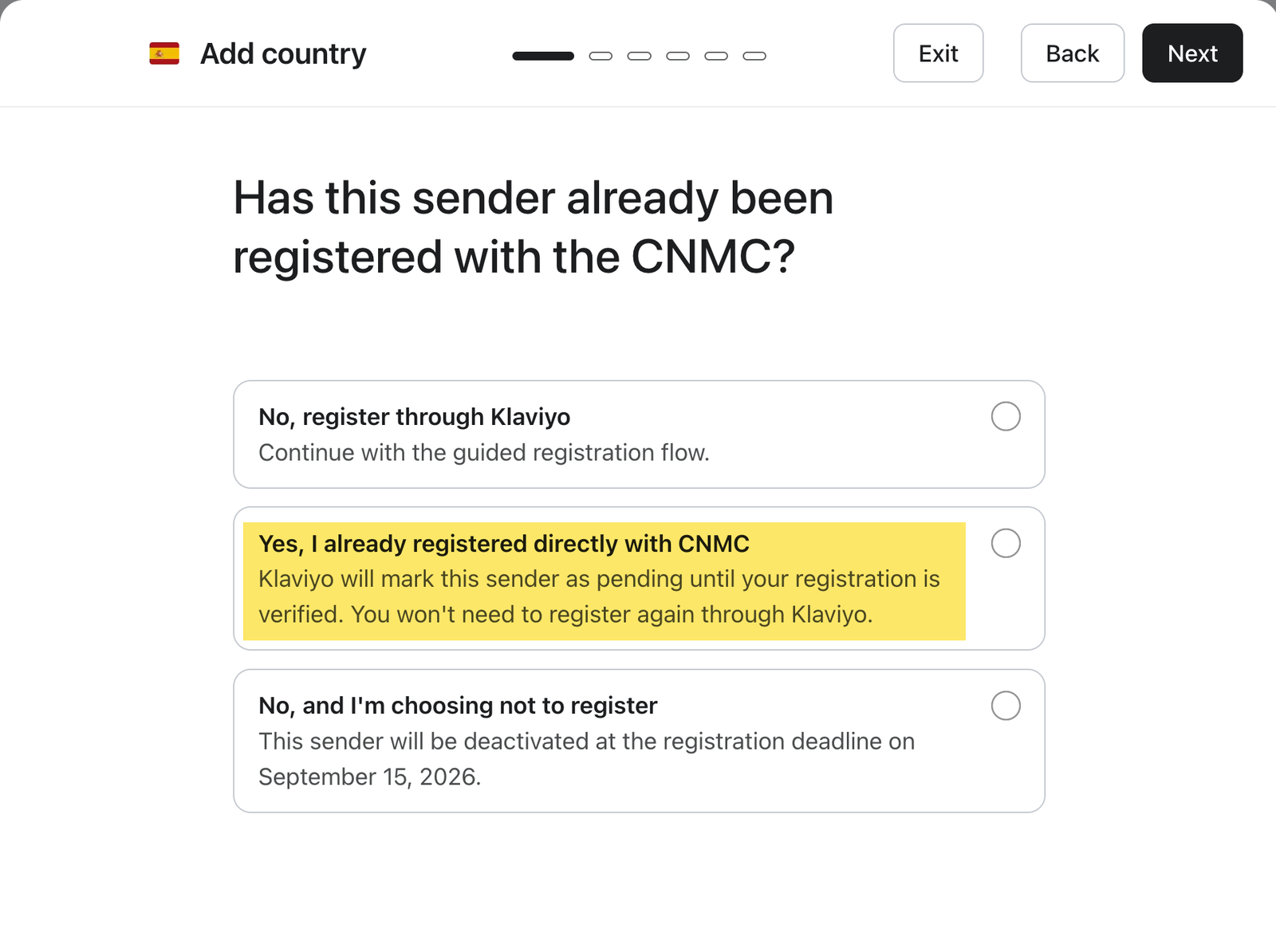
- Select Yes, I already registered directly with CNMC, then click Submit.
- Review the confirmation that your sender ID is pending, then click Close.
Klaviyo marks your sender ID as pending while it verifies your CNMC registration, then updates the sender's status once confirmed.
If you do not see the direct-registration option for your SMS sender ID, contact Klaviyo Support with your sender ID and CNMC registration details.
After submission
What happens | Timeline |
|---|---|
CNMC sends an authorization request if the application requires the alias holder’s approval | Within a few days of submission, if authorization is required |
Your representative authorizes the application in the CNMC portal, if requested | Within 10 business days of the authorization notification |
CNMC reviews and approves/rejects your registration | Up to 1 month from submission or, if required, the alias holder’s authorization |
You receive email notification of the outcome | Upon CNMC decision |
If you have not yet notified Klaviyo of your direct registration, follow Step 8 for your channel. If you already submitted the SMS direct-registration response, Klaviyo will verify the registration and update your sender's status; you do not need to repeat that response after approval.
If your registration is rejected, review the CNMC notification and contact the CNMC directly to address the rejection and complete any required steps. You can also contact Klaviyo Support for help preparing a corrected resubmission. After you complete registration with the CNMC, it can take time for the approved status to appear in Klaviyo.
Sources: CNMC's official sede at sede.cnmc.gob.es, CNMC Circular 1/2026, AWS End User Messaging documentation, Infobip registration guidance.